You can automate Instagram posts safely in two ways: schedule them inside Instagram or Meta Business Suite, or publish them through Meta's official Instagram API from a professional account. Do not use bots that like, follow or comment as you, and never give a tool your Instagram password. Meta's own messaging and comment-reply tools are a separate, officially supported route that this guide does not cover.
This guide explains how to automate Instagram posts, ranked by how directly Instagram documents each route. It covers account types, formats, limits, a step-by-step setup, what breaks, and what Instagram's policies say. Every claim about Instagram was checked on Meta's own pages in October 2026, listed at the end.
Can you automate Instagram posts?
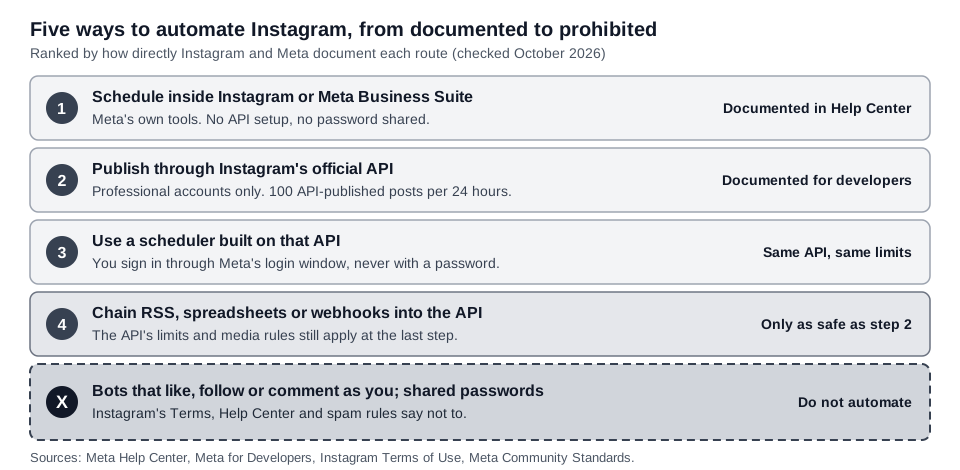
Yes, within limits. "Automate" covers five different things, and Instagram treats them very differently. The table ranks them by how directly Meta documents them, not by convenience.
| Route | How Meta documents it | What to watch |
|---|---|---|
| 1. Schedule in Instagram or Meta Business Suite | Help Center pages give the steps | How far ahead you can schedule; features that do not work with scheduled posts |
| 2. Your own app on the Instagram API | Developer docs, professional accounts only | 100 API-published posts per 24 hours, token renewal, media specs |
| 3. A scheduler built on that API | Same API, reached through Meta's login window | Sign in through Meta, never with your password |
| 4. RSS, spreadsheet or webhook workflow | Meta documents no RSS or spreadsheet step | The post still has to reach Instagram through the API, with its limits |
| 5. Third-party bots that like, follow or comment as you | Instagram's Help Center and spam rules | Removed engagement, limited or disabled account |
How do you schedule Instagram posts without any API?
Meta's Help Center says you can schedule reels, photos and carousel posts from the Instagram app if you have an eligible public account. Without a subscription you can schedule up to 30 days ahead. With a Meta One Advanced, Expert or Max plan, Meta says you can schedule up to a year (365 days) ahead, and that this is not available to teens.
The steps in Meta's scheduling help page:
- Tap + Create, then Post or Reel.
- Select a photo or video, then tap Next and add a caption.
- Tap More options and turn on Schedule this post or Schedule this reel.
- Choose a date and time, tap Done, tap Back, then tap Schedule.
The same page says product tagging, collaborative posts, sponsored posts and fundraisers are not compatible with scheduled content. To review or change a scheduled item, go to your profile menu and tap Scheduled content. Our guide to seeing scheduled posts on Instagram covers finding them.
On a computer, the Meta Business Help Centre describes creating and scheduling posts in Meta Business Suite. You need full control of, or content permission for, the Instagram account. Choose it under Post to, then pick a date and time under Scheduling options. That page says the limit for posting to Instagram is ten photos, and it does not state how far ahead you can schedule.
This is the safest level: no password is shared and nothing needs setting up. Each post is still made by hand, but it goes out without you.
How does automatic Instagram posting work through the official API?
Meta's Instagram Platform lets an app publish single images, videos, reels and carousel posts to Instagram professional accounts. Its overview says app users must have a professional account, which can be a business or a creator account. A personal account is not on the list of supported accounts.
Which accounts and logins work?
Meta's overview describes two setups. Instagram API with Instagram Login serves professional accounts without requiring a linked Facebook Page. Instagram API with Facebook Login serves accounts linked to a Facebook Page, and the person must be able to perform admin-equivalent tasks on that Page.
The overview also describes two access levels. Standard Access is the default, and Meta says it is all an app needs if it only serves your own account or an account you manage. Advanced Access is required to serve accounts you do not own or manage, and it requires App Review and Business Verification.
What can the API publish, and what are the limits?
Meta's Content Publishing guide (updated June 30, 2026) describes a three-step flow: create a container for the media, let Instagram process it, then publish it. Meta fetches your media itself, so it must sit on a publicly accessible server when the attempt runs.
To automate Instagram Reels, you create the container with the media type set to REELS and a video URL. Stories are also supported, but Meta's media reference says link, poll and location stickers cannot be published. Reels cannot go in carousels, which hold up to 10 items. The Content Publishing guide lists shopping tags and filters as unsupported, although the media reference documents a product_tags field, so check the live reference before relying on either.
The media reference gives these specifications:
| Type | Format and size | Length and shape |
|---|---|---|
| Feed image | JPEG only, 8 MB maximum | Aspect ratio from 4:5 to 1.91:1 |
| Reel | MP4 or MOV, 300 MB maximum | 3 seconds to 15 minutes; 9:16 recommended |
| Story video | MP4 or MOV, 100 MB maximum | 3 to 60 seconds; 9:16 recommended |
Captions can run to 2,200 characters, with up to 30 hashtags and 20 @ tags. On volume, Meta's guide says an account is limited to 100 API-published posts within a 24-hour moving period, and a carousel counts as one post. A line in the carousel section of the same page still says 50, so check the live number with Meta's content_publishing_limit endpoint rather than assuming. The media reference adds that an account can create 400 containers in a rolling 24 hours.
How do you set up safe Instagram automation, step by step?
These steps are for the official API route, through a scheduling tool or your own Meta app. With a tool you write no code. The order and the final test are our suggestion; the requirements come from Meta's documentation.
- Make the account professional. Switch it to a business or creator account. Meta's overview lists professional accounts as the only supported type.
- Pick the login path. Instagram Login does not require a linked Facebook Page. Facebook Login is the route for accounts linked to a Page, and then your Facebook user needs admin-equivalent tasks on that Page.
- Check the Page requirements. Meta says that if the linked Page requires Page Publishing Authorization, you cannot publish until it is completed. It advises completing it ahead of time. If the Page requires two-factor authentication, the Facebook user must have done it too.
- Choose who holds the API access. Either a tool that Meta has already approved, where you sign in through Meta's window, or your own Meta app for your own account, where Standard Access is enough. For your own app, Meta says to set up business login in the App Dashboard to get an Instagram app ID and secret, then generate a long-lived token.
- Grant publishing permission only. Meta names
instagram_business_content_publishfor the Instagram Login route andinstagram_content_publishfor the Facebook Login route. A tool's consent screen will show these in plain wording. - Prepare media to Meta's specs. Use the table above, and make sure any media URL is public when the post runs.
- Test with one post, then schedule a small batch. Open the published post on Instagram and confirm it looks right. Then add alerts for failures and token expiry, and keep daily volume well under the limit.
Can you automate Instagram with RSS, spreadsheets or a scheduler?
Yes, if the last step is Meta's API and the tool signs in the way Meta requires. Meta's Platform Terms (last updated February 3, 2026) say an app may use Meta products to authenticate users but must not separately request or collect a Meta user's login credentials. They also say an app must protect access tokens and not transfer, share or solicit them.
So a legitimate scheduler shows you Meta's own permission window. If a tool asks you to type your Instagram username and password into its own form, do not use it.
Meta documents no RSS or spreadsheet trigger for Instagram. Those belong to the workflow tool. What reaches Instagram is a publish request through the API, so the limits and media specs above apply. Three habits help:
- Give every item media. The container parameters Meta documents start from an image or video URL, so a text-only RSS item has nothing to publish.
- Enforce the limit yourself. Meta's guide recommends that apps enforce the publishing limit, especially when they schedule posts for the future.
- Prevent duplicates. A feed that re-sends old items spends your 100-post allowance. Use a unique key per item if your tool offers one.
What can break Instagram auto posting?
- Token expiry. On the Instagram Login route, Meta says a long-lived Instagram user token is valid for 60 days. The Facebook Login route uses Page tokens, which this guide does not cover. Its refresh endpoint renews a token for another 60 days, but only if it is at least 24 hours old and has not expired. Once it lapses, you reconnect.
- Account type or Page changes. A personal account is not supported. A Page that later requires Page Publishing Authorization or two-factor authentication stops publishing until that is done.
- Media specs. JPEG is the only image format, and Meta says extended formats such as MPO and JPS are not supported. It recommends URLs made only of US ASCII characters, or the request fails.
- Containers and status. Containers expire after 24 hours. Meta recommends checking a container's status once a minute for no more than five minutes. The status values are EXPIRED, ERROR, FINISHED, IN_PROGRESS and PUBLISHED.
- Limits. The 100-post and 400-container limits above, plus a call limit that Meta sets at 4,800 times the impressions your account's content had in the last 24 hours.
What should you never automate on Instagram?
Do not use bots that like, follow or comment as you, and never give any tool your username, password or access token outside Meta's login flow. These Instagram and Meta documents are the closest rules:
- Terms of Use. Section 4.2 of the Terms of Use (effective January 1, 2025) says you cannot create accounts or access or collect information "in an automated way without our express permission". That clause is about accounts and data collection, not posting through Meta's API, which the Terms say is subject to the Meta Platform Terms and Developer Policies. It also bars soliciting, collecting or using other people's login credentials, and misappropriating access tokens. Section 6 lets Instagram remove content or disable accounts that violate the Terms.
- Help Center. Instagram's page on apps that offer likes and followers says you should not use these apps or let anyone else access your account. It says Instagram may remove engagement they generated, limit parts of the account, or disable or terminate it.
- Spam standard. Meta's Spam Community Standards do not allow posting, sharing or engaging with content, or creating accounts, manually or automatically, at very high frequencies. Meta may also restrict accounts at lower frequencies when other spam signals are present.
- Developer Policies. Meta's Developer Policies say not to use the Instagram Platform to manage Instagram relationships without Meta's prior permission. For messaging, they bar spam as the Community Standards define it and require opt-in before you contact people.
Some limits are not stated. Meta gives no number for "very high frequencies". We found no separate Instagram page titled as an automation policy. The Terms and Help Center now refer to Community Standards, so older pages that say Community Guidelines may be out of date.
Meta's Developer Policies include a section for the Instagram Messaging APIs, and its Business Help Centre has an article on Inbox automations. We did not review either for this guide, so we make no claim about what they allow.
What can TrackMedia automate on Instagram?
TrackMedia publishes to Instagram through the official API route above, and it does not run likes, follows, comments or DM bots. It connects through Meta's login window, either through a linked Facebook Page or through Instagram (no Facebook Page), and it never asks for your Instagram password. Based on its code:
- What it publishes. Single images and carousels of up to 10 items, with captions of up to 2,200 characters. Upload JPEG images: Meta accepts only JPEG through its API, and TrackMedia does not convert other formats for you. Reels can be requested with a per-target setting in the API; the web composer has no Reel option yet. We have not confirmed how Instagram handles a plain video sent without that setting. A post with no media is rejected, since Instagram needs an image or video.
- What it cannot publish. Stories. TrackMedia has no Story publishing, so use the Instagram app for those.
- How it publishes. It uses the container flow and waits for Instagram to finish processing before publishing. It can also add a first comment after publishing; if that comment fails, the post still goes out and the failure is only logged.
- Scheduling. Save a draft, schedule, queue or publish now. Scheduled posts publish server-side, so nothing has to stay running on your computer. See how publishing works.
- Developer and agent controls. A REST API, SDK, CLI and MCP server. The CLI has a
--dry-runflag that checks a post against each platform and creates nothing. Writes accept an idempotency key, and webhooks are signed. - Failure handling. Webhooks cover
post.published,post.failed,account.token_expiring(expires within 7 days) andaccount.needs_reconnect. Temporary errors and rate limits are retried with backoff, and media errors are retried up to three times. An expired connection is not retried and needs a reconnect.
TrackMedia has no built-in RSS or spreadsheet trigger. If you want one, a workflow tool can call its API or CLI. TrackMedia's crosspost rules start switched off and in review mode, but today they can only watch Bluesky, so they do not copy posts out of Instagram. To send the same post to Facebook as well, see how to post to Instagram and Facebook at the same time. Captions are not clickable, so track clicks from your bio link as in how to see who clicked your Instagram link.
Next step
To schedule Instagram posts through the official API without writing code, start for free with TrackMedia.
How we checked this
The TrackMedia Team read each page below on October 6, 2026, for the claims attributed to it above. We did not run the API against a live Instagram account or test any third-party tool for this guide. Statements about TrackMedia come from reading its own code.
- Instagram Platform overview, Meta for Developers.
- Content Publishing, Meta for Developers.
- IG User Media, Meta for Developers.
- Refresh Access Token and Business Login for Instagram, Meta for Developers.
- How to schedule posts and reels further in advance on Instagram with Meta One, Meta Help Center.
- Create and manage posts in Meta Business Suite on desktop, Meta Business Help Centre.
- Terms of Use, Instagram Help Center. Sections 4.2 and 6, effective January 1, 2025.
- Why you should not use apps that offer likes and followers on Instagram, Instagram Help Center.
- Spam, Community Standards, Meta Transparency Center.
- Meta Platform Terms and Meta Developer Policies, both last updated February 3, 2026.