To see scheduled posts on Instagram, open your profile in the Instagram app, tap Menu, and choose Scheduled content under Your insights and tools. Tap Options next to any post or Reel there to delete it, edit it, reschedule it or share it now.
This guide uses the exact menu wording from Instagram's Help Center and Meta's Business Help Centre, read on October 6, 2026. It also covers Stories and desktop, what to do when a scheduled post seems to be missing, and the limits Instagram documents.
How to see scheduled posts on Instagram in the app
Instagram's Help Center page on creating and managing scheduled posts and Reels says there are two ways to reach your scheduled content. The first is from your profile:
- Open your profile. Tap Profile or your profile picture in the bottom right.
- Open the menu. Tap Menu in the top right.
- Tap Scheduled content. It sits below Your insights and tools.
- Find your post or Reel. Tap Options next to it to see what you can do.
Another place to find scheduled posts: the Create screen
The same page describes a second route. Tap Create in the top left, or swipe right anywhere in Feed, then tap Post or Reel. Tap Scheduled to see your scheduled content, select the item, and tap Options.
Menus move around between app versions, so if your screen differs, go by the label names rather than the positions.
Where to see scheduled Reels, Stories and carousels
A scheduled carousel lives with your other scheduled posts, and a scheduled Reel appears in the same list. Stories are the exception, because Instagram's scheduling page does not list them. Here is where each type is documented, as of October 6, 2026:
| Content type | Instagram app | Meta Business Suite (desktop) |
|---|---|---|
| Photo post or carousel | Profile, Menu, Scheduled content | Content, Posts and reels tab, Scheduled |
| Reel | Profile, Menu, Scheduled content | Content, Posts and reels tab, Scheduled |
| Story | Not listed on Instagram's scheduling page | Content, Stories tab, Scheduled |
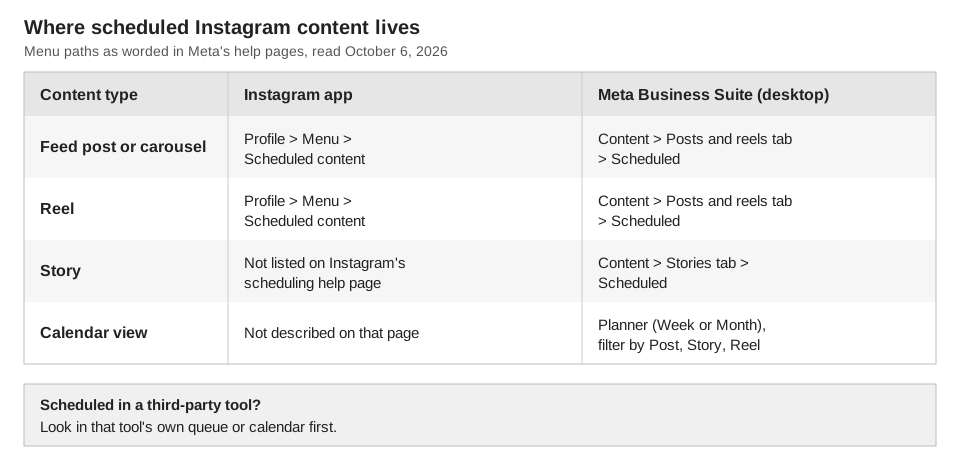
Instagram's page describes scheduling Reels, photos and carousel posts from the app. For scheduled Stories, Meta's help pages point to Meta Business Suite, covered next.
How to view scheduled posts on Instagram from a computer
Instagram's own scheduling page describes only the app, and its Computer Help view shows the same app steps. For a desktop view, Meta's Business Help Centre documents Meta Business Suite, which can schedule and manage content for both Facebook and Instagram.
To see scheduled posts and Reels in Meta Business Suite, Meta's guide to managing posts on desktop gives these steps:
- Go to Meta Business Suite and choose your Instagram account.
- Click Content in the left-hand menu.
- On the Posts and reels tab, pick Scheduled. The other tabs are Published, Drafts, Expiring and Expired.
For Stories, Meta's page on managing stories says to click the Content tab, then the Stories tab, then choose Active, Scheduled or Archived.
The Planner calendar view
Meta's Planner page describes a calendar of your posts, stories, reels and ads, including content scheduled in Meta Business Suite. Click Planner in the left menu, switch between Week and Month, and use the Content type filter to show only posts, stories or reels. The Shared to filter narrows it to your Instagram account.
Meta says that if you cannot see Planner, you may not have the relevant permissions. Meta's page on creating posts adds that you need full control of the Instagram account or content permission for it.
Meta Business Suite on your phone
The Meta Business Suite mobile app has its own steps. In its rescheduling guide, you tap Posts, then Scheduled, and select the post. For stories you tap Stories, then Scheduled. Meta's two mobile pages name the bottom-menu item differently ("Content" in one, "Posts and stories" in the other), so go by what your app shows.
What about Creator Studio?
You may still see Creator Studio mentioned as a place to schedule from a computer. As of October 6, 2026, Meta's page About the Creator Studio app describes Creator Studio as a mobile app for Facebook creators, available on iOS. That page does not mention scheduling Instagram posts, so we point to Meta Business Suite instead.
Meta Business Suite works with both networks, so our guide to seeing and editing scheduled posts on Facebook covers the Facebook side.
How to edit a scheduled post on Instagram
In the app, find the item in Scheduled content, tap Options, and choose Edit post to change the post or Reschedule to change its date and time. Instagram's page lists these four options: Delete, Edit post, Reschedule and Share now.
Instagram's page does not say which parts of a scheduled post Edit post lets you change, such as the caption, the media or the tags. Open one and see what the screen allows, because we can't promise more than the page says.
In Meta Business Suite on desktop, click the ... icon on a scheduled post, then Manage post. Meta lists options that differ by the post's status, including Edit post, Reschedule post, Move to drafts, Delete post and Add collaborator. For reels the list includes Edit reel, Reschedule post and Delete reel.
What scheduled content keeps, and what it can't use
- It keeps your settings. Instagram says scheduled content retains the privacy and audience settings configured when you scheduled it.
- Some features don't work with it. Instagram says product tagging, collaborative posts, sponsored posts and fundraisers are not compatible with scheduled content at the moment.
How to cancel, delete or unschedule a scheduled post on Instagram
To cancel a scheduled post in the Instagram app, open Scheduled content, tap Options next to it and choose Delete. Instagram's page does not list a separate "unschedule" option, so Delete is the documented way to stop it from publishing.
If you only want it to go out at a different time, choose Reschedule. If you want it out now, choose Share now.
In Meta Business Suite, the options also include Move to drafts for posts and reels, and the stories page lists publish, reschedule and delete. Meta's page doesn't describe what happens to the scheduled time after Move to drafts, so check the post afterward.
Why can't I find my scheduled post on Instagram?
A scheduled post can seem to be missing when it sits in a different list from the one you are checking. Work through these in order.
- It is a draft. Instagram's help page on saving a post as a draft says drafts are saved on your device, can't be opened from another device, and are lost if you uninstall the app. You find them by tapping Create, then Drafts, which is a different place from Scheduled content.
- You scheduled it in Meta Business Suite. Look under Content or Planner there. Instagram's pages do not say whether content scheduled in Meta Business Suite also shows in the app's Scheduled content list, so check both.
- You scheduled it in another tool. See the next section.
- You are on a different account. In Meta Business Suite you pick the Page or Instagram account from the drop-down in the top left, so confirm it is the right one.
- The account is not public. Instagram's page says you must have a public account to schedule. It does not say what happens to scheduled content if an account later becomes private.
- It is a scheduled live video. Scheduled lives are handled through Create, then Live, then Schedule, not through Scheduled content.
We could not find an Instagram help page describing what a scheduled post does when publishing fails, or how you are told. If a post did not go out, check your profile first, then Scheduled content, and contact Instagram support from the Help Center.
If you used a third-party scheduling tool
Look in that tool first. Meta's Instagram Platform content publishing guide describes publishing as two calls: create a media container, then publish it. The guide lists no field for a future publish time, and says a container that is not published within 24 hours expires.
The guide also tells developers to enforce the publishing limit themselves "if your app allows app users to schedule posts". Our reading is that tools built on this route keep the schedule themselves, so it will not appear in Instagram's list. For how that works, see how to automate Instagram posts.
What are Instagram's scheduling limits?
Instagram's Help Center lists these conditions for scheduling from the app, as of October 6, 2026:
- You must have a public account.
- You can schedule up to 25 posts a day, up to 30 days in advance. Meta's separate Meta One help page says Meta One Advanced, Expert and Max plans extend that to a year (365 days), and not for teens.
- The page covers reels, photos and carousel posts.
- Product tagging, collaborative posts, sponsored posts and fundraisers are not compatible.
The page gives the limit as 25 posts a day without spelling out whether that counts the day you schedule or the day the post goes out. Limits can change, so check the page before you plan a large batch.
How TrackMedia shows scheduled Instagram posts
If you schedule through TrackMedia, the schedule is held by TrackMedia and the post is published at the time you chose. So look for it in TrackMedia, not in Instagram's Scheduled content list. This is what TrackMedia does today:
- Find it. The Posts page lists everything you have drafted, scheduled or published, with a status filter that includes Scheduled. The Calendar shows scheduled and published posts, and you can drag a post to another day.
- Change it. Open a scheduled post to Edit, Publish now, Unschedule or Delete it. Deleting removes it from the queue so it is not published anywhere, and anything already published stays on the platform.
- See failures. A post that did not go out shows as Failed with the reason, a Retry now button and, when the account needs it, a reconnect link.
For Instagram, TrackMedia publishes images and carousels of up to 10 items. It does not publish Stories, and it cannot delete an Instagram post once it has gone out. Reels can be requested through the API but are not an option in the web composer, and Instagram does not let any API publish a Reel that uses in-app audio, effects or trending templates. Instagram accepts only JPEG images through its API, and TrackMedia does not convert other formats for you.
See how publishing works in TrackMedia, or the guide to posting to Instagram and Facebook at the same time.
What to do next
If you would rather keep every scheduled post in one place, you can start free with TrackMedia.
How we checked this
We opened each page below on October 6, 2026 and copied menu names and limits from it. We did not test scheduling on a live Instagram account, so where a page is silent we say so instead of guessing. Instagram changes its menus, so check the live page if a label looks different. The pages on drafts and scheduled lives are device-gated, so we read their iPhone app versions.
- How to create and manage scheduled posts and Reels on Instagram (Instagram Help Center): steps, Scheduled content path, options, limits, incompatible features.
- Save a post as a draft on Instagram (Instagram Help Center): where drafts live.
- Schedule a live video on Instagram (Instagram Help Center): scheduled lives are separate.
- Create and manage posts in Meta Business Suite on desktop (Meta Business Help Centre): Content, Posts and reels, Scheduled, and post options.
- Create and manage reels in Meta Business Suite (Meta Business Help Centre): reel options.
- Create and manage stories in Meta Business Suite (Meta Business Help Centre): scheduled Stories path.
- Use Planner in Meta Business Suite on desktop (Meta Business Help Centre): calendar view and filters.
- Schedule Facebook and Instagram content on Meta Business Suite mobile app and Reschedule posts and stories on Meta Business Suite mobile (Meta Business Help Centre): mobile steps.
- About the Creator Studio app (Meta Business Help Centre): what Creator Studio is now.
- Content Publishing (Meta for Developers, Instagram Platform): container and publish flow, 24-hour container expiry.
- Meta, Schedule Instagram posts with Meta One (the 365-day option).
TrackMedia's own behavior comes from our product and its Instagram connector code, read the same day.