There is no single best time to post on YouTube, and YouTube does not publish one. What it does give you is a report in YouTube Studio, When your viewers are on YouTube, that shows when your own viewers are online. YouTube's page names Premieres and live streams as uses for it, so treat it as a source of times to test when you publish YouTube videos, not as a verdict.
We read every YouTube page below on October 6, 2026, and use no third-party studies or statistics.
Is there a best time to post on YouTube?
YouTube's Help Center does not name one. We read its pages on upload schedules, Analytics and scheduling for a recommended day or hour and found none. The closest thing is the audience report below, which YouTube says you can use to "understand when to schedule a Premiere, or to plan your next live stream". It does not mention regular uploads.
YouTube's Upload schedule tips page frames the question differently. It says "a consistent, sustainable release schedule is critical", and it asks you to review frequency, consistency and content volume. That is advice about rhythm, not about a clock time. The Content tab analytics tips page says only that over time the Views metric can help you "decide when to upload new videos", without naming an hour.
Where do you see when your viewers are on YouTube?
Open YouTube Studio, select Analytics, then select Audience from the top menu, and look for When your viewers are on YouTube. YouTube's Understand your YouTube audience page says this report "shows you when your viewers are online across YouTube in the last 28 days".
In the YouTube Studio app for Android, YouTube's page says to tap Analytics in the bottom menu, then Audience in the top menu. YouTube's Get started with YouTube Analytics page adds that a rollout of an updated Studio began in July 2026, so your screen may look different from these labels.
What the report does not tell you
Read it as a map of when people are on YouTube, not a forecast. YouTube's page does not say the report predicts views for a video published at a given hour, which time zone it uses, or whether it separates Shorts from long videos. Compare its hours with your own clock before you act on them.
How do you schedule a YouTube video for a specific time?
Upload the video in YouTube Studio, click the Schedule card, set the date, time and time zone, and select Schedule. YouTube's Schedule video publish time page lists these steps:
- Sign in to YouTube Studio (or use the YouTube app).
- Select CREATE, then Upload videos.
- Choose the file and enter your video details.
- Click the Schedule card.
- Set the date, time, and time zone you want, then select Schedule.
One detail from that page matters when you compare days. YouTube says the "Published on" date on the watch page is based on Pacific Standard Time, so a video scheduled to go public in a time zone ahead of Pacific Standard Time can show a different date on the watch page than in Studio.
How do you test your best time to publish YouTube videos?
Pick two times from the audience report, publish comparable videos at each, and compare them over the same window. YouTube gives no testing method, so the steps below are ours, built from reports YouTube documents.
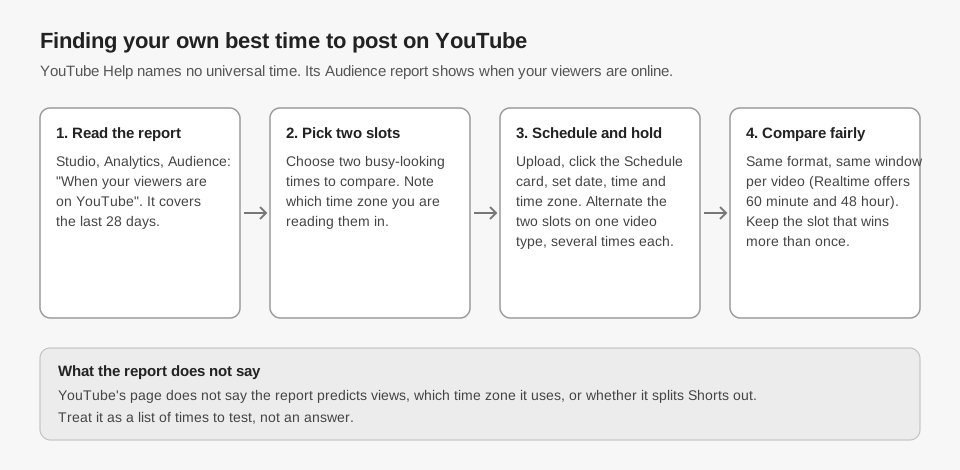
- Choose two slots. Use the audience report to pick two different weekday-and-hour combinations, such as a weekday evening and a weekend morning in your own time zone.
- Keep everything else alike. YouTube's Content tab analytics tips says that if you produce several formats, "it's key to compare videos of the same type". Test Shorts against Shorts and long videos against long videos.
- Alternate and repeat. Schedule the slots in turn across several uploads each. A single video proves little, because topic and title can swamp the effect of the hour.
- Compare over the same window. YouTube's Overview tab page says the Realtime report gives early insights into recently published videos, and that the expanded report can compare 60 minute and 48 hour performance. Use one of those windows for every video.
- Keep what repeats. If one slot wins more than once, keep it and test a new challenger. If the two look alike, you have no evidence yet that the time matters for your channel.
For example, schedule 3 comparable videos on Thursday evenings and 3 on Saturday mornings, note each video's views at 48 hours, and compare the two groups. If they overlap heavily, you have not found a difference.
What is the best time to post YouTube Shorts?
YouTube does not publish a best time for Shorts either, so the same test applies. Compare Shorts only with other Shorts, using the Shorts chip on the Content tab, where YouTube's Content tab analytics tips say you will find data on views, comments, remixes and other metrics.
That page says the Views metric can help you "figure out when to upload new Shorts", but it gives no hour or day.
YouTube's Upload YouTube Shorts page describes uploading a Short (up to 3 minutes, square or vertical) from CREATE then Upload videos; for file rules see our guide to YouTube Shorts length, size and aspect ratio. That page does not mention scheduling, and the scheduling page does not mention Shorts, so we could not confirm from either that a Short can be scheduled the same way. Check the upload screen in your own Studio.
How does TrackMedia help you find your best time?
TrackMedia's Best times tab on the Analytics page averages engagement by publish hour from your own posts. TrackMedia's code includes a YouTube connector that reads views, likes and comments and can import a channel's existing uploads, so imported videos can feed the grid. Here is what the view does, read from the code on October 6, 2026:
- Shows a weekday-by-hour grid titled "When your posts land best", in your workspace's time zone, built from posts that actually went out in the range you pick. Network and account filters narrow it to YouTube.
- Ranks only slots with enough posts. "Your strongest slots" lists only slots with at least 3 posts behind them. Slots with fewer are shown greyed and labelled as too few to rank.
- Suggests times in the composer. When scheduling in TrackMedia's composer, slots that passed that bar, from the last 90 days, appear as quick picks labelled "Best".
For YouTube, TrackMedia computes engagement rate as likes plus comments divided by views, capped at 100 percent. That is TrackMedia's own figure, not a YouTube metric, and it says nothing about watch time or retention.
What TrackMedia cannot tell you
- It does not read YouTube's "When your viewers are on YouTube" report, so use YouTube Studio to choose your candidate slots.
- The grid looks backward at what you already published, so a channel that uploads weekly fills it slowly.
- By default, a post scheduled in TrackMedia is held by TrackMedia and uploaded at the chosen time, so do not expect it in YouTube Studio's scheduled list beforehand. The YouTube connector can pass a publish time to YouTube from a per-post override, but we found nothing in the web composer that sets one and did not test it. We did not confirm that YouTube uploads are live in the production deployment.
If you want one calendar for the times you decide to test, you can start free with TrackMedia.
How we checked this
We opened each page below in a browser on October 6, 2026 and copied labels and wording from it. We did not test any of this on a live YouTube channel, so the testing steps are our method, not YouTube's.
- Understand your YouTube audience (YouTube Help, computer and Android views): the report name, 28-day window, the uses it names (Premieres, live streams, community), Studio and Android app paths.
- Get started with YouTube Analytics (YouTube Help): path to Analytics and the July 2026 Studio rollout note.
- Schedule video publish time (YouTube Help): scheduling steps and the Pacific Standard Time note on the watch-page date.
- Upload schedule tips (YouTube Help, Video and Shorts views): frequency, consistency, scheduling advice.
- Content tab analytics tips (YouTube Help, Video and Shorts views): Shorts chip, "compare videos of the same type", and the Views insight in both the Video and Shorts views.
- Get an overview of channel performance (YouTube Help): Realtime report and the 60 minute and 48 hour comparison.
- Upload YouTube Shorts (YouTube Help): up to 3 minutes, square or vertical, upload path.
What we could not verify: any YouTube-recommended day or hour, which time zone the audience report uses, whether it splits Shorts from other content, whether it is meant for regular uploads (YouTube names Premieres and live streams), whether posting at its busy times raises views, and whether a Short can be scheduled from the upload screen. We make no claim on those. TrackMedia's behavior comes from its analytics, composer and YouTube connector code, read the same day; we did not run it against a live YouTube channel.