The YouTube Shorts aspect ratio is square or vertical, and a Short can be up to 3 minutes long. YouTube Help says a video that meets both rules and was uploaded on or after October 15, 2024 is categorized as a Short.
This guide covers length, dimensions, resolution, file limits, how YouTube decides what counts as a Short, and how to upload and schedule one. Every number below comes from a YouTube Help page read on October 6, 2026, and we say so where YouTube's pages are silent or differ from each other.
What is the YouTube Shorts aspect ratio?
YouTube's Upload YouTube Shorts page asks for a short-video file "with a square or vertical aspect ratio". It does not name a single required ratio such as 9:16, so 1:1 square video and tall vertical video both qualify.
YouTube's page on video resolution and aspect ratios uses 9:16 as its example of a vertical video. It also says YouTube's player adapts to each video's shape, and that on computer browsers a 9:16 video may get padding, white by default and dark gray in Dark theme. It advises against adding padding or black bars to your own file.
What YouTube does not publish is the exact cutoff between "vertical" and "square". A 4:5 portrait video is taller than it is wide, so it is vertical in the ordinary sense, but we found no YouTube page that names a cutoff or rules on it. If the shape matters to you, upload a test and check whether it lands in the Shorts feed.
How long can a YouTube Short be?
A Short can be up to three minutes long. YouTube's Understand three-minute YouTube Shorts page says videos on standard channels uploaded on or after October 15, 2024, with a square or vertical aspect ratio up to three minutes, "will be categorized as Shorts". That is the current YouTube Shorts time limit, as of October 2026.
Three details from that page are easy to miss:
- The date matters. YouTube's page says videos uploaded before October 15, 2024 "will remain the same, as a long-form video". It does not say what applies to older videos under a minute.
- Official Artist Channels use a later date. The page gives December 8, 2025 for those channels and for channels linked to a music content owner.
- Longer Shorts have a copyright catch. A Short over one minute with an active Content ID claim of any type is blocked globally on YouTube, and it is not eligible for monetization. The page says there are no penalties to your channel.
You may still see articles that give a shorter limit. We did not find a YouTube page that states the earlier limit, so we do not repeat it as fact. Go by the three-minute page above.
Music has its own limit inside a long Short. The same page says most songs in the Shorts Audio Library can be used for up to 90 seconds in a 3 minute Short, and some tracks are limited to 60 or 30 seconds. The upload page separately says audio picked from the library in the app editor is limited to 15-second clips. YouTube does not explain how the two figures relate, so check the editor before you plan a long Short around one song.
What are the YouTube Shorts dimensions and resolution?
YouTube Help gives a resolution ceiling for Shorts but no required pixel dimensions. The Get started creating YouTube Shorts page says: "You can upload Short videos with a maximum resolution of 1080p."
The page does not list a width and height. The resolution page only lists sizes for the default 16:9 ratio, such as 1920x1080 for 1080p. A common vertical choice is 1080 pixels wide by 1920 tall, which is 9:16. That figure is our arithmetic from the 1080p ceiling and the 9:16 example, not a number YouTube prints for Shorts.
YouTube's pages also differ in scope. The general recommended upload encoding settings list resolutions from 8K down to 360p for ordinary videos, while the Shorts page states the 1080p maximum. For a Short, plan around 1080p.
What is the YouTube Shorts size and file limit?
We found no file-size limit written specifically for Shorts. YouTube's upload limits page gives the general rule: "The maximum file size you can upload is 256 GB or 12 hours, whichever is less." A three-minute Short at 1080p is far below either number.
These are the other documented limits that apply when you upload a Short:
| Item | Limit | Source page |
|---|---|---|
| Title | 100 characters max | Upload YouTube Shorts (mobile steps) |
| Description | 5,000 characters max | Upload YouTube videos |
| Files at once on computer | Up to 15 | Upload YouTube Shorts |
| Library audio added in the app | 15-second clips | Upload YouTube Shorts (mobile steps) |
For encoding, YouTube's recommended settings are an MP4 container, H.264 video, AAC-LC audio (the page also lists Opus) at 48kHz, and 8 Mbps for standard-frame-rate 1080p. That page carries a note that some features are limited to partners using YouTube Studio Content Manager, so treat the numbers as guidance for any upload, not a Shorts requirement.
How does YouTube decide a video is a Short?
The YouTube pages we read describe the file's shape and length, not a setting you choose. A square or vertical video of three minutes or less uploaded on or after October 15, 2024 is categorized as a Short, and a wider or longer video is not covered by that rule.
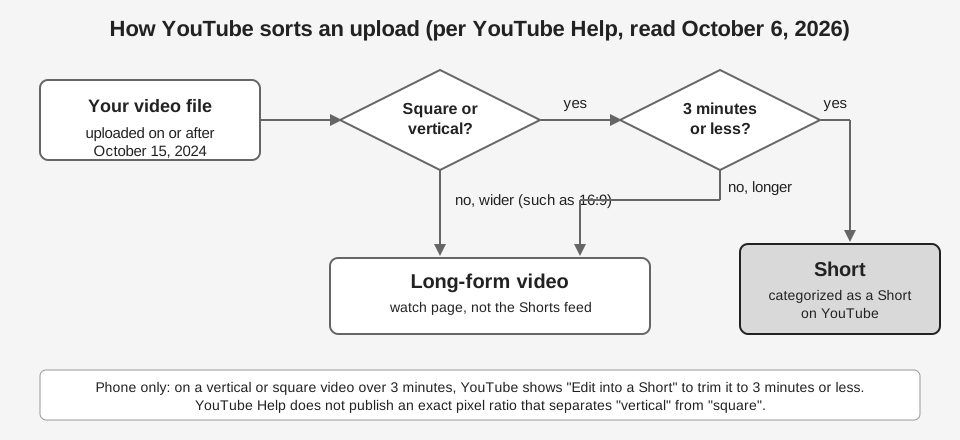
If you do not want a video to become a Short, YouTube's three-minute page says to use a wider aspect ratio such as 16:9. A vertical clip a little over 3 minutes is not covered by the Short rule, so it stays a normal video unless you trim it.
On a phone, a longer vertical or square video has a way out. YouTube's mobile upload steps say that videos up to 3 minutes show a trim editor, and for longer videos you tap Edit into a Short to trim to 3 minutes or less.
How to upload a YouTube Short
You can upload a Short from a computer in YouTube Studio or from the YouTube app. There is no separate Shorts upload type on the computer: you upload a qualifying file and YouTube classifies it.
Upload a Short from a computer
These steps come from the computer version of YouTube's Upload YouTube Shorts page:
- Sign in to YouTube Studio.
- Create the upload. In the top-right corner, click CREATE, then Upload videos.
- Pick a qualifying file. It must be up to 3 minutes with a square or vertical aspect ratio. You can choose up to 15 at once.
- Finish the details. Click EDIT DRAFT to complete the video details before publishing.
Upload a Short from your phone
The Android and iPhone versions of the same page list these steps in the YouTube app:
- Start the upload. Tap Create, then Upload a video.
- Choose a square or vertical video. Drag the trim bar for start and end times, or tap Edit into a Short if it runs past 3 minutes.
- Edit. Tap NEXT to add text, filters, music or other audio.
- Add details. Tap NEXT again for a title (max 100 characters) and privacy settings.
- Choose an audience. Tap Select audience and pick "Yes, it's made for kids" or "No, it's not made for kids".
- Publish. Tap UPLOAD.
In the YouTube Studio app the final button is UPLOAD SHORT. To record a Short in the app instead, YouTube's getting started page says to tap Create, select Short, then hold or tap Capture, and finish with Upload Short or Save draft.
One default to know: YouTube says the default video privacy setting is private for creators aged 13 to 17 and public for creators 18 and older.
Can you schedule a YouTube Short?
YouTube Studio has one scheduling flow for videos, and YouTube's Schedule video publish time page does not carve Shorts out of it. Its steps are to select CREATE then Upload videos, enter your details, click the Schedule card, set the date, time and time zone, and select Schedule.
The page says you must first set the video as "scheduled" or "private" on the upload page, and the video goes public at the time you chose. To change it later, open Content in the left menu, select the video, keep visibility at Private, click EDIT DRAFT and pick a new time under "Schedule".
Three limits are worth knowing:
- No Premieres for Shorts. YouTube's Premiere page notes: "Shorts aren't supported for Premieres." Scheduling a Short is the normal route, a Premiere is not.
- Strikes block publishing. If your account has a Community Guidelines strike, the scheduled video does not publish during the penalty period. It is set to private and you must reschedule it.
- The watch-page date uses Pacific time. The date shown on the watch page is based on Pacific Standard Time, so it can differ from Studio if you schedule from a time zone ahead of PST.
The scheduling page says to sign in to YouTube Studio "or use the YouTube app" and does not describe a separate Shorts flow, so the steps above are the computer version. Other networks treat scheduled video differently. For comparison, see whether scheduling a TikTok affects views and how long an Instagram Reel can be.
How does TrackMedia handle YouTube Shorts?
TrackMedia has a YouTube connector that uploads one video per post through the YouTube Data API, and the connector has no Shorts switch. Per its code, a Short is an ordinary upload that qualifies by shape and length. This is what the code does today:
- Upload. It opens a YouTube resumable upload session and sends the file in 8 MB pieces. We found no code that continues an interrupted upload from where it stopped, so a failed upload is retried from the start. It does not crop or re-encode your video.
- Required fields. A video and a title are required. A title over 100 characters or a description over 5,000 is flagged as an error before publishing, and a title cannot contain the characters < or >. Visibility defaults to public, and the made-for-kids setting is sent as "not made for kids" unless an API override says otherwise.
- Short detection. After the upload, TrackMedia treats the video as a Short when it is taller than it is wide and at most 180 seconds, and then links to the youtube.com/shorts address. If it does not know the video's size or length, it links to the normal watch address. YouTube's pages also allow square video, so a square Short can be a Short on YouTube even though TrackMedia's link check would not label it one.
Your TrackMedia schedule is held by TrackMedia and published at the time you choose, so a Short scheduled there does not show up in YouTube Studio's scheduled list until it uploads. You manage it on TrackMedia's Posts page and Calendar, and a failed upload shows the reason with a Retry now button. See how publishing works in TrackMedia.
One honest limit: we confirmed this from the code, not from a live YouTube channel, and we cannot tell you whether YouTube publishing is switched on for your workspace. If you manage several channels, our guide to managing multiple social media accounts covers the workflow, and you can start free with TrackMedia to see what is available.
How we checked this
We opened each YouTube Help page below on October 6, 2026 and copied numbers and menu labels from the page text. We did not upload a test Short or schedule one on a live channel. The Shorts upload page is device-gated, so we read its computer, Android and iPhone versions. TrackMedia's behavior comes from its YouTube connector code, read the same day.
- Understand three-minute YouTube Shorts (YouTube Help): 3 minutes, October 15, 2024 and December 8, 2025 dates, Content ID rule, music limits, wider-ratio advice.
- Upload YouTube Shorts (YouTube Help): square or vertical, up to 3 minutes, computer and mobile steps, Edit into a Short, 15 files, privacy defaults.
- Get started creating YouTube Shorts (YouTube Help): 1080p maximum, recording steps, 100-character title.
- Video resolution and aspect ratios (YouTube Help): 16:9 sizes, 9:16 padding behavior.
- YouTube recommended upload encoding settings (YouTube Help): MP4, H.264, AAC-LC, bitrates.
- Upload videos longer than 15 minutes (YouTube Help): 256 GB or 12 hours.
- Upload YouTube videos (YouTube Help): 5,000-character description, 15 files at once.
- Schedule video publish time (YouTube Help): scheduling steps, strike and Pacific time notes.
- Premiere a new video (YouTube Help): Shorts not supported for Premieres.
We could not verify the exact vertical-versus-square cutoff, any Shorts-only file-size limit, any official pixel dimensions for Shorts, or the earlier Shorts length limit, so none of those are stated as fact. YouTube changes these rules, so check the live pages before a large batch.