A social media approval workflow is a rule that nobody's post goes live until a second person has checked it. TrackMedia does not have an approval gate for ordinary posts: there is no "request approval" button and no review queue. What it does have is drafts, four workspace roles and an approval policy on API keys, and together they are enough to run a review habit that a team can actually keep.
This guide separates what TrackMedia enforces from what only your team's rules enforce, using TrackMedia's own code and the roles pages from Meta and LinkedIn, all read on October 6, 2026.
Does TrackMedia have a social media approval workflow?
Not as a gate. The dashboard sidebar shows an Approvals entry, but it is a disabled item, not a page. Depending on the plan it carries a Soon badge or a lock icon, and the tooltip in our code for the Soon version says the review queue is not built yet and that posts publish straight away. We do not count it as a feature.
The one place TrackMedia has a real approve step today is Crosspost. New Crosspost rules start in Review first mode, each copy waits as a draft marked For review, and a person clicks Approve before it goes out. Today only Bluesky can be the source account that a rule watches, so this covers copies of Bluesky posts and nothing else.
Everything else is built from three parts you control: the Draft status, who holds which role, and what each API key is allowed to do.
How do you set up a social media approval workflow with drafts and roles?
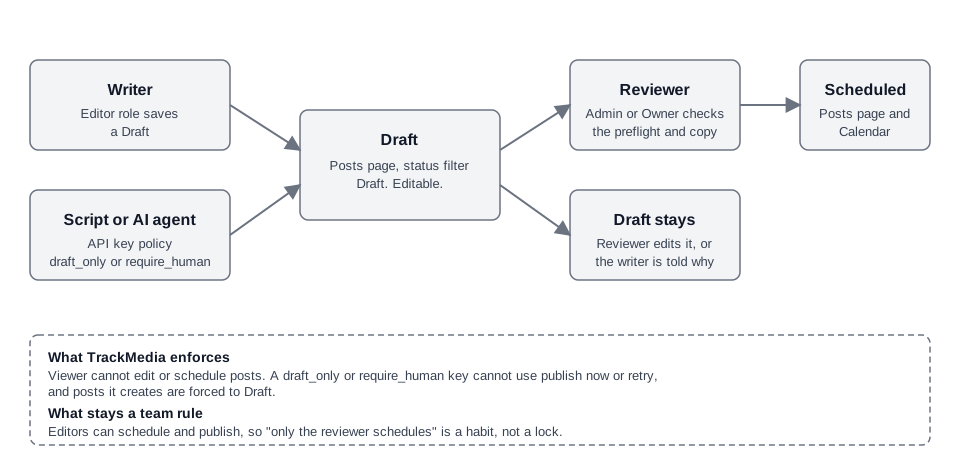
Treat Draft as "waiting for review" and Scheduled as "approved". The writer saves a draft, the reviewer checks it and is the only person who schedules it. These steps assume one workspace per client or brand, which TrackMedia supports with a workspace switcher.
- Give people roles that match the job. Writers get Editor, reviewers get Admin or Owner, and anyone who only needs to watch (a client, a manager) gets Viewer.
- Writers stop at Draft. Write the master draft, tailor the per-network versions, and save without scheduling. A post stays editable while it is a Draft or Scheduled.
- Tell the reviewer where to look. TrackMedia's notification types cover published and failed posts, account reconnects and expiring tokens, invites, system messages and Crosspost problems, and none is for a waiting draft, so use your team chat. The reviewer opens Posts and filters by the Draft status, optionally narrowing by account.
- Review with the composer's own checks. The preflight marks each selected account as ready or lists what Blocks publishing, and a character counter and preview show each network's version. The reviewer fixes small things directly and schedules the post.
- Send rejections back in writing. We found no comment feature on posts, so the reviewer leaves the post as a Draft and tells the writer why in chat.
- Audit the other direction. Filter Posts by Scheduled, or open the Calendar, to confirm that everything queued was reviewed. If something was not, open the post and use Edit or Delete.
What can each TrackMedia role do?
The Team page describes the roles as follows. In the API code we read, one split is enforced: every endpoint that requires a write scope, such as creating, editing, scheduling or deleting posts, is rejected for a Viewer. We did not find the API stopping an Editor from connecting accounts or creating API keys, so treat that part of the table as the intended rule.
| Role | What the Team page says | Review use |
|---|---|---|
| Owner | Everything, including billing and deleting the workspace | Final reviewer |
| Admin | Everything except billing: connect accounts, manage keys, invite people | Reviewer |
| Editor | Write, schedule and publish posts; the Team page says they cannot change accounts or keys (we could not confirm that in the code) | Writer |
| Viewer | Read-only: sees the calendar, posts and analytics, changes nothing | Client or stakeholder |
The catch is in the Editor row. Because an Editor can schedule and publish, the role does not stop a writer from skipping the reviewer. If you need that separation to be technical rather than agreed, TrackMedia cannot give it to you today.
The Viewer role is the one enforced for posts. A client who should see the plan but not touch it can watch the Calendar and Posts pages, and the API rejects their attempts to edit, schedule, publish or delete posts. Our guide to managing multiple social media accounts covers how workspaces keep each client's accounts apart.
How do API key approval policies work for scripts and AI agents?
An API key can be created with one of three approval policies: draft_only, require_human or auto. This is the approval control the API enforces, and it applies to scripts, integrations and AI agents rather than to people using the dashboard.
- draft_only is the default. The dashboard describes it as: everything the key creates stays a draft until a person schedules it.
- require_human is described as "Create, but a human approves". In the API code it behaves like
draft_onlyon create, plus a response header,x-trackmedia-approval-required: true, so the calling script knows a person must release the post. - auto is "Publish without asking". The dashboard warns that anything holding such a key can publish straight to your connected accounts.
In the post service, a draft_only or require_human key that asks to publish or schedule when it creates a post still gets a Draft back. The publish-now and retry endpoints reject those keys with a 403 error saying the policy needs a human to publish. These are the three checks we found, and we describe only those. A person then reviews the draft and schedules it from the dashboard, which is the same flow as the writer steps above.
The MCP server's create_post tool has a mode that defaults to draft, and its description tells the agent to use schedule or publish_now only when a human asked for that in the conversation. Our guide to auto-posting tweets shows where this fits when the automation is a script.
Two settings narrow a key further. Each key has a list of scopes, and the dashboard offers a Read-only preset. Through the API a key can also be created with an expiry date, and the API refuses an expired key. The create-key form also has a Daily publish cap field, but we did not find code that enforces it, so we do not rely on it. We would start every agent on a draft_only key and widen it only after reading what it drafted.
What do Facebook, Instagram and LinkedIn add to an approval workflow?
Their access levels decide who may post at all, but the pages we read do not describe an approve-this-post step. Check your own Page settings before assuming one exists.
- Meta. Meta's page on creating and managing posts in Meta Business Suite says that to create a post you need either full control of the Page or Instagram account, or content permission for it. Its post statuses include Drafts, and a post can be sent there with Move to drafts or saved with Finish later.
- Facebook Page access. About Facebook Page access lists the same Content ability, to create, manage or delete any content on the Page, for both Facebook access and task access. It does not describe a separate approval or read-only-content level for people who manage posts, and it notes that if your Page is part of a business portfolio, your access levels are different.
- LinkedIn. LinkedIn Page admin roles defines Super admin, Content admin (create and manage Page content, including posts) and Analyst (analytics only). Schedule a LinkedIn Page post says super admins and content admins can schedule, anywhere between an hour and three months ahead.
The practical reading is that giving someone content access on a Page lets them write and delete posts, so a native approval step is not something to rely on there. Our guides to seeing and editing scheduled posts on LinkedIn and on Facebook show where scheduled posts sit natively. Posts scheduled through TrackMedia are held by TrackMedia and do not appear in those native lists.
What should a reviewer check before scheduling?
Agree on a short checklist so "approved" means the same thing to everyone.
- The right accounts are selected, in the right workspace.
- Preflight shows "ready" for every account, and any per-network version reads correctly with its own counter.
- Links are the intended destinations. TrackMedia turns links in clickable fields into tracked short links and adds UTM tags from the template under Settings, Links.
- The scheduled time and timezone are the ones the writer meant. Past times are rejected, but a wrong future time is not.
What TrackMedia does not have
For formal sign-off, the gaps are these: no approve or reject button on ordinary posts, no required approver, no comments on a draft and no way to stop an Editor from scheduling their own work. If a client contract demands a logged, enforced approval step, TrackMedia does not provide it today, and the dashboard hint about a review queue says the same.
If a habit is enough, how publishing works in TrackMedia shows the composer, and you can start free with TrackMedia to try a writer and reviewer setup in a test workspace.
How we checked this
We read these pages in a browser on October 6, 2026. We did not test approvals on live Facebook, Instagram or LinkedIn accounts, and we did not run TrackMedia against a live deployment.
- Create and manage posts in Meta Business Suite on desktop (Meta Business Help Centre): required permissions, Drafts, Move to drafts, Finish later.
- About Facebook Page access (Facebook Help Centre): Facebook access, task access and the Content ability.
- LinkedIn Page admin roles (LinkedIn Help): Super admin, Content admin, Analyst.
- Schedule a LinkedIn Page post (LinkedIn Help): who can schedule and the scheduling window.
TrackMedia's behavior comes from our own code, read the same day: the API key schema and routes, the posts service and scheduling code (policy handling on create, publish-now and retry only), the MCP server's create_post tool, the scope enforcement plugin, the auth plugin (key expiry), the sidebar navigation, the Team page's role descriptions, the notification types, and the Crosspost labels. We did not verify whether the API blocks an Editor from connecting accounts or creating keys, or whether the daily publish cap is enforced. We could not verify how Meta or LinkedIn behave for agencies using business portfolios or partner access, and we did not find an approval feature on the pages above, which is not proof that none exists elsewhere in those products.