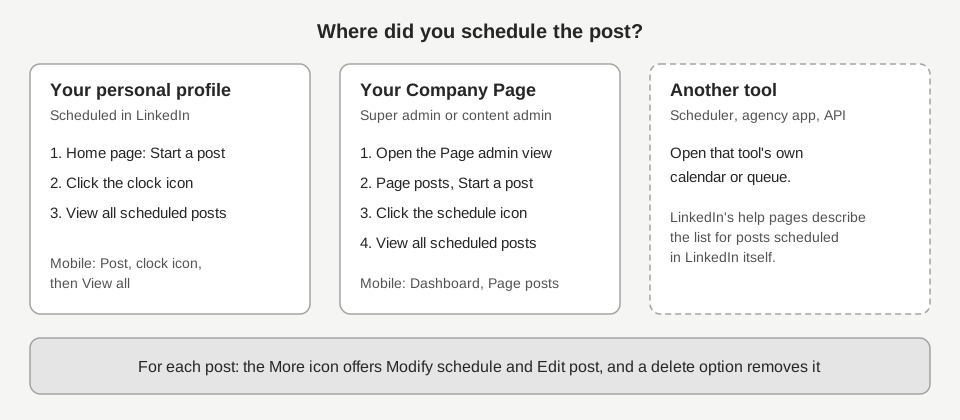
Here is how to see scheduled posts on LinkedIn: click Start a post, click the clock icon, then choose View all scheduled posts. For a Company Page, open the Page's admin view, click Page posts, click Start a post, click the schedule icon, then choose View all scheduled posts.
From that list you can edit, reschedule or delete a post. This guide gives the steps for profiles and Pages, what you can and cannot change, LinkedIn's scheduling limits, and the usual reasons a scheduled post seems to be missing.
Where can I see my scheduled posts on LinkedIn?
The list you need depends on who you scheduled the post as: yourself or a Page. As of October 2026, LinkedIn's Help Center describes two separate routes: one from your profile and one from each Page's admin view.
Scheduled posts on your personal profile
LinkedIn's Schedule posts help page gives these steps for desktop:
- Click Start a post at the top of your LinkedIn homepage.
- Click the clock icon in the lower-left of the Create a post window.
- In the Schedule post window, click View all scheduled posts in the lower-left corner.
On mobile, the same page says to tap Post in the navigation bar, tap the clock icon, then tap View all. LinkedIn says the Scheduled posts page shows a preview of every post you have scheduled, and tapping or clicking a post shows its details.
Scheduled posts on a Company Page
A Page keeps its own list. LinkedIn's help page on scheduling a LinkedIn Page post says scheduling is done from the Page's super admin or content admin view. To get to the list on desktop:
- Open your Page admin view. LinkedIn's admin view page says to sign in to the profile that has admin access, then click the Page name in the My pages pane on the left of your homepage.
- Click Page posts in the left menu, then click Start a post.
- Click the schedule icon in the lower right of the preview.
- Click View all scheduled posts.
On mobile, LinkedIn's mobile admin view page says to tap your profile picture, then your Page name under Pages you manage. The Page help pages then say to tap Dashboard, choose Page posts, tap Post, tap the schedule icon, then tap View all.
LinkedIn also says Page admins can view, edit, reschedule and delete posts that other Page admins scheduled, so one list covers the whole team.
How do you edit a scheduled post on LinkedIn?
Open your list of scheduled posts, click the More icon on the post, then choose Edit post. On a Page, change the content and click Schedule again: LinkedIn's Edit a scheduled LinkedIn Page post page ends its steps there. LinkedIn's profile help page does not say how to save an edit, so use whichever button the window shows.
- Open View all scheduled posts using the steps above.
- Click the More icon on the post you want to change (tap it on mobile).
- Choose Edit post and change the content.
- On a Page, click Schedule to put the post back in the queue. LinkedIn's profile page does not describe this step.
What you can and cannot edit
LinkedIn is more specific for Pages than for profiles. The table below separates what its help pages state from what they leave open.
| You want to change | Use this option | What LinkedIn says |
|---|---|---|
| The post content | Edit post | Page: you can edit the contents of the post. Profile: Edit post is listed, but the page does not say what it covers. |
| Visibility, who can comment, brand partnership | Edit post | The Page help page says you can edit these. The profile page does not mention them. |
| The date and time | Modify schedule | Listed for both profiles and Pages. |
| Publish it immediately | Post now | Listed for Pages. The profile help page does not list it. |
One gap matters if you need to swap an image or video. LinkedIn's separate page on editing a shared post says that for a published post only the text can be edited and shared media cannot be replaced. That page does not mention scheduled posts, and we could not confirm from LinkedIn's documentation whether Edit post lets you replace media on a scheduled one. If the option is not there when you open it, delete the scheduled post and schedule a new one.
How do you reschedule or delete a scheduled post?
To reschedule, open View all scheduled posts, click the More icon on the post and choose Modify schedule. For a Page, LinkedIn's reschedule page then says to pick a new date and time, click Next, and click Schedule. You can pick from the dropdown or type an exact time instead of using the 30-minute steps.
To delete, use the same list. On a profile, click the delete icon next to the post and confirm. On a Page, click the More icon, choose Delete post, then click Delete.
LinkedIn's delete page for Pages says you can delete a scheduled post any time before it is published, and that you cannot recover a deleted post. If you only want a different time, reschedule it instead.
What are LinkedIn's scheduling limits?
The windows and exclusions differ between profiles and Pages, according to the help pages linked above.
| Limit | Personal profile | Company Page |
|---|---|---|
| How far ahead | 10 minutes to 3 months from now | An hour to three months from now |
| Cannot be scheduled | Events, jobs, services | Events, multiple photos, reshares, polls, jobs, service posts |
| Time zone | Desktop: standardized in UTC based on your device's time zone settings. Mobile: relative to your current location | The time is based on your location |
| Who can schedule | You | Super admins and content admins |
LinkedIn adds two Page notes in Scheduled posts for LinkedIn Pages. You cannot promote a scheduled post through Campaign Manager's Browse existing content option until it is published. And if an admin is removed from a Page, their scheduled posts transfer to the admin who removed them.
Why can't I find my scheduled post?
Start by checking that you are looking in the right place. Work through these in order:
- You scheduled it as a Page, but you are looking at your profile. Open the Page admin view and check Page posts. If you scheduled it from your profile, use the profile list instead.
- You are signed in to the wrong profile. LinkedIn says the Page admin view opens from the profile that has admin access. If the Page is not under My pages, LinkedIn suggests clicking See all or requesting admin access.
- Your role, or a colleague's post. LinkedIn's Page admin roles page says a content admin can create and manage posts, while an analyst only monitors performance through analytics, and Page scheduling help names super admins and content admins. Page admins can see each other's scheduled posts, so check the Page list rather than your own.
- Another tool is holding it. LinkedIn's help pages describe the list for posts scheduled in LinkedIn and do not discuss other tools. Microsoft's Posts API documentation lists no scheduled state: it says PUBLISHED is the only accepted lifecycle state when creating a post. That suggests a tool built on the API holds the post itself and sends it at the set time, though Microsoft's page does not describe scheduling either way. Look in that tool's calendar.
If a post was meant to be live and is not in any list, check the profile or Page feed too. It may already have published.
How scheduled LinkedIn posts work in TrackMedia
If you schedule through TrackMedia, the post is held in TrackMedia until its time, so it will not appear under LinkedIn's View all scheduled posts. When the time arrives, TrackMedia sends it to LinkedIn as a published post. Everything below is in the app today. This section covers how TrackMedia handles a post once you schedule it; it does not describe posting to Company Pages.
- Find it. The Posts page has a Scheduled status filter, a search box and an account filter. The Calendar shows posts by month or week.
- Edit it. Open the post and choose Edit while its status is Draft or Scheduled. Once a post is published, the Edit button is gone.
- Reschedule it. Drag its chip to another day on the Calendar, or edit it.
- Pull it back. Unschedule returns a post to drafts. Delete removes it from the queue so it is not published anywhere.
- Publish early. Publish now sends it right away.
Your plan sets how far ahead you can schedule, and TrackMedia rejects times in the past. For how publishing works across networks, see the homepage. Other networks have their own rules: our guides cover scheduled posts on Instagram and on Facebook.
What to do next
Pick one place to schedule LinkedIn posts, so you only ever have one list to check. If you want that list next to every other network, with click tracking on each link, start for free with TrackMedia.
How we checked this
We read each page below on October 6, 2026, and wrote only what it said. We did not test scheduling on a live LinkedIn account, so menu labels may differ from what you see. LinkedIn labels its own pages as last updated between 10 months and 4 years ago, so check the current wording before you rely on a step. TrackMedia's behavior comes from its own product code.
- LinkedIn Help, Schedule posts (profiles, desktop and mobile, limits, view, edit, delete).
- LinkedIn Help, Scheduled posts for LinkedIn Pages (Page options, limits, exclusions, admin transfer).
- LinkedIn Help, Schedule a LinkedIn Page post (Page steps, desktop and mobile).
- LinkedIn Help, Edit a scheduled LinkedIn Page post (what a Page edit covers).
- LinkedIn Help, Reschedule a scheduled LinkedIn Page post.
- LinkedIn Help, Delete a scheduled LinkedIn Page post.
- LinkedIn Help, Edit a shared post (published posts only).
- LinkedIn Help, Access LinkedIn Pages admin view and Access LinkedIn Page admin view on mobile.
- LinkedIn Help, LinkedIn Page admin roles.
- Microsoft Learn, Posts API - LinkedIn (post lifecycle states).