To check scheduled posts on Facebook, open Meta Business Suite for your Page, click Content, then open the Scheduled tab. You can also see them on a calendar in Planner, and from either place you can edit, reschedule, move to drafts or delete the post.
This guide covers Facebook Pages, because that is what Meta's scheduling help pages describe. It gives the desktop and mobile steps, explains what you can change after scheduling, and lists the reasons a scheduled post may not show up. Everything is checked against Meta's own pages as of October 2026. We did not test the steps on a live Page.
Does this apply to Pages or personal profiles?
It applies to Facebook Pages. The Meta Help Center pages used here are written for Pages: they start from "your Page" or "Meta Business Suite" and talk about Page access.
We did not find a Meta page that describes scheduling on a personal profile, so this guide does not cover one. If you are scheduling from a personal profile, check Facebook's own Help Center for what your account offers.
How to check scheduled posts on Facebook from a computer
Meta's Help Center gives two places to see scheduled Page posts on a computer: the Content tab and Planner. Both live in Meta Business Suite. Start from the Page you want, since a post only appears under the Page it was scheduled for.
- Open Meta Business Suite. From your Page, click Meta Business Suite in the left menu. Make sure the Page selector in the top left shows the right Page.
- Click Content. It is in the left-hand menu.
- Open the Posts and reels tab. Meta says your content is organized by status, with tabs for Published, Scheduled, Drafts, Expiring and Expired.
- Click Scheduled. Every post still waiting to go out is listed here. Select a post to see it in full.
For a calendar view, click Planner in the left menu. Meta's help page on Planner says it shows posts, stories, reels and ads, including content scheduled in Meta Business Suite. You can switch between Week and Month.
Planner has two filters that are easy to miss. Content type narrows the view to Post, Story, Reel or Ad, and Shared to narrows it to Facebook Page, Facebook Groups or Instagram account. Both default to "all".
How do I see my scheduled posts on Facebook on my phone?
Use the Meta Business Suite app. Meta's mobile help pages describe two routes to scheduled content: a Scheduled list and the calendar.
- Open the Meta Business Suite app and go to the content section in the bottom menu.
- Choose the type. Meta's reschedule page says to tap Posts for posts or Stories for stories.
- Tap Scheduled. Your scheduled items are listed there.
Meta's two mobile pages do not use identical menu names. The scheduling page calls the bottom-menu item Content, while the rescheduling page calls it Posts and stories. They also name the calendar differently, Planner in one and Calendar in the other. If one label is missing in your app version, use the other.
How do I edit a scheduled Facebook post?
Find the post in Planner or the Scheduled tab, open its options and choose Edit post. Meta's Help Center says this lets you edit the text, media, link or location of the post.
- Open Meta Business Suite for the right Page and click Planner, or go to Content and the Scheduled tab.
- Click the post. Toggle Week or Month in the top left if you cannot spot it.
- Click Options (the ... icon). In the Content tab, Meta says to select Manage post first.
- Choose Edit post, make your change and save it.
On the phone app, Meta's page says to tap the post, tap the three dots next to Post details, and pick from the menu, which includes editing the post details.
What each option does
Meta's page on scheduled Page posts lists these options in Planner. Meta's Content-tab page says the options differ based on the post's status, and its list does not include Duplicate post.
| Option | What Meta says it does |
|---|---|
| Edit post | Edit the text, media, link or location of your post. |
| Duplicate post | Make a copy of this post as a new post. |
| Reschedule post | Select a new date and time to publish the post. |
| Move to drafts | Cancel the schedule publish time and move the post to your Page's drafts. |
| Delete post | Delete the post. |
What if the edit will not save?
Meta's pages do not describe what happens when an edit fails, so we cannot tell you a cause. Two documented options give you a way around it. Duplicate post makes a copy you can change and schedule again, and Delete post removes the original. That is our suggestion, not a Meta instruction, so check the copy's text and time before you delete anything.
How do I reschedule a scheduled Facebook post?
Choose Reschedule post from the post's options, pick a new date and time, and confirm. Meta's help page on saving, scheduling and rescheduling posts gives these desktop steps.
- Go to Meta Business Suite, then Content, then Posts and reels, then Scheduled.
- Find the post and click Options.
- Click Manage post, then Reschedule post.
- Set a new date and time, then click Reschedule.
You can also do it from Planner: click the post in the calendar, click Options, then Reschedule post. On mobile, Meta's steps are Posts, Scheduled, the post, the three dots next to Post details, Reschedule post, a new date and time, then Done.
Meta does not say whether the scheduling window below also applies when you reschedule. Pick a time inside it to be safe.
How do I cancel or delete a scheduled Facebook post?
You have two choices, and they do different things. Move to drafts cancels the publish time but keeps the post as a draft on your Page. Delete post removes it.
Use the same route as above: open the post's Options in Planner or the Scheduled tab, then pick one. On a desktop in Planner, Meta says you can also click upcoming posts, stories and reels, then Options, and choose to reschedule or delete.
Can I see and edit scheduled Reels and Stories?
Yes, both can be scheduled and managed in Meta Business Suite, but the options differ from feed posts.
- Reels. They sit in the same Content area, under the Posts and reels tab, with the same status tabs. Meta's reels page lists Edit reel, Reschedule post, Move to drafts and Delete reel among the options, and says the options depend on the reel's status.
- Stories. Click Content, then the Stories tab, then pick Active, Scheduled or Archived. Select a story and use the ... icon to publish, reschedule or delete it. Meta's stories page does not list an edit option, so to change a scheduled story's content you would delete it and create a new one. That last step is our reading of Meta's list, not a Meta statement.
On mobile, Meta's page says you can reschedule a story from Stories, then Scheduled, then the three dots next to Story overview, then Reschedule story.
How far ahead can you schedule a Facebook post?
Meta's Help Center says you can schedule Page posts to publish between 20 minutes and 29 days away. All scheduling times follow your current time zone. Meta's developer documentation gives a different window for the Graph API, which is what some tools use.
| Where | Earliest | Latest |
|---|---|---|
| Meta Business Suite (Help Center) | 20 minutes away | 29 days away |
| Graph API scheduled_publish_time (developer docs) | 10 minutes away | 75 days away |
As a worked example, if you schedule in Meta Business Suite on October 6, 2026, the latest date Meta's Help Center allows is November 4, 2026. We did not find a documented cap on how many posts you can schedule, nor a separate window for Reels and Stories, so we do not state one.
Why can't I see my scheduled Facebook post?
Most missing posts come down to the wrong Page, missing access, a filter, or a post scheduled in another tool. Work through these in order.
- Wrong Page. Planner has a drop-down in the top left to pick the Facebook Page or Instagram account. Switch it to the Page you scheduled for.
- Filters. In Planner, check Content type and Shared to. In the Content tab, check you are on the right tab: Posts and reels, or Stories.
- Missing access. Meta says that if you cannot see Planner, you may not have the relevant permissions. Its Page access help says that, for Pages in a business portfolio, people with partial or full access can manage Page content, and its scheduling page says scheduled posts can be created and edited by people with Facebook or Task access. Meta's troubleshooting page says the owner of the business portfolio can assign you access to the Page, so ask them to check yours.
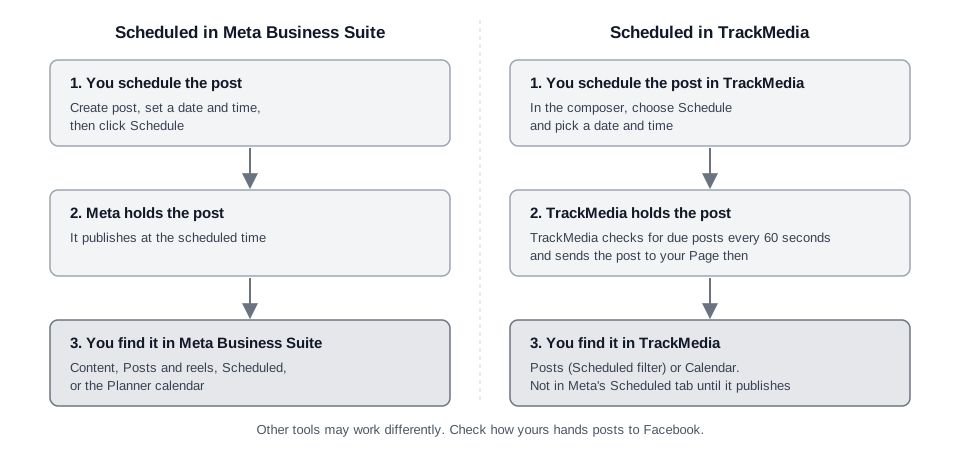
- Another tool scheduled it. Planner is described as showing content scheduled in Meta Business Suite. Meta's pages do not say whether posts held by other tools appear there. Some tools keep the post themselves and only send it at the scheduled time, so look in that tool.
- It already went out, or it failed. Check the Published tab. Meta's troubleshooting page says a system error can stop a post from publishing at its scheduled time. It tells you to open Content, click Scheduled, look for an error message, and click Publish now on the post that failed.
What about posts scheduled in TrackMedia?
Posts you schedule in TrackMedia are held by TrackMedia, not by Facebook. Based on TrackMedia's code, a scheduled post is stored in its own database and TrackMedia checks for due posts every 60 seconds. We read that code and did not run a live test for this guide.
That means a post scheduled in TrackMedia will not show in Meta's Scheduled tab or Planner until it has published. To find and change it, use TrackMedia:
- Open Posts. Click the Scheduled chip, and use Filter by account to pick your Facebook Page.
- Open the post. Its page shows the date, time and time zone, with buttons for Edit, Publish now, Unschedule and Delete. Unschedule turns the post back into a draft.
- Click Edit to change the text, media, destinations or time in the composer.
- For a quick move, open the Calendar and drag the post to another day. In the Posts list you can also select several posts and choose Reschedule or Delete.
Three limits apply. Only drafts and scheduled posts can be edited, so a published post cannot be changed in TrackMedia. A time in the past is rejected, and the farthest date you can pick depends on your plan. Deleting removes the post from the queue, and anything already published stays on the platform.
TrackMedia's Facebook connector sends text, links, photos and video to a Page. We found no Reels or Stories publishing for Facebook in its code, so schedule those in Meta Business Suite. See how publishing works.
If you schedule on other networks too, our guides cover how to see scheduled posts on Instagram and how to see and edit scheduled posts on LinkedIn. To publish to both Meta networks in one go, read how to post to Instagram and Facebook at the same time.
Next step
If you want one place to schedule, find and edit posts across your networks, you can start free with TrackMedia.
How we checked this
The TrackMedia Team read each of these official pages on October 6, 2026. Menu names come from those pages and can change, and we did not test the steps on a live Page. TrackMedia statements come from reading its own code.
- Meta Business Help Center, Schedule a post and manage scheduled posts for your Facebook Page. Read October 6, 2026.
- Meta Business Help Center, Create and manage posts in Meta Business Suite on desktop. Read October 6, 2026.
- Meta Business Help Center, Save, schedule and reschedule posts in Meta Business Suite. Read October 6, 2026.
- Meta Business Help Center, Use Planner in Meta Business Suite on desktop. Read October 6, 2026.
- Meta Business Help Center, Schedule Facebook and Instagram content on Meta Business Suite mobile app. Read October 6, 2026.
- Meta Business Help Center, Reschedule posts and stories on Meta Business Suite mobile. Read October 6, 2026.
- Meta Business Help Center, Create and manage stories in Meta Business Suite. Read October 6, 2026.
- Meta Business Help Center, Create and manage reels in Meta Business Suite. Read October 6, 2026.
- Meta Business Help Center, Troubleshoot errors creating, scheduling or publishing posts in Meta Business Suite. Read October 6, 2026.
- Meta Business Help Center, About Page access. Read October 6, 2026.
- Meta for Developers, Graph API Page Feed reference (scheduled_publish_time, v26.0). Read October 6, 2026.
- Meta for Developers, Graph API Page Scheduled Posts reference. Read October 6, 2026.