The best app to schedule Substack posts is one that schedules both your newsletter posts and your Notes, and hands them to Substack's own scheduler so they go out with your computer off. TrackMedia does both, from the same calendar as 20 other networks. Most Substack schedulers handle Notes only, some need your browser open when a Note is due, and some keep a copy of your Substack login on their servers.
Below are the eight options worth considering, compared on what they schedule, how they post, what they keep of your account and what they cost. Every fact comes from each company's own website or help center, read on November 25, 2026, with links so you can check them.
The short answer
- Best overall, for newsletter posts and Notes together: TrackMedia. Posts and Notes with images, handed to Substack's own scheduler, posted with your computer off, next to LinkedIn, X, Threads and Bluesky.
- Best free option: Substack's own scheduler, if you schedule one post or Note at a time and post nowhere else.
- Best free Notes scheduler next to X: Typefully, whose free plan includes Substack Notes.
- Notes-only tools with growth features: WriteStack and StackSweller.
- Plain-text Notes inside a tool you already use: Buffer.
How Substack schedulers actually post (and why it matters)
Substack has no public API for posting: its developer terms cover read-only profile and publication data. So every third-party scheduler works around that, in one of three ways. Which way a tool uses decides whether your post goes out on time and what happens to your account.
- Hand-off to Substack's own scheduler. The tool places your post or Note on Substack's built-in scheduler ahead of time, from your own signed-in browser. After that, Substack publishes it, so your computer can be off, and the tool never needs to hold your login. TrackMedia works this way for posts and for Notes with images; Eden works this way for text Notes and articles.
- Posting from your open browser at the slot. An extension waits until the scheduled minute and posts from your browser. Nothing is stored on a server, but if your laptop is asleep, closed or offline at that minute, the post waits or fails. Eden's image Notes and Note threads, and WriteStack's Sync step, depend on your browser in this way.
- Replaying your Substack session from a server. The tool copies your Substack session cookie, the token that keeps you signed in, and uses it from its own servers. It posts with your computer off, but the cookie is, in StackSweller's own words, "a live login to your Substack account", and when it expires your scheduled Notes stop until you reconnect.
Only the first gives you both: posts on time with your laptop shut, and no copy of your login on someone else's server.
Sources: developer terms
What to look for in a Substack scheduling app
- What it schedules. Newsletter posts, Notes, or both. Most tools do Notes only; check before you pay if your newsletter is the main thing you publish.
- How it posts. Hand-off, open browser or stored session, as explained above.
- Images and threads. Some tools schedule text Notes only, or need extra conditions for Notes with images.
- Your other networks. If you also post to LinkedIn, X, Threads or Bluesky, one calendar for everything saves a second subscription and a second plan.
- Publications and audiences. If you write for more than one publication, or send some posts to paid subscribers only, check the tool can pick both.
- Price over a year. Monthly prices hide the real cost; compare the yearly total.
Substack scheduling apps compared
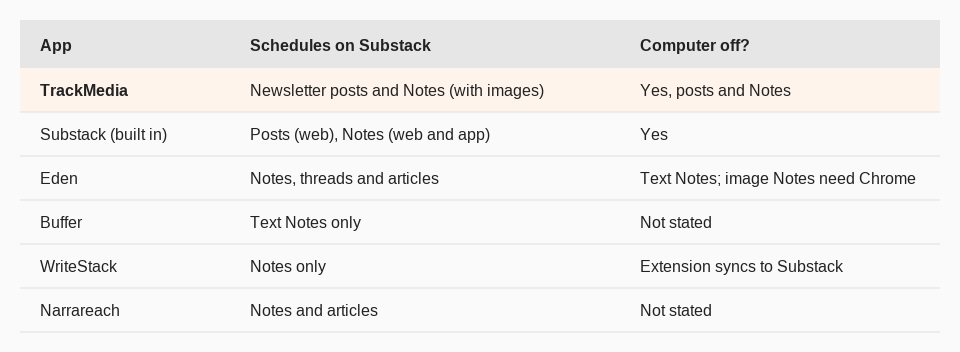
| App | Newsletter posts | Notes | Posts with computer off | Keeps your login on its servers | Price (Nov 2026) |
|---|---|---|---|---|---|
| TrackMedia | Yes | Yes, with up to 4 images or GIFs | Yes, posts and image Notes | No | $99 a year, 14-day free trial |
| Substack (built in) | Yes, on the web | Yes, one at a time | Yes | Not applicable | Free |
| Eden | Yes (articles) | Yes, and Note threads | Text Notes and articles; image Notes need Chrome running | Not stated | Free plan; from $7.50 a month |
| Typefully | No | Yes | Not stated | Not stated | Notes on every plan, free included |
| Buffer | No | Text only | Not stated | Not stated | Free for 3 channels; $5 per channel a month |
| WriteStack | No | Yes | You open WriteStack and click Sync | Not stated | From $19.99 a month, billed yearly |
| StackSweller | No | Yes | Yes, from its servers | Yes, your session cookie, encrypted | Free trial; price not published in its docs |
| Narrareach | Yes (articles) | Yes | Not stated | Not stated | From $19.99 a month |
"Not stated" means the company's own pages did not say, on November 25, 2026. Ask them before you rely on it.
1. TrackMedia: newsletter posts and Notes, posted with your computer off
TrackMedia schedules both kinds of Substack content from one calendar, and every item goes out through Substack's own scheduler:
- Newsletter posts: title, subtitle, body with headings and links, the publication it goes to, and the audience (everyone, free subscribers, paid subscribers or founding members).
- Notes: text with up to 4 images or GIFs, and link previews.
- Up to 90 days ahead, in the time zone you set for your workspace.
- Every publication you write for: TrackMedia lists them and lets you pick one per post.
How it posts: the TrackMedia browser extension places each post or Note on Substack's own scheduler, usually seconds after you schedule it. From then on Substack publishes it on time, and emails your subscribers for a newsletter post, with your computer off. Images are uploaded to Substack at that moment too, so a Note with images does not need your browser at the slot. Your Substack login never reaches TrackMedia's servers.
Editing after scheduling: a newsletter post sits on Substack as a scheduled draft, so you can still open it in Substack's editor to add images, a button or a poll before it goes out. Move or delete it in TrackMedia's calendar and the change reaches Substack.
The rest of your week: the same calendar publishes to LinkedIn, X, Threads, Bluesky, Instagram, TikTok, YouTube and 13 more networks, so the Note that announces your issue and the LinkedIn post that shares it are planned together.
Best for: writers who publish a newsletter and post Notes, and share each issue elsewhere. Watch out for: the extension needs Chrome open for the few seconds it takes to place each item, so schedule from a computer with the extension, or from your phone and let the extension place it the next time Chrome is open. Creator is $99 a year for 15 accounts, with a 14-day free trial and no card.
2. Substack's own scheduler
Substack schedules newsletter posts on the web up to three months ahead, in your device's time zone; the app cannot schedule an article, podcast or video post, according to its help center. Since April 2026 it also schedules Notes on the web and in the app, one at a time, from the calendar icon in the Note composer. Chat threads and live videos can be scheduled too.
Best for: writers who schedule one post a week and the odd Note, and post nowhere else. Watch out for: no queue, no calendar view, no bulk scheduling, and nothing for your other networks. The full steps are in the Substack content scheduling guide.
Sources: its help center
3. Eden
Eden's help page says it hands text Notes to Substack's scheduler up to 7 days ahead, so those post with your devices off. Notes with images need Chrome running with its extension, and Note threads need Chrome or its Mac app open within 10 minutes of the slot. It also hands articles to Substack's post scheduler.
Best for: writers who post text Notes and want threads. Watch out for: image Notes depend on your browser being open, and text Notes go up to 7 days ahead. Pricing starts with a free plan, then $7.50 a month and up.
Sources: Eden's help page · Pricing
4. Typefully
Typefully added Substack Notes in July 2026, and its changelog says it is "available for free to all users", in the same calendar as its other networks. Its help center says it "currently supports Substack Notes only": long-form newsletter posts are not supported, and a multi-post draft becomes a single Note.
Best for: writers whose main network is X or LinkedIn and who want to add a few Notes for free. Watch out for: no newsletter posts, and its pages do not say whether a scheduled Note needs your browser open.
Sources: its changelog · Its help center
5. Buffer
Buffer's support page says it schedules Substack Notes only, plain text, up to 10,000 characters and 100 Notes a day. It does not publish long-form posts or newsletter issues, restacks, replies or threads. It launched Substack support in September 2026.
Best for: teams already on Buffer who want to add text Notes. Watch out for: no images in Notes and no newsletter posts. Free for 3 channels, then $5 per channel per month on Essentials.
Sources: Buffer's support page
6. WriteStack
WriteStack is a Notes tool: its own site calls it "the wrong tool" for publishing long-form Substack posts. You schedule Notes in batches, then, as its site explains, open WriteStack and click Sync so its extension pushes them to Substack. It can also send Notes to LinkedIn, X and Threads through connected Buffer channels.
Best for: writers who post Notes daily and want help writing them. Watch out for: the Sync step, and a second tool (Buffer) for other networks. Pricing starts at $19.99 a month billed yearly, or $23.99 monthly, with a 7-day free trial.
Sources: WriteStack · Pricing
7. StackSweller
StackSweller schedules Notes, writes drafts with AI and tracks audience growth. Its setup page explains that it connects with your Substack session cookie, which it describes as a live login to your account and stores encrypted; when that connection expires, scheduled Notes do not publish until you reconnect.
Best for: Notes-only writers who are comfortable with a tool holding their session. Watch out for: no newsletter posts, and reconnecting when the session expires. Every plan has a free trial; its docs do not list prices.
Sources: StackSweller · Its setup page
8. Narrareach
Narrareach says every plan schedules Notes and articles, from $19.99 a month. Its pages read on November 25, 2026 did not say how it posts or whether your computer needs to be on.
Best for: writers who want Notes and articles in a Substack-only tool. Watch out for: ask how it posts before you rely on it for a newsletter send.
Sources: Narrareach
Which Substack scheduler should you choose?
| If you... | Choose |
|---|---|
| Publish a newsletter, post Notes and share to other networks | TrackMedia |
| Want Notes with images to post while your laptop is closed | TrackMedia |
| Write for more than one publication, or send paid-only posts | TrackMedia, or Substack's own scheduler |
| Schedule one post a week and nothing else | Substack's own scheduler |
| Live on X and add a few Notes for free | Typefully |
| Post text Notes daily and want writing help | WriteStack or Eden |
| Already pay for Buffer and only need text Notes | Buffer |
What a Substack week looks like in TrackMedia
Here is a weekly newsletter planned in one sitting on Sunday:
- Tuesday 8:00: the newsletter post, with title, subtitle and the free audience, formatted first with the free Substack post formatter if you drafted it in Google Docs or Markdown.
- Tuesday 8:30: a Note with the issue's main idea and a link, plus a LinkedIn post and a Threads post written for each network.
- Wednesday to Saturday: four Notes, two with images: a takeaway, a question for readers, a chart from the issue, a recommendation.
Within seconds of each one being scheduled, the extension places it on Substack's scheduler. You close the laptop; Substack sends the issue on Tuesday morning and posts each Note on its day. The rest of the week goes on replies and restacks, which no tool can schedule. For a fuller plan, see the Substack content scheduling guide, and for the Notes steps, how to schedule Substack Notes.
Questions people also ask
What is the best app to schedule Substack posts?
TrackMedia schedules both newsletter posts and Notes, hands them to Substack's own scheduler so they publish with your computer off, and covers 20 other networks in the same calendar. Most other Substack schedulers handle Notes only.
Can any app schedule Substack newsletter posts, not just Notes?
Yes. TrackMedia schedules newsletter posts with title, subtitle, publication and audience. Eden and Narrareach also say they schedule articles. Buffer, Typefully, WriteStack and StackSweller schedule Notes only.
What is the best Substack Notes scheduler?
For Notes with images that post with your computer off, TrackMedia. For a free Notes scheduler next to X, Typefully. For text Notes with writing help, WriteStack or Eden.
Is there a free Substack scheduler?
Substack's own scheduler is free: posts on the web up to three months ahead, Notes one at a time. Typefully's free plan includes Notes, Buffer is free for 3 channels with text Notes, and TrackMedia has a 14-day free trial with no card.
Does any Substack scheduler post with my computer off?
Yes, if it hands each item to Substack's own scheduler ahead of time, or posts from its own servers with a copy of your session. TrackMedia does the first, for posts and Notes with images, so it needs no copy of your login.
Is it safe to connect a scheduler to my Substack account?
Never give a tool your password. Prefer one that never stores your Substack session on its servers: a stored session cookie is a live login to your account. TrackMedia's extension works from your own signed-in browser, so your session stays on your computer.
Why do Substack schedulers need a browser extension?
Because Substack has no API for posting. The extension acts from the browser where you are already signed in to Substack, the same way you would by hand.
Does Substack have an API for posting?
No. Substack's developer API, as of its January 2026 terms, gives read-only access to public profile and publication data.
Can I schedule Substack posts from my phone?
Not in Substack's app: scheduling an article, podcast or video post works on the web only, and Notes can be scheduled in the app. With TrackMedia you can plan and schedule from your phone's browser; the extension in Chrome on your computer places each item on Substack the next time it is open.
Can I schedule Substack Notes with images?
Yes. Substack's own scheduler takes one Note with images at a time. TrackMedia schedules Notes with up to 4 images or GIFs and uploads them when it places the Note, so it still posts with your computer off. Buffer schedules text Notes only, and Eden's image Notes need Chrome running.
Which Substack scheduler works for more than one publication?
TrackMedia lists every publication your Substack account writes for and lets you pick one per post. Substack's own scheduler works inside each publication's dashboard.
TrackMedia or Eden: which is better for Substack?
Both hand items to Substack's scheduler. TrackMedia also does it for Notes with images, schedules up to 90 days ahead, and adds 20 other networks. Eden also schedules Note threads.
TrackMedia or Typefully: which is better for Substack?
Typefully is free for Notes but does not schedule newsletter posts. Choose TrackMedia if your newsletter matters as much as your Notes.
Can a scheduler restack or reply on Substack?
No. Neither Substack nor any scheduler compared here schedules restacks or replies.
How much does a Substack scheduler cost?
From free (Substack, Typefully's free plan, Buffer for 3 channels) to about $20 a month for Notes-only tools such as WriteStack and Narrareach. TrackMedia is $99 a year and covers Substack plus 20 other networks.