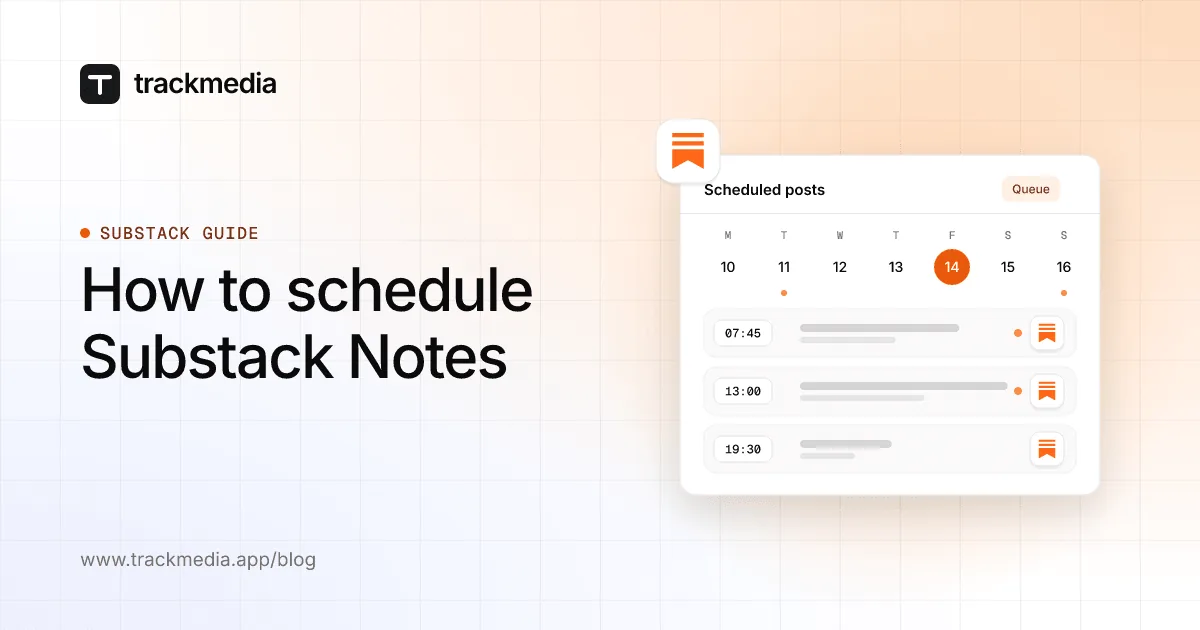
To schedule a Substack Note, write it, click the calendar icon on the web (or open the "..." menu in the app and choose Schedule), and pick a time. Substack added this in April 2026, one Note at a time. To schedule a whole week of Notes with images in one sitting, next to your newsletter posts and other networks, use TrackMedia: it hands each Note to Substack's own scheduler, so it posts with your computer off.
Below are the exact steps for each way, the limits, and fixes for when a Note does not appear. Substack's details come from its own announcement and help center, read on November 25, 2026.
How to schedule a Substack Note on the web
- Open substack.com and start a new Note from the Home feed or your profile.
- Write the Note and add any image or link.
- Click the calendar icon in the composer.
- Pick the date and time, in your local time zone, and confirm.
The Note now waits in your Drafts, marked as scheduled. You can open and edit it there until it publishes. Source: Substack's announcement and its getting started with Notes page.
Sources: Substack's announcement · getting started with Notes
How to schedule a Substack Note in the app
- In the Substack app on iPhone or Android, start a new Note.
- Write it, then tap the "..." menu.
- Choose Schedule, pick the time and confirm.
Notes are the one thing the app can schedule: newsletter posts can only be scheduled on the web. For posts, see the Substack content scheduling guide.
How to schedule a week of Notes at once with TrackMedia
Substack's scheduler takes one Note at a time and has no queue. TrackMedia lets you write a week of Notes in one sitting and place each on its time slot:
- Install the TrackMedia browser extension in Chrome and connect Substack Notes while you are signed in to Substack.
- Write each Note in the composer, with up to 4 images or GIFs.
- Drop it on a day and time in the calendar, or schedule it straight from the composer.
- Within seconds, the extension places the Note on Substack's own scheduler. From then on Substack posts it on time, with your computer off.
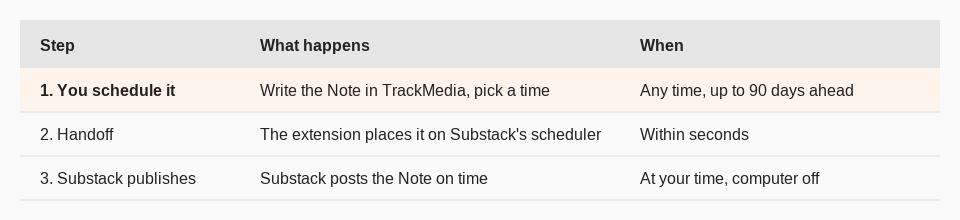
Your Substack login stays in your own browser; nothing about your session is stored on TrackMedia's servers. The same calendar schedules your newsletter posts and the LinkedIn, X, Threads and Bluesky posts that share them. Try it with the 14-day free trial.
Substack Notes scheduling limits
- One at a time on Substack's own scheduler, with no queue or bulk upload.
- How far ahead: Substack's pages do not state a limit for Notes; TrackMedia schedules up to 90 days ahead.
- Restacks and replies cannot be scheduled, by Substack or any tool.
- Time zone: Substack uses your local time when you schedule.
Other ways to schedule Substack Notes
Several tools schedule Notes, and how they post matters. Eden hands text Notes to Substack's scheduler up to 7 days ahead, but Notes with images need Chrome running at the slot. Buffer schedules plain-text Notes only. WriteStack and Typefully schedule Notes too. The full comparison covers price and what each schedules, as of November 2026.
Why didn't my scheduled Substack Note post?
- It never reached Substack's scheduler. Look in your Drafts: a scheduled Note shows there with its time. If it is missing, schedule it again.
- The time zone was off. Substack uses your device's time zone; a Note scheduled while travelling goes out at that place's time.
- A tool that posts at the slot could not run. Browser-based tools that post from an open tab miss the slot if your laptop sleeps. Tools that place the Note on Substack's scheduler ahead of time, as TrackMedia does, do not have this problem.
- You edited it and discarded the change. When Substack asks to keep or discard edits to a scheduled Note, keep them to save the new version.
What Notes to schedule
Schedule the Notes you can write ahead: a takeaway from your latest post, a question for readers, a short lesson, a quote from the issue with its link. Keep restacks, replies and reactions to the news for live posting. Formatting a Note well matters: see bold text and formatting in Substack Notes.
Questions people also ask
Can you schedule Notes on Substack?
Yes. Since April 2026, Substack lets you schedule a Note on the web from the calendar icon, or in the app from the "..." menu. TrackMedia schedules Notes too, in bulk and with images.
Can you schedule Substack Notes on your phone?
Yes, in the Substack app: write the Note, tap "...", choose Schedule. It is the only thing the app can schedule.
How far ahead can you schedule a Substack Note?
Substack's own pages do not state a limit for Notes. TrackMedia schedules Notes up to 90 days ahead.
Where do scheduled Substack Notes go?
To your Drafts, marked with their scheduled time. You can open, edit or delete them there until they publish.
How do you edit or cancel a scheduled Note?
Open it from Drafts to edit or delete it. In TrackMedia, change or delete it in the calendar and the change reaches Substack.
Can you schedule a Substack Note with an image?
Yes. On Substack, add the image before you schedule. TrackMedia schedules Notes with up to 4 images or GIFs and uploads them when it places the Note, so it still posts with your computer off.
Can you bulk-schedule Substack Notes?
Not on Substack itself. TrackMedia lets you write and schedule a week of Notes at once.
Can you schedule a restack on Substack?
No. Neither Substack nor any scheduler can schedule restacks or replies.
Do you need a Chrome extension to schedule Substack Notes?
Not on Substack itself. Third-party schedulers need one, because Substack has no posting API. TrackMedia's extension only needs to be open for the few seconds it takes to place the Note.
Is there a free Substack Notes scheduler?
Substack's own scheduler is free. Buffer is free for 3 channels, plain text only. TrackMedia has a 14-day free trial with no card.