The answer to "how often should you post on YouTube" is that YouTube's Help Center gives no number. It says only that a "consistent, sustainable release schedule" matters, and it asks you to weigh frequency, consistency and content volume against what you can keep up.
This guide covers what YouTube's pages say about upload schedules, the Analytics reports that show whether your cadence works, and the upload limits YouTube documents. We read every page on October 6, 2026, and use no third-party studies.
How often should you post on YouTube, according to YouTube?
YouTube's Upload schedule tips page opens with this line: "A consistent, sustainable release schedule is critical when building and fulfilling audience expectations and maintaining your well-being." It then lists three things to review when you build a schedule:
- Frequency: how often you upload per week or month, and whether you can sustain that over the long term.
- Consistency: whether your upload and content schedules both stay steady, whether you link content to specific days of the week, and whether you took breaks or made changes in the last 6 months.
- Content volume: whether you make more of one format, series or content type than another.
The page gives no target such as "twice a week". It asks whether you should make fewer, higher-production videos or more frequent, easier ones, and the Shorts view asks the same questions per day, week or month.
How do you choose an upload schedule?
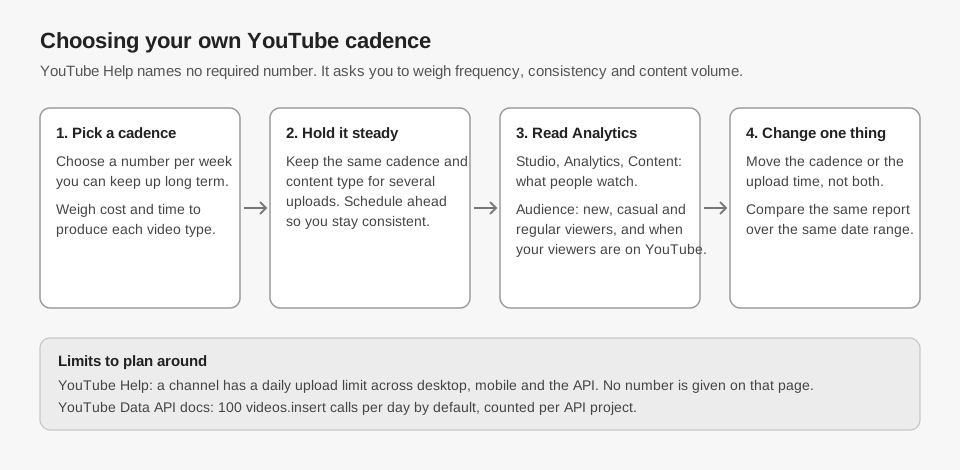
Pick the most frequent cadence you can hold for months, then test it against your own numbers. The same page asks whether your frequency is "sustainable over the long term" and suggests filming in batches.
It also ties the schedule to a goal: revenue, subscriber growth (content that brings viewers back) or reach (content with mass appeal). And it says a schedule does not have to be only videos, so Shorts, live streams and Posts tab polls can fill the gaps between uploads.
How do you use YouTube Analytics to decide?
Open YouTube Studio, select Analytics in the left menu, and read two tabs: Content for what your audience watches, and Audience for who comes back. YouTube's Get started with YouTube Analytics page says the Content tab shows how your audience finds and interacts with your content and can be filtered by content type, and the Audience tab shows monthly audience and your new, casual and regular viewers.
YouTube's Understand your YouTube audience page defines those viewer groups. Casual viewers watched at least once per month for one to 5 months in the past year, and regular viewers watched at least once per month for more than 6 months in the past year. Watching how those groups change across a cadence test is a reasonable check, though YouTube does not say any particular number of uploads moves viewers from new toward regular.
The same Audience tab has a report called When your viewers are on YouTube. YouTube says it shows when your viewers are online across YouTube in the last 28 days, and that you can use it to help build your community, understand when to schedule a Premiere, or plan your next live stream. It describes when viewers are on YouTube, not which upload time earns more views, so use it to pick times to test.
YouTube notes that an updated YouTube Studio is rolling out gradually from July 2026, so your screen may differ from these labels.
A simple way to test a cadence
Here is a worked example with invented numbers, not YouTube data. Say you upload once a week for 8 weeks (8 videos) and then twice a week for 8 weeks (16 videos). Compare average views per video and the new, casual and regular viewer split across the two periods, using the same date range length in Analytics.
- Change one thing. Change the cadence or the upload time, not both.
- Hold each setting for several uploads. One video proves little.
- Compare per-video numbers. Total views can rise simply because there are more videos. Dividing by the number of videos is our own calculation, not a YouTube metric.
- Count the cost. If doubling uploads burns you out, YouTube's advice on sustainability points to the slower cadence.
Is there a daily upload limit on YouTube?
Yes, but the page we read gives no number. YouTube's Common uploading errors page says that "to ensure safety at YouTube, we limit how many videos a channel can upload in a 24-hour period across desktop, mobile, and YouTube API". It adds that limits may vary by country or region and by channel history, and that Community Guidelines strikes affect how much you can upload. If you hit it, the error reads "Daily upload limit reached" and the page says to try again in 24 hours.
Tools that upload through the API have a separate figure. Google's YouTube Data API quota calculator says projects that enable the API get a default of 100 videos.insert calls per day, with each call costing 1. That page does not say whether this equals the channel limit, and it counts per project, not per channel.
Does scheduling uploads help you stay consistent?
YouTube recommends it: the Upload schedule tips page says to schedule videos so you can stay consistent without feeling tied to your computer or phone.
YouTube's Schedule video publish time page describes the steps: on the upload page, click the Schedule card, then set the date, time and time zone and select Schedule. It also says a scheduled video will not publish during a Community Guidelines strike penalty period, and that the watch-page date is based on Pacific Standard Time (PST).
What does TrackMedia do for YouTube uploads?
TrackMedia's code includes a YouTube connector, and its site lists YouTube among the networks it supports. Here is what that code does, read on October 6, 2026:
- Uploads one video per post. A YouTube post needs a video and a title (up to 100 characters); the description allows up to 5,000.
- Labels a vertical video of 3 minutes or less as a Short. The connector has no Short setting; it checks the video's shape and records the matching link. For YouTube's own rules see YouTube Shorts length, size and aspect ratio.
- Holds the schedule itself. A post you schedule in TrackMedia's publishing tools is stored in TrackMedia and published at the chosen time, so it keeps a steady cadence from one calendar. By default the upload starts at that time, so it is not a YouTube-scheduled video and will not show in YouTube Studio as scheduled. The connector code can also pass a
publishAtoverride to YouTube, which uploads the video as private so YouTube publishes it later. We found no control for that in the web composer and did not test it. - Reads views, likes and comments. It also imports uploads from your channel. TrackMedia computes an engagement rate for each video as likes plus comments divided by views, capped at 100 percent.
The Best times tab on the Analytics page then reads your own history. It shows a weekday-by-hour grid titled "When your posts land best", and its "Your strongest slots" list ranks only slots with at least three posts behind them.
What TrackMedia cannot tell you
- It does not read YouTube's "When your viewers are on YouTube" report, watch time, retention or the new, casual and regular viewer split. Use YouTube Studio for those.
- The best-times view looks backward, and its "Your strongest slots" list needs three posts in the same weekday-and-hour slot, so it can fill slowly for a weekly uploader.
- Google's reference says videos uploaded through the API from unverified API projects created after 28 July 2020 are restricted to private viewing (see the videos.insert reference). We did not confirm the audit status of TrackMedia's own Google project, so run a test upload and check its visibility before you rely on it.
If you want one calendar for the cadence you choose, you can start free with TrackMedia.
How we checked this
We opened each page below in a browser on October 6, 2026 and copied the labels and figures from it. We did not test any of this on a live YouTube channel.
- Upload schedule tips (YouTube Help), Video and Shorts views: frequency, consistency and content volume, sustainability, goals, scheduling advice.
- Get started with YouTube Analytics (YouTube Help): path to Analytics, Content and Audience tabs, July 2026 Studio rollout note.
- Understand your YouTube audience (YouTube Help): "When your viewers are on YouTube", new, casual and regular viewer definitions.
- Common uploading errors (YouTube Help): the daily upload limit text.
- Schedule video publish time (YouTube Help): scheduling steps, strike note, Pacific time note.
- Quota Calculator and Videos: insert (YouTube Data API, Google for Developers): 100 calls per day default, unverified-project restriction. The Quota Calculator page's summary box also mentions a 1,600-point cost for videos.insert; the table and body text on the same page say 100 calls per day at a cost of 1, and we followed those.
What we could not verify: any YouTube statement of a recommended number of uploads, the number behind the channel daily upload limit, and whether posting at the "When your viewers are on YouTube" times raises views, so we make no such claim. TrackMedia's own behavior comes from its YouTube connector, analytics and scheduling code, read the same day.