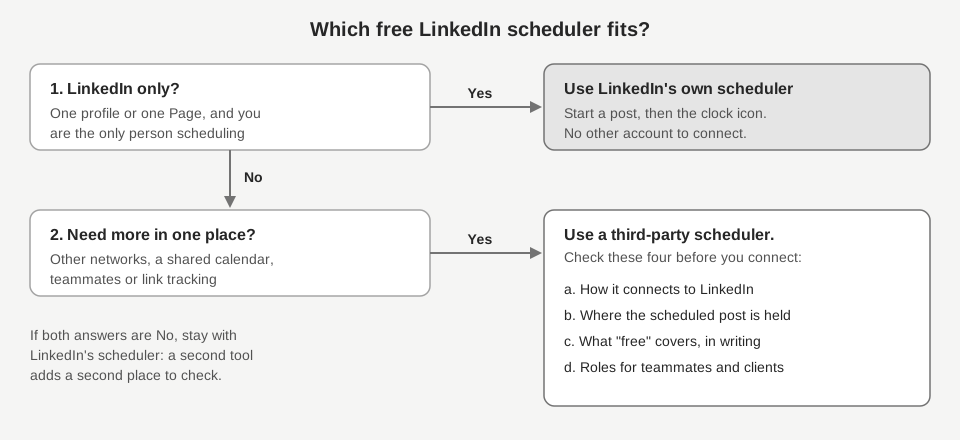
The first free LinkedIn scheduling tool to check is LinkedIn's own: click Start a post, click the clock icon, pick a date and time, then click Next and Schedule. LinkedIn's Help pages on scheduling mention no fee or premium requirement, but they do not say the feature is free either, so confirm on your own account.
A third-party scheduler only earns its place when you need something LinkedIn's scheduler does not do, such as other networks in the same queue. This guide covers the native steps and limits, four checks for any outside tool, and where TrackMedia fits, all as of October 6, 2026.
How do you schedule a post on LinkedIn for free?
LinkedIn's Help Center page Schedule posts gives the same six steps on desktop and mobile. The only differences are labels and where the icons sit.
- Click Start a post on your homepage (on mobile, tap Post in the navigation bar).
- Write the post in the What do you want to talk about? field.
- Click the clock icon.
- Choose a date and time in the pop-up window.
- Click Next.
- Click Schedule.
For a Company Page the steps start in the Page's admin view. LinkedIn's page Schedule a LinkedIn Page post says, for desktop, to open your super admin or content admin view, choose Page posts, click Start a post, use the scheduling icon, and finish with Schedule. The mobile steps on that page start from Dashboard in the upper-left corner. To find, edit or delete what you queued, see our guide to seeing and editing scheduled posts on LinkedIn.
What are the limits of LinkedIn's built-in scheduler?
The window for how far ahead you can schedule differs between a profile and a Page, and some post types are excluded. LinkedIn's Schedule posts and Scheduled posts for LinkedIn Pages pages state these:
| Limit | Personal profile | Company Page |
|---|---|---|
| Scheduling window | 10 minutes to 3 months from the current time | An hour to three months from the current time |
| Cannot be scheduled | Events, jobs, services | Events, multiple photos, reshares, polls, jobs, service posts |
| Who can schedule | You | Super admins and content admins |
Two more limits matter in practice. First, LinkedIn's scheduler only schedules LinkedIn, so every other network needs a second tool and a second calendar. Second, LinkedIn's profile article says the scheduled time is "standardized in UTC based on your device's time zone settings" on desktop, and standardized in UTC relative to your current location on mobile. The Page article says the time is based on your location. Check the time shown before you confirm.
When does a third-party LinkedIn scheduling tool make sense?
It makes sense when the single-network, single-person limits above are the problem. Typical cases are a team that wants a shared calendar, a business posting on several networks, or anyone who wants link clicks tracked next to the post. If none of that applies, a second tool only adds another place to look, and our guide to managing multiple social media accounts covers one shared calendar and least-access roles for teams.
Use the four checks below before you connect your LinkedIn account to anything.
How do you judge a free LinkedIn scheduler?
1. How does it connect to LinkedIn?
LinkedIn's Help page Prohibited software and extensions says LinkedIn does not permit third-party software, including bots, browser plug-ins and browser extensions, that scrape, modify the appearance of, or automate activity on its website. It says members who break the rules risk having their accounts restricted or shut down. The page does not name schedulers, so read it as a reason to ask a vendor how its tool connects.
The route Microsoft documents for developers is the Posts API. Its documentation lists w_member_social to post on behalf of an authenticated member, and w_organization_social to post for an organization, restricted to members with the ADMINISTRATOR, DIRECT_SPONSORED_CONTENT_POSTER or CONTENT_ADMIN Page role. Ask the vendor which route its LinkedIn connection uses. A browser extension or bot falls under the Prohibited software page above, while the permissions above describe what an app that posts through the API is granted.
2. Where is the scheduled post held?
The same Posts API page says PUBLISHED is the only lifecycle state accepted when you create a post, and it does not describe scheduling. That suggests a tool built on this API holds the post itself and publishes later, but we could not verify how any specific tool works, or whether posts scheduled outside LinkedIn show under View all scheduled posts. Ask the vendor where the post waits until it goes live, and what happens if your LinkedIn connection has expired by then.
3. What does "free" cover?
Ask three things and find the answers in writing on the vendor's own pages: whether LinkedIn posting is included in the free option, whether the free option has a cap on posts, accounts or how far ahead you can schedule, and whether it needs a card. We do not quote other vendors' limits because they change, and we did not check them.
4. Does it support roles and review?
LinkedIn's Page help pages name separate Page admin roles, such as super admin and content admin, and a tool that gives every teammate full access works against that. Look for a read-only role, and for a way to keep drafts out of the queue until someone has checked them.
Where does TrackMedia fit?
TrackMedia is free to start with no card required, according to its site, and it schedules across networks from one composer. TrackMedia's code includes a LinkedIn connector with a 3,000-character limit and support for images, GIFs, video and PDF documents. This guide does not cover posting to Company Pages through TrackMedia, because we have not confirmed that it is live.
- One master draft, per-network versions. Write once, edit the LinkedIn version separately, and watch a live character counter per selected network. A preflight check shows whether each account is ready or blocked.
- The post is held by TrackMedia. Scheduled posts live in TrackMedia's database and publish at the chosen time, so they will not appear in LinkedIn's View all scheduled posts. The Posts page has a status filter and the Calendar has month and week views.
- Edit or pull back. You can edit a post while it is Draft or Scheduled, publish it now, unschedule it back to Draft, or delete it from the queue. Past times are rejected, and your plan sets how far ahead you can schedule.
- Tracked links. Links in clickable fields become short links with UTM tags added from a template under Settings > Links; see UTM naming conventions for choosing the values. Clicks show in analytics.
- Roles. Owner, Admin, Editor and Viewer, with workspaces per client or brand.
The honest limits: TrackMedia has no approval step that blocks publishing, so review is a team habit built on drafts. If a LinkedIn connection expires, a failed post shows a reason with a Reconnect link, and the queue is kept. For how publishing works across networks, see the homepage.
Which should you choose?
Stay with LinkedIn's scheduler if you post only to LinkedIn, from one profile or Page, and nobody else needs access. Move to an outside tool when you need a shared calendar, several networks or click tracking, and run the four checks first. If you want to try that on LinkedIn alongside your other networks, you can start free with TrackMedia.
How we checked this
We opened each page below in a web browser on October 6, 2026, and read it word by word, including the Desktop and Mobile tabs of the profile article, and wrote only what the pages said. We did not schedule a post on a live LinkedIn account, so on-screen labels may differ. TrackMedia's behavior comes from its own product code.
- LinkedIn Help, Schedule posts (profile steps for Desktop and Mobile, window, exclusions, time zone).
- LinkedIn Help, Scheduled posts for LinkedIn Pages (who can schedule, window, exclusions).
- LinkedIn Help, Schedule a LinkedIn Page post (Page steps).
- LinkedIn Help, Prohibited software and extensions.
- Microsoft Learn, Posts API - LinkedIn (permissions, roles, lifecycle states).
What we could not verify: whether LinkedIn's scheduler is free on every account type (the Help pages state no cost either way), what any other vendor's free option includes, how any specific third-party tool holds or publishes a scheduled post, and whether TrackMedia posts to LinkedIn Company Pages in production.