How many YouTube Shorts should I post a day? YouTube publishes no recommended number, so the honest answer is the number you can keep up and that your own analytics support. What YouTube does document is a daily upload cap, which it does not put a number on, and a Shorts report in YouTube Studio that lets you compare one posting rate against another.
This guide covers what YouTube Help says about Shorts frequency and upload limits, then walks through a simple test using the Shorts analytics. Everything below comes from YouTube Help pages read on October 6, 2026. We use no third-party statistics, because an outside average would not describe your channel.
Does YouTube limit how many Shorts you can upload a day?
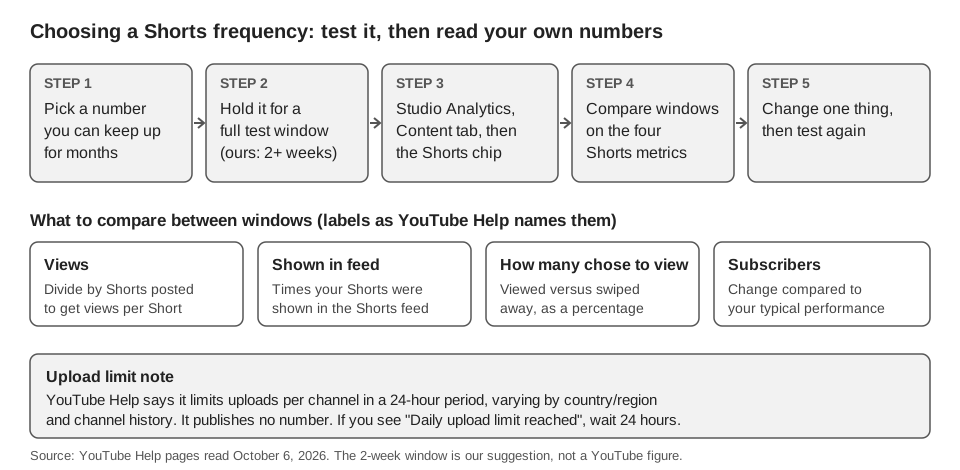
Yes, but not with a published number. YouTube's Common uploading errors page lists the message "Daily upload limit reached. You can upload more videos in 24 hours." It says YouTube limits "how many videos a channel can upload in a 24-hour period across desktop, mobile, and YouTube API", and that limits "may vary by country/region or channel history".
The same page adds that copyright strikes may affect channel history eligibility, and that Community Guidelines strikes will affect how much you can upload. If you see the error, the page says to try again in 24 hours. The page says "videos" and gives no separate Shorts figure, so we cannot say whether Shorts are counted differently.
Verification and higher daily upload limits
YouTube's page on getting access to intermediate and advanced features says advanced features "include, for example, pinned comments and higher daily upload limits". Creators get advanced features by completing phone verification, then by building sufficient channel history or verifying identity with a valid ID or video. YouTube notes that ID and video verification is not available to all creators.
The page also says that not following the Community Guidelines delays feature eligibility, and that creators who already have advanced access can lose it. We found no page that states the actual daily number before or after verification.
What does YouTube say about how often to post Shorts?
YouTube's Shorts version of Upload schedule tips asks you questions instead of giving a count. Under Frequency it asks: "How often do you upload Shorts per day/week/month? Is this frequency sustainable over the long term?" Under Consistency it asks whether you are consistent about both your Shorts uploads and your content schedules.
The page opens by calling a consistent, sustainable release schedule critical. It also suggests making production easier by filming Shorts in batches and saving in-progress Shorts as drafts. It does not say that more Shorts per day earns more reach, and it names no minimum or maximum. Its "We recommend" box does call turning clips of on-demand videos into Shorts, and replying to comments with Shorts, ways to produce "high-frequency, low-production value content", which is a production tip rather than a target.
That leaves the decision with you, and it explains why a single "right" number does not exist. The page's own checklist also asks about cost and time per Short, so a rate that exhausts you or your budget fails YouTube's own sustainability test.
How do you decide how many Shorts to post with Shorts analytics?
Treat your posting rate as a setting you test, and read the result in YouTube Studio. YouTube's Content tab analytics tips for Shorts says to go to Analytics in YouTube Studio, open the Content tab, and use the Shorts chip, where you find data on things like views, comments and remixes.
- Pick a starting rate. Choose a number of Shorts per day or per week you could sustain for months, using YouTube's own sustainability question above.
- Hold it for a full window. We suggest at least two weeks so each day of the week appears twice. That length is our suggestion, not a YouTube figure.
- Open the Shorts chip. In Studio, choose Analytics, then Content, then Shorts, and set the date range to your window.
- Record the numbers below. Write down the four metrics and the number of Shorts you posted.
- Change one thing, then repeat. Raise or lower the rate, keep everything else similar, and compare the next window.
Which Shorts metrics to compare
The Shorts page defines each metric in YouTube's own words. These are the four that bear on frequency:
| Metric in Studio | What YouTube says it is | What to look for |
|---|---|---|
| Views | How many times your Shorts were viewed, compared to your Shorts' typical performance | Total, and views per Short (our arithmetic: views divided by Shorts posted) |
| Shown in feed | The number of times your Shorts showed in the Shorts Feed | Whether more uploads mean more showings |
| How many chose to view | The percentage of times viewers viewed your Shorts versus swiped away | Whether a higher rate lowers this percentage |
| Subscribers | Change in subscribers compared to your typical performance | Whether a rate change moves subscribers |
Views per Short is the figure to watch when you raise your rate. Total views can climb simply because you posted more, while each Short does worse, and the division shows that. This is our method for reading the numbers, not a YouTube metric.
The page also lists How viewers find your Shorts, Top Shorts by views and Top remixed reports. Use the first to see where views come from, and, as our own suggestion, the second to check whether your top Shorts cluster in one posting period.
How to keep the comparison fair
YouTube's page gives three cautions that apply directly. Compare videos of the same type, because audience behavior differs across formats. Look at both content that performs well and content that does not, and observe the differences. And "avoid comparing each video against a viral hit", so one outlier should not set your target.
A fair test also keeps the length, topic and style of your Shorts roughly stable between windows. If you change the rate and the format at once, you cannot tell which one moved the numbers. For length rules, see our guide to YouTube Shorts aspect ratio, length and size.
How can TrackMedia help you test a posting rate?
TrackMedia's code includes a YouTube connector, and TrackMedia's analytics include a Best times tab. It averages engagement by weekday and publish hour in your workspace's time zone, and it only ranks a slot once at least 3 posts sit behind it. Posts imported from a connected channel count alongside posts published through TrackMedia.
That answers when your posts land best, not how many to post. For how many, YouTube Studio's Shorts report is the better tool, because TrackMedia's YouTube numbers are views, likes and comments per video. They do not include Shown in feed or How many chose to view, and we found no way to filter to Shorts only, so Shorts and regular videos in one channel share the same grid.
Where TrackMedia helps with frequency is the queue. YouTube's tips suggest batching, and with scheduled publishing you can queue a week of Shorts and see them on the Calendar, where dragging a post to another day changes your rate. A schedule set in TrackMedia's composer is held by TrackMedia, so a queued Short does not appear in YouTube Studio's scheduled list until it uploads. We cannot tell you whether YouTube publishing is switched on for your workspace. You can start free with TrackMedia to see what is available.
How we checked this
We opened each YouTube Help page below in a browser on October 6, 2026 and copied the labels and quotes from the page text. We did not upload Shorts, hit the upload limit, or open a live YouTube Studio account, so menu labels are as YouTube's pages print them. YouTube prints separate Shorts and Video versions of the upload schedule and analytics pages, so we read the Shorts versions of each. TrackMedia's behavior comes from its Best times code and its YouTube connector code, read the same day.
- Common uploading errors (YouTube Help): "Daily upload limit reached" section, the 24-hour limit, variation by country/region or channel history, strikes.
- Get access to intermediate and advanced features (YouTube Help): higher daily upload limits, how access to advanced features works.
- Upload schedule tips (YouTube Help, Shorts version): Frequency and Consistency questions, batching, drafts.
- Content tab analytics tips (YouTube Help, Shorts version): Content tab, Shorts chip, metric definitions, comparison advice.
We could not verify any number for the daily upload limit, a Shorts-only upload limit, any YouTube-recommended Shorts frequency, or any effect of posting rate on reach, so none is stated as fact. The two-week test window is our own suggestion. YouTube changes its pages, so check the live ones before you rely on a label.