To schedule YouTube Shorts, upload the video in YouTube Studio, click the Schedule card, set a date, time and time zone, and select Schedule. YouTube's Schedule video publish time page describes one flow for all videos and does not give Shorts a separate one, so we treat a qualifying Short as using the same steps.
This guide covers those steps, how to change a scheduled time, what viewers can and cannot see before it goes live, what does not work for Shorts, and how a Short scheduled in TrackMedia differs from one scheduled in Studio. Everything about YouTube comes from pages we opened on October 6, 2026.
How do you schedule a YouTube Short in YouTube Studio?
These steps are copied from YouTube's scheduling page. They assume your file already qualifies as a Short: square or vertical and up to 3 minutes, as covered in our guide to YouTube Shorts length, size and aspect ratio.
- Sign in to YouTube Studio. YouTube's page adds "Or use the YouTube app" but lists no app-specific steps, so these are the computer steps.
- Start the upload. Select CREATE, then Upload videos.
- Add the file and details. Select the file and enter your video details.
- Open the schedule options. Click the Schedule card.
- Pick the time. Set the date, time and time zone you want the video published.
- Confirm. Select Schedule.
YouTube's page says you must first set the video as "scheduled" or "private" on the upload page. The Shorts-specific Upload YouTube Shorts page (computer, Android and iPhone & iPad versions) does not mention scheduling at all, so the scheduling page is the only official source for this flow.
How do you change or cancel a scheduled time?
Open YouTube Studio, choose Content from the left menu, and select the video. YouTube's page then says to click Edit Visibility from the dropdown.
- To change the time: keep visibility at Private, click EDIT DRAFT, and choose the new time under "Schedule".
- To publish right away: set visibility to Public, then select Publish.
YouTube's page does not describe a "cancel schedule" button. Moving the video back to a plain private state is the nearest documented path, but we did not test it.
What do viewers see before a scheduled Short goes live?
A scheduled video is private until its time, and YouTube's Change video privacy settings page lists what private means. Its comparison table gives these answers for the rows that matter when you schedule:
| Visibility | Can show in search and recommendations | Can share URL |
|---|---|---|
| Private | No | No |
| Unlisted | No | Yes |
| Public | Yes | Yes |
The same table says a private video is not posted on your channel and does not show in the subscriber feed. Only a public video does both. It also says every visibility level can be reviewed by YouTube for ad suitability, copyright and other abuse prevention, so private does not mean unchecked.
Why can the published date look wrong?
The date under a video's watch page is based on Pacific Standard Time (PST), according to YouTube's scheduling page. If you schedule a private video to go public in a time zone ahead of PST, the watch page can show a different date than YouTube Studio does.
The page's advice is to schedule the video for the date you want in PST if that date matters. It does not say whether the time zone you pick in the Schedule card is saved with the video or converted, so check the time Studio displays after you save.
What does not work when you schedule a Short?
Two documented limits can stop a scheduled Short, and one setting is easy to skip.
- No Premieres for Shorts. YouTube's Premiere a new video page says in a note: "Shorts aren't supported for Premieres." A Premiere gives a video a public watch page, a countdown and live chat before it starts. A Short gets none of that, so the plain Schedule card is the only scheduling route we found for a Short.
- A strike freezes it. If your account has a Community Guidelines strike, the scheduled video does not publish during the penalty period. It is set to private for that period and you reschedule it when the freeze ends.
- The audience setting is required. YouTube's audience page says every creator must set videos as made for kids or not, even if they do not make kids content. Settings for a single video override a channel-level setting.
If you close the upload window before finishing the Visibility settings, YouTube's Upload YouTube videos page says the video is saved as private on your Content page. That is a draft, not a scheduled Short, so finish the Schedule step.
How often and when should you schedule Shorts?
None of the YouTube pages we read gives a best time to post Shorts. Its upload schedule tips page for Shorts covers frequency, consistency and content volume instead. It asks whether your pace is sustainable and recommends filming in batches and saving in-progress Shorts as drafts.
To find your own timing, YouTube's Content tab analytics tips say to open YouTube Studio Analytics, go to the Content tab and use the Shorts chip. That view reports views, comments, remixes and other metrics. That page's Views entry says the metric can help you "figure out when to upload new Shorts", but none of the YouTube pages we read names a publish hour or a report that breaks views down by one. Compare the Shorts you posted at different times yourself and treat it as a test, not a rule.
How does scheduling YouTube Shorts in TrackMedia differ?
TrackMedia holds the schedule itself and starts the YouTube upload when the time arrives. That is different from Studio, where the video is uploaded first and YouTube publishes it later.
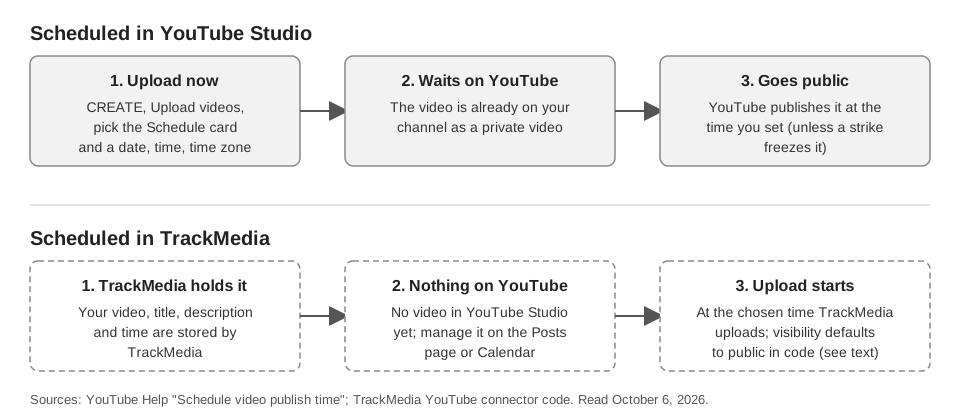
What TrackMedia's YouTube connector does, per its code:
- One video per post. A video and a title are required. The web composer shows a title field up to 100 characters when YouTube is selected. A Short is a normal upload with no Shorts flag, and TrackMedia does not crop or re-encode it.
- Visibility defaults to public in the code, but Google can force private. The connector sends public unless a per-network override says otherwise, and we found no YouTube visibility control in the web composer code. Google's videos.insert reference also says videos uploaded through that endpoint from unverified API projects created after 28 July 2020 are restricted to private viewing mode until the project passes an audit. We could not confirm whether TrackMedia's YouTube API project has passed that audit, so check the visibility of your first upload in YouTube Studio.
- Made for kids defaults to no. The connector sends "self declared made for kids" as false unless an override sets it to true. YouTube's audience page makes the audience answer your responsibility, so check that default fits your channel. The same page says that, for now, made for kids content should be uploaded through YouTube Studio, so upload that kind of video there.
- Native scheduling is possible but not used by the schedule. The connector accepts a
publishAtoverride and then sends the video as private, matching the YouTube Data API videos resource, which sayspublishAtcan be set only when the video is private. We found no code that fills it from a TrackMedia schedule.
In practice, a Short scheduled in TrackMedia does not appear in YouTube Studio's scheduled list until the upload starts, and it is sent as public unless you changed the override, subject to the Google restriction above. You manage the queue on the Posts page and Calendar, and a failed upload shows its reason with a Retry now button. See how publishing works in TrackMedia.
The honest limit: we read the code and did not run a test upload, and we cannot tell whether YouTube publishing is switched on for your workspace. If you run several channels, our guide to managing multiple social media accounts covers the workflow, and you can start free with TrackMedia to see which networks are available.
How we checked this
We opened each page below in a browser on October 6, 2026, and copied the menu labels and rules from the page text. We did not schedule a Short on a live channel. For TrackMedia we read the YouTube connector files (youtube.publish.ts, youtube.capabilities.ts, youtube.connector.ts) and the web composer's override editor the same day.
- Schedule video publish time (YouTube Help): Schedule card steps, edit steps, strike note, Pacific time note.
- Upload YouTube Shorts (YouTube Help): computer, Android and iPhone & iPad versions; no scheduling text.
- Premiere a new video (YouTube Help): "Shorts aren't supported for Premieres."
- Change video privacy settings (YouTube Help): private, unlisted and public comparison.
- Set your channel or video's audience (YouTube Help): made for kids requirement.
- Upload YouTube videos (YouTube Help): unfinished upload saved as private.
- Upload schedule tips for Shorts and Content tab analytics tips for Shorts (YouTube Help): frequency guidance and the Shorts chip.
- Videos resource (YouTube Data API):
status.publishAtandstatus.selfDeclaredMadeForKids. - Videos: insert (YouTube Data API): private viewing mode for unverified API projects.
We could not verify whether TrackMedia's YouTube API project has passed Google's audit, the YouTube app's scheduling screens, whether a time zone choice is stored with the video, a documented way to cancel a schedule, or any best time to post Shorts, so none are stated as fact. YouTube changes these pages, so check them before a large batch.