To hide likes on Instagram, open the Options menu on your post and tap Hide like count to others. To hide the counts on other people's posts in your own feed, go to Menu, then Like and share counts, and turn on Hide like & share counts.
These are the labels on Instagram's Help Center page "Hide or unhide like counts on Instagram posts and reels", read on October 22, 2026, including the iPhone, Android and computer versions. This guide also covers hiding what you have liked, how to bring counts back, and how to keep your own numbers using analytics.
How to hide likes on Instagram: the three settings
Instagram has separate controls, and they change different things. The Help Center splits them into "Posts and reels you see" and "Your posts in feed".
How to hide like counts on other people's posts
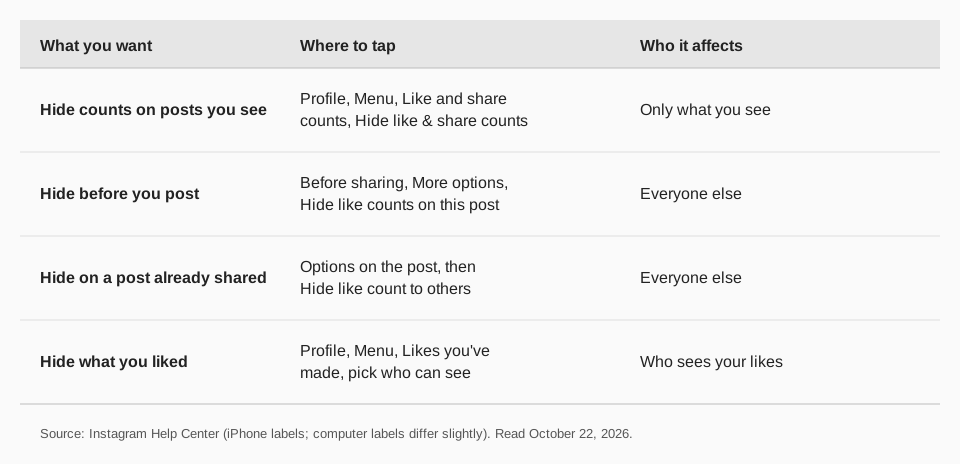
This changes what you see in your own feed, and nothing else. Instagram's page gives these steps for iPhone and Android:
- Tap Profile or your profile picture in the bottom right.
- Tap Menu in the top right.
- Below What you see, tap Like and share counts.
- Toggle on Hide like & share counts. Toggle it off to bring the numbers back.
On a computer, the page says to click More in the bottom left, click Settings, then below What you see click Like and share counts and use the same toggle.
How to hide likes on your own posts
You can hide the like and view counts of a post so that others do not see them. The page says you will still be able to see the total number of likes on your own posts. There are two moments to do it.
Before you share a post
- iPhone and Android: before sharing, tap More options at the bottom, then toggle on Hide like counts on this post.
- Computer: before sharing, click Advanced settings at the bottom, then toggle on Hide like and view counts on this post.
After you have already shared it
- iPhone and Android: tap Options in the top right of your post, then Hide like count to others. Tap Unhide like count to others to turn it off.
- Computer: click Options in the top right of your post, then Hide like count. Click Unhide like count to turn it off.
Instagram's page is about "posts and reels", and its post-level steps are written for posts shared to feed. If the option does not appear on a particular item, check the menu on your screen.
How to hide the posts you have liked
This is a different setting that people often confuse with hidden counts. A separate Help Center page, "Manage who can see your likes on content on Instagram", describes it. On iPhone, tap your profile picture, tap Menu, then Likes you've made and choose one of four options:
- Allow everyone to see likes
- Allow people you follow to see likes
- Allow close friends to see likes
- Don't allow anyone to see likes
The page adds that whatever you pick, the account that posted the content can still see that you liked it, and you can always see your own likes.
Why can't I hide likes on Instagram?
Instagram's page does not list reasons the option would be missing. The usual causes are practical:
- Wrong menu. The feed-wide toggle and the per-post option are in different places. The per-post option sits under Options on a post or under More options before sharing.
- Different labels. Phone and computer wording differ, for example "Hide like counts on this post" on the phone and "Hide like and view counts on this post" on a computer.
- Old app version. Update the app if you cannot find the label.
If hiding counts is part of how you post, remember you can reverse it at any time: the Help Center describes Unhide options for each setting.
Can you still see your results when likes are hidden?
Yes. Instagram says you can still see the total number of likes on your own posts. Hidden counts affect what others see, not the numbers in your analytics, so you can judge which posts work.
That is useful because a post's likes are only part of how it performs. Our guide to what Instagram Insights mean explains the other numbers, and how to calculate engagement rate shows how to turn them into one figure.
How to keep track of results with TrackMedia
If you hide likes publicly, you still want to know what is working. TrackMedia shows the numbers for each Instagram post in one place, so you do not depend on what is visible on the post.
- Per-post numbers. See likes, comments, views, reach, saves and shares for each Instagram post, including posts you did not publish with TrackMedia.
- Clicks, not just likes. Add UTM tags to links and see clicks, visitors and referrers per post and per network.
- Compare networks. Put Instagram next to Threads, Facebook, TikTok and the others in the same view.
- Best times. A "Best times" view built from your own posts shows when yours land best.
You can also schedule Instagram posts from the same composer as your other networks. Read can you schedule a post on Instagram or how to schedule social media posts. Start free with TrackMedia, with 15 posts a month and no card.
Questions people also ask
How do I hide likes on my Instagram post?
Tap Options in the top right of the post, then Hide like count to others. Before sharing, you can instead tap More options and toggle on Hide like counts on this post.
Can I hide like counts on other people's posts?
Yes. Go to Profile, Menu, then Like and share counts below What you see, and toggle on Hide like & share counts. It only affects what you see.
Can I still see my own likes if I hide them?
Yes. Instagram's page says you will still be able to see the total number of likes on your own posts.
How do I hide the posts I liked from others?
Go to Menu, then Likes you've made, and choose who can see your likes. The account that posted the content can still see your like.
How we checked this
We opened each page in a browser on October 22, 2026 and compared the iPhone, Android and computer versions, expanding the collapsed section for posts you have already shared. Instagram changes these pages, so check the live page if a label looks different.
- Hide or unhide like counts on Instagram posts and reels (Instagram Help Center): feed-wide toggle, before sharing, after sharing.
- Manage who can see your likes on content on Instagram (Instagram Help Center): Likes you've made and its four options.