To schedule a social media post, write the post as usual, choose a date and time in the composer instead of publishing now, and confirm. Instagram, Facebook, LinkedIn, X, TikTok, YouTube and Pinterest all have a built-in scheduler, each with different steps and limits, and a scheduling tool such as TrackMedia handles all of them from one calendar.
This pillar guide uses each network's own help pages, read on October 22, 2026. It gives the steps and limits for seven networks, a comparison of how far ahead each lets you schedule, what to do when a scheduled post does not go out, and how to run one schedule across all of them. Each section links to a detailed guide for that network.
How to schedule social media posts: the basic steps
The method is the same everywhere, even though the buttons move around:
- Write and attach everything. Text, media, links and tags go in first, because a few networks lock parts of a post after you schedule it.
- Find the schedule control. It is a clock or calendar icon, a toggle called something like "Schedule this post", or a "Schedule" card.
- Pick the date and time. Check which time zone the network uses. It is usually your device's.
- Confirm. Many networks need a second tap on Schedule before the post is queued.
- Check where it landed. Every network keeps scheduled posts in its own list. Open it once to make sure the post is there.
How to schedule a post on Instagram
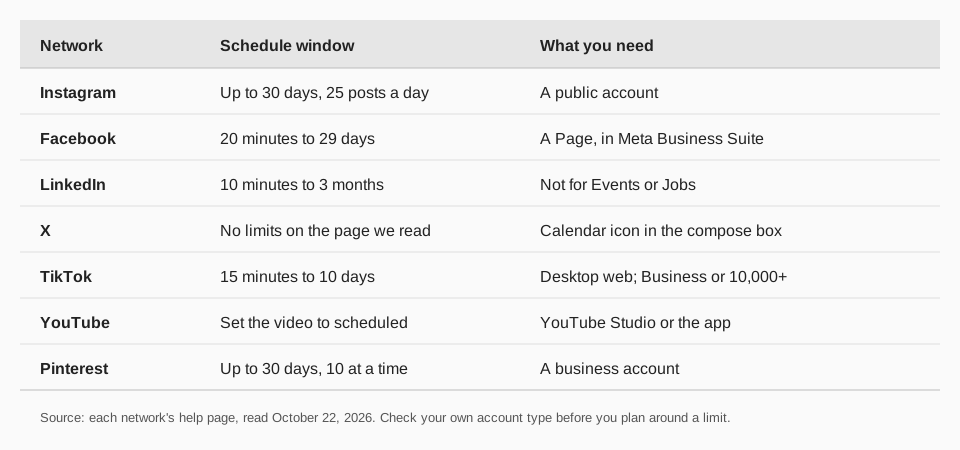
Instagram's Help Center says that if you have a public Instagram account you can schedule reels, photos and carousel posts from the Instagram app. You can schedule up to 25 posts a day, up to 30 days in advance.
- Tap Create in the top left, or swipe right anywhere in Feed. Then tap Post or Reel.
- Select a photo or video, then tap Next.
- Add a caption, effects or filters.
- Tap More options.
- Turn on Schedule this post or Schedule this reel, then choose a date and time.
- Tap Done, then Back, then Schedule.
Product tagging, collaborative posts, sponsored posts and fundraisers are not compatible with scheduled content, per the same page. To find or change a scheduled post, tap Profile, then Menu, then Scheduled content below Your insights and tools, tap Options and choose Delete, Edit post, Reschedule or Share now. More in how to see scheduled posts on Instagram.
How to schedule a post on Facebook
Facebook schedules Page posts through Meta Business Suite. The Meta Business Help Centre says you can schedule posts to publish between 20 minutes and 29 days away, and that all scheduling times correspond to your current time zone.
- Switch to the Page you want to use.
- From your Page, click Meta Business Suite in the left menu.
- Click Create post underneath your Page's profile picture and add your content.
- Next to Scheduling options, click the Set date and time toggle and set a date and time. You can click Active times to see recommended publication times.
- Click Schedule.
To change it later, open Planner, click the post, then Options: edit, duplicate, reschedule, move to drafts or delete. See how to see and edit scheduled posts on Facebook, and whether you can schedule Reels on Facebook.
How to schedule a post on LinkedIn
LinkedIn's Help page says you can schedule a post between 10 minutes and 3 months from the current time. On a computer:
- Click Start a post at the top of your homepage and enter your content.
- Click the clock icon in the lower-right corner.
- In the Schedule post pop-up, choose a date and time.
- Click Next, then Schedule.
On mobile, tap Post, write your content, tap the clock icon in the upper-right corner, choose a date and time, then tap Next and Schedule. You can type a specific time or pick a 30-minute increment. Times convert to UTC based on your device's time zone. Events and Jobs cannot be scheduled. Find and edit them under View all scheduled posts; our guide to seeing and editing scheduled posts on LinkedIn has the detail.
How to schedule a post on X
X's Help Center says to select the calendar icon at the bottom of the compose box, make your schedule selections, then select Confirm. To get to your drafts and scheduled posts, select Unsent posts from the post compose box. We read the desktop version of the page; X's guides on scheduling have more: how to schedule and edit posts on X and how to schedule a tweet on mobile.
How to schedule a video on TikTok
TikTok's Support page describes scheduling on TikTok Desktop Web only:
- Log in to TikTok on desktop web and click the Upload icon at the top of your feed.
- Upload the video and finish editing.
- Toggle the schedule button and select a date and time. The time zone defaults to your computer's setting.
- Click Schedule.
The page says you can schedule a minimum of 15 minutes and a maximum of 10 days ahead, that scheduled posts can be seen in the Profile view and cannot be edited but can be deleted, and that the feature is not available for TikTok Mobile Web. It also says only a "Business Account" or one with 10,000 followers or more can access desktop scheduling. Does it hurt reach? Read does scheduling a post on TikTok affect views.
How to schedule a video on YouTube
YouTube's Help page says you must set the video to "scheduled" or "private" on the upload page before you can choose a publish time. In YouTube Studio on a computer:
- Click CREATE, then Upload videos.
- Select your file and enter the video details.
- Click the Schedule card and set the date, time and time zone.
- Click Schedule.
To change it, go to Content in YouTube Studio, select the video, click Edit, then Visibility. The page notes that a Community Guidelines strike keeps the video private during the penalty period, so you would need to reschedule it afterward. For short videos, see how to schedule YouTube Shorts.
How to schedule a Pin on Pinterest
Pinterest's business help page says you need a Pinterest business account. You can schedule a Pin up to 30 days in advance, one Pin at a time, with up to 10 scheduled at once. On desktop:
- Log in to your business account and click Create at the top left (or Create Pin under Create in the hamburger menu).
- Select an image or video, up to 10 images, each of which becomes its own Pin, and fill in the Pin details.
- Select Publish at a later date and pick a day and time.
After scheduling you can change the publish date, title, board, description and link, but not the image or video. See how to schedule Pins on Pinterest.
What about Reddit, Telegram, Discord and Bluesky?
Support varies. Our comparison of native scheduling sets out what each network documents. For specific guides, see Reddit post scheduler, scheduling a message on Telegram, scheduling messages on Discord and scheduling posts on Bluesky.
Why a scheduled post may not publish or may show the wrong time
- The post uses a feature the scheduler does not support. Instagram lists product tagging, collaborative posts, sponsored posts and fundraisers. LinkedIn lists Events and Jobs.
- The time is outside the window. LinkedIn needs at least 10 minutes, TikTok 15, Facebook 20.
- The time zone is not what you expected. Facebook uses your current time zone, LinkedIn converts from your device, TikTok defaults to your computer, and YouTube lets you pick a time zone and notes the watch-page date uses Pacific Standard Time.
- The account does not qualify. Instagram needs a public account, Pinterest a business account, and TikTok desktop scheduling a Business Account or 10,000 followers.
- You are looking in the wrong list. Each network keeps its own queue.
How to schedule social media posts with TrackMedia
With TrackMedia you write once and schedule to any of 21 networks from one place: Bluesky, LinkedIn, Instagram, Threads, TikTok, YouTube, Mastodon, X, Facebook, Pinterest, Reddit, Telegram, Discord and more. The steps are the basic five above, done in one composer.
- Write the master post. The composer shows a version fitted to each network, and preflight checks flag anything a network would reject before it is sent.
- Add media, links and extras. Threads, carousels, first comments, alt text and mentions are supported where the network allows them.
- Pick a time or a queue slot. Choose an exact date and time, or send the post to a posting queue, which publishes at the slots you set. Content collections fill queue slots.
- See everything on one calendar. The calendar shows what is going out on every network, so you do not open seven apps.
- Track the result. Links are tracked in real time with UTM tags, and analytics show clicks, visitors and referrers per post and per network. A "Best times" view built from your own posts suggests when to schedule next.
One thing to know: a post scheduled in TrackMedia is held by TrackMedia, so it does not appear in Instagram's, Facebook's or LinkedIn's own scheduled lists. Check the calendar in TrackMedia instead. For Instagram Stories, use the Instagram app.
Not sure which tool to pick? Read how to choose a social media scheduling app. When you are ready, start free with TrackMedia: 15 posts a month, one account per network, no card. Creator is $99 a year for 30 channels, and Agency is $799 a year.
Questions people also ask
How do I schedule social media posts for free?
Use TrackMedia's free plan (15 posts a month, one account per network, no card) to schedule across networks, or use each network's built-in scheduler where your account qualifies.
How far ahead can I schedule posts?
It depends on the network: TikTok 10 days, Facebook 29 days, Instagram and Pinterest 30 days, LinkedIn 3 months.
Can I schedule posts from my phone?
Instagram's scheduling is done in its app, and LinkedIn and Pinterest document mobile steps. TikTok's page says its scheduling is not available on Mobile Web and describes desktop web only. A tool like TrackMedia also lets you schedule in advance from a computer.
Does scheduling a post hurt reach?
The help pages we read for these networks say nothing about scheduled posts being shown less. Their limits are about time windows, account types and editing. TikTok has its own guide: does scheduling a post on TikTok affect views.
What is the best time to schedule posts?
It depends on your audience. Facebook's scheduler shows recommended times under Active times, and TrackMedia's Best times view is built from your own posts.
How we checked this
We opened each page below in a browser on October 22, 2026 and copied the steps and limits. Where a page showed one device only, we say so. Networks change these pages, so check the live page for your account type.
- How to create and manage scheduled posts and Reels on Instagram (Instagram Help Center).
- Schedule a post and manage scheduled posts for your Facebook Page (Meta Business Help Centre).
- Schedule posts (LinkedIn Help).
- How to Post (X Help Center): the desktop scheduling lines.
- Schedule video (TikTok Support).
- Schedule video publish time (YouTube Help).
- Schedule Pins (Pinterest Business help).