To make a post shareable on Facebook, set its audience to Public before or after you post. Facebook's Help Center says that depending on the original post's privacy settings (for example, if you chose Friends), other people may not see the option to share it.
This guide uses Facebook's Help Center pages on choosing who can see your post, changing the audience of past posts, sharing a post you see in Feed and Page country and age restrictions, plus Facebook's Pages policy, read on October 22, 2026. It also explains why the Share button may be missing and how Pages differ from profiles.
Sources: choosing who can see your post · changing the audience of past posts · sharing a post you see in Feed · Page country and age restrictions
What makes a Facebook post shareable?
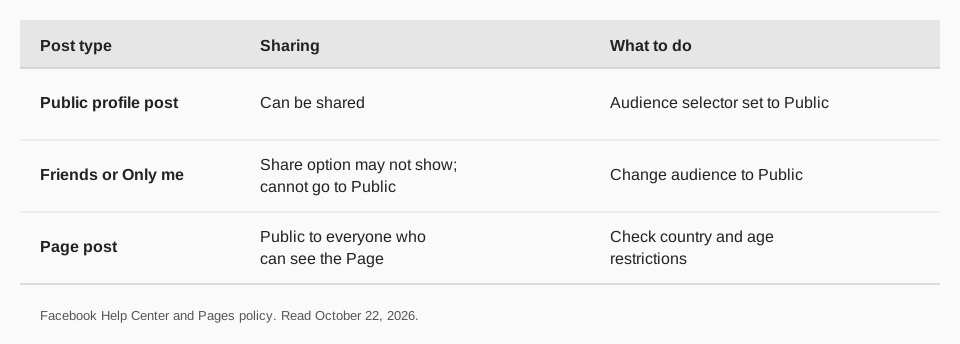
The audience of the post decides. Facebook's page on sharing says the options you see below a post depend on its privacy settings, and that you cannot share a post with people who were not part of the original audience. In Facebook's words, a post shared with Friends cannot be shared with Public.
So a post is only as shareable as its audience is wide. A Public post can be passed on to anyone; a Friends post stays inside that group.
How to make a new post Public on Facebook
Facebook's audience selector controls who can see a post. On a computer, the steps are:
- Click the text box next to your profile picture, at the top of your Feed or profile.
- Click the audience selector below your name. It shows your current audience, for example Friends.
- Choose Public from the audiences listed (such as Friends, Public or Only me).
- Write your post and click Post.
On an iPhone or Android phone, the steps are the same except you tap: tap the text box, tap the audience selector below your name, select the audience and tap Done.
Two details from Facebook's page are worth knowing. The audience you pick applies to that specific post only, and the next post goes back to your default audience from your privacy settings. And when you create a reel or add to your story, you choose the audience separately.
How to change an existing post to Public
You do not need to delete the post. Facebook's page on previous posts gives these steps for a computer:
- Click your profile picture in the top right, then click your name to open your profile.
- Scroll to the post you want to change.
- Click the audience selector next to the date or time on the post.
- Select who can see it from the options, such as Public, Friends or Only me.
Facebook adds that when you change the audience on one device, it updates on all devices. If you tagged someone, the post's audience still includes the tagged person and their friends. If you shared on someone else's profile, that person controls the audience.
Be careful with the reverse. Facebook's Limit past posts setting changes all your past posts that are visible to more than your friends, such as Public ones, to Friends only. The page says that cannot be reversed in one click, so you would need to change each post back individually.
Why is the Share button missing from my post?
If you cannot see a Share option on your own or someone else's post, check these:
- The audience. A Friends or Only me post may not offer sharing at all. Set it to Public if you want others to share it.
- The kind of content. Facebook says reels and stories have their own audience settings, separate from the post audience.
- A Page with restrictions. Facebook says if a Page has country or age restrictions, you may not be able to share its posts to external sites, and the Page cannot be seen when logged out of Facebook.
- A group. Facebook says a post or comment in a public group is public and can be seen by anyone.
- A recent change. Facebook says an audience change on one device updates on all devices, so the new setting should show wherever you look.
If the audience selector itself will not let you change a post, Facebook has a help page for that exact case and says you should be able to choose who sees a post with it. Use the help page's feedback option to report it.
What can people do when they share your post?
When someone taps Share below a Public post, Facebook shows destinations that depend on the post's privacy. On a computer, the list includes Share now, Share to Feed, Share to your story, Send in Messenger, Share to a group, Share on a friend's profile and Share to a Page. On iPhone the list also shows Copy Link.
Because anyone who can see a Public post may share it, write posts you would be comfortable having passed on. Remove personal details first. If you later want to limit a post, change its audience with the steps above.
Page posts versus profile posts
Facebook's help pages say default audience settings for Page posts are different from settings for profile posts. The Pages policy states that content posted to a Page is public and viewable by everyone who can see the Page. That makes a Page the better home for posts you want shared widely.
- A profile uses the audience selector on each post (Public, Friends, Only me and others).
- A Page posts publicly to anyone who can see the Page. The exception is a Page with country or age restrictions, which only shows to people who meet them.
To set restrictions, a person with full Facebook access goes to the Page, then Settings and privacy, Settings, Followers and public content, then Country restrictions or Age restrictions. Facebook warns that people who do not meet new restrictions are removed and will not return unless they like the Page again.
For a walk through creating a post, see our guide on how to make a post on Facebook, and for changing one afterward, how to edit a post on Facebook.
How to publish shareable Facebook Page posts with TrackMedia
TrackMedia publishes to Facebook Pages, which are the public home for posts you want people to share. Connect your Meta login, choose the Page, and the composer takes care of the rest.
- One composer, 21 networks. Write the post once and TrackMedia fits a version to Facebook and each other network, with preflight checks before it goes out.
- Text, images, GIFs and video. Add photos, a video, a link preview and a first comment.
- Schedule it. Pick a time or use a queue, and see everything on the calendar. Our guide to seeing and editing scheduled posts on Facebook covers the native tools.
- See who shares. Per-post analytics show reactions, comments, shares, reach and clicks, including for posts you did not publish with TrackMedia. Links get UTM tags and real-time click tracking.
Posting to a personal profile is done in Facebook itself. The free plan includes 15 posts a month and one account per network, with no card. Start free with TrackMedia, or read how to post to Instagram and Facebook at the same time.
Questions people also ask
How do I make a post shareable on Facebook?
Change the post's audience to Public with the audience selector. For a new post, click the audience selector below your name before you post. For an old one, click the audience selector next to the date on the post.
How to make a Facebook post shareable?
The post must be visible to the people who will share it. Facebook says you cannot share a post with people outside its original audience, so a Friends post cannot become Public through sharing.
Why can't people share my Facebook post?
Most often because the audience is Friends or Only me. Facebook says that depending on privacy settings, the option to share may not appear. Change the audience to Public to fix it.
Can I make a Facebook post shareable after posting?
Yes. Open your profile, click the audience selector next to the post's date or time, and choose Public. Facebook says the change updates on all your devices.
Are Facebook Page posts always shareable?
Facebook's policy says Page content is public to everyone who can see the Page. A Page with country or age restrictions is only shown to people who meet them, and may not let you share its posts to external sites.
How we checked this
We opened each Facebook page below in a browser on October 22, 2026, including the Computer and iPhone App views where Facebook gives them. Facebook changes its menus, so use the labels on your screen if they differ. TrackMedia's behavior comes from reading its Facebook connector code the same day.
- Choose who can see your post on Facebook (Facebook Help Center): the audience selector steps and what applies to one post.
- Choose who can see your previous posts on Facebook: changing a past post's audience and Limit past posts.
- Share a post that you see in your Feed on Facebook: share options and the original-audience rule.
- Add or edit country and age restrictions for your Page: how restrictions affect a Page and sharing.
- Pages, Groups and Events Policies (Facebook): Page content is public to everyone who can see the Page.