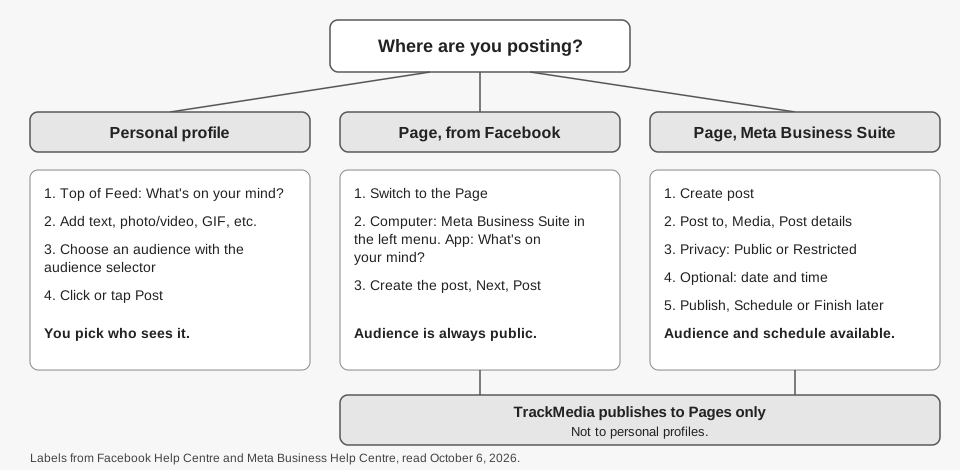
How to make a post on Facebook depends on where you post. From your personal profile, click or tap What's on your mind? at the top of your Feed, add your text, photo or video, choose an audience, and select Post. A Facebook Page post follows a different path: you switch to the Page first, and the audience rules change.
This guide uses the exact wording from Facebook's Help Centre and Meta's Business Help Centre, read on October 6, 2026. It covers a profile post on computer, iPhone and Android, a Page post from Facebook and from Meta Business Suite, what a post can contain, and what TrackMedia can publish.
How to make a post on Facebook from your personal profile
Facebook's Help Centre article Share something on Facebook has separate steps for each device. On a computer, it gives these:
- Start the post. From the top of your Feed, click What's on your mind, [Name]?
- Add your content. Add a text update, or click the type of post you want to share, such as photo/video or feeling/activity.
- Add extras if you want them. The page lists adding a photo or video, checking in, tagging people and adding a feeling/activity, plus another option such as a GIF or a live video.
- Choose who sees it. Click the audience selector at the top, for example Public.
- Click Post.
The same page adds one note: you can only add a life event from your timeline.
On iPhone and Android
The phone versions are shorter. On iPhone, the article says to tap What's on your mind? from your Feed or timeline. On Android it says to tap it at the top of your Feed or timeline. Both then say to add your update, select an audience, and tap Post.
Both phone versions also say that if you are sharing a text post, you can use AI to enhance your writing. The page does not say how or where to find it. The iPad version has the same steps as iPhone, without that note. The article also has Mobile Browser and Facebook Lite tabs; the versions we could load showed the same text as the computer steps, but we could not confirm they are separate versions, so check those if you use them.
How do you make a post on a Facebook Page?
A Page post starts by switching to the Page you want to post as. Facebook's article Create posts and save drafts for your Facebook Page says you can create Page posts from either Facebook or Meta Business Suite.
From the Facebook app, the article says to switch to the Page, tap What's on your mind? at the top of your Feed, create your post, tap Next, review your post settings and tap Post. On a computer, the article's steps are:
- Switch to the Page you want to use.
- Click your Page's profile picture in the top right, then click your Page's name again to go to your Page.
- Click Meta Business Suite in the left menu.
- Create your post, then click Next.
- Review your post settings and click Post.
The article also says that only people with Facebook access can create a Page post on Facebook. People who have task access and permission to manage content can only create posts from Meta Business Suite.
Making a Page post in Meta Business Suite
Meta's article Create and manage posts in Meta Business Suite on desktop says you need full control of the Page or content permission for it. Its steps are:
- Go to Meta Business Suite and click Create post, from the home page or the Content tab.
- Under Post to, choose the destination, such as your Facebook Page.
- Under Media, add your photos.
- Under Post details, write your text. You can add hashtags, a location, a feeling/activity or other options with the icons below the text box.
- Under Privacy settings, choose Public or Restricted.
- To schedule it, pick a date and time under Scheduling options.
- Click Publish, Schedule or Finish later.
The Page-posts article says Finish later saves a draft, and that on a computer you can only save multiple drafts in Meta Business Suite. In the Facebook app you can save only one draft at a time.
What is different about the audience on a profile versus a Page?
On a personal profile you choose the audience yourself with the audience selector. For a Page, Facebook's article says that when you create a post from the Page on Facebook, the audience is always set to public. To change the privacy settings, the article says to create the post in Meta Business Suite instead.
If you already posted something from a profile and want to change who sees it, Facebook's page on changing the audience of a post says to open your profile, scroll to the post, click the audience selector next to the date or time, and select a new audience such as Public, Friends or Only Me.
What can a Facebook post contain?
Facebook's Help Centre lists these elements for a profile post: text, a photo or video, a check-in, tagged people, a feeling/activity, and options such as a GIF or a live video. Meta Business Suite adds hashtags and a location in its post details, and the Page-posts article says you can add a collaborator.
Neither help page we read gives a maximum number of photos, a video length or a character limit for a Facebook post. Meta's Business Suite page does state a limit of ten photos, but it applies that to Instagram. So we are not giving you Facebook limits that we could not read on an official page.
Posts you have already made can be changed afterward. Our guide to seeing and editing scheduled posts on Facebook covers the scheduled case.
What can TrackMedia post to Facebook?
TrackMedia publishes to Facebook Pages only. It does not publish to personal profiles, so the profile steps above are ones you do yourself in Facebook. For a Page, TrackMedia's Facebook connector accepts one of these, based on its code:
- Text, optionally with a link.
- Images or GIFs, up to 10 in one post.
- One video. A post carries either images or a single video, not both.
A post with no text, link or media is rejected with the message "A Facebook post needs text, a link or media". The connector can also add a first comment after publishing, and if that comment fails the post still goes out. The code sets a 63,206-character cap for the text, which comes from TrackMedia's own platform notes, not from a Facebook help page we read.
Links in your post become tracked short links, and you can write one master draft and adjust it per network. If you also want the same post on Instagram, see how to post to Instagram and Facebook at the same time. Handling several Pages or brands is covered in managing multiple social media accounts, and the publishing overview shows the composer.
One limit to know: TrackMedia holds the schedule itself and publishes at the time you choose, so a scheduled post will not appear in Facebook's own scheduled list. When you want a Page post to go out at a set time from one place, you can start free with TrackMedia.
How we checked this
We opened each page below on October 6, 2026 and copied menu labels from it. We did not make a live post on a test profile or Page, so we cannot confirm how each screen looks today. Facebook help pages are device-gated, so we read the computer, iPhone, Android and iPad versions where noted.
- Share something on Facebook (Facebook Help Centre): computer, iPhone, Android and iPad steps for a profile post. The Mobile Browser and Facebook Lite tabs showed the computer text when loaded, and we could not confirm they are separate versions.
- Create posts and save drafts for your Facebook Page (Facebook Help Centre): computer, iPhone and Android versions read in full; the Mobile Browser and Facebook Lite tabs were not confirmed.
- Create and manage posts in Meta Business Suite on desktop (Meta Business Help Centre): Create post steps, privacy options, scheduling.
- Change the audience of a post on Facebook (Facebook Help Centre): computer version.
What we could not verify: a photo count, video length or text limit for Facebook posts from an official help page, whether the Mobile Browser and Facebook Lite versions of the profile and Page articles differ from the computer text, and the Meta Business Suite mobile app steps for creating a post. TrackMedia's behavior comes from its Facebook connector code, read the same day.