
To edit a post on Facebook, go to the post, click or tap Options in its top right, choose Edit post, make your changes and save. That works for a post you shared on your profile and for a post on a Facebook Page, with a few differences covered below.
The steps and limits here come from Meta's Help Centre, read on October 6, 2026. This guide covers published posts. If your post is still scheduled, see our separate guide on how to see and edit scheduled posts on Facebook.
How do I edit a Facebook post on a computer?
Meta's Help Centre page Edit your post on Facebook gives these steps in its computer view:
- Go to your post.
- Click Options in the top right of the post.
- Click Edit post.
- Make your changes, then click Save.
While editing, you can click Add to your post to add items such as a check-in or tags. Meta notes that some items cannot be added to a post that already has a different item, and the ones you cannot add are greyed out.
If the post has no photos or videos, Add to your post is also where you add them. If it already has some, hover over the photo and click Add photos/videos. To take them out, hover over the photos and click Remove in the top right, or click Edit all first to remove a single photo from a group.
How do I edit a Facebook post in the iPhone or Android app?
The same Meta page, in its iPhone App, iPad App and Android App views, gives the same path with taps instead of clicks: go to your post, tap Options in the top right, tap Edit post, make your changes and tap Save. The Android view writes the last button as SAVE.
To add a photo or video in the app, tap Add media while editing and follow the on-screen instructions. To remove one from a post with a single photo or video, tap Remove in the top right of it. With several, tap the photo you want to remove, tap Remove, and tap Done when finished.
We read all six views Meta publishes for this page: Computer, iPhone App, iPad App, Android App, Facebook Lite App and Mobile Browser. The iPad view gives the same steps as the iPhone view, and the Facebook Lite and Mobile Browser views give the same click-based steps as the Computer view.
How do I edit a Facebook Page post?
On a Page, the path is the same: go to the post, click Options in the top right, select Edit post, edit it and click Save. Meta's page Edit your Page post or see its edit history adds that people with Facebook access or task access to the Page can edit its posts. In the app you tap Options, then Edit post, then Save.
The page says people with task access can edit posts in Meta Business Suite. Meta's page on creating and managing posts in Meta Business Suite on desktop describes the route: click Content in the left-hand menu, find the post on the Posts and reels tab (its status tabs are Published, Scheduled, Drafts, Expiring and Expired), select the post, click the ... icon and choose Manage post. The options that appear depend on the post's status, and Edit post is one of them.
The iPhone and iPad views of the Page page add one troubleshooting line: if you cannot see the option to edit your post, try installing the latest version of the app.
What can't you edit on Facebook?
Meta documents these limits. Each row names the page that says it:
| What you cannot do | What Meta says | Source |
|---|---|---|
| Edit someone else's post | You can only edit posts that you shared. You can't edit the text, photos or videos of posts shared by other people. | Edit your post on Facebook |
| Edit a boosted Page post | Posts that have been boosted or are part of an ad campaign can't be edited. | Edit your Page post |
| Remove photos from some posts | If you shared from a third-party app (for example Spotify or a news site) or from a photo album, you can't remove photos from the post. | Edit your post on Facebook |
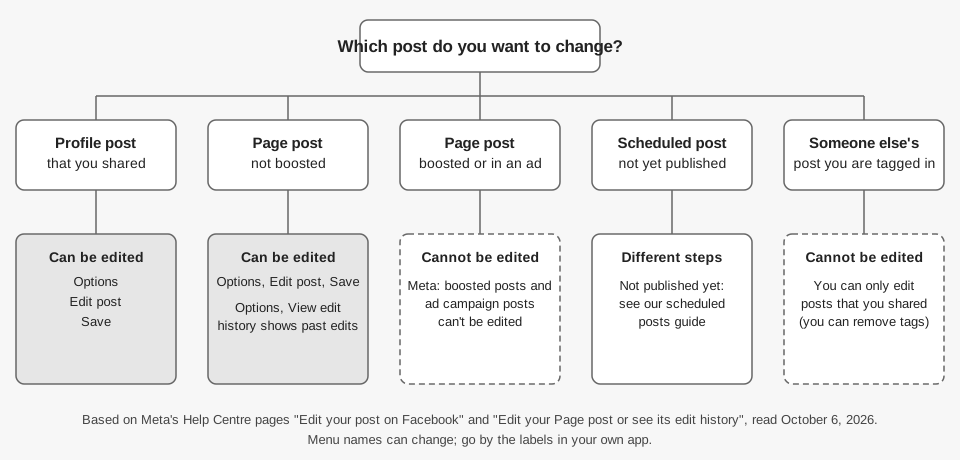
For someone else's post that mentions you, Meta's page points to a separate guide on removing tags, which we did not open. We found no time limit on editing in either page, and the pages do not state one. If the Edit post option is missing on your post, check the limits above first. For a Page post in the iPhone or iPad app, Meta also suggests installing the latest version of the app. Meta's page lists a question about what to do when you cannot edit a post but shows no answer under it, so we cannot list other causes.
Can people see that you edited a Facebook post?
For a Page post, yes. Meta's Page page says anyone who can see the post can see a history of any edits made after it was published, while only people who work on the Page can see who made the edits. To open it, go to the post, click or tap Options and select View edit history. Meta says this shows all edits, including those made before the post was published.
For a post on your own profile, the page we read, Edit your post on Facebook, says nothing about edit history or an edited label. We cannot say from official pages whether your friends can see earlier versions, so do not assume an edit is invisible. If a change matters, such as correcting a price or a date, say so in the post or a comment.
Can TrackMedia edit a published Facebook post?
No. TrackMedia's Facebook connector publishes to Pages, not personal profiles, and its code has no way to change a post after it has gone out. The connector can publish a post, list recent posts and fetch metrics, but it has no edit operation. In TrackMedia a post can be edited only while it is a draft or scheduled, and a published post is read-only.
So the workflow is split. Change the wording of a scheduled post in TrackMedia before it publishes. Once it is live, make the correction on Facebook using the steps above. We did not verify whether an edit made on Facebook later updates TrackMedia's copy of the post, so treat the Facebook version as the real one.
See how publishing works in TrackMedia, or the guide to posting to Instagram and Facebook at the same time. For the Instagram side of the same problem, read how to edit scheduled posts on Instagram.
If you want drafts and schedules for your Page in one place, you can start free with TrackMedia.
How we checked this
We opened each page below in a browser on October 6, 2026 and copied the menu names and limits from it. We did not edit a post on a live Facebook account. The TrackMedia statements come from reading its Facebook connector and post-status code the same day.
- Edit your post on Facebook (Facebook Help Centre): Computer, iPhone, iPad, Android, Facebook Lite and Mobile Browser views. Edit steps, adding and removing photos, who can be edited.
- Edit your Page post or see its edit history (Facebook Help Centre): all six device views. Page edit steps, who can edit, boosted posts, View edit history and who sees it.
- Create and manage posts in Meta Business Suite on desktop (Meta Business Help Centre): Manage post options.
What we could not verify: any time limit on editing, the answer to the "What if I can't edit my Facebook post?" question that Meta lists but does not show, whether profile post edits are visible to friends, the steps for removing tags, and Meta Business Suite mobile app steps for editing a published post.