To make another YouTube channel, sign in to YouTube on a computer or the mobile site, go to your channel list and click Create a new channel, then choose a profile picture, name and handle and click Create channel. YouTube Help says this creates a new Brand Account, which can use a different name than your Google Account.
This guide uses YouTube Help's "Create a YouTube channel", "Manage YouTube channels" and "Switch between channels on a Google Account" pages, read on October 22, 2026. It also covers switching between channels, who can manage them, and how to run both from one workspace.
How to make a new YouTube channel
YouTube Help separates two cases. The steps for a channel with a business or other name, which is what you want for a second channel, are:
- Sign in to YouTube on a computer or the mobile site.
- Go to your channel list.
- Choose what to do. Click Create a new channel, or pick a Brand Account that you already manage and that has no channel yet. If the Brand Account already has a channel, you can't create a new one, and selecting it switches you to that channel.
- Choose a profile picture, a name and a Handle.
- Click Create channel. This creates a new Brand Account.
The page adds that if you use YouTube with a supervised experience, you may not be able to create a channel.
Personal channel or Brand Account?
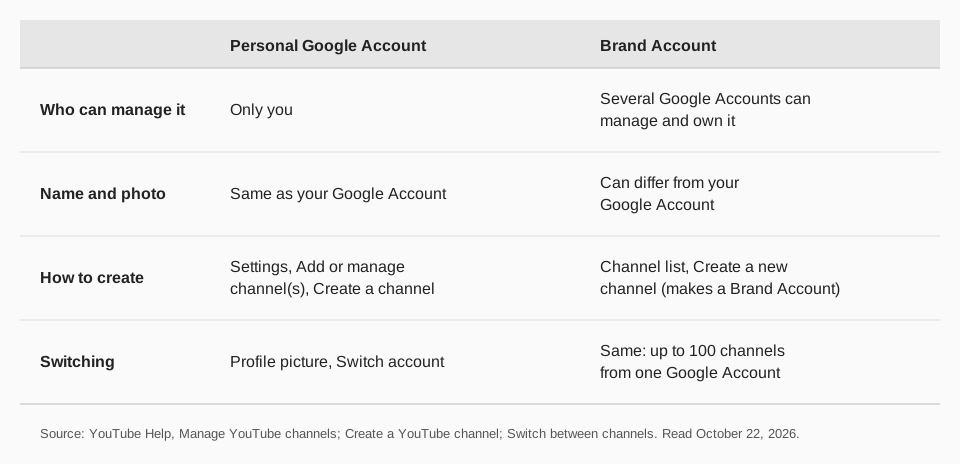
The "Manage YouTube channels" page says a channel can be connected to your personal Google Account or to a Brand Account, and encourages you to link it to one of them because linking can help to validate your channel identity.
- Personal Google Account. Only you can access the channel, and it uses the same name and photo as your Google Account.
- Brand Account. Multiple Google Accounts can manage and own it, and the channel can have a different name and photo from your Google Account.
For a second channel with its own name, such as a brand, a language or a separate topic, the Brand Account route is the one the page describes. A warning from the same page: if you add other owners to the channel, they can take full actions on it, including deleting the channel and removing other owners.
For a personal channel, YouTube's page gives these steps: sign in, click your profile picture, then Settings, go to the Account section and select Add or manage channel(s), click Create a channel, then choose a picture, name and Handle and click Create channel.
How to switch between YouTube channels
The page "Switch between channels on a Google Account" says you can manage up to 100 channels from one Google Account, but on YouTube you can only use one channel at a time. Its steps:
- Computer: click your profile picture in the top right of youtube.com, click Switch account, then click the account you want. If you choose a Brand Account without a channel, you can create one for it.
- YouTube app (iPhone and Android): go to your profile picture, tap Accounts at the top, then tap a channel in the list.
- YouTube Studio app: tap your profile in the top right, tap Accounts at the top, and choose the channel you'd like to act as.
Check the name and icon to confirm which channel you are using. If a channel doesn't show up, the page says to go to studio.youtube.com to switch channels, or to check that your Google Account is listed as a manager of the Brand Account behind it.
Can you have two YouTube channels on one account?
Yes. YouTube Help says one Google Account can manage multiple Brand Accounts connected to YouTube channels, and you can manage them all through one Google Account without signing out. The limit it gives is up to 100 channels from one Google Account.
Two practical points follow from the pages:
- Each channel has its own identity. Name, photo and handle are chosen per channel when you create it.
- Check before you upload. Because only one channel is active at a time, confirm the name and icon before you upload or post. Our guide on uploading a video to YouTube walks through the upload step.
How to manage two YouTube channels with TrackMedia
TrackMedia is built to put several channels in one workspace, so you don't switch accounts to publish. You connect each YouTube channel once, then schedule and track both from one calendar.
- Connect both channels. TrackMedia counts a channel as one account, page or profile. The Creator plan ($99/year) includes 30 channels on any mix of networks, and the Agency plan ($799/year) includes 200. The free plan connects one account on each network.
- One composer. Pick which channel a video goes to, add the title, description and tags, and schedule it. A vertical video under the Shorts length publishes as a Short automatically.
- Cross-promote. Announce a video from one channel on the other, and on Bluesky, LinkedIn, X, Facebook, Threads and the rest of the 21 networks, with a version fitted to each.
- See both in one place. Views, likes and comments per video for each channel, including videos you uploaded in YouTube Studio, with UTM-tagged links to see which posts send clicks.
See how to manage multiple social media accounts and how often to post on YouTube for planning two channels. Start free with TrackMedia, no card needed.
Questions people also ask
How to make another YouTube channel?
Sign in to YouTube, go to your channel list, click Create a new channel, choose a picture, name and handle, and click Create channel. This creates a Brand Account.
How do I make a new YouTube channel on the same account?
Use the same steps. One Google Account can manage multiple Brand Accounts connected to YouTube channels, up to 100 channels in total.
Can I have two YouTube channels with the same email?
Yes. YouTube Help says you can manage them all through one Google Account without signing out, and switch between them.
Do I need a Brand Account for a second channel?
The page that describes creating a channel with a business or other name says that route creates a Brand Account, which also lets you use a different name from your Google Account and share management with others.
How we checked this
We opened each page in a browser on October 22, 2026, reading the Computer, Android and iPhone versions of the switching page. YouTube changes these pages, so check the live page if a label looks different.
- Create a YouTube channel (YouTube Help): personal channel and business-name channel steps.
- Manage YouTube channels (YouTube Help): personal Google Account versus Brand Account, owners and names.
- Switch between channels on a Google Account (YouTube Help): switching steps on each device and the 100-channel figure.