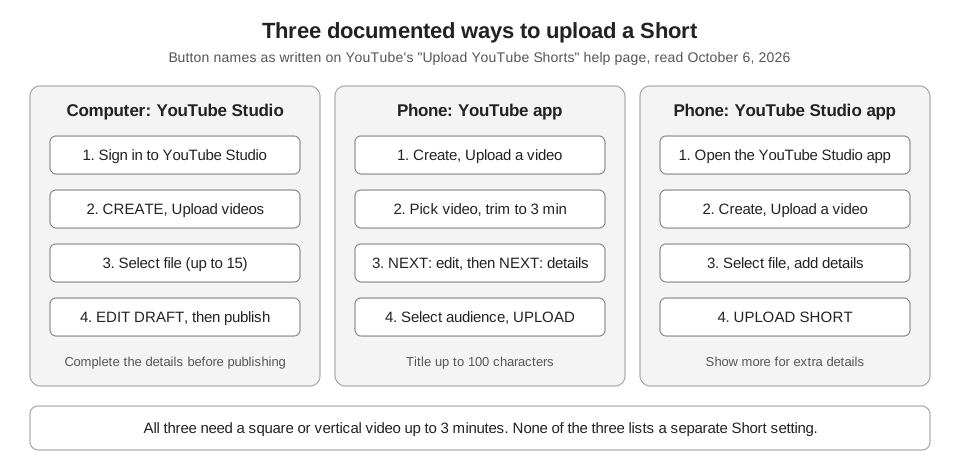
To post a YouTube Short, open the YouTube app, tap Create, then Upload a video, and pick a square or vertical video that is 3 minutes or shorter. On a computer, sign in to YouTube Studio, click CREATE, then Upload videos, and choose a file that meets the same two rules.
Every button name below comes from a YouTube Help page read on October 6, 2026. For dimensions, resolution and file limits, see our guide to YouTube Shorts length, size and aspect ratio.
What do you need before you post a YouTube Short?
You need a video file that is square or vertical and no longer than 3 minutes. YouTube's Understand three-minute YouTube Shorts page says that on standard channels, videos uploaded on or after October 15, 2024 with a square or vertical aspect ratio up to three minutes "will be categorized as Shorts". Videos uploaded before that date stay long-form videos.
A few other things to settle first:
- A title of 100 characters or fewer. The upload steps in the app give "max 100 characters" for the title.
- An audience answer. In the YouTube app you choose "Yes, it's made for kids" or "No, it's not made for kids" before you can upload.
- Rights to everything in the video. YouTube's upload page warns that copyright-protected material can lead to a Content ID claim. On the three-minute page, a Short over one minute with an active Content ID claim of any type is blocked globally, and it is not eligible for monetization.
The upload pages we read say "square or vertical" and name no required ratio such as 9:16. The specs guide linked above covers what YouTube does and does not say about the cutoff.
How to post a YouTube Short from your phone
On Android and iPhone, YouTube Help's Upload YouTube Shorts page gives these steps for a video already saved on your device:
- Start the upload. In the YouTube app, tap Create, then Upload a video.
- Choose and trim the video. Pick a square or vertical video. Videos up to 3 minutes show a trim editor, and anything outside the box will not show in the Short. For a longer video, tap Edit into a Short to trim it to 3 minutes or less.
- Edit it. Tap NEXT to add text, filters, music or other audio. YouTube notes that audio picked from its library is limited to 15-second clips.
- Add details. Tap NEXT again for the title and the privacy settings.
- Pick an audience. Tap Select audience and choose one of the two made-for-kids answers.
- Publish. Tap UPLOAD.
The same page describes the YouTube Studio app too: open it, tap Create, then Upload a video, select the file, add the title, privacy settings and audience, and tap UPLOAD SHORT. Show more reveals additional details.
Record a Short in the YouTube app instead
YouTube's Get started creating YouTube Shorts page covers recording. Tap Create and select Short, then hold or tap Capture to start recording and again to stop. Then tap Done and Next to add a title and settings, and finish with Upload Short or Save draft.
How to post a YouTube Short from a computer
On a computer, the same help page lists the ordinary YouTube Studio upload and describes the file to pick. It names no Shorts setting, and YouTube's three-minute page says a qualifying video "will be categorized as Shorts":
- Sign in to YouTube Studio.
- Click CREATE, then Upload videos, in the top-right corner.
- Select a file that is up to 3 minutes with a square or vertical aspect ratio. You can choose up to 15 short videos at a time.
- Click EDIT DRAFT to complete the video details before publishing.
YouTube's general Upload YouTube videos page says that if you close the upload window before you finish choosing Visibility settings, the video is saved as private on your Content page in YouTube Studio.
What happens after you post a YouTube Short?
YouTube's steps list no Shorts setting, so what you upload is categorized by the rule above. Processing time is not fixed: the upload page says higher qualities such as 4K or HD may take longer, and recommends verifying your YouTube account for optimal processing time. That page is about uploads in general, not Shorts only.
YouTube says the default is private for creators aged 13 to 17 and public for creators 18 and older. The recording page adds that everyone can change that setting to public, private or unlisted.
To check how a Short is doing, YouTube's Content tab analytics tips for Shorts say to open YouTube Studio Analytics, go to the Content tab, and use the Shorts chip. It reports views, likes, subscribers, "Shown in feed" and "How many chose to view". One caveat from the recording page: since March 31, 2025, a Short view counts each start or replay with no minimum watch time, and the older measure is now called "Engaged views". Compare Shorts using the same metric.
Can you schedule a Short instead of posting it now?
YouTube's Schedule video publish time page describes one flow for videos and does not carve Shorts out of it. It says to start from CREATE, then Upload videos, enter the details, click the Schedule card, set the date, time and time zone, and select Schedule. Our specs guide covers the strike, Premiere and Pacific-time notes from that page.
How does TrackMedia post a YouTube Short?
TrackMedia's code includes a YouTube connector that uploads one video per post, and it has no Shorts switch. The connector asks Google for two permissions, one to upload videos and one to read your channel's data. This is what the code does:
- Needs a video and a title. A post with no video is rejected, and so is one with no title. In the composer, the Title field sits in that account's editor with a 100-character limit, and it is labeled optional there even though YouTube posts need it. The composer's YouTube preview is a 16:9 player, not a Shorts view.
- Sends the file to YouTube in pieces. It opens an upload session and sends the video in chunks, with the post text as the description (cut at 5,000 characters). The connector does not crop or re-encode your video, so the file has to be the right shape already.
- Posts public, not made for kids. The connector sends public visibility and a made-for-kids flag of false unless a post's per-account overrides say otherwise. The web composer has no field for either, nor for YouTube tags, a category or YouTube's own scheduled-publish time: its YouTube editor offers only the text, the Title and link-tracking options. The connector does read
visibility,madeForKidsandpublishAtkeys from a post's overrides, so the API or SDK can send them, but we did not test that. If a Short must be private or marked made for kids, upload it in YouTube itself. - Links the Short. After the upload it treats the video as a Short when it is taller than wide and at most 180 seconds, then records the youtube.com/shorts link. A square Short that YouTube categorizes correctly would not get that link from TrackMedia.
Scheduling in TrackMedia works as it does for other networks: TrackMedia holds the schedule and uploads at the time you choose, so the post shows on the Posts page and Calendar, not in YouTube Studio's scheduled list. See how publishing works. After the upload, the connector reads views, likes and comments for the video, which feed the numbers in TrackMedia analytics. If you manage several channels, our guide to managing multiple social media accounts covers the workflow.
The limit: we confirmed this from the code, not from a live YouTube channel, and we cannot tell you whether YouTube publishing is switched on for your workspace. If you want to see what is available, you can start free with TrackMedia.
How we checked this
We opened each YouTube Help page below on October 6, 2026 and copied the button names and numbers from the page text. The Shorts upload page is device-gated, so we read its computer, Android and iPhone and iPad versions. We did not upload a test Short on a live channel. TrackMedia's behavior comes from its YouTube connector code and composer code, read the same day.
- Upload YouTube Shorts (YouTube Help): computer, app and Studio app steps, 15 files, privacy defaults, 15-second library audio.
- Understand three-minute YouTube Shorts (YouTube Help): 3-minute rule, October 15, 2024 date, Content ID rule.
- Get started creating YouTube Shorts (YouTube Help): recording steps, privacy options, views-count change.
- Upload YouTube videos (YouTube Help): upload window tabs, processing time, private-if-closed behavior.
- Content tab analytics tips, Shorts (YouTube Help): Content tab, Shorts chip, metrics.
- Schedule video publish time (YouTube Help): scheduling steps.
We could not verify the vertical-versus-square cutoff, or how long processing takes for a Short, so neither is stated as fact. We did not test TrackMedia's visibility, made-for-kids or publishAt overrides against a live channel; they are read from the connector code only. YouTube Help does not say whether the scheduling page differs for Shorts. YouTube changes its menus, so check the live pages if a label looks different.