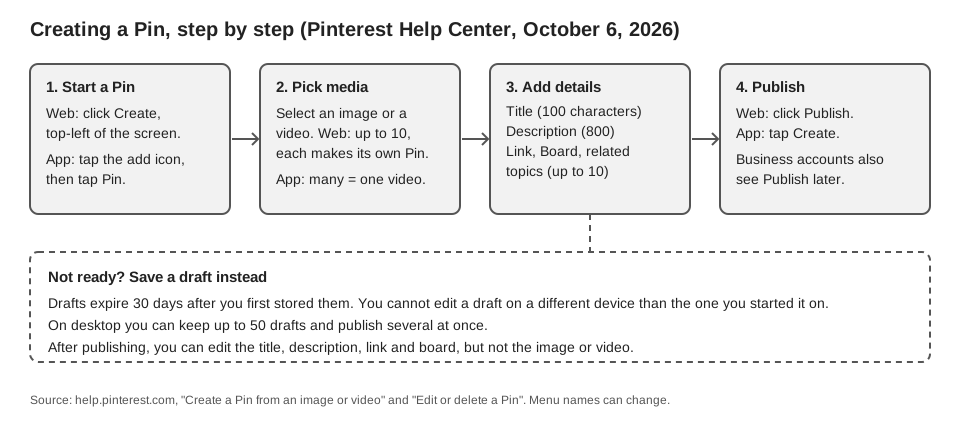
To post something on Pinterest, you create a Pin: click Create at the top-left of the screen on the web (or tap the add icon, then Pin, in the app), choose an image or video, add its details and publish it. A Pin can sit on a board, which is Pinterest's name for a collection of Pins.
This guide follows Pinterest's own Help Center, read on October 6, 2026. It covers the web and app steps, how to make a board, the file specs Pinterest lists, drafts, editing and deleting, and what TrackMedia's code does for Pinterest.
What does it mean to post on Pinterest?
Pinterest's page on creating a Pin from an image or video says you can create your own Pins by uploading images or videos from a computer, tablet or phone.
Pinterest's Create a board page says boards are collections for your Pins. Its Manage your boards page lists three kinds: public boards (visible on your profile and in search), private boards (visible only to you and invited collaborators) and group boards (boards with collaborators, who can all add and organize Pins).
How to post on Pinterest on the web
These steps are the Web tab of Pinterest's Help Center page, for a single image Pin:
- Click Create at the top-left of the screen. If you have a business account, select the hamburger icon, then Create Pin under Create.
- Upload your image with the arrow-circle-up icon, or drag it into the upload window. You can select up to 10 images, and each one creates a new Pin.
- Fill in the details (listed below).
- Edit if you want to. The pencil icon at the top-right of the image lets you add text, change the aspect ratio and more. Click Done when finished.
- Click Publish.
Pinterest lists these fields: Title, Description, Link (optional, "a place to learn more"), Board (pick one or click Create board), Tag related topics (up to 10), Publish later (shown for business accounts), Mark as AI-Modified and Advanced settings under More options, where you can turn comments and shopping recommendations on or off.
For a video Pin the web steps are the same, with the arrow-circle-up icon picking a video (up to 10 videos, each its own Pin) and one extra field, Cover, where Edit cover picks the thumbnail. Pinterest says that to combine several images and videos into one video Pin, you need the app.
How to post on Pinterest from the app
Pinterest's page has Android and iOS tabs. The image Pin steps match; the video Pin form differs slightly, as noted after the list. Steps for an image Pin:
- Log in to your Pinterest account in the app and tap the add icon at the bottom of the screen.
- Tap Pin.
- Select an image or video from your device, or tap the camera icon to take a new photo or record a video. If you select several images and videos, Pinterest says they are stitched into one video Pin.
- Tap Next, then add the details: Title, Link, Tag products, Description, Board, Tag related topics, Publish later (business accounts) and Advanced settings.
- Tap Create.
For a video Pin, both tabs have you tap Next, edit the video, tap Next again, and then fill in the details, which add Cover (Edit cover). The Android tab also lists Mark as AI-Modified for video Pins; the iOS tab does not. The page says an app description can include hashtags. It does not say which app versions these steps match, so if your screen differs, go by the label names.
How do you create a board to post to?
You can create a board from the Pin form with Create board, or ahead of time. On Pinterest's Create a board page the steps are: click the square-plus icon in the left navigation bar, select Board, enter a name, optionally toggle Keep this board secret and add collaborators, then click Create.
Pinterest's own pages disagree on one label. The create-a-board page says Keep this board secret on the web and Make this board secret in the app, while the Private boards page says Keep this board private when you name a board, and Make this board private in the settings of an existing one. Treat "secret" and "private" as the same setting and read the label on your screen.
What file specs does a Pin need?
Pinterest's Review Pin specs page is the source for every figure in this table. Pinterest adds that descriptions do not appear in the home feed or search feed but help its algorithm judge relevance.
| Spec | Image Pin | Video Pin |
|---|---|---|
| File type | BMP, JPEG, PNG, TIFF, WEBP | Web: MP4, M4V. Android and iOS: MP4, MOV, M4V |
| Max file size | Web: 20 MB. Android and iOS: 1 GB recommended | Not listed on that page |
| Length | Not applicable | 4 seconds minimum, 5 minutes maximum |
| Aspect ratio | Not listed on that page | 9:16 (1080x1920) recommended for full-bleed video; also 1:2, 2:3, 3:4, 4:5, 1:1 |
| Title | 100 characters max | 100 characters max |
| Description | 800 characters max | 800 characters max |
The same page lists video encoding as H.264 or H.265, a "textbox character count" of 250 characters max, and safe zones listed as top 270 px, left 65 px, right 195 px and bottom 790 px, with an instruction to put text and other elements within those dimensions so they show on any device. The page does not say whether those numbers are margins or sizes.
Can you save drafts, edit or delete a Pin?
Yes to all three, with limits that Pinterest states. On the create-a-Pin page, drafts expire 30 days after you first stored them, you cannot edit a draft on a different device from the one you started on, and desktop lets you save up to 50 drafts and publish them together.
After publishing, Pinterest's Edit or delete a Pin page says you cannot change a Pin's image, video or audio, only details such as title, description, link, board and comment settings, and Pinterest says which of these you can edit varies with how the Pin was created. To edit, open your profile, open the Pin, click the ellipsis icon, then Edit Pin. To delete, choose Delete in the same screen and confirm. Pinterest says a deleted Pin cannot be recovered.
The Publish later field exists for business accounts, and the Pin form says you can schedule up to 30 days ahead. Pinterest's Schedule Pins page adds that business accounts can schedule one Pin at a time and have up to 10 Pins scheduled. Scheduling has its own rules, so this guide stops there.
Can TrackMedia post to Pinterest?
TrackMedia's code includes a Pinterest connector (packages/connectors/src/pinterest), but we have not confirmed that Pinterest posting is live in the product you would sign up for. What the code does, if it is enabled for your workspace:
- Connects through Pinterest's OAuth, asking for board, Pin and account scopes, with no password field.
- Needs a board for every Pin. The composer's Post to field lists boards fetched from Pinterest, or lets you type a board ID if none are listed. A Pin without a board is rejected with "Choose a Pinterest board for this pin".
- Sends one image or video per Pin with a title cut at 100 characters and a description cut at 800, matching the limits above, plus an optional link and alt text.
- Leaves Pinterest links as written by default. Settings, Links has a switch named Leave Pinterest links as written, so check it before expecting short-link click counts on Pins. For tagging a Pin's link yourself, see our UTM naming conventions.
- Can read results. The connector can read impressions, saves, clicks and engagement rate for Pins, which feed TrackMedia analytics. Its code has a delete function, but TrackMedia's Delete button only removes a post from the queue and anything already published stays on Pinterest, so delete a published Pin on Pinterest itself.
Limits: TrackMedia does not create boards, and the connector sends none of the extras on Pinterest's form, such as related-topic tags, AI-modified toggles, a video cover or stitched multi-clip Pins. The code's capability table also lists Pin videos up to 15 minutes and images as JPEG, PNG or WEBP, while Pinterest's spec page says 5 minutes and lists more image types, so keep videos under 5 minutes whatever TrackMedia accepts. If you run several Pinterest accounts for different brands, our guide to managing multiple social media accounts covers the workflow, and the publishing overview shows the composer.
If you want to see whether it fits how you post, you can start free with TrackMedia.
How we checked this
We opened each page below in a browser on October 6, 2026 and copied labels and limits from it. We did not post on a live Pinterest account, so menus may have changed since. The Pin form was read on the Web, Android and iOS tabs; the Android and iOS tabs differ in small details, such as Mark as AI-Modified appearing on the Android video form only.
- Create a Pin from an image or video (Pinterest Help Center): web and app steps, form fields, drafts.
- Review Pin specs (Pinterest Help Center): file types, sizes, length, aspect ratios, character limits.
- Create a board, Manage your boards and Private boards (Pinterest Help Center): board steps and types.
- Edit or delete a Pin (Pinterest Help Center): editing limits and deletion.
- Schedule Pins (Pinterest Business help): the 30-day window for Publish later and the limit of 10 scheduled Pins.
We could not verify how to add alt text to a Pin in Pinterest's own screens, or the video file-size limit, because the pages above do not state them, so we left both out. TrackMedia's behavior comes from its Pinterest connector and composer code, read the same day, not from a live test.