To repost a reel on Instagram, open the app, find a public reel, and tap Repost. You can add a short note by tapping the bubble by the profile picture at the bottom left, then tap Save. The reel then appears in the Reposts section of your profile. Instagram says the feature may not be available to everyone and is not available on computers.
This guide follows Instagram's Help Center page on reposting, read on October 6, 2026. It covers what can be reposted, where reposts show, how to remove one, and how to stop others from reposting your reels. It also lists what Instagram's page does not say, so you do not have to guess.
How to repost a reel on Instagram, step by step
Instagram's page on reposting a reel or a post says you can repost public reels or posts, and that the feature "may not be available to everyone". The page marks the feature as not available on computers, so these steps are for the iPhone and Android apps, whose versions of the page list the same steps.
- Open the Instagram app and find the reel you want to share.
- Tap Repost on the public reel or post.
- Optional: add a note. Tap the bubble by your profile picture on the bottom left of the reel, then type the text you want to share with the repost.
- Tap Save.
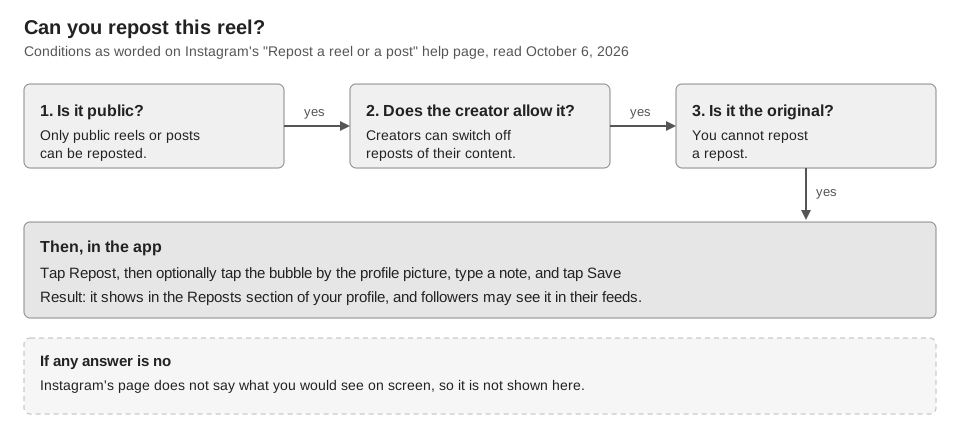
Instagram says the reel or post is then reposted and available in the Reposts section of your profile. The page does not say where on the screen the Repost button sits, so look for the label rather than a position.
What can you repost, and what can't you?
Instagram's page sets three conditions. Content must be public, the original creator must allow reposts of their content, and only content posted by the original creator can be reposted.
The page states plainly: "You cannot repost a repost." If you see a reel in someone's Reposts section, find the creator's own post and repost that instead. The page does not say what you see when a creator has switched reposts off, so we can't tell you the exact wording on screen.
What shows on your profile and in followers' feeds?
Reposts appear in a dedicated tab on your profile, and your followers may see the repost in their feeds. Instagram's wording is hedged: it says followers "may be able to see your repost if they come across that piece of content". The page does not explain what decides who sees it.
To find your reposts, open the app, tap your Profile picture in the bottom right, then tap the dedicated tab on your profile. The page does not name the tab's icon, so check your own profile for it.
One detail is easy to miss. Other users can comment on your repost, and Instagram says those comments appear as direct messages to you.
How do you remove or bulk delete reposts?
To remove a single repost, Instagram says to tap Repost again on the reel or post you reposted. To manage several at once:
- Tap your Profile picture in the bottom right.
- Tap Menu in the top right, then Your activity.
- Tap Reposts.
- Select each reel or post you want gone and tap Delete.
The same page says you can also access and download your information, including reposts.
How do you allow or stop reposts of your own reels?
Reposts of your content are controlled in settings. Tap your Profile picture, tap Menu, then tap Sharing and reuse below How others can interact with you. Tap the Toggle next to Reposts on posts and reels to allow or block reposts of your content.
If someone's repost bothers you, Instagram's page says to long-press the profile picture of the repost on the bottom left of the reel or post, tap Report, and follow the on-screen instructions.
What does Instagram not document about reposts?
The Help Center page leaves several questions open, and we found no answers on the pages we read:
- Whether the original creator is notified when you repost, or how their name is shown on a repost.
- How reposts count in Insights. The About Instagram insights page does not mention reposts. For what the metrics do cover, see what Instagram Insights metrics mean.
- Why the feature "may not be available to everyone", and when it reaches an account.
- Whether a scheduling tool or API can create a repost. The page describes the app only.
What TrackMedia can and cannot do for reposts
TrackMedia cannot repost on Instagram. Instagram's help page describes reposting only in its iPhone and Android apps, and TrackMedia's Instagram connector has no repost action, so you cannot queue or schedule one.
What it can do is publish your own Instagram content: images and carousels of up to 10 items, with captions up to 2,200 characters. Reels are not an option in the web composer, so a reel you publish yourself would go through the API, covered in how to automate Instagram posts. For limits on your own reels, see how long an Instagram Reel can be. See how publishing works in TrackMedia for the rest.
What to do next
If you want to schedule your own Instagram posts rather than repost others, you can start free with TrackMedia.
How we checked this
We opened each page below in a browser on October 6, 2026 and copied the menu names and conditions from it. We did not test reposting on a live Instagram account, so everything about what appears on screen comes from the pages. Instagram changes its menus, so check the live page if a label looks different. The repost page is device-gated, so we read its iPhone and Android app versions, which matched.
- Repost a reel or a post on Instagram (Instagram Help Center): conditions, steps, finding and deleting reposts, the allow-reposts setting, reporting.
- About Instagram insights (Instagram Help Center): checked for any mention of reposts; there is none.
We could not verify how the original creator is credited or notified, how reposts appear in Insights, or whether any API can create a repost, so we left those out. TrackMedia's own behavior comes from its Instagram connector code, read the same day.