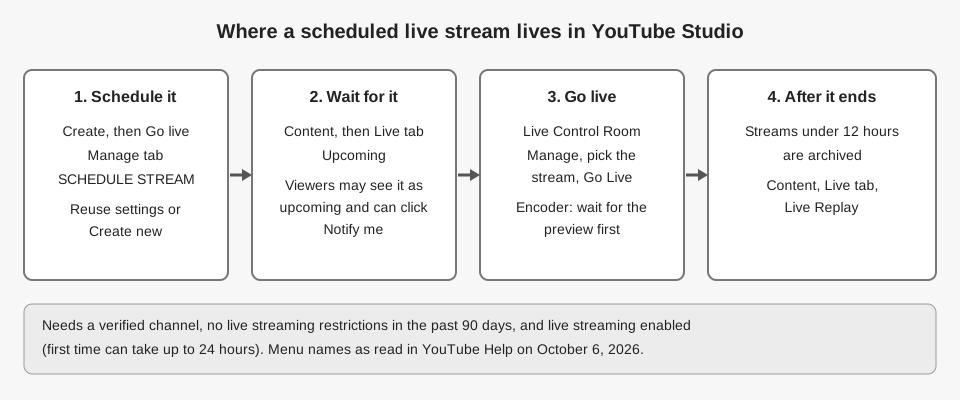
To schedule a live stream on YouTube, open YouTube Studio, click Create then Go live, open the Manage tab of the Live Control Room, and click Schedule stream. Your channel must be verified and enabled for live streaming first.
This guide uses the wording from YouTube Help pages we read on October 6, 2026. It covers the requirements, the mobile route, reminders for viewers, and finding, changing and starting a scheduled stream. TrackMedia does not schedule YouTube live streams, and its section below says what it does instead.
What do you need before you can schedule a live stream?
YouTube's Get started with live streaming page says you need no live streaming restrictions in the past 90 days and you must verify your channel. You must also be at least 16 years old. Streams that break the minimum age rule are taken down, and the account can temporarily lose the ability to stream.
- Verified channel. Verify your YouTube account says verification means entering a phone number to receive a code by text or voice call. Live streaming is one of the features it lists.
- Live streaming turned on. The encoder guide says enabling live streaming for the first time may take up to 24 hours. Do this a day before you plan to schedule anything.
- No active restriction. Avoid restrictions on YouTube live streaming lists the causes, including Community Guidelines strikes, copyright strikes and age rules. It also says that if you reach your daily limit for creating live streams, you can try again in 24 hours. It does not state that limit as a number.
- For phones: 50 subscribers. The mobile live stream page asks for at least 50 subscribers, plus an Android 8.0+ or iOS 8+ device. It adds that channels between 50 and 1,000 subscribers may have their mobile audience limited, and the archive is private by default.
The desktop pages we read state no subscriber minimum for webcam or encoder streams. The webcam page says webcam streaming works in Chrome 60+ and Firefox 53+.
How to schedule a live stream in YouTube Studio
These steps come from YouTube's encoder guide, in its "Schedule a live stream" section, and apply to encoder-based streams such as streaming software or a hardware encoder.
- Open YouTube Studio. From the top right, click Create then Go live to open the Live Control Room.
- Click the Manage tab.
- Click Schedule stream.
- Choose a starting point. Click Reuse settings to copy a previous stream, or Create new to start fresh.
- Fill in the details. Set the title, description, privacy and the date and time. YouTube's Manage live stream settings page lists Privacy, Type, Tags and Schedule under the Details page.
On privacy, YouTube says the default is public if you are 18 or over and private for users aged 13 to 17, and anyone can switch it to public, private or unlisted. If you are in the YouTube Partner Program, you can also monetize the stream.
Scheduling with a webcam
YouTube's webcam live stream page has a different path. Click Create then Go live, select Webcam on the left, and enter a title, description and privacy setting. The page says you can also schedule the stream for a later date, but it does not name the control, so go by what your screen shows.
How to schedule a live stream from the YouTube app
YouTube's mobile page describes this flow. We read its Android and iPhone & iPad versions, and the scheduling steps are the same.
- Open the YouTube app and tap Create then Live.
- Tap Edit to enter your live stream details.
- Choose Schedule for later and pick a date.
- Enter the rest of the details.
The page says only "You can pick a date to schedule your live stream." It does not mention a time of day or how to confirm the schedule, so follow the prompts on your screen. On mobile, YouTube says the default privacy for users aged 13 through 17 is unlisted, not private.
What do viewers see, and how do reminders work?
YouTube's Manage live stream settings page says a scheduled stream may show up in your subscribers' feed as upcoming. Viewers can click Notify me to get a notification when the stream is about to begin. The page also says viewers can opt in while watching Shorts for scheduled streams starting in the next 24 hours.
The encoder guide adds that you can share the stream's URL on social media. Two limits apply:
- Made for kids. The restrictions page lists reminder notifications for upcoming streams as disabled when the audience is set as made for kids. Comments on upcoming streams are disabled too.
- Trailers. You can add a trailer that plays on the watch page before the stream starts, but only for streams scheduled from the Manage tab. The webcam page says it is for channels with more than 1,000 subscribers and no Community Guideline strikes, and the trailer must run 15 seconds to 3 minutes.
We could not find a YouTube Help page describing the exact layout of the upcoming watch page, so this guide does not describe it.
How to edit or delete a scheduled live stream
To find a scheduled stream on a computer, go to YouTube Studio, choose Content in the left menu and click the Live tab. The webcam page lists three groups there: Live Now, Upcoming for streams that are scheduled but have not started, and Live Replay.
To change one, open the Live Control Room and click the Manage tab. YouTube's trailer instructions on the webcam page say to choose a scheduled stream from that tab and click Edit in the top right. The settings page says you can click Edit from the stream settings page, and it lists Schedule among the details. Neither page spells out the steps for moving the date, so open Edit and look there.
To delete, the mobile page lists Create, Live, Calendar and selecting your live stream under starting a scheduled stream, then adds a note: "You can delete scheduled live streams by pressing the delete button." We did not find a YouTube Help page that documents deleting a scheduled stream on a computer, so we are not giving desktop steps.
How to start a scheduled live stream
When it is time, open the Live Control Room, click Manage, click the scheduled stream and click Go live. With an encoder, YouTube says to paste the stream URL and stream key into the encoder, start sending video, wait for the preview to appear in Live Control Room, then click Go live.
The settings page says that with Auto-start and auto-stop on, you can start or stop streaming from your encoder. Reusing settings copies those choices too. The guide also says streams under 12 hours are archived automatically.
Can TrackMedia schedule a YouTube live stream?
No. TrackMedia's code includes a YouTube connector, but it is built for uploading video files, not for creating live broadcasts. We searched the connector and found no live broadcast calls. Its Google permissions are limited to upload and read-only access.
What the connector does: it uploads one video with a required title (up to 100 characters) and a description (up to 5,000 characters), and it can read view, like and comment counts back. Google's LiveBroadcasts reference shows the YouTube API has methods to insert, update and delete broadcasts, with a scheduledStartTime field, so a tool could do it. TrackMedia just does not.
Where TrackMedia can help is the promotion around the stream. Once you have the stream's URL from YouTube, you can draft one post and schedule it to the networks you connect from the publishing tools. Links in clickable fields become tracked short links, so the Analytics tab can show clicks by day, referrer and country. Our guide to UTM naming conventions covers tagging that link. Links in Instagram and TikTok captions stay as written because captions are not clickable.
If you want your stream announcements queued and tracked in one place, you can start free with TrackMedia.
How we checked this
We opened each page below in a browser on October 6, 2026 and copied menu names from it. We did not schedule a stream on a real channel, so where a page is silent we say so. YouTube changes its menus, so check the live page if a label looks different. Some details sit in collapsed sections of YouTube's pages, which we expanded and read.
- Get started with live streaming (YouTube Help): requirements, 90-day restriction rule, minimum age, verification, Manage tab.
- Create a YouTube live stream with an encoder (YouTube Help): Schedule a live stream steps, Reuse settings, going live from a scheduled stream, 24-hour enablement, 12-hour archive.
- Create a live stream via webcam (YouTube Help): webcam path, Live tab groups, trailers.
- Create a live stream on mobile (YouTube Help, Android and iPhone & iPad versions): 50-subscriber requirement, Schedule for later, Calendar and delete.
- Manage live stream settings (YouTube Help): Schedule setting, Notify me, auto-start and auto-stop.
- Avoid restrictions on YouTube live streaming (YouTube Help): restriction causes, made for kids effects, daily limit.
- Verify your YouTube account (YouTube Help): phone verification.
- LiveBroadcasts (Google for Developers, YouTube Live Streaming API): broadcast methods and scheduledStartTime.
What we could not verify: the exact control for scheduling in the webcam flow, whether the mobile flow takes a time of day (the page mentions only a date), the numeric daily live stream limit, the desktop steps to delete a scheduled stream, how far ahead you can schedule, and the layout of the upcoming watch page. TrackMedia's behavior comes from its YouTube connector code, read the same day.