How to schedule a tweet on mobile: X's How to Post page lists scheduling only in its Desktop steps, and its iOS and Android steps have no scheduling instruction. We read all three device tabs on October 6, 2026, so we cannot give you tapped-through steps for the X app on a phone.
What you can do is open a scheduler in your phone's browser. This guide covers what X documents, what we could not verify, and how to schedule a post to X from a phone with TrackMedia's web app. X now calls tweets "posts", so we use that word below.
Does X document scheduling a tweet on iPhone or Android?
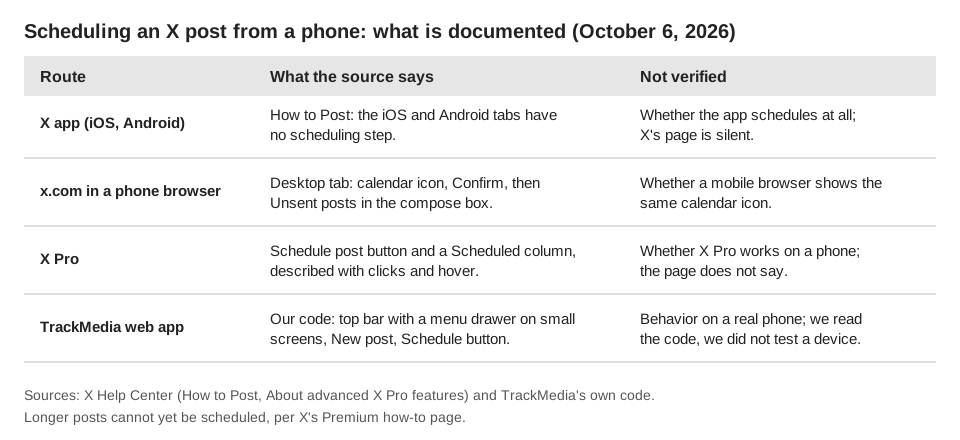
Not on the page that covers posting. The How to Post page in X's Help Center has an iOS tab, an Android tab and a Desktop tab. The iOS tab says to select the post compose icon, add media and write up to 280 characters. The Android tab adds a note that a notification appears in the status bar until the post sends. Neither mentions drafts, a calendar icon or scheduled posts.
The Desktop tab is where X documents scheduling. It says to select the calendar icon at the bottom of the compose box, make your schedule selections, then select Confirm. To reach drafts and scheduled posts, select Unsent posts from the post compose box.
That is a gap in the page, not proof that the phone app cannot schedule. X's page is silent, we did not read every page in X's Help Center, and we did not test the app on a live account. For the desktop routes in full (x.com, X Pro, Media Studio and X Ads), see our guide to scheduling and editing posts on X.
What can you do instead on a phone?
You have three realistic options, and each has a caveat you should know before relying on it.
- x.com in your phone's browser. The calendar-icon steps sit under the Desktop tab. X does not say whether a mobile browser shows the same icon, so check the compose box yourself.
- X Pro. X's About advanced X Pro features page says to click Schedule post, pick a date and time, then click Schedule post at [date/time]. It is written for a pointer and keyboard (click, hover, keyboard shortcuts) and never mentions a phone, so we do not claim it works there.
- A scheduling tool opened in your phone's browser. If the tool holds the post on its own servers and sends it at the time you set, the schedule does not depend on your phone staying on.
What limits apply to scheduled posts on X?
Two X rules matter whichever route you pick. First, X's X Premium how to page says longer posts "cannot yet be scheduled", so a scheduled post stays within the 280 characters shown in the compose steps. Our guide to the X character limit covers how that count works.
Second, X's About Edit Post page says you can only edit a post from the device you sent it from, and lists "Posts from a third-party service" and "Posts via X Pro" among the types you cannot currently edit. X does not define either term, so a post sent by a scheduling tool may not be editable on X afterward. The same page says edits are possible only up to 1 hour after you send a post, so fix the text before the scheduled time rather than counting on an edit afterward.
How do you schedule a post to X from your phone with TrackMedia?
TrackMedia is a web app, so you use it in your phone's browser. We checked the repository: it contains an API, a web app and a worker, and no iOS or Android app. We read the layout code but did not test it on a physical phone, so treat the steps as what the code does, not a recorded run. TrackMedia's code includes an X connector, and you connect an X account under Accounts.
- Open the web app. Go to go.trackmedia.app in your phone's browser and sign in. On small screens the page shows a top bar with a menu button instead of the desktop side panel.
- Tap New post. Tap the menu button in the top bar to open the drawer. New post is pinned at the top of it.
- Pick your X account. Choose it from the channels at the top of the composer. You can pick other accounts too and tweak each one's version.
- Write the post. Add media if you want: the file picker accepts image and video files. The composer shows a live character counter for each selected network.
- Choose when it goes out. Under When it goes out, select Schedule. Tap a suggested time, or set the Date, Time and time zone. A line under the fields reads your choice back and, if your phone's time zone differs from the one you picked, shows what the time is on your phone's clock.
- Tap Schedule. The button sits in a footer pinned to the bottom of the screen, with Cancel and Save draft beside it. It stays disabled until at least one channel is picked and no check is blocking, and a time in the past is rejected.
To check or change the post later, open the Posts page and filter by Scheduled. Open a post to Edit it while it is a Draft or Scheduled, Publish now, Unschedule it back to Draft, or Delete it from the queue. The Calendar has month and week views; we did not test dragging a post to another day by touch, so use Edit on a phone.
TrackMedia holds the schedule itself and publishes to X at the time you chose. It is not X's own scheduler, so these posts will not appear under Unsent posts on x.com or in an X Pro Scheduled column. TrackMedia's composer limits an X post to 280 characters and its counter counts plain text length, not X's weighted counting, and it cannot edit a post after it publishes.
The same approach works across networks, as in our guides to scheduled posts on LinkedIn and Facebook. See how publishing works in TrackMedia, or start free with TrackMedia and schedule your first X post from your phone.
How we checked this
We opened each page below in a browser on October 6, 2026. For How to Post we selected the iOS, Android and Desktop tabs in both the regular-post and longer-post sections. For the X Premium page we read the Longer posts text. TrackMedia's behavior comes from its web app and X connector code, read the same day.
- How to Post (X Help Center): the iOS, Android and Desktop steps, the calendar icon, Confirm, Unsent posts, and the status-bar note.
- About advanced X Pro features (X Help Center): X Pro scheduling steps and the Scheduled column.
- X Premium how to (X Help Center): longer posts cannot yet be scheduled.
- About Edit Post (X Help Center): same-device rule and the uneditable post types.
What we could not verify: whether the X app on iOS or Android can schedule, whether x.com in a phone browser shows the calendar icon, whether X Pro works on a phone, and whether a post sent by a scheduler can be edited on X. We did not test any of this on a live X account, and we did not test TrackMedia on a physical phone.
X's pages also disagree on longer-post length: the Premium page says up to 25,000 characters, and the How to Post page says 4,000 on its iOS and Android tabs but 25,000 on its Desktop tab, so we give no figure. X changes these pages often, so check the live page if a label looks different.