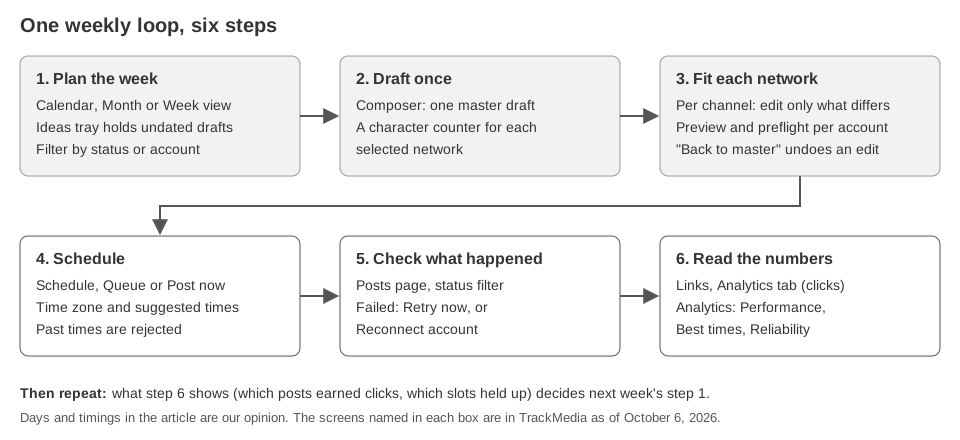
A social media management workflow is a short loop you repeat every week: plan the posts, draft each one once, fit it to every network, schedule it, check what failed, and read the numbers that decide next week's plan. This guide gives you that loop in six steps and names the exact TrackMedia screen for each one.
The days below are our opinion, not a rule. The TrackMedia details come from the product's own code as of October 6, 2026. For platform limits and menu steps we link to guides that already cover them instead of repeating them here.
What does a weekly social media workflow look like?
It has six steps, and the last one feeds the first. The table puts an example day against each step and the place it happens in TrackMedia.
| Step | Example day (our opinion) | Where in TrackMedia |
|---|---|---|
| 1. Plan | Monday | Calendar |
| 2. Draft once | Tuesday | Composer, master draft |
| 3. Fit each network | Tuesday or Wednesday | Per channel, preview, preflight |
| 4. Schedule | Wednesday | Composer, When it goes out |
| 5. Check what happened | A few minutes each day | Posts page |
| 6. Read the numbers | Friday | Links, Analytics |
How do you plan the week?
Open the Calendar and switch between its Month and Week views. Narrow it by status or by account to see what is already booked, which accounts have gaps, and which drafts have no date.
Drafts you save without a date wait in the Ideas tray on the Calendar, so loose ideas stay visible instead of living in a notes app. Our Instagram content calendar guide covers what belongs in a calendar and why we treat posting frequency as opinion.
Our opinion on cadence: pick the smallest number of posts per account that you can keep up for six weeks, and raise it only after you have done that. TrackMedia does not pick a frequency for you; a queue only holds the slots you set.
How do you draft once and still fit every network?
Write one master draft in the composer, under the label Your post. Every selected account starts from it, and a character counter for each selected network sits under the box, so the tightest limit shows while you write.
When one network needs different wording, open it under Per channel and edit its copy. The field is marked Edited once you change it, and Back to master returns it to the master text. Fields such as a title, a first comment or a link appear only for networks that support them.
Two cautions. TrackMedia's counter counts plain characters (graphemes for Bluesky), so it does not reproduce X's weighted counting; use the Twitter character limit guide for how links and emoji count there. And the counter is a guide, not a check: the preflight in the next step is the check.
How do you schedule posts and catch problems first?
Read the preflight result for each account before you schedule. It runs the same check the worker runs at publish time. A problem marked Blocks publishing stops you from scheduling or posting, though you can always save a draft. A note marked Worth knowing does not block anything.
Then choose how the post goes out under When it goes out:
- Schedule. Pick a date, a time and a time zone. Past times are rejected.
- Queue. A queue is a weekly set of time slots, and each post takes the next free one, so you do not pick a date each time.
- Post now. It goes out immediately and each account reports back on the post page.
The time picker offers one-click suggestions. After you have enough history, some are labeled Best and come from your own engagement data (more on that below).
TrackMedia has no approval step that holds a post until someone signs off. If you want a second pair of eyes, make it a team habit: the writer saves a draft, the reviewer checks the preview and preflight, and only then does someone schedule it. Our guide to managing multiple social media accounts covers review steps and roles in more depth.
Links in the clickable fields of a post become tracked short links, with UTM tags added from a template under Settings, then Links. Decide your tag naming before the first scheduled week; our UTM naming conventions guide shows a copyable pattern. Links in Instagram and TikTok captions are left as written, because captions are not clickable.
What should you check after posts go out?
Open the Posts page and use the status chips. A post can be Draft, Scheduled, Publishing, Published, Partly published or Failed, and each destination inside a post has its own status, including Retrying and Skipped. Partly published means at least one destination did not arrive, so a post is never called Published while one account missed. You can also search the post text and filter by account.
Open a failed destination to see a plain-language reason, the platform's own message underneath it, and what to do next:
- Retry now is available on a failed destination. For temporary problems, such as a platform not answering or a rate limit, TrackMedia also retries automatically, and the post shows when it is doing so.
- Reconnect account appears when the connection expired or was revoked, and it takes you to the Accounts page. Reconnecting keeps what is already scheduled.
- Edit the post appears when the platform refused the content. Retrying unchanged would repeat the refusal, so change the text or media first.
If failures keep recurring, the Reliability tab under Analytics ranks failures by cause and shows reliability per network and per account. That tab covers TrackMedia's own publish record, not audience data.
One habit helps: scheduling is held by TrackMedia and published at the chosen time, so a scheduled post will not show in a network's own scheduled list. Check the Posts page or the Calendar instead. To change a scheduled post, edit the post.
How do you read analytics and decide what to change?
Use two places, and keep them separate. Links, then its Analytics tab, shows clicks and visitors for your tracked links over 7, 30 or 90 days, with top links, countries, referrers, devices and browsers; bots are left out. Analytics, with its Performance, Audience, Best times and Reliability tabs, shows views, likes, comments and shares for each network where that network supplies them.
The Best times tab averages engagement by weekday and publish hour. It only highlights a slot once at least 3 posts sit behind it, so a thin history shows no answer instead of a confident wrong one. Treat it as your account's history, not a rule. Our best time to post on YouTube guide shows the same approach: find your own times in the platform's analytics, then test them.
A simple Friday review, again our opinion, takes four questions:
- Which posts did the most (Performance, top posts)?
- Which links earned clicks, and from which network (Links, Analytics)?
- Did any slot clear the sample bar (Best times)?
- Did the same failure repeat (Reliability)?
Write the answers into Monday's plan. Change one thing at a time, such as one time slot or one format, so you can tell what caused a difference.
Where does TrackMedia stop?
Know these limits before you build a team routine on it:
- There is no approval gate, so review depends on your team following the draft habit above.
- Best times and the Best time suggestions need published history. A new workspace will see no suggestion at first.
- The character counter does not apply X's weighted counting.
- Link tracking covers links in clickable fields. Captions on Instagram and TikTok are left as written.
If you want to run this loop in one place, start for free at TrackMedia.
How we checked this
All TrackMedia statements come from reading the product's code on October 6, 2026: the composer (master draft, Per channel overrides, preflight, schedule controls, queue), the Posts page and its status labels, failed-post handling (Retry now, Reconnect account, Edit the post), the Calendar, the Links page and Settings, and the Analytics tabs including Best times and its 3-post minimum.
We opened no platform pages for this guide and state no platform limit or menu step of our own. Where a platform matters, we link to our own guides on Instagram calendars, X character counts, UTM naming, YouTube posting times and multi-account roles, which list their own sources. We use no third-party studies or statistics. The weekday schedule, the time budgets and the cadence advice are our opinion and are labeled as such. We read the code and did not run the dashboard or test TrackMedia against any live network account for this guide. We did not check plan limits or which plan includes which feature, and we state none.