An Instagram content calendar is a dated plan of what you will post, in what format and on which day. To build one, choose a posting rhythm you can keep up, write each slot down in one place that shows the whole month, and schedule the finished posts so they go out without you.
This guide covers the calendar tools Meta documents, how the TrackMedia calendar works, and a simple way to plan posts and Reels. It uses Meta's help pages read on October 6, 2026. Where we give advice on how often to post, we say it is our opinion.
What belongs in an Instagram content calendar?
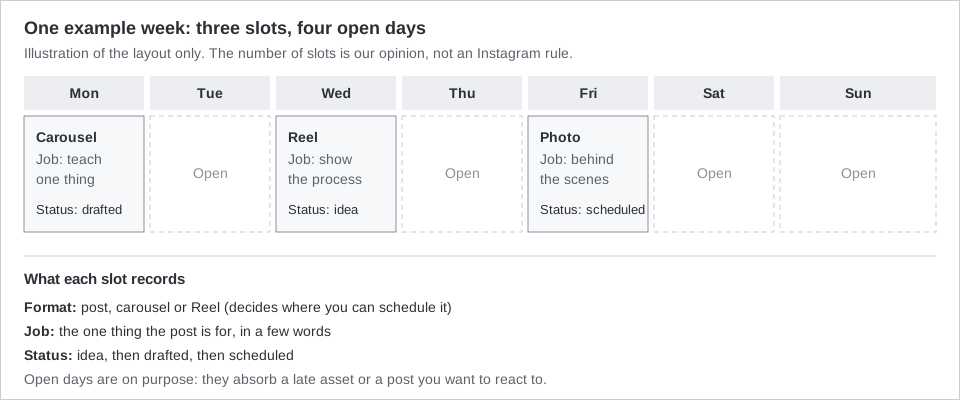
Each slot needs four things: a date and time, a format, a one-line job, and a status. The format matters because Instagram's scheduling page covers reels, photos and carousel posts and does not mention Stories.
Use three statuses at most: idea, drafted, scheduled. If a slot has no status, nobody can tell at a glance what still needs work.
What calendar tools does Instagram itself offer?
Instagram's help page on scheduling does not describe a calendar view. Meta's Planner in Meta Business Suite gives you a weekly or monthly calendar view on desktop. Here is what each page says, as of October 6, 2026:
| Tool | What Meta documents | What it does not say |
|---|---|---|
| Instagram app, Scheduled content | Schedule reels, photos and carousel posts. Public account required, up to 25 posts a day, up to 30 days ahead. | No calendar view is described. |
| Meta Business Suite, Planner | Week and Month views, filters for content type and platform, and Options to reschedule or delete upcoming content. | Dragging a post to a new day is not mentioned. |
| Reel drafts in the app | Saved on your device, no limit on the number of drafts. | They cannot be opened from another device. |
Instagram's help page on scheduled posts and Reels lists the steps and limits in the first row. For where those scheduled items appear and how to change them, see our guide to seeing scheduled posts on Instagram.
Meta's Planner page says Planner shows a calendar of your posts, stories, reels and ads, including content published and content scheduled in Meta Business Suite. It also says that you can hover over an upcoming day, click Schedule and pick what to schedule. You need content permissions to use it.
Instagram's page on Reel drafts says drafts are saved onto your device and that you cannot open one from another device, even if you log in.
How often should you post on Instagram?
Instagram does not tell you. None of the Instagram and Meta pages we read recommends a posting frequency, so any number you see is someone's opinion, ours included.
Our opinion: choose the lowest number of posts a week that you can keep up for six weeks, and treat it as a floor. Three slots a week is a workable start for one person, because it leaves room for the one asset that always arrives late. A schedule you abandon in week three is worse than a smaller one you keep.
How to plan an Instagram content calendar, step by step
- Pick the slots. Mark the days and times you will post this month. Leave at least one open day each week for late assets or a timely post.
- Collect ideas as drafts. Write each idea as a line with a format and a job. An idea without a format cannot be scheduled yet.
- Pick times from your own data. Instagram's insights page says that once you have at least 100 followers, total followers insights include the times they are most active on Instagram. Meta Business Suite's post creation page says Active times suggests times based on when followers were most active on Facebook and Instagram over the past seven days.
- Batch the work. Write captions and prepare media for a whole week at once, then schedule them. Our opinion: start with the Reels, since they usually take the longest.
- Review after four to six weeks. Compare what you posted against views and interactions, keep the formats that worked, and drop the rest. Our guide to what the insights mean on Instagram explains the metrics.
How do you build a Reels planner into your calendar?
Treat a Reel as a slot with a longer lead time. Instagram's scheduling page says you can schedule reels from the app. Meta's Planner page says you can reschedule upcoming posts, stories and reels from its calendar, so the Reel can be tracked in either place.
Plan the shoot and edit as separate dates from the posting date. Check the format limits before you commit to a script, using our guide to Instagram Reels length, size and aspect ratio.
How does the TrackMedia calendar work?
The TrackMedia calendar shows everything scheduled and published in your workspace's time zone, in a month view or a week view. You can drag a scheduled post or a draft to another day to reschedule it. This is what the calendar does as of October 6, 2026:
- Switch the view. Use the Month and Week tabs, step with the previous and next buttons, and use Today to jump back. Filter by status or by account.
- Drag to reschedule. In the month view, dropping a post on a day keeps its time of day. In the week view, drop it on an hour row to set that hour, on the hour. The week view shows rows from 06:00 to 23:00 only. Only drafts and scheduled posts can be moved, and a drop on a past time is rejected.
- Add from a day. The add button on a day (labeled "Create new post" in the month view) opens a short form for the date, time, accounts and a line of text, and creates a scheduled post. The form has no media field and Instagram needs media, so TrackMedia's validation rejects it for an Instagram account. Start Instagram posts from New post, and use this button for networks that accept text alone.
- Park ideas. Drafts saved without a date wait in an Ideas tray beside the grid. Drag one onto a day to schedule it. In the month view, a draft with no time takes the current time of day. Dropped on today, that is the current minute, so it can publish almost at once. Drop it on a later day and set the time in the editor.
Scheduling in TrackMedia is held by TrackMedia and published at the chosen time, so these posts do not appear in Instagram's Scheduled content list. The calendar is for the posts TrackMedia holds. Anything you scheduled inside Instagram or Meta Business Suite stays in their lists.
For Instagram, TrackMedia publishes images and carousels of up to 10 items. It does not publish Stories, and the web composer has no Reel option, so schedule Reels in the Instagram app and use the TrackMedia calendar for the rest. See how publishing works in TrackMedia, and our guide to automating Instagram posts safely for how tool-based scheduling differs from Instagram's own.
What limits should a calendar respect?
For scheduling in the Instagram app, the page above gives the limits: a public account, 25 posts a day and 30 days ahead. For tools that publish through Meta's developer platform, the Content Publishing guide says accounts are limited to 100 API-published posts within a 24-hour moving period, and carousels count as one post. The same page says 50 published posts within a 24-hour period in its carousel section, so we cannot tell you which figure applies. A normal calendar sits well below all three numbers.
If you want one calendar you can drag around, start free with TrackMedia.
How we checked this
We opened each page below on October 6, 2026 in a browser and copied labels and limits from it. We did not schedule anything on a live Instagram account, and we did not test Meta's tools ourselves. Posting-frequency advice and the example week are our opinion, not documented rules. TrackMedia behavior comes from our own product code, read the same day.
- How to create and manage scheduled posts and Reels on Instagram (Instagram Help Center): public account, 25 posts a day, 30 days ahead, Scheduled content.
- Use Planner in Meta Business Suite on desktop (Meta Business Help Centre): Week and Month views, filters, schedule and reschedule from Planner.
- Create and manage posts in Meta Business Suite on desktop (Meta Business Help Centre): scheduling options and Active times.
- Save and edit drafts of your reel on Instagram (Instagram Help Center): drafts live on the device, no draft limit.
- About Instagram insights (Instagram Help Center): most active times, 100 followers.
- Content Publishing (Meta for Developers, Instagram Platform, updated June 30, 2026): publishing limits, with the 100 versus 50 inconsistency.
We found no official page recommending a posting frequency or best day to post, and the Planner page does not describe dragging posts, so we make no claim on either.