To schedule a Telegram message, press and hold the Send button in any chat and choose Schedule Message, then pick a time. Telegram's own blog describes this for any chat and Saved Messages, and its API documentation covers channels too, but the Bot API has no scheduling field, so a bot or tool has to hold the time itself.
This guide separates the three things people mean by "Telegram schedule message": scheduling in the app, scheduling a channel post, and scheduling through a bot. It uses Telegram's blog, its API documentation and its FAQ as read on October 6, 2026, and it says where those pages are silent.
How do you schedule a message on Telegram?
Telegram's blog post Scheduled Messages, Reminders, Custom Cloud Themes and More Privacy (September 5, 2019) gives the steps. Follow them in the chat where the message should appear:
- Open the chat where the message should appear and type it.
- Press and hold the Send button. A menu opens.
- Select Schedule Message and set when the message should send.
- Let Telegram send it. The post says the message goes out automatically at the specified time. It does not describe a separate confirm button.
The post says scheduling also works in your Saved Messages chat, which turns a planned message into a reminder. When a scheduled message or reminder is sent, you get a special notification.
We could not find a Telegram page that describes the date and time picker itself, or the separate steps for Telegram Desktop. The 2019 post says "any chat" and names only the Send button, so check the Send button on desktop for the same option.
Repeating a message and Send When Online
Two later additions change when a message goes out. Telegram's November 19, 2025 post, Live Stories, Repeated Messages, Auctions for Gifts and More, says to press and hold the Send arrow, then tap Repeat and select an interval such as every day or twice per month.
That post does not mention a paid plan. Telegram's Scheduled messages developer page says Premium users can send repeating scheduled messages, so check whether your account has Premium if you do not see the option. It adds that repeating works for a single message, not an album. The same page lists the intervals the server accepts: every day, every week, every two weeks, every month, every three months, twice a year and every year. That list does not contain the blog post's "twice per month" example, and we did not check which intervals the apps offer.
The December 31, 2019 post describes Send When Online, which delivers a message when your recipient comes online. Telegram says it is only available if you are allowed to see the recipient's online status. The Scheduled messages developer page adds that this mode is for a private chat with a user, so it is not a channel option.
Can you schedule a post in a Telegram channel?
Telegram's API documentation says each private chat, group, supergroup and channel has its own schedule queue, so channels can hold scheduled posts. The 2019 blog post says to hold Send in "any chat". We did not find a help page that spells out the channel steps in the app, or which administrator rights are needed to schedule.
The Channels FAQ and the main FAQ do not describe scheduling at all. The main FAQ does say subscribers can suggest posts, and that the channel owner "can review them, edit them, schedule them or reject them".
Suggested posts and their dates
Telegram's July 1, 2025 post Checklists, Suggested Posts and More Monetization Options for Channels explains the flow. A subscriber sends a suggested post through the channel's direct messages and can set a specific date and time, or select Anytime to let the owner choose. Once both sides approve, the post can go out at once or be scheduled for a specific time.
How do you see, edit or cancel a scheduled Telegram message?
The pages we read do not list the menu names for this in the apps, so we cannot give you exact labels. What Telegram's developer page does document is what the system supports. A client can list a chat's schedule queue, send an item immediately, delete it without sending, and change its date by editing it.
Two behaviors are worth knowing. If the scheduled time is less than 10 seconds away, Telegram sends the message immediately. And because each chat has its own queue, a message scheduled in one chat will not show up in another chat's list.
Can a Telegram bot schedule messages?
Not by itself. We opened the Bot API reference (the changelog's latest entry is Bot API 10.3, August 24, 2026) and read the sendMessage parameter table. It has chat, text, formatting, notification and reply options, but no field for a send time.
The page's other uses of "schedule" (giveaways, video chats) are not send-time options. The one related field is suggested_post_parameters, whose send_date, if given, must be between 300 and 2678400 seconds in the future, and which works only in direct messages chats. That is a proposal a channel owner approves, not a general "send later" setting.
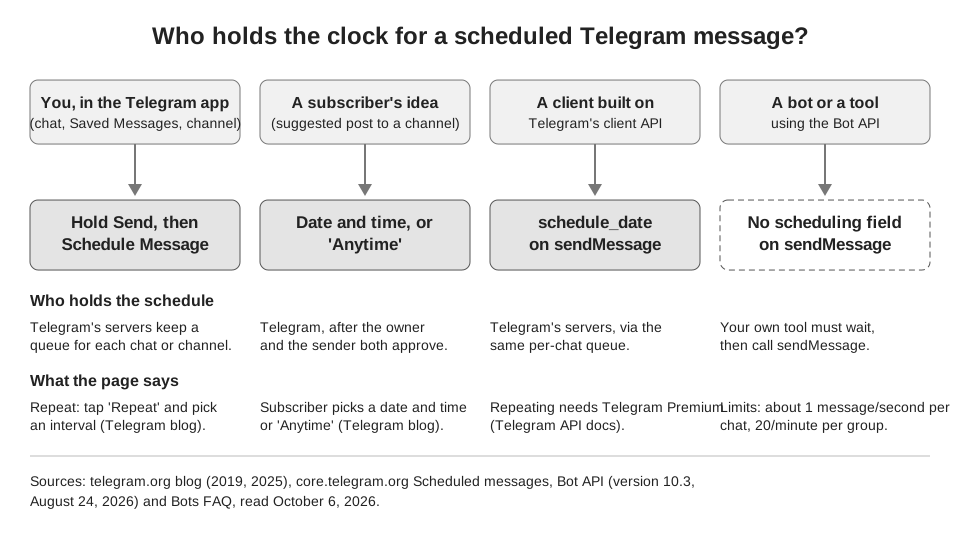
The client API is different: the developer page says to provide a future timestamp in the schedule_date flag of messages.sendMessage or messages.sendMedia. That route is for apps that log in as a user, not for bots using a bot token.
What bot-based scheduling looks like
A scheduler that uses a bot keeps the time itself. At the chosen minute it calls sendMessage (or sendPhoto or sendVideo) for the channel. The Bot API tutorial says you get a token by messaging @BotFather and issuing /newbot, and that the token should be treated like a password.
Telegram's Bots FAQ sets the pace limits a scheduler must respect. The page says to avoid more than one message per second in a single chat, that bots cannot send more than 20 messages per minute in a group, and that bulk broadcasts top out at about 30 messages per second unless paid broadcasts are enabled. It gives no separate figure for channels. Going over the limits starts 429 errors, so stagger a big batch.
How does TrackMedia schedule Telegram posts?
TrackMedia's code includes a Telegram connector, and TrackMedia's site lists Telegram among its networks. We have not confirmed that it is switched on for every account, so check the connect screen in your workspace. What follows comes from the connector code, read the same day.
- Connecting. The connect form asks for a bot token and a channel or chat. Its help text says to message @BotFather and send
/newbot, and to add the bot to the channel as an administrator with "post messages" first. TrackMedia then checks the token and the chat before saving the connection. - Who holds the time. The connector does not hand a send time to Telegram, and its capabilities do not turn on native scheduling. TrackMedia keeps the schedule, then calls Telegram when the post is due. So these posts will not appear in Telegram's own scheduled-messages list, and you manage them on TrackMedia's Posts page and Calendar.
- What it sends. Text up to 4,096 characters, a single photo or video with a caption of up to 1,024 characters, or an album of up to 10 items whose first item carries the caption. Those numbers match the Bot API reference, which gives 1-4096 characters for message text, 0-1024 for captions, and 2-10 items for an album. Posts use HTML formatting unless an override says otherwise.
- Failures. If Telegram says the bot was removed or lacks rights, TrackMedia treats it as a connection to fix, not a retry. A rate-limit reply from Telegram is retried after the wait it names.
The honest limit is that TrackMedia's schedule is a one-time publish. It has no equivalent of Telegram's Repeat or Send When Online, and the connector posts to the one channel or chat you connected, with the bot as the sender rather than your personal account. If you only need to remind yourself, Telegram's own Saved Messages reminder is simpler.
One more limit comes from the Bot API reference. It says that in specific instances, for example a video sent to a big chat, the server might schedule a message instead of sending it right away, and the returned message_id is then 0 until the message is actually sent. TrackMedia's connector does not special-case this: it records the id Telegram returns and builds the post link from it, so such a post would carry an id of 0. We did not test whether this happens for any particular channel.
For how other messaging apps handle scheduling, see our guides to scheduling messages on Discord, where Discord's help pages describe no native option, and scheduling Instagram DMs, which Instagram offers only for text in its phone app. If several channels run through one team, managing multiple social media accounts covers the roles and review habits, and how publishing works in TrackMedia shows the composer.
If you would rather keep your Telegram channel posts on one calendar with your other networks, you can start free with TrackMedia.
How we checked this
We opened each page below in a browser on October 6, 2026 and copied labels and numbers from it. We did not test scheduling in a live Telegram account or with a live bot, so menu labels in the apps may differ from the 2019 and 2025 blog wording.
- Scheduled Messages, Reminders, Custom Cloud Themes and More Privacy (Telegram blog, September 5, 2019): Schedule Message steps, Saved Messages reminders.
- Verifiable Builds, New Theme Editor, Send When Online and So Much More (Telegram blog, December 31, 2019): Send When Online.
- Live Stories, Repeated Messages, Auctions for Gifts and More (Telegram blog, November 19, 2025): Repeat.
- Checklists, Suggested Posts and More Monetization Options for Channels (Telegram blog, July 1, 2025): suggested post dates.
- Scheduled messages (Telegram API documentation): schedule queue, schedule_date, Premium repeat and allowed intervals, 10-second rule, private-chat-only send-when-online mode.
- Telegram Bot API (version 10.3): sendMessage parameters, text and caption limits, album size, suggested_post_parameters, the message_id 0 note.
- Bots FAQ and From BotFather to 'Hello World' (Telegram bot documentation): rate limits, token.
- Telegram FAQ and Channels FAQ: no scheduling steps found; suggested posts mention.
We could not verify: the date and time picker steps, Telegram Desktop's menu, the labels for viewing or editing scheduled messages in each app, which channel administrator rights are required to schedule, and any cap on how many messages a chat can have scheduled. TrackMedia's behavior comes from its Telegram connector code, and we did not test it against a live bot.