You can schedule an Instagram DM from the phone app, but only a text-only message in a chat: touch and hold the icon next to your typed message, pick a date and time, and confirm. Instagram's Help Center says photos, videos and GIFs can't be scheduled, and that the feature isn't available on computers.
This guide covers the exact steps, how to see and cancel a scheduled text, and what Meta's messaging API allows when an app (rather than you) sends the DM. We read the pages below on October 6, 2026, and we say plainly where they are silent.
How do you schedule an Instagram DM in the app?
Instagram's Help Center page Schedule a message in a chat on Instagram gives these steps. We read its iPhone and Android versions, which gave the same steps; we did not read the iPad version.
- Open your inbox. Tap Messages at the bottom.
- Open the chat. Tap a conversation in your inbox.
- Start the message. Tap Message... at the bottom. You can also touch and hold an existing message in the chat and tap Reply.
- Type your text.
- Hold the icon. Touch and hold the icon next to your message. The page shows it as an icon, and our copy of the page does not give it a name.
- Pick the date and time. Instagram says the time zone is based on your device settings.
- Confirm your choice at the bottom.
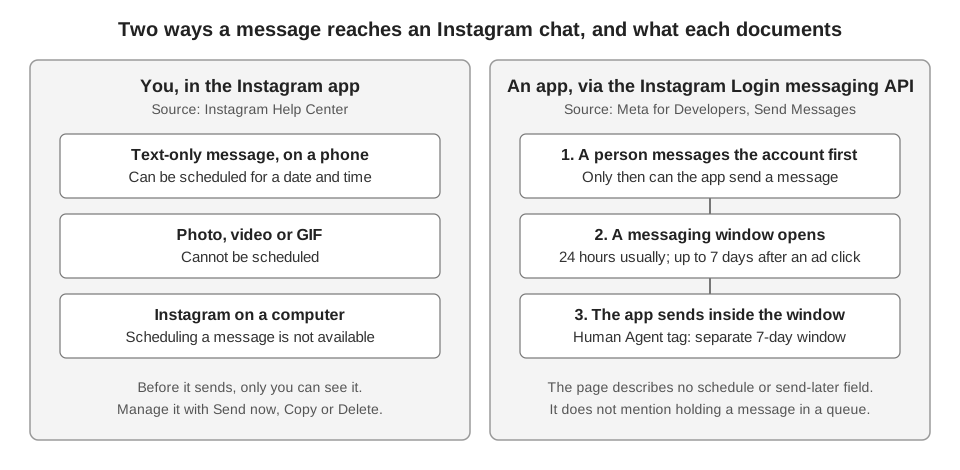
Instagram adds that only you can see your scheduled message until it is sent to the chat at the time you chose.
What kind of message can you schedule?
Only text. The Help Center note says the feature is supported for text-only messages, and that messages with media, with photo, video and GIF given as examples, can't be scheduled for another time.
Two other limits come from the same page. The feature isn't available on computers, and the page says nothing about how far ahead you can schedule. If a limit exists, we could not find it documented, so check what the date picker allows.
How do you see, change or cancel a scheduled message?
Instagram's page Manage scheduled messages in a chat on Instagram says to open the conversation where you scheduled a message and tap Scheduled message above the text field. You then see your scheduled messages and when each one will send.
Touch and hold a scheduled message and the page lists three options:
- Send now sends it to the chat immediately instead of at the time you chose.
- Copy copies the text of your message.
- Delete removes it so it won't be sent.
The two Instagram pages describe the entry point a little differently: "at the bottom of your chat" on the scheduling page and "above the text field" on the managing page. Go by what your app shows.
The managing page lists no option to change the time. Our reading is that to move a message to another time you copy the text, delete the scheduled one and schedule a new one, but Instagram does not spell that out, and we did not test it.
Can you schedule DMs from a computer or Meta Business Suite?
Instagram says no for computers: the scheduling page states the feature isn't available on computers. For Meta Business Suite, the Help Center page Manage messages with Inbox in Meta Business Suite lists what Inbox does, and scheduled sends are not among those features.
That page does list reading and replying to messages, automations, a status, and the option to set times when you will be offline. Automations send a response when something happens, such as a keyword or an away period, which is different from a message you write now and send at 9 a.m. tomorrow. We found no Meta page that documents a scheduled-send option in Inbox, so we can't say one exists.
What are "scheduled messages from businesses"?
This is a different feature. Instagram's page Manage scheduled messages from businesses says that when you chat with a business, it might offer you the choice to opt in to regular messages on certain topics, such as promotions or new products. The business chooses the schedule, and the page says the feature isn't available to everyone.
The recipient opts in with Get messages, and can stop it with Stop these messages. That page describes the opt-in a person sees, not a tool you can use to schedule your own DMs.
What are Meta's rules for apps that send DMs, including the 24-hour window?
Meta's developer page Send Messages (Instagram API with Instagram Login, updated September 28, 2026 on the page) sets the first rule for apps that send DMs through that API. We did not read Meta's separate messaging documentation for the Facebook Login route, so the rules below are for the Instagram Login API only. An app can send a message only after an Instagram user has sent the professional account a message first.
From there, the page says the app has the duration of the "standard messaging window" to send. It lasts 24 hours for most user actions. When the action is a person's first message after clicking a Click-to-Direct ad, the window may last up to 7 days from that message.
The page adds a separate route for people answering by hand. If a human agent responds and may need more time, the app can tag the response to use the separate 7-day Human Agent window. Other limits on the page:
- Text messages must be UTF-8 and 1000 bytes or less.
- The professional account must own any media or posts used in the message.
- Group messaging is not supported, so a professional account converses with one customer per conversation.
Does Meta's API let an app schedule a DM?
The page does not describe a schedule or send-later parameter. The request it documents takes a recipient and a message and sends immediately, and we found no field for a future send time on that page.
The page's first rule also means an app cannot start a conversation with someone who has never messaged the account, scheduled or not. Meta's page says nothing about holding a message in an app's own queue, so we do not say whether that is allowed.
Does TrackMedia schedule Instagram DMs?
No. TrackMedia schedules posts, not direct messages. Its Instagram connection publishes images and carousels of up to 10 items, and the Instagram permissions it requests cover basic profile access, content publishing, comments and insights. No messaging permission is among them, so TrackMedia can neither send nor schedule a DM.
One adjacent thing it does help with is the link you put in a DM. The Links page has a "Shorten a link" option that makes a short link to exactly the URL you paste, with no UTM tags added, and the analytics view shows clicks, countries, referrers and devices for it. If you share that link in a chat, you can see how many people clicked, but not who they were. For how that works on Instagram links, see how to see who clicked your Instagram link.
For scheduled posts on Instagram, see how to see scheduled posts on Instagram and how to automate Instagram posts, or how publishing works in TrackMedia.
If the post side of your Instagram workflow is the part you want help with, you can start free with TrackMedia.
How we checked this
We opened each page below in a browser on October 6, 2026, and copied the steps, labels and numbers from it. We did not schedule a message on a live Instagram account and we did not call the messaging API, so anything the pages do not say is marked above as unverified. Help Center pages are device-specific; we read the iPhone versions, and the Android version of the scheduling page matched.
- Schedule a message in a chat on Instagram (Instagram Help Center): steps, text-only limit, device settings time zone, not available on computers.
- Manage scheduled messages in a chat on Instagram (Instagram Help Center): Scheduled message, Send now, Copy, Delete.
- Manage scheduled messages from businesses (Instagram Help Center): the opt-in feature from businesses.
- Send Messages (Meta for Developers, Instagram Platform): standard messaging window, 7-day Human Agent window, message text limit, limitations.
- Manage messages with Inbox in Meta Business Suite (Meta Business Help Centre): Inbox feature list.
What we could not verify: how far ahead Instagram lets you schedule a message, whether the iPad version of either Help Center page differs from the iPhone one, whether any Meta page documents scheduled sends in Inbox, Meta's messaging documentation for the Facebook Login route, Meta's separate pages on private replies and templates, and how Meta treats a queued message that outlasts a messaging window. TrackMedia's own behavior comes from our product and its Instagram connector code, read the same day.