Does scheduling a post on TikTok affect views? We found no TikTok statement saying that a scheduled video gets fewer or more views than the same video posted live. In the TikTok pages we read for this guide on October 6, 2026, scheduling is described as a planning feature, and the pages that explain recommendations do not list how a post was published.
That is not proof that nothing changes, and we have no data of our own to settle it. This guide sets out what TikTok does say, how its own scheduling works and where it stops, what is documented about posting through a third-party tool, and a way to test the question on your own account.
What has TikTok said about scheduling and views?
Three kinds of official pages bear on the question. None of them claims that scheduling raises or lowers views.
- The scheduling pages. TikTok's Help Center page "Schedule video" gives steps and limits only. TikTok for Business's Video Scheduler announcement says marketers want to "post at the right time for maximum impact", which is a reason to schedule, not a measured result.
- The recommendation pages. TikTok's Help Center page "How TikTok recommends content" lists user interactions, content information (it gives sounds, hashtags, number of video views and the country where the content was published as examples) and user information (device settings, language, location, time zone and day, device type). The lists are introduced as examples, so their silence about scheduling is not a guarantee. TikTok's older Newsroom article "How TikTok recommends videos #ForYou" (June 18, 2020) gives a similar list and says follower count and past high-performing videos are not direct factors. Neither mentions scheduling.
- The views help page. TikTok's Help Center page "My posts aren't getting views" says views on posts can fluctuate and points creators to analytics. It does not mention scheduling.
So the honest summary is this: in the TikTok pages we read, TikTok documents no scheduling effect on views, and it does not say there is none either. Anyone who tells you with certainty that scheduling hurts, or does not hurt, is going beyond what TikTok has published.
Can you schedule posts on TikTok?
Yes. TikTok has a native scheduler, and its Help Center describes it for desktop web. The limits below are from that page and from TikTok for Business, as of October 2026.
| Item | What TikTok says | Source |
|---|---|---|
| How far ahead | At least 15 minutes and at most 10 days before publishing | Help Center, TikTok for Business |
| Where | TikTok on desktop web. Not available on TikTok mobile web | Help Center |
| Who can use it | Help Center: a Business Account, or an account with 10,000 followers or more (the wording is awkward). TikTok for Business: says "creators and Business Accounts" in its introduction, then that you need a Business Account. TikTok's "Tools for creators" page lists scheduling among Studio tools for Personal and Business Accounts, with some features needing specific criteria | Help Center, TikTok for Business |
| Editing | A scheduled post cannot be edited, but it can be deleted and re-uploaded | Help Center, TikTok for Business |
| Where you see it | In your Profile view, next to drafts | Help Center, TikTok for Business |
| Time zone | Defaults to your computer's setting | Help Center |
| TikTok Shop creators (US) | Shoppable videos: 30 minutes to 30 days ahead, up to 50 scheduled videos, public or limited visibility only | TikTok Shop Seller University, May 13, 2026 |
The two pages disagree on who qualifies, and neither is dated in a way we could read, so check your own upload screen before you plan around it. Content limits for scheduled videos are not listed separately. TikTok's "Tools for creators" page gives upload limits for TikTok Studio on the web: MP4 or WebM, 720x1280 or higher, up to 30 minutes and under 10 GB.
Can you schedule a TikTok from your phone?
TikTok's "Tools for creators" page says TikTok Studio lets you "Upload, schedule, and edit posts", and that Studio is available in the TikTok app, in a web browser and as its own app. The same page warns that availability varies between the app and the web and that some features need you to meet specific criteria.
We found no Help Center page that gives the steps for scheduling in the mobile app, so we do not give any. The only in-app path we could verify is for TikTok Shop creators in the US: More options, then Advanced settings, then Schedule post, per TikTok's Seller University. If you are not a Shop creator, look for a schedule option on your own post screen.
How to schedule a post on TikTok from a computer
These steps follow the Help Center page "Schedule video", with the upload details from TikTok for Business's Video Scheduler post.
- Log in on desktop web. Go to TikTok in a browser and click the Upload icon at the top of your feed. (TikTok for Business's older announcement calls it the Cloud icon, so the label may differ on your screen.)
- Upload and edit the video. Add the caption, cover and visibility settings as you would for any post.
- Toggle the schedule button. Pick a date and time. The time zone is your computer's setting, so check it before you confirm.
- Click Schedule. The post shows in your Profile view. TikTok says you get a push notification when it goes live.
Choose the time carefully. TikTok says you cannot edit a scheduled post, only delete it and start again.
What is documented about posting through a third-party tool?
Third-party tools that connect to TikTok officially post through TikTok's Content Posting API. TikTok for Developers documents two modes, and neither contains a statement about views.
- Direct Post. The tool publishes to the creator's profile. TikTok's Direct Post reference (last updated August 24, 2026) says all content posted by unaudited clients is restricted to private viewing mode, and that the client must pass an audit to lift this.
- Upload. The tool sends the video to the creator's TikTok inbox without posting it. TikTok's Upload reference says the user must click an inbox notification to continue the editing flow in TikTok and complete the post.
TikTok's Content Sharing Guidelines add the numbers. An unaudited client can allow up to 5 users to post in a 24-hour window, and those accounts must be set to private when posting. To make such a post public later, the account owner must make the account public and then set each post's privacy to "Everyone".
Audited and unaudited clients are both subject to a daily posting cap per creator account, which TikTok says is typically around 15 posts and is shared across all API clients using Direct Post.
What this means for views
The documented effect is on who can see the post. The TikTok pages we read say nothing about ranking. A post sent through an unaudited app is private, and a private post cannot be seen by the people who would otherwise watch it. That is a documented restriction on who can view, and it is separate from the question of how a public scheduled post is recommended.
The Direct Post request fields listed on TikTok's reference page cover privacy level, caption, comment, Duet and Stitch settings, cover frame, branded-content toggles, an AI-generated label and the video source. A publish time is not among them. That suggests a scheduling tool holds your post itself and sends it to TikTok at the time you chose, though TikTok's pages do not describe it that way.
What do scheduling vendors say about views?
Scheduling vendors have published their own answers. Treat them as third-party claims from companies that sell scheduling.
Metricool's article "Does Scheduling Social Media Posts Affect Engagement?" (July 15, 2026) states that scheduling with a third-party tool does not affect engagement or reach on any platform. For TikTok it cites a test by the studio Resuelta Estudio of 202 TikTok videos published with Metricool: 43% passed 50,000 views, a third passed 100,000, and 18 passed one million.
What that measured is how a set of scheduled videos performed. As the article describes it, there was no group of live-posted videos to compare against, so the numbers show that scheduled videos can reach large audiences, not that scheduling has no effect. The same article says Instagram has been the most explicit about this and that for other networks there is less of an explicit public statement, which matches what we found for TikTok.
How can you test it on your own account?
A single scheduled video that underperforms tells you nothing, because views vary from post to post on any account. A fair test compares two groups of videos and asks whether the gap is bigger than the normal spread. This is our suggested method, not one TikTok recommends.
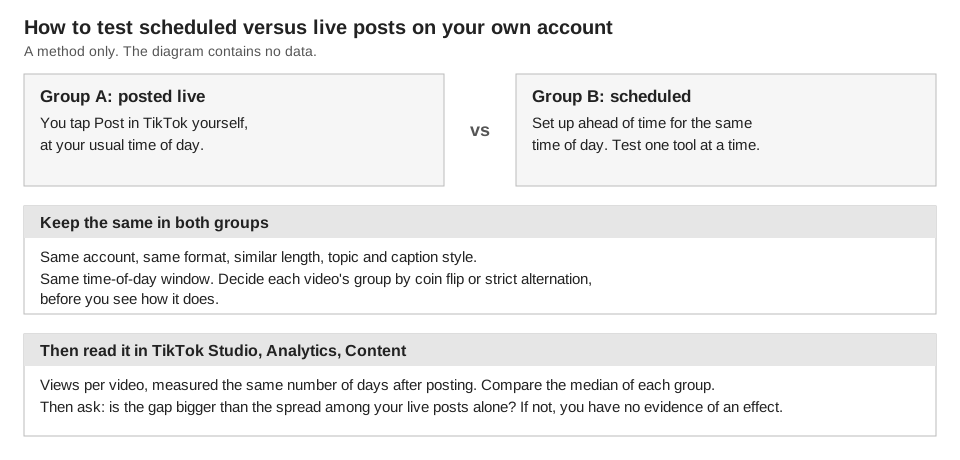
- Pick one outcome and one window. Use views per video at a fixed number of days after posting, such as 7 days. That window is our suggestion, not a TikTok figure. TikTok's Help Center says analytics can take 1 to 2 days to update, and are only generated for videos posted after you turn analytics on.
- Test one method at a time. Native scheduling and a third-party tool are different mechanisms, so compare each against live posting separately. If a tool only sends a draft to your inbox, you finish the post yourself, which, in our view, makes it closer to live posting.
- Keep everything else alike. Same account, similar format, length, topic and caption style, and the same time-of-day window. TikTok's "Why this post" explanation gives "This post was created recently" as one example of why a video is shown, so posting time is worth holding constant.
- Assign groups before you see results. Flip a coin for each video, or alternate strictly. Do not choose which ones to schedule based on how good they look.
- Collect many posts per group. Ten per group is a modest start in our judgment, not a statistical rule. Compare the median of each group rather than the average, because one viral video can distort an average.
- Compare the gap with the spread. Look at how much your live posts differ from each other. If the gap between the groups is no bigger than that, you have no evidence of an effect.
Which TikTok analytics to read
TikTok's TikTok Studio help page lists the analytics that matter here. Account analytics have Overview, Content, Viewers and Followers sections, and the Content section shows metrics for all your posts. The Viewers section covers key metrics, demographics and viewer activity times.
One detail can trip you up. TikTok's Help Center says follower activity is shown in your local time zone while all other analytics are shown in UTC, so convert before you match a post time to a chart.
How TrackMedia fits in
When you create a post, TrackMedia's composer has three options under "When it goes out": Schedule, Queue and Post now. For a TikTok target you choose between Post to TikTok and Send to TikTok inbox as a draft, and the visibility options come from TikTok for that account. See how publishing works.
If TikTok tells TrackMedia an account cannot post, the composer says why. One of the messages covers the case where TikTok is still reviewing the app and allows posting only to private accounts. Whether a post is public depends on TikTok's settings for the app and the account, not on TrackMedia.
For the test, TrackMedia's analytics read views, likes, comments and shares for TikTok posts and rank posts you did not publish through TrackMedia alongside those you did. A best-times view shows average engagement by publish hour and only highlights slots with enough posts behind them. TrackMedia does not split results into scheduled and live for you, so keep your own list of which group each video was in.
If you also compare clicks on your bio link between the two groups, consistent tag names keep that data clean; see our guide to UTM naming conventions. If you schedule on Instagram too, our guide to seeing scheduled posts on Instagram shows where those live.
What to do next
Run the test for a few weeks, write down which group each video was in, and trust your numbers over anyone's claims, including ours. When you want scheduling and TikTok analytics in one place, start for free with TrackMedia.
How we checked this
We read each page below on October 6, 2026. TrackMedia has not run its own test of scheduled versus live TikTok posts, and no figure here comes from our data. Descriptions of TrackMedia come from its own code and site copy.
- TikTok Help Center, "Schedule video": https://www.tiktok.com/support/faq_detail?id=7078299678101477893
- TikTok Help Center, "Tools for creators": https://www.tiktok.com/support/faq_detail?id=7581820704895703564
- TikTok Help Center, "TikTok Studio": https://www.tiktok.com/support/faq_detail?id=7581820705491229240
- TikTok Help Center, "My posts aren't getting views": https://www.tiktok.com/support/faq_detail?id=7581827173913467448
- TikTok Help Center, "For You": https://www.tiktok.com/support/faq_detail?id=7581820706028296760
- TikTok Help Center, "How TikTok recommends content": https://www.tiktok.com/support/faq_detail?id=7655285288050104852
- TikTok Newsroom, "How TikTok recommends videos #ForYou" (June 18, 2020): https://newsroom.tiktok.com/how-tiktok-recommends-videos-for-you
- TikTok for Business Blog, "Introducing Video Scheduler: Now you can plan TikTok videos in advance!" (undated on the page): https://ads.tiktok.com/business/en-US/blog/introducing-video-scheduler-now-you-can-plan-tiktoks-in-advance
- TikTok Shop Seller University, "How to Schedule Shoppable Videos" (May 13, 2026): https://seller-us.tiktok.com/university/essay?knowledge_id=1929072592013111&lang=en
- TikTok for Developers, "Direct Post" reference (updated August 24, 2026): https://developers.tiktok.com/docs/en/content-posting-api-reference-direct-post
- TikTok for Developers, "Upload" reference (updated August 4, 2026): https://developers.tiktok.com/docs/en/content-posting-api-reference-upload-video
- TikTok for Developers, "Content Sharing Guidelines" (updated August 4, 2026): https://developers.tiktok.com/docs/en/content-sharing-guidelines
- Metricool, "Does Scheduling Social Media Posts Affect Engagement?" (July 15, 2026), a vendor source cited only to describe its claim: https://metricool.com/does-scheduling-social-media-posts-affect-reach/