To auto post blog posts to social media with RSS, something has to read your blog's feed, notice a new item and create a post on each network. TrackMedia does not read RSS feeds, so the working route today is a small script or automation tool of yours that reads the feed and creates draft posts through TrackMedia's API or CLI.
This guide explains what an RSS feed contains, how to find your blog's feed, exactly what TrackMedia's code does and does not do with RSS as of October 6, 2026, and the steps for the route that works. For the X rules that apply, see our guide to auto posting tweets within X's rules.
What does an RSS feed contain?
The RSS 2.0 specification from the RSS Advisory Board calls RSS a web content syndication format and a dialect of XML. A feed has one rss element with a mandatory version attribute of 2.0, and one channel inside it. The channel describes the blog (required: title, link, description) and holds any number of item elements, usually one per post.
The spec says all elements of an item are optional, but at least one of title or description must be present. Four item elements matter for social posting.
| Item element | What the spec says | Use in a social post |
|---|---|---|
title and description | The item's title; a synopsis of the story | Starting text for the caption |
link | The URL of the item | The link people click |
guid | A string that uniquely identifies the item; an aggregator may use it to decide whether an item is new | Your "already posted" key |
pubDate | When the item was published; aggregators may hold back items dated in the future | Ordering, and a check for scheduled blog posts |
The spec also recommends providing a guid and, if possible, making it a permalink, so aggregators do not repeat items even after editing changes. A feed is a list that something else has to read. The spec has an optional cloud element that lets processes register to be notified of updates, but it is optional and we did not check if your blog's feed offers it, so plan on checking the feed on a schedule.
How do you find your blog's RSS feed?
Look for a link element in the page head. The RSS Advisory Board's RSS Autodiscovery document (version 1.0, published November 27, 2006) says the link must have rel="alternate", a type of application/rss+xml and an href that is the feed's URL. Viewing the page source and searching for application/rss+xml finds it on sites that follow that convention.
Two blog platforms document their own feeds. The WordPress handbook page WordPress Feeds (last updated July 7, 2025) says WordPress ships with RSS 2.0, Atom, RSS 0.92 and RDF/RSS 1.0 feeds, plus a comments feed, and a theme prints the RSS 2.0 address with bloginfo('rss2_url').
Webflow's help article Set up an RSS feed says you enable it per CMS collection. Open the Pages panel, open the settings of the Collection page, scroll to RSS Feed Settings and turn on Enable RSS 2.0 feed. Then define the channel and item fields and publish the site, which makes the URL public. Webflow adds one caution: republishing an updated collection item adds it to the feed just like a newly published item, The page does not say whether such an item keeps the same guid, so check that in your own feed before you rely on guids to spot edits.
Does TrackMedia read RSS feeds?
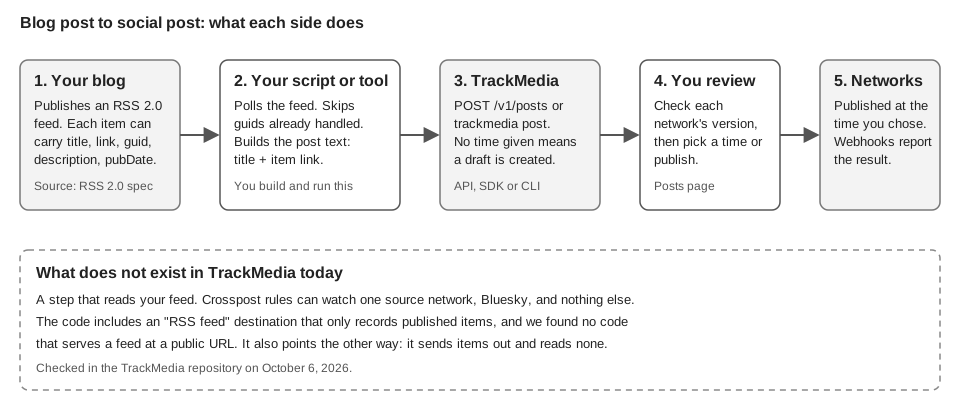
No. TrackMedia has no way to watch a feed and turn new items into posts. We checked the repository's code on October 6, 2026, and this is what exists.
- Crosspost watches Bluesky only. Rules copy new posts from one source account to other networks, and today Bluesky is the only network that can be a source. Rules start paused and in review mode, where copies wait as drafts.
- The code includes an "RSS feed" destination, not a source. Connecting it means naming a feed (title, optional description and website). Publishing to it records an item with title, text, link, attachments, tags and date. The code's own comment says publishing only records the item, and we found no code in the apps or packages that serves a feed at a public URL. Do not plan around it.
- WordPress and Webflow connectors go the other way. TrackMedia's code includes connectors that publish a post or CMS item to those sites. They do not watch your blog for new posts.
How do you turn new feed items into social posts with TrackMedia?
You supply the feed reader, and TrackMedia supplies the posting, scheduling and review. The reader can be a script you run on a schedule or an automation tool that can call an HTTP API. We have not tested any specific automation tool, so we do not name one.
- Create an API key and connect your networks. The REST API takes a key that starts with
tmk_as a bearer token. Create it under Settings > API keys with theposts:readandposts:writescopes. The default approval policy, Drafts only, keeps everything the key creates as a draft, which is what you want here. Accounts you connect in the dashboard become the targets. - Poll the feed and keep a list of guids. Fetch the feed on your own timer. Treat any item whose guid is not in your list as new, and store the guid after you create its post. Watch for the edit-republish case above.
- Build the text per network family. Start from the title and put the item's link in the text. Keep the text short enough for your shortest network, or create separate versions. TrackMedia's validation reports which networks would reject the text.
- Check without creating anything. The CLI's
--dry-runflag validates against every platform and creates nothing, for exampletrackmedia post "New on the blog: Our title https://example.com/post" --to bluesky --to linkedin --dry-run. The API has the same check atPOST /v1/posts/validate. - Create a draft, not a live post. The CLI's default mode is
--draft, and aPOST /v1/postsrequest with no time creates a draft. The MCP server'screate_posttool also defaults to draft. Reserve--at,--nowand--queuefor feeds you trust completely. - Prevent duplicates on retry. API and SDK requests accept an
Idempotency-Key, so reuse a value built from the item's guid as the key when your script retries. The code keeps each key for 24 hours, so keep your own list of handled guids as well. The CLI'spostcommand has no option to set your own key. - Review, schedule and listen. Open the draft, adjust each network's version, and schedule it. Signed webhooks send
post.publishedandpost.failedto your endpoint, which is how your script can learn the result.
Links in the post text are turned into tracked short links, with UTM tags added from the template under Settings > Links, except in Instagram and TikTok captions, where links are left as written. Our guide to UTM naming conventions covers how to keep those tags consistent.
What do the platforms say about posting from a feed?
We read one network's rules for this. X's Automation rules page (updated April 2026) says you may post automated posts based on outside information, such as an RSS feed, as long as you are sufficiently authorized to publish it. The same page says you may not post duplicative or substantially similar posts on one account or across several accounts you operate, and bars links that deceptively redirect through landing or ad pages.
On X, the page warns against duplicative or substantially similar posts across accounts you operate, so write a different line for each account. If one team runs many accounts, read our guide to managing multiple social media accounts. We did not open the automation policies of other networks, so check each one before you automate it. The first run of any feed script should create drafts only.
Which route fits which blog?
| Route | Who reads the feed | Status in TrackMedia |
|---|---|---|
| Copy each new post into the composer | You | Works; one master draft with per-network versions |
| Your script or tool, then API or CLI drafts | Your code | Works through the REST API, SDK, CLI and webhooks |
| Crosspost rule | TrackMedia, Bluesky only | Does not read RSS or blog feeds |
| Watch a feed directly inside TrackMedia | TrackMedia | Not available |
For a blog that publishes a few times a month, the manual route is often enough. If you also want the same post on several networks without retyping it, the composer does that, as described in our guide to posting to Instagram and Facebook at the same time. You can start free on TrackMedia and connect your networks before you wire up a feed script.
How we checked this
We read every page below in a browser on October 6, 2026, and read TrackMedia's code in its repository.
- RSS 2.0 Specification, RSS Advisory Board: format, channel and item elements, the optional cloud element, guid and pubDate behavior.
- RSS Autodiscovery, RSS Advisory Board: the head link element.
- WordPress Feeds, Advanced Administration Handbook: built-in feed types.
- Set up an RSS feed, Webflow Help Center: enabling and publishing a collection feed.
- Automation rules, X Help Center: posts based on outside information and spam rules.
In TrackMedia's code we checked the RSS connector (connect and publish steps), the Crosspost source list, the WordPress and Webflow connectors, the CLI post command, the MCP create_post tool, the API key scopes and approval policies, the posts and idempotency code and the webhook delivery code. We read these; we did not run the CLI or API against a live account. We did not verify the automation policies of any network other than X, any third-party automation tool, or whether a hosted TrackMedia feed is served anywhere in production.