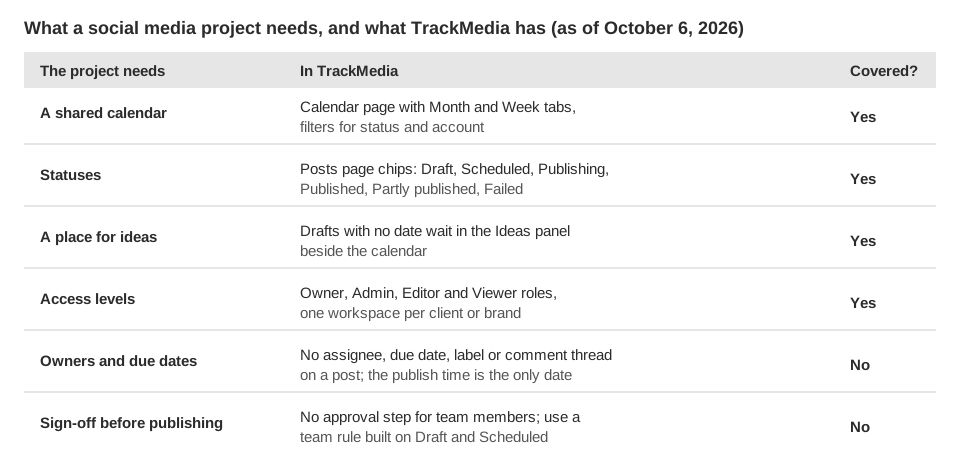
Social media project management needs four things: a shared calendar, clear statuses, a named owner for each piece of content, and deadlines. TrackMedia covers the calendar and the statuses. It is not a task manager, so owners and deadlines have to live somewhere else.
This guide explains what each of the four needs looks like in practice, then shows what TrackMedia offers and where it stops. TrackMedia details come from the app's own code, and the Meta details come from two pages of Meta's Business Help Centre, all read on October 6, 2026.
What does social media project management need?
A social media project is a stream of small pieces of content, each going through the same stages. A workable setup answers four questions at any moment:
- Calendar: what goes out, on which account, and when?
- Status: is each piece an idea, a draft, scheduled, live or failed?
- Owner: who is responsible for getting it finished?
- Deadline: when must the draft, the review and the approval be done? This is separate from the publish date.
The first two are about the content itself, so a scheduling tool can hold them. The last two are about people and tasks, which is what task managers and spreadsheets are for. So the practical split is a scheduler for the content and a task board or spreadsheet for the work around it.
How do statuses work in TrackMedia?
The Posts page lists everything you have drafted, scheduled or published, most recently created first. A row of filter chips sits above the list: All, Draft, Scheduled, Publishing, Published, Partly published and Failed. Each chip shows a count, and you can also search post text and filter by account.
| Status label | What it means for your workflow |
|---|---|
| Draft | Saved, not scheduled. Still editable. |
| Scheduled | Held by TrackMedia until its time. Still editable. |
| Publishing | Going out to the accounts now. |
| Published | Live on the platform. |
| Partly published | Some accounts published and at least one failed. |
| Failed | Needs attention. The post shows a reason and a Retry now button. |
The status belongs to the whole post and is worked out from its per-account results. Open a post to see each account's own status, which is how a partly published post tells you which account to fix. If the cause is an expired connection, the post offers a Reconnect link.
What can you see on the calendar?
The Calendar page shows everything scheduled and published in your workspace's time zone. The Month and Week tabs switch the view, Today jumps back to the current date, and status chips (the same statuses as the Posts page, but with no All chip and no counts) plus an account menu narrow what you see. Clicking a post opens it.
That makes the Week view a good Monday check: filter to Scheduled, pick one account, and see whether the week has gaps. For ideas on what to put in those gaps, our guides to an Instagram content calendar, a TikTok content calendar and a LinkedIn content planner cover the content mix for each network.
Where do ideas and drafts go?
Beside the calendar is a panel headed Ideas, with a count. It lists drafts you saved without a date, because the calendar can only place a post that has a date. When it is empty, the panel says drafts you save without a date wait there, and links to the composer.
To park an idea, click New post, write it, and choose Save draft without picking a time. When you are ready, click the idea to open its post page, choose Edit, and set a time in the composer. See all drafts under the panel opens the Posts page filtered to Draft.
The app also has a Queue page, where a queue is a weekly set of time slots. Choosing Add to queue in the composer puts a post in the next free slot, so a recurring cadence does not need a new date every time.
Who can do what in a team?
Each client or brand can have its own workspace, with a switcher to move between them. Inside a workspace, the Team page assigns one of four roles: Owner, Admin, Editor or Viewer. The app describes the Editor role as able to write, schedule and publish posts but not change accounts or keys, and the Viewer role as read-only, with a view of the calendar, posts and analytics.
The Viewer role is the practical one for clients: they can see what is planned without being able to change it. For more on running several brands, see our guide to managing multiple social media accounts.
What does TrackMedia not do for project management?
TrackMedia is a scheduler with a calendar, not a task manager. We found these gaps in the app's screens and code:
- No assignments. A post has no assignee field. The database records who created a post, but we found no Posts or Calendar screen that shows it, so the app cannot tell you who is responsible for it.
- No due dates or comments. A post has one date, its publish time. There are no labels, notes or comment threads on a post.
- No approval step for people. The sidebar lists an Approvals row, but its hint text (the wording depends on your plan) says the review queue is not built yet and posts publish straight away. Every role that can write a post can also schedule it.
There is one built-in review control, and it applies to automation rather than people. When you create an API key, you choose how much it can do unsupervised: Drafts only, Create, but a human approves or Publish without asking. Posts created by a key under either of the first two settings arrive as drafts for a person to schedule.
How can you run a simple workflow with what TrackMedia has?
Treat the statuses as a team agreement and keep the people side in a tool built for it. This setup works within the limits above:
- Keep tasks elsewhere. Put owners, due dates and briefs in a spreadsheet or task board your team already uses, with one row per piece of content.
- Collect ideas as undated drafts. Everyone saves ideas with Save draft and no time, so the Ideas panel becomes the backlog.
- Make the status mean something. Agree that Draft means "not approved" and Scheduled means "approved". Because an Editor can schedule, this holds only if the team follows it, so give the Editor role only to people you trust with the rule.
- Review weekly. Check the Week view on the Calendar for gaps, then open Posts and filter to Scheduled.
- Clear failures daily. Filter Posts to Failed, read the reason, and use Retry now or Reconnect.
If one piece goes to several networks, review each account's version before scheduling. Our guide to posting to all social media at once covers what to check per network.
Does a platform's own planner replace this?
Only for that platform's content. Meta's Business Help Centre says Planner in Meta Business Suite shows a calendar view of your Facebook Page and/or Instagram profile's posts, stories, reels and ads, including content scheduled in Meta Business Suite. You can switch between Week and Month, filter by content type, and filter by platform with Shared to.
Meta's page on creating and managing posts adds that content is organized by status into the tabs Published, Scheduled, Drafts, Expiring and Expired. Both pages say you need the right permissions to create or manage content. Neither describes assigning content to a person or setting task deadlines, though that is a limit of the two pages we read, not a statement about every Meta tool.
Because TrackMedia holds its own schedule and publishes at the chosen time, a post scheduled in TrackMedia is not a Meta-scheduled post and does not appear in Instagram's or Facebook's own scheduled lists. Pick one calendar as your source of truth and look there first.
If you want one calendar and status view across your networks, TrackMedia is free to start, and you can pair it with whatever task tool your team prefers.
How we checked this
Read in a browser on October 6, 2026:
- Use Planner in Meta Business Suite on desktop (Meta Business Help Centre): Planner calendar, Week and Month views, Content type and Shared to filters, permissions.
- Create and manage posts in Meta Business Suite on desktop (Meta Business Help Centre): the Published, Scheduled, Drafts, Expiring and Expired tabs and permission requirements.
TrackMedia statements come from reading the app's code: the Posts, Calendar, Queue, Team and API key screens, the status labels, the Ideas panel, the sidebar Approvals hint, and the posts service that applies API key approval policies.
What we could not verify: how these screens look to a signed-in user in production, whether the Approvals row is visible on every plan, and whether any other Meta tool offers task assignment. We did not test TrackMedia in a browser for this guide, and we say nothing about Owner and Admin permissions beyond the fact that they exist.