
Pinterest's Help Center does not name a best time to post on Pinterest that applies to every account. What it does give you is analytics for your own Pins, available with a business account, plus a scheduler you can use to test different hours.
This guide names the reports to open, shows how to run a small timing test with scheduled Pins, and explains how TrackMedia's best-times view reads your history. It uses no third-party studies, because Pinterest has not documented a universal answer and your audience may differ from anyone else's.
Does Pinterest publish a best time to post?
No page we read on Pinterest's Help Center names a best day or hour. We searched the Help Center for "best time to post" on October 6, 2026, and the results were about unrelated topics such as account deletion, boards and dark mode, not timing. A search is not proof that no such page exists, so this covers only the pages we opened.
The pages that do exist describe metrics and filters for your own account. Pinterest's Review Pinterest Analytics page lists Impressions, Saves, Pin clicks and Outbound clicks, among others, and filters such as date range, content type, Pin format, device, age and gender. It does not describe a report by hour of day or day of week.
Which Pinterest reports help you find your best time?
Three reports matter. Pinterest's Get a business account page says a free business account gives you access to Pinterest Analytics, and that you can convert a personal account under Settings, then Account management, then Convert to a business account.
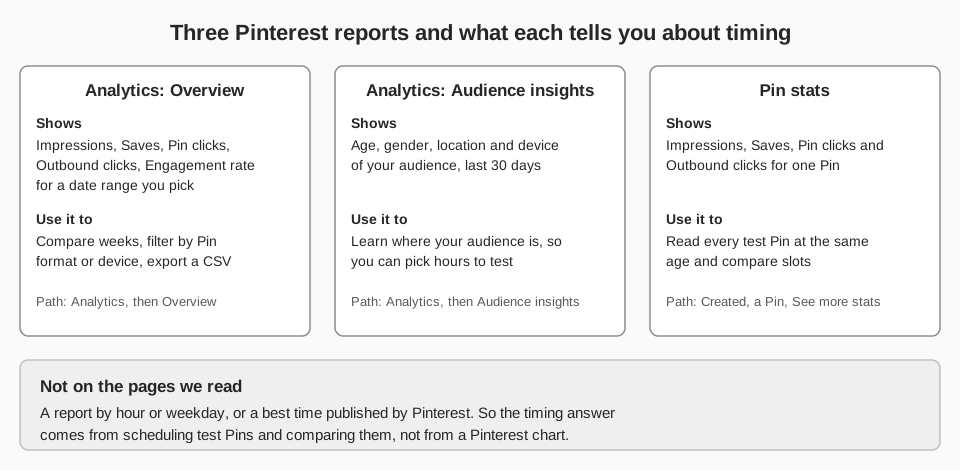
- Analytics Overview. Click the hamburger icon at the top left, then under Analytics select Overview. The help page says you see Overall performance, Performance over time, Top boards and Top Pins from the last 30 days, and that you can pick custom date ranges for the past year and a half.
- Audience insights. Under Analytics, click Audience insights. Pinterest's Review Audience Insights page says it shows a breakdown by age, gender, location and device for the last 30 days. The page lists no time-of-day data, so use it to learn where your audience is and which hours to test.
- Pin stats. Click your profile picture, click Created, select a Pin, then click See more stats. Pinterest's Review your Pin stats page lists Impressions, Saves, Pin clicks and Outbound clicks for every Pin, and lets you split the graph by content type, device or source.
How do you test the best time to post on Pinterest?
Schedule similar Pins into a few fixed day-and-hour slots, give each slot several Pins, and compare the same metrics at the same Pin age. Pinterest's Schedule Pins page makes this practical: with a business account you can schedule standard Pins up to 30 days ahead and hold up to 10 scheduled Pins at a time.
- Choose two or three slots. Use Audience insights to see where your audience is, then add the slot you use today as a baseline. A slot is a weekday plus an hour, such as Tuesday at 9:00.
- Create the Pins. Click Create, or open the hamburger menu and, under Create, select Create Pin. Choose an image or video, fill in the Pin details, select Publish at a later date, and pick the day and time.
- Post three Pins per slot. Three slots at three Pins each is nine Pins, which fits inside the 10-Pin limit. Because a slot is a weekday plus an hour, a slot's three Pins fall on three different weeks, which stays inside the 30-day window. Pinterest says you can schedule only one Pin at a time, so create them one by one.
- Keep the Pins comparable. Use one Pin format per test. The Analytics page says the Pin format filter separates image and video Pins, and that video Pins carry extra metrics.
- Read each Pin at the same age. Pinterest says real-time metrics are estimates that might decrease, and that the real-time window covers the last 48 hours. Waiting two weeks before you compare is our suggestion, not a Pinterest rule.
- Average each slot, then challenge the leader. Compare average Saves, Pin clicks and Outbound clicks per slot, and keep the winner for the next round.
Why you cannot post the same Pin in two slots
Pinterest's Pin stats page says it aggregates the data for all Pins that share an image and, if applicable, a URL, including downstream activity such as saves from other people's profiles.
So if you post one image to the same link in two slots, the numbers would likely blend and you could not tell the slots apart. Use different images for each test Pin, and compare slots by their averages rather than by any single Pin.
Why one Pin is not a result
Here is a worked example with invented numbers, not data from Pinterest. Slot A's three Pins get 14, 20 and 17 saves, an average of 17 ((14 + 20 + 17) / 3). Slot B's get 40, 6 and 5, also an average of 17, but 40 of its 51 saves come from one Pin.
Treat A and B as a tie and run another round.
What Pinterest's pages do not say
Schedule Pins does not say which time zone the publish time uses, so check the time shown on the create-Pin screen before you rely on it.
If you want the same method applied to another network, see our guide to the best day to post on Instagram.
How does TrackMedia show your best times?
TrackMedia's code includes a Pinterest connector, so its Analytics page can read your Pinterest history the same way it reads other networks. Whether Pinterest is live for your workspace depends on the deployment, which we could not confirm, so check whether Pinterest appears as a network you can connect in your workspace.
The Best times tab shows a grid of weekday by hour, titled "When your posts land best", in your workspace's time zone. You can filter by network and account, and the ranked list "Your strongest slots" holds up to five slots that have at least three posts behind them. Slots with fewer posts are shown but not ranked.
- It uses the real publish time. A Pin is counted at the hour it actually went out, and Pins that already existed on your account and were imported are counted too.
- Pinterest's rate is TrackMedia's own calculation. The connector reads lifetime pin totals for impressions, saves, Pin clicks and outbound clicks, then divides saves plus both click types by impressions, capped at 100 percent. Pinterest's Analytics page defines Engagement rate as engagements (saves, Pin clicks and outbound clicks) divided by impressions; TrackMedia's figure uses lifetime totals as the connector reads them and caps at 100 percent, so it may not match the number in Pinterest Analytics. Use it only to compare your own slots.
- Older Pins have had longer to collect numbers. The totals are lifetime, so compare slots only when their Pins are of similar age, as in the test above.
- The composer's "Best" chips are not filtered to Pinterest. They are built from the workspace's last 90 days across all networks and only from slots that cleared the minimum sample, so treat them as a hint when you schedule.
A Pin needs a board and an image or video, and TrackMedia holds the schedule itself and publishes the Pin when the time arrives. It does not hand Pinterest a scheduled date, so Pinterest's 10-Pin scheduling cap on the Schedule Pins page is not part of how TrackMedia queues posts. See how to manage multiple social media accounts if you test across several accounts.
One setting affects clicks. By default, TrackMedia leaves Pinterest links as written, with a switch under Settings, then Links, labeled "Leave Pinterest links as written", so its link analytics will not count those clicks. Use Pinterest's Outbound clicks for the test, and if you add your own tags to the Pin link, see UTM naming conventions. TrackMedia's setting hint says Pinterest demotes Pins that link through a shortener, but we did not verify that on a Pinterest page.
If you want your candidate slots scheduled and your results read in one place, you can start free with TrackMedia.
How we checked this
We opened each Pinterest page below in a browser on October 6, 2026 and copied menu names and limits from it. We did not test any of this on a live Pinterest account, so check the live page if a label looks different.
- Review Pinterest Analytics (Pinterest Business help): Overview path, metrics, filters, date ranges, real-time estimates.
- Review Audience Insights (Pinterest Business help): Audience insights path and breakdowns.
- Review your Pin stats (Pinterest Business help): Pin stats path, metrics, aggregation, business account requirement.
- Schedule Pins (Pinterest Business help): scheduling steps and limits.
- Get a business account (Pinterest Business help): business account and conversion path.
What we could not verify: any Pinterest statement that posting at certain hours raises Saves or clicks, so we make no such claim; the time zone Schedule Pins uses; whether the Analytics date range follows publish date or activity date, so we make no claim about it; which account roles can see each report, since the Analytics and Pin stats pages say only that some options may be available to account owners above a certain age; and whether the up-to-10-images option on the Schedule Pins page accepts different publish times for each Pin, since the same page says you can schedule only one Pin at a time. TrackMedia's own behavior comes from its analytics, composer, links and Pinterest connector code, read the same day.