
Yes, you can schedule Reels on Facebook, as long as you post to a Facebook Page and use Meta Business Suite. Create the reel there, choose Schedule instead of share, and pick a date and time. The same option exists on desktop, in the Meta Business Suite app, and in a bulk uploader for several reels at once.
This guide gives the steps in the wording of Meta's own help pages, read on October 6, 2026. It also covers editing a scheduled reel, what Meta says about limits, and what we could not find documented. We did not schedule a reel on a live Page to test it.
Can you schedule Reels on Facebook, and where?
Meta's Business Help Center page Create and manage reels in Meta Business Suite says you can create and share reels for Facebook and Instagram there. Its desktop steps include a step to "Schedule your reel in advance, share it immediately or save it as a draft."
Scheduling is not documented everywhere. The figure shows which routes Meta describes and which it does not.
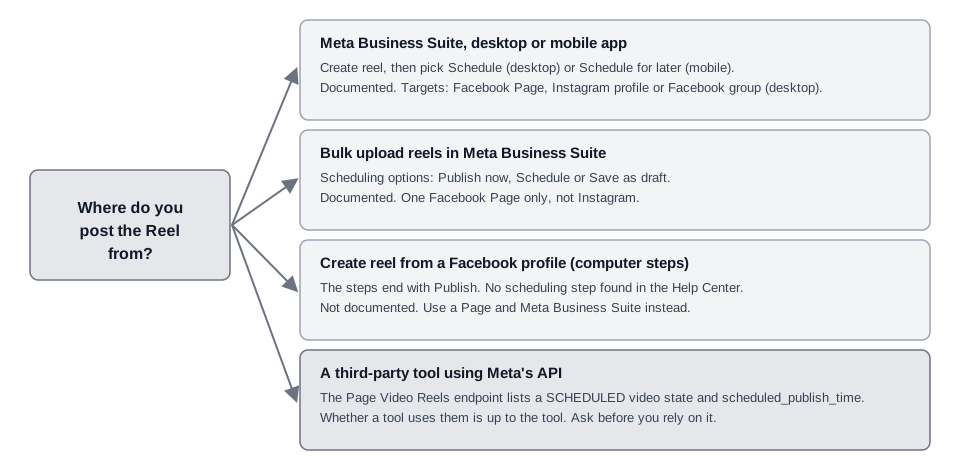
How to schedule a Reel on Facebook from a computer
Open Meta Business Suite for your Page, click Create reel, add your video, and set the date and time at the scheduling step. These are the key steps from Meta's page:
- Open Meta Business Suite and click Create reel. Meta says you can do this from the home page or the Content tab.
- Choose the destination. Under Post to, select the Facebook Page, Instagram profile or Facebook group.
- Add the video. Under Media, click Add video. For a video reel you can pick or upload a thumbnail.
- Write the caption. Add it under Reel details. You can customize the details for Facebook and Instagram separately.
- Click Next. If you are posting to Facebook, a further screen lets you change the audio, aspect ratio or length. Click Next again.
- Pick the timing. Choose to schedule in advance, share immediately or save as a draft. For a schedule, select the date and time.
- Check the remaining settings. Meta lists closed captions and translations, remixing and original audio use, and Who can see this? before the final click.
- Click Schedule. Meta says the final button reads Share, Schedule or Save depending on your choice.
Meta says you need either full control or content permission for the Page or Instagram account you are posting to. It also says you cannot create a reel from photos or edit a reel from a video if you are posting to Instagram.
How to schedule a Facebook Reel on your phone
In the Meta Business Suite app, start a new reel, add your video, and under Scheduling options choose Schedule for later. Meta's reels page and its mobile scheduling page describe slightly different starting points, so use whichever your app shows.
- Start a reel. The reels page says to tap the + button at the bottom of the home screen and select Reel. The page Schedule Facebook and Instagram content on Meta Business Suite mobile app says to tap Content, choose Reels at the top, then tap Create.
- Add video. Pick clips from your gallery or record one, then tap Next.
- Write a title and description and choose the destination under Share to.
- Choose timing. Under Scheduling options, select Publish now or Schedule for later, then set the date and time.
- Tap Schedule. Meta says to tap Share reel to publish at once and Schedule to schedule.
Meta also says reels from business or creator Pages can only be posted publicly. You can see the scheduled item in Planner on its publish date.
Can you schedule several Reels at once?
Yes, for a Facebook Page. Meta's page Bulk upload multiple videos in Meta Business Suite says to go to Home, click More, then Bulk upload reels. Under Scheduling options you choose Publish now, Schedule or Save as draft, then click Publish.
Meta lists two limits. Bulk-uploaded reels go to one Page, not several, and they can only be posted to your Facebook Page, not your Instagram account.
Can you schedule a Reel from a personal profile?
We could not find a documented way. The Facebook Help Center page Create a reel on Facebook lists computer steps that run from Reels and Create reel through the audience setting to Publish. None of those steps mentions scheduling, and its "Managing your reels" index page lists none either.
That is an absence in the help pages we read, not proof the feature is missing from your account. Your screen is the final word. If you need scheduling, create the reel for a Page in Meta Business Suite.
Meta's Help Center, in an update it dates September 2025, says all videos posted to Facebook (except stories and live) are shared as reels. That means "schedule a Facebook video" and "schedule a Facebook reel" point at the same format on Meta's side.
How to find, edit or cancel a scheduled Reel
In Meta Business Suite on desktop, click Content, open the Posts and reels tab, and select Scheduled. Click the ... icon on the reel, then Manage post. Meta says the options depend on the reel's status. Its list includes:
- Edit reel
- Reschedule post
- Change date
- Move to drafts
- Delete reel
Meta's reels page lists these names without describing each one, and does not say what Edit reel lets you change, so check the screen. The list also includes Change remix and audio use. Our guide to seeing and editing scheduled posts on Facebook covers Planner, the Scheduled tab, and why a scheduled item may not show.
What limits apply to scheduled Facebook Reels?
Meta's pages are specific about a few things and silent about others. Here is each, with its source.
- How far ahead. The Help Center page for scheduling Page posts says you can schedule posts to publish between 20 minutes and 29 days away. That page is about posts, and the reels pages we read give no separate window, so we do not state one for reels.
- Length. Meta's Help Center (an update dated September 2025) says Facebook reels are unified videos of any length and any aspect ratio. Meta's Reels Publishing API page, updated July 30, 2026, instead lists a duration of 3 to 90 seconds and a 9 x 16 aspect ratio for reels published through the API, although its error table also says aspect ratios between 16x9 and 9x16 are accepted. A tool that publishes through the Reels API is held to those numbers. The Business Suite pages we read state no such limits for reels.
Can TrackMedia schedule Facebook Reels?
TrackMedia schedules posts to Facebook Pages, and a post can include one video. We cannot promise it posts that video as a Reel with Reel settings. We read the code, not a live test.
Here is what the code shows. A scheduled post sits in TrackMedia's own database, and a check for due posts runs every minute. At the scheduled time TrackMedia sends the post to your Page. A video goes to the Page's /videos endpoint with a description and optional title. We found no call to the Reels Publishing endpoint, no scheduled_publish_time, and no remix, audio or cover settings in the Facebook connector.
Meta's Help Center says every video posted to Facebook is shared as a reel (a September 2025 update). We did not verify how that applies to a video sent through the /videos endpoint, so treat a TrackMedia video post as a video post and check the result on your Page.
Because TrackMedia holds the schedule, a post scheduled there will not appear in Meta's Scheduled tab or Planner until it publishes. Use Posts or Calendar in TrackMedia to find it, and open the post to edit it or unschedule it. If a reel needs a specific sound, remix control or the settings on Meta's reels page, schedule it in Meta Business Suite. See how publishing works and read how to post to Instagram and Facebook at the same time.
If you want one calendar for your Facebook Page posts and your other networks, you can start free with TrackMedia.
How we checked this
The TrackMedia Team read each of these official pages on October 6, 2026. Menu names come from those pages and can change. We did not schedule a reel on a live Page. TrackMedia statements come from reading its code.
- Meta Business Help Center, Create and manage reels in Meta Business Suite. Read October 6, 2026.
- Meta Business Help Center, Schedule Facebook and Instagram content on Meta Business Suite mobile app. Read October 6, 2026.
- Meta Business Help Center, Bulk upload multiple videos in Meta Business Suite. Read October 6, 2026.
- Meta Business Help Center, Schedule a post and manage scheduled posts for your Facebook Page (20 minutes to 29 days). Read October 6, 2026.
- Meta Business Help Center, Save, schedule and reschedule posts in Meta Business Suite. Read October 6, 2026.
- Facebook Help Center, Create a reel on Facebook (computer steps and the September 2025 update) and Managing your reels. Read October 6, 2026.
- Meta for Developers, Reels Publishing API (updated July 30, 2026). Read October 6, 2026.
- Meta for Developers, Graph API Reference v26.0: Page Video Reels. Read October 6, 2026.
We could not verify: any scheduling window specific to reels, what Edit reel can change on a scheduled reel, whether a personal profile can schedule a reel in the apps, how a video sent to the Page /videos endpoint is classified, and the iPhone and Android versions of the profile Create a reel page, which did not load for us.