A UTM checker is any method that confirms a tagged link is written correctly and that Google Analytics 4 (GA4) records its tags. You can do it by hand in three steps: read the URL, click it and read the final address, then find your visit in a GA4 report.
This guide shows each step, explains why tags go missing, and ends with a checklist to run before every publish. It needs no extra software. It does assume your site already has GA4 installed.
What does a UTM checker do, and do you need a tool?
A UTM checker answers two separate questions. First, is the link built correctly? Second, did the tags survive the trip to your page and into your reports? A tool can answer the first by reading the URL. Only your own clicks and your own GA4 property can answer the second.
That is why the manual method below is worth learning even if you also use a tool. The weak points are the redirect chain and the report, and a link validator cannot see either.
What does a valid tagged URL look like?
A valid tagged URL is your page address, then a question mark, then name=value pairs joined by ampersands. Google's own example, in its page on collecting campaign data with custom URLs, is https://www.example.com/?utm_source=summer-mailer&utm_medium=email&utm_campaign=summer-sale. A tagged social link has the same shape:
https://example.com/sale?utm_source=instagram&utm_medium=social&utm_campaign=spring-saleGoogle says the parameters can be added in any order. Everything after the first ? is the query string, and each pair is separated from the next by &.
Which UTM parameters are required?
Google's documentation says that when you add parameters to a URL, you should always use utm_source, utm_medium and utm_campaign. It adds that if you set one UTM parameter, it strongly recommends setting all relevant ones, especially those three plus utm_id and utm_source_platform, and that missing parameters lead to "(not set)" values in reporting. The page does not use the word "required" for any single parameter, so treat the first three as the working minimum.
The same page lists utm_term (paid keyword) and utm_content (to tell apart creative or links that share a campaign) as further parameters. For naming rules on what to put in each value, see our guide to UTM naming conventions.
How are spaces and special characters handled?
Google's page does not say how to encode spaces or special characters in UTM values, so there is no Google rule to quote. The URL standard, RFC 3986, defines & and = among its reserved characters and defines percent-encoding as a % followed by two hexadecimal digits. In practice, a literal & inside a value would be read as the start of the next parameter unless it is encoded as %26.
The simplest rule that avoids all of this: use lowercase letters, digits, hyphens and underscores in values, and do not put spaces in them. Write spring-sale, not Spring Sale.
What does a # do to your tags?
RFC 3986 says the query component is "terminated by a number sign" or the end of the URI, so the tags must come before any #. MDN's page on the URI fragment adds that the fragment is not sent to the server when the URI is requested. Google's documentation does not say how GA4 treats tags placed after a #, so do not rely on it.
Right: https://example.com/sale?utm_source=instagram&utm_medium=social#pricing
        Wrong: https://example.com/sale#pricing?utm_source=instagram&utm_medium=social
How to check that the link keeps its tags
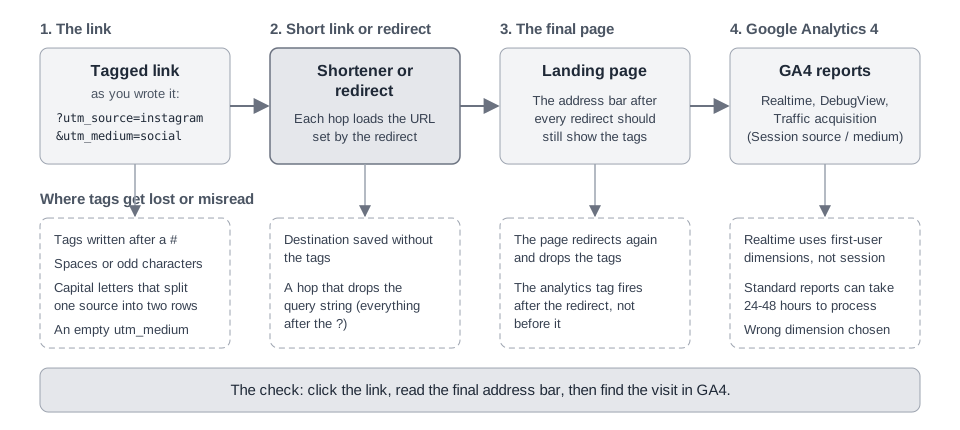
To check a tagged link, click it as a visitor would and read the address bar once the page has loaded. The final URL should still contain every parameter you wrote. If any are missing, something removed them: a redirect, the short link, or the destination page. A page script can also tidy the address bar after Analytics has read the tags (our reasoning, not a Google statement), so check page_location in DebugView before you conclude the tags never arrived.
- Open a private window so no saved session or extension changes the result.
- Paste the exact link you plan to publish, not a hand-edited copy, and press Enter.
- Wait for the page to finish loading, then read the full address in the address bar.
- Compare it with the original: every
utm_pair should be there, with the same spelling and case. - Repeat from the real place, such as the bio link or the post itself, because that is the link your audience will use.
Why do shorteners and redirects drop tags?
A short link works by redirecting. MDN's page on HTTP redirections says a redirect response carries a Location header holding the URL to redirect to, and that browsers immediately load that new URL. The URL you land on is whatever the redirect names, so the tags survive only if the destination stored behind the short link already contains them.
That gives a firm rule: put the UTM tags on the destination before you shorten it. Whether a given shortener also forwards extra parameters added to the short URL varies by tool, so test it. Don't assume.
Your own pages can drop tags too. Google's Ads troubleshooting page, Clicks and Sessions Discrepancy for Google Ads and Google Analytics: Troubleshoot, says redirects in landing pages can keep the Analytics code from launching and identifying the traffic correctly. It advises appending parameters such as ?utm_source=test to the landing page URL, checking that they persist after the redirect, and making sure the Google tag fires before any redirects occur. That page is written for Google Ads, but the test applies to any tagged link.
If you are comfortable in a terminal, curl -sIL followed by the URL prints the response headers of each hop, including each Location. Some servers answer these header-only requests differently from a browser, so treat the browser result as the final word.
How do I find UTM source in GA4?
You find a UTM source in GA4 in the Traffic acquisition report, under the Session source / medium dimension. Right after a click, the Realtime report shows that a visit arrived within minutes, and DebugView shows the events and their parameters within seconds. Here is each one, using the names Google's help pages use.
Realtime: did the visit arrive?
Google's help page says to open Reports and then Realtime, and that the report shows user activity from the last 30 minutes. The card for traffic sources is called "Active users by first user source, medium, source platform, or campaign".
Note the word "first user". Google's page says the Realtime report shows user-scoped dimensions, and its page on scopes of traffic-source dimensions says user-scoped values stay constant as a user returns. A browser that has visited your site before may therefore show its original source, not your new tag. A private window has the opposite problem: Google says the "Active users by First user source" card shows information only for established users, those that have already gone through normal processing, so a brand-new visitor may be counted as active but not appear in that card yet. Treat Realtime as proof that the visit arrived, not as proof that the tags were read. Check the tags in DebugView now and in Traffic acquisition later. Google also says Realtime performs "limited attribution analysis" to keep reporting responsive.
DebugView: see what GA4 received
Google's DebugView page gives the path Admin, then Data display, then DebugView. You must turn on debug mode first, for example through Google's Tag Assistant, and then you can click an event to see its parameters. Open the tagged link itself with debug mode on, so the page_view you inspect is the one that carries your tags. We did not test whether Tag Assistant keeps UTM tags on the address you enter, so confirm in page_location.
The page_view event includes a page_location parameter, which Google's documentation describes as the page URL. If your tags appear there, the page sent them. If they do not, the problem is upstream of GA4. Google's developer guide calls DebugView the best way to confirm that events and parameters are sent correctly.
Traffic acquisition: the report that counts
Google's page on the Traffic acquisition report gives the path: sign in, choose Reports on the left menu, then Acquisition, then Traffic acquisition. The default dimension is "Session default channel grouping". Change the report's primary dimension to Session source / medium to see rows such as instagram / social. Google's page does not describe this control, so look for the dimension selector above the first column. For the full reading steps, see our guide on how to see who clicked your Instagram link.
Give it time. Google's data freshness page lists typical processing of 2 to 6 hours for standard intraday data and says processing can take 24 to 48 hours. It states these are not guaranteed timelines.
One more detail. Google says UTM parameters are omitted from the "Landing page + query string" dimension and are populated in the Page location dimension. If you want to see the full tagged URL in a report, use Page location.
Why don't my UTM tags show in GA4? Symptoms, causes and fixes
When tags do not show up, match what you see to the table below, then run the click test again after each fix. Causes marked with a source come from that page; the rest follow from the URL rules above.
| Symptom | Likely cause | Fix |
|---|---|---|
Click-tested URL has no utm_ parameters | A redirect or shortener dropped the query string, or the destination was saved without tags | Tag the destination, re-create the short link, and repeat the click test |
| Tags appear in the URL but not in GA4 | The Google tag did not fire, or fired after a redirect (Google's Ads troubleshooting page) | Confirm in DebugView that page_view arrives with the tagged page_location; fire the tag before redirects |
| Visit shows as Direct | Google says a session is direct when no information about the referral source is available, which fits tags lost on the way | Click-test the final URL and fix the step that removes the tags |
| Source or medium shows "(not set)" | Google lists incomplete or incorrect parameters, or a missing session_start event, as causes | Set source, medium and campaign; load the Google tag on the "Initialization - All pages" trigger in Tag Manager |
| Traffic sits under Unassigned | Google says Unassigned means no channel rule matched the event data | Check your source and medium against Google's default channel group definitions; a source on Google's social-site list can set the channel on its own |
| One campaign appears on several rows | Values differ in case, and Google says values are case sensitive | Use lowercase everywhere and fix the old links |
| Tags missing from "Landing page + query string" | Google says UTM parameters are omitted from that dimension | Use the Page location dimension instead |
| Seen in Realtime, absent from Traffic acquisition | Standard reports can take 24 to 48 hours to process | Check again the next day before changing anything |
| Tags sit after a # in the URL | The query string ends at the #, and Google does not document this case | Move the tags before the # |
The sources for these rows are the Analytics Help pages on what "(not set)" means, campaigns and traffic sources and default channel group definitions, listed again at the end.
Are GA4 UTM parameters case sensitive?
Yes. Google's documentation says parameter values are case sensitive, and gives the example that utm_source=google is different from utm_source=Google. Two spellings of the same source become two rows in your reports, and the totals you wanted in one place are split.
The fix is a habit, not a setting: write every value in lowercase, from a shared list, and reuse it. Our naming conventions guide covers how to build that list.
What are the most common UTM mistakes?
These four are common, and each one is visible in the URL before you publish.
- Mixed capitalization.
Instagramandinstagramare different values, as covered above. - A missing or empty
utm_medium. Google recommends always using source, medium and campaign together. Medium also feeds channel grouping: Google's default channel group definitions list medium values such associalfor Organic Social, and traffic that matches no rule is Unassigned. - Spaces and symbols in values. They invite encoding mistakes, and they make the value harder to match later.
- Tagging internal links. Putting UTM tags on links between your own pages is a common habit, and it is sometimes said to start a new session. Google's page "Campaigns and traffic sources" says a new session is not started when Analytics encounters a new campaign or traffic source. It adds that values sent mid-session are tied to the events they were collected with, not to the existing session, and are used for event-based attribution. So an internal tag will not give the session a new source, but it can change what is credited for a key event. Google's pages do not recommend tagging internal links, and we did not test it. Our advice, not Google's: track internal clicks with events instead.
Pre-publish checklist for every tagged link
Copy this list into your publishing notes and tick each line before a link goes live.
[ ] The URL has one "?" before the first utm_ pair and "&" between pairs
        [ ] utm_source, utm_medium and utm_campaign are all present and not empty
        [ ] Every value is lowercase, with hyphens or underscores instead of spaces
        [ ] No "&", "=", "#" or "?" inside any value
        [ ] The tags come before any "#" fragment
        [ ] Values match my naming list exactly (same spelling, same case)
        [ ] Tags are on the destination URL, not added to the short link
        [ ] I clicked the real link in a private window
        [ ] The final address bar still shows every utm_ pair
        [ ] The landing page does not redirect again without keeping the query string
        [ ] After the click: page_location in DebugView has the tags (Realtime only shows that the visit arrived)
        [ ] The next day: the row shows in Traffic acquisition under Session source / medium
What TrackMedia checks, and what it does not
TrackMedia does not have a built-in UTM checker. The method above is manual, and it works the same with or without TrackMedia. What the product does is add tags to the links it tracks and keep them on the destination, which removes some of the mistakes in this guide.
- Automatic tags on tracked links. When link tracking is on, which is the default, links in clickable fields are swapped for tracked short links, and the destination gets UTM tags from your workspace template. Links are left as written if their domain is excluded, if the network is one where links stay raw (Pinterest, by default) or if the link service does not answer in time. The default template sets
utm_sourceto{network}andutm_mediumtosocial, with no campaign. TrackMedia fills{network}with its internal ID for the account. For most networks that is the plain name (linkedin,x,tiktok), but a LinkedIn company Page writeslinkedin-pageand Instagram connected without a Facebook Page writesinstagram-business, and those appear as separate source rows. If you need one row, writeutm_sourceinto the link yourself; TrackMedia never overwrites it. This is how the code works as of October 6, 2026. Crosspost rules have their own optional UTM setting (off by default), which this guide does not cover. - Your tags are never overwritten. If a parameter is already in the URL, TrackMedia keeps your value (it rebuilds the query string, so a space written as
%20comes back as+). That includes a typo, so the check above still matters. - You can edit the template. The UTM tags settings on the Links page show a preview URL for what a link would get.
- Hand-made short links get no tags. A link you shorten with "Shorten a link" keeps exactly the URL you pasted. Tag it first.
- The destination is stored with the tags. Each tracked link has an "Open the destination" button that opens the tagged URL, which makes the click test quick. It opens the destination directly, so it does not replace clicking the short link itself.
The redirect itself is served by TrackRev, TrackMedia's link-tracking service. TrackMedia's own code shows that the tagged destination is what it stores and sends there, but it does not show how the redirect treats parameters added to the short link. That is one more reason to tag the destination. For the product side, see how publishing works and how click analytics work.
What to do next
Take your next link, run the checklist, and read the result in Traffic acquisition the following day. When you want tagging and click counts handled for every post, start for free with TrackMedia.
How we checked this
We read these pages on October 6, 2026. Menu names and report paths are quoted as these pages state them; Google changes its interface often, so go by the dimension names if a label looks different. We did not run our own GA4 property tests for this guide, and where a source is silent we said so.
- Analytics Help, "URL builders: Collect campaign data with custom URLs": https://support.google.com/analytics/answer/10917952. Checked: parameter list, "always use" wording, case sensitivity, Page location versus Landing page + query string, (not set).
- Analytics Help, page on the Traffic acquisition report: https://support.google.com/analytics/answer/12923437. Checked: path, default dimension, Session source / medium.
- Analytics Help, "[GA4] Realtime report": https://support.google.com/analytics/answer/9271392. Checked: path, 30-minute window, first-user card, user-scoped dimensions, limited attribution.
- Analytics Help, "Monitor events in DebugView": https://support.google.com/analytics/answer/7201382. Checked: path, debug mode, event parameters.
- Analytics Help, page on the page_view event parameters: https://support.google.com/analytics/answer/9234069. Checked: page_location is sent with page_view.
- Analytics Help, "Campaigns and traffic sources": https://support.google.com/analytics/answer/11242841. Checked: new campaign values do not start a new session; direct traffic definition.
- Analytics Help, "Scopes of traffic-source dimensions": https://support.google.com/analytics/answer/11080067. Checked: user-scoped versus session-scoped dimensions.
- Analytics Help, "What the value (not set) means in your reports": https://support.google.com/analytics/answer/13504892. Checked: causes for manually tagged URLs and session source / medium.
- Analytics Help, "Default channel group definitions": https://support.google.com/analytics/answer/9756891. Checked: Unassigned, Organic Social and Direct rules.
- Analytics Help, "[GA4] Data freshness": https://support.google.com/analytics/answer/11198161. Checked: typical processing times and the 24 to 48 hour statement.
- Google Ads Help, "Clicks and Sessions Discrepancy for Google Ads and Google Analytics: Troubleshoot": https://support.google.com/google-ads/answer/14452452. Checked: redirects, testing with a test parameter, firing the tag before redirects.
- Google for Developers, "Verify and troubleshoot your Google Analytics setup": https://developers.google.com/analytics/devguides/collection/ga4/troubleshoot. Checked: DebugView and Realtime as verification tools.
- IETF, RFC 3986, "Uniform Resource Identifier (URI): Generic Syntax": https://datatracker.ietf.org/doc/html/rfc3986. Checked: query and fragment definitions, percent-encoding, reserved characters.
- MDN, "URI fragment": https://developer.mozilla.org/en-US/docs/Web/URI/Reference/Fragment. Checked: the fragment is not sent to the server.
- MDN, "Redirections in HTTP": https://developer.mozilla.org/en-US/docs/Web/HTTP/Guides/Redirections. Checked: the Location header and browsers loading the new URL.
- Google Analytics Help, Best practices to avoid sending Personally Identifiable Information (PII) (data redaction of URL query parameters).
The TrackMedia behavior described above comes from our own code, not from a public document: the UTM default template, the rule that existing parameters are never overwritten, the hand-made link behavior and the destination link on the Links page.