To add YouTube chapters, open the video in YouTube Studio and, in the Description, add a list of timestamps and titles. YouTube's Help Center says the first timestamp must start with 00:00, the video needs at least three timestamps in ascending order, and the minimum length for a chapter is 10 seconds.
This guide uses YouTube's Video Chapters page, read on November 4, 2026. It covers the steps, what the timestamps must look like, automatic chapters and how to turn them off, why chapters do not show up, and how to add them when you publish with TrackMedia.
Sources: Video Chapters
How to add chapters to a YouTube video in YouTube Studio
The Video Chapters page gives these steps for your own chapters:
- Sign in to YouTube Studio.
- From the left menu, select Content.
- Click the video that you want to edit.
- In the Description, add a list of timestamps and titles.
- Click SAVE.
The page adds that saving your own chapters "will override automatic video chapters". So if YouTube was generating chapters for the video, your list replaces them. The same override is stated on the Upload YouTube videos page: "Any video chapters entered will override auto generated video chapters."
The page does not name a separate chapters screen or button. Chapters are made from the description text, which is also how the YouTube Data API reference describes it: you "can create video chapters by including formatted timestamps (for example, 00:00) in the description text."
Sources: Upload YouTube videos
What do the timestamps need to look like?
Each line pairs a timestamp with a title. YouTube's page lists three rules:
- Start at 00:00. The first timestamp you list must start with 00:00.
- Use at least three timestamps, listed in ascending order.
- Keep every chapter at least 10 seconds long. The page calls this "the minimum length for video chapters".
Here is an example of the layout. The titles and times are made up for illustration:
00:00 Intro
        00:45 What you need
        02:10 Step one
        05:30 Step two
        08:15 Wrap-up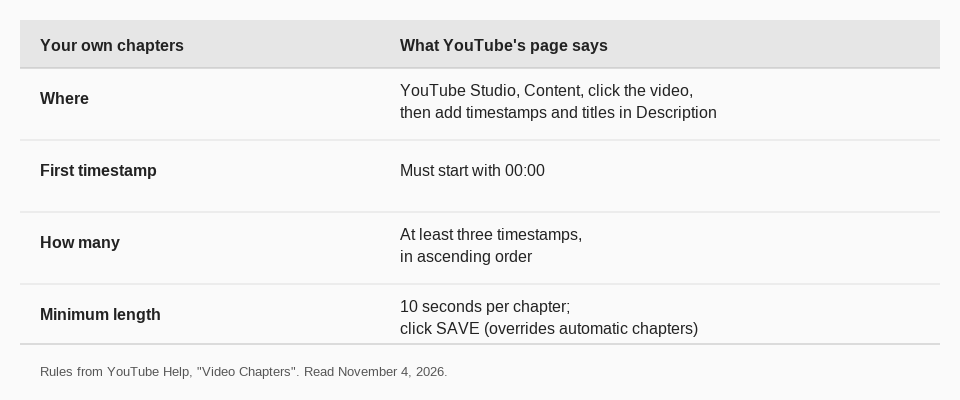
The description has its own limit, which the timestamps share. The Upload YouTube videos page says descriptions have "a character limit of 5,000 characters", and our guide to the YouTube title character limit sets that next to the title and tag limits.
How do automatic chapters work?
YouTube can generate chapters for you. The Video Chapters page says creators "can add their own video chapters for each uploaded video or rely on automatic video chapters", and that "creators can always opt out of automatic video chapters in YouTube Studio."
To use them, follow the same first three steps (Content, then click the video). Then click SHOW MORE, and under Automatic Chapters select Allow automatic chapters, and click SAVE. The page says this box "will be checked for all new uploads" by default, and that you can also allow automatic chapters in bulk.
It also sets a limit: "Not all videos are eligible for automatic chapters, and not all eligible videos will have automatic chapters."
How to turn off automatic chapters
You can opt out for one video or for every upload:
- For one video: open it from Content, click SHOW MORE, unselect Allow automatic chapters under Automatic Chapters, and click SAVE.
- For all new uploads: in YouTube Studio click Settings, then Upload defaults, then Advanced settings. Uncheck "Allow automatic chapters (when available and eligible)" and click SAVE.
When you upload a new video, the same checkbox is under SHOW MORE at the bottom of the Details page, in the Automatic chapters setting. Our walkthrough of how to upload a video to YouTube shows where that page sits in the upload flow.
Why are my YouTube chapters not showing?
Work through the documented causes in this order:
- A rule is broken. Check that the list starts at 00:00, has at least three timestamps in ascending order, and that no chapter is shorter than 10 seconds.
- You do not have access yet. The Video Chapters page notes: "If you don't yet have access to chapters, apply for access to Advanced features."
- Your channel has an active strike, or the content may be inappropriate to some viewers. For automatic chapters, the page says "the video chapters feature won't be available" in that case.
- The video is not eligible for automatic chapters. Not every video gets them even when the box is checked. Add your own list instead.
- You opted out. Look at the Automatic Chapters setting under SHOW MORE and at your upload defaults.
One more detail from the Upload YouTube videos page: if you add a "Correction:" line to the description, it "should appear after any video chapters". Put your timestamp list above it.
Why add chapters at all?
The Help Center's Tips for video descriptions lists chapters among the interactive features you can add to a description: "Use video chapters to help viewers skip to important parts of longer videos." The Video Chapters page adds that chapters give each section "an individual preview" and may appear in the transcripts. Neither page gives figures for views or watch time, so we do not either.
Sources: Tips for video descriptions
How to add chapters to a YouTube video with TrackMedia
TrackMedia publishes a video to YouTube from the same composer you use for 20 other networks, and the text you write there is sent as the video description. That is where chapters live, so you can write your timestamp list straight into the post. This comes from reading TrackMedia's YouTube connector on November 4, 2026:
- Write the timestamps in the post text. The connector sends your text as the description as written. It renders mentions and swaps < and > for look-alike angle quotes, because YouTube refuses those two characters.
- Schedule it with the rest of your calendar. The post, with its timestamp list, goes out at the time you pick through TrackMedia's publishing queue.
- Stay under the description limit. TrackMedia cuts a description at 5,000 bytes, so put the timestamp list near the top of the text.
- A title and a video are required. Preflight flags a missing title or a title over 100 characters before the time you picked.
TrackMedia does not read or change the Automatic Chapters setting. That setting stays in YouTube Studio, under SHOW MORE on the video's Details page. To schedule the video itself, follow our guide to scheduling a YouTube video, then try TrackMedia free for 14 days.
Questions people also ask
How many timestamps do YouTube chapters need?
At least three, in ascending order, with the first one starting at 00:00. Each chapter must be at least 10 seconds long.
How do I add timestamps to a YouTube video?
In YouTube Studio, select Content, click the video, and add a list of timestamps and titles in the Description. Click SAVE. The same list can be pasted into the Description box while you upload.
Can I add chapters to a video I already published?
Yes. The Video Chapters page applies to each uploaded video: open it from Content, edit the Description, and click SAVE.
Do my own chapters replace automatic ones?
Yes. The page says saving your own list "will override automatic video chapters".
Can TrackMedia publish a video with chapters?
Yes. Put the timestamp list in the post text and TrackMedia sends it as the YouTube description. For the wider posting routine, see how often to post on YouTube.
How we checked this
We opened each page below on November 4, 2026 and copied the labels and wording from it. We did not publish a test video, so the troubleshooting order is ours and the causes in it are the ones the pages document. TrackMedia's behavior comes from reading its YouTube connector code the same day.
- Video Chapters (YouTube Help): the steps for your own and automatic chapters, the three timestamp rules, opt-out steps, the strike and eligibility notes, the Advanced features note.
- Upload YouTube videos (YouTube Help): the Automatic chapters setting in the upload flow, the override sentence, the description limit, the Corrections placement.
- Videos resource (YouTube Data API reference): chapters made by formatted timestamps in the description.
- Tips for video descriptions (YouTube Help): the line on using chapters to skip to parts of longer videos.
YouTube changes these pages, so check the live page if a label looks different. The pages we read do not say whether chapters affect views.