To repost on LinkedIn, click or tap Repost under a post, then choose Repost to share it as is or Repost with your thoughts to add your own comment first. LinkedIn's Help Center says you can repost existing public posts from other members or LinkedIn Pages, and that you can send a post in a private message instead.
This guide uses LinkedIn's How to repost a post on LinkedIn page, read on November 4, 2026, including its desktop and mobile tabs. It also covers deleting a repost, reposting a repost, why the option can be missing, and what TrackMedia does and does not publish.
Sources: How to repost a post on LinkedIn
How do you repost on LinkedIn on desktop and mobile?
The steps are nearly the same on both. LinkedIn's page gives them like this:
- Click Repost under the post you want to share (on mobile, tap Repost below the post).
- Pick an option from the dropdown: Repost with your thoughts or Repost.
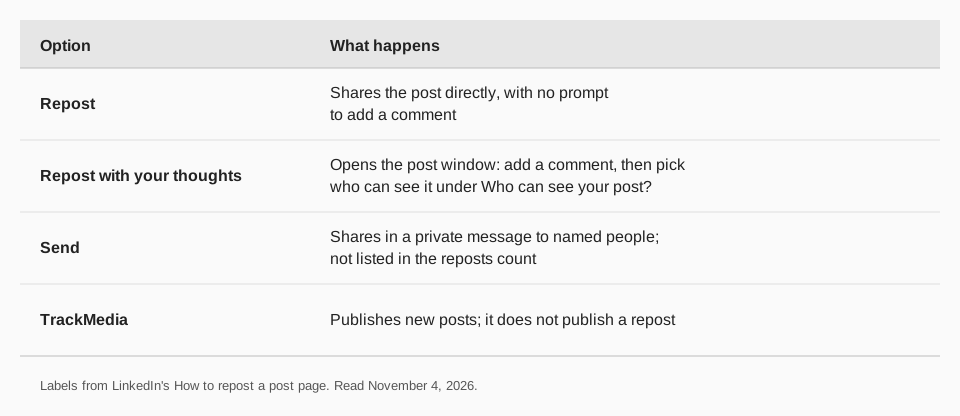
Choosing Repost shares it directly, with no prompt to add a comment. A "repost successful" confirmation appears, and you can click View post next to it to see your repost. On mobile the page says this creates a new post with the original post attached.
How do you repost with your own comment?
Choose Repost with your thoughts. The post window opens, and you can type comments or use "@" to mention people, companies or schools.
- Desktop: click the dropdown next to your name, choose who can see it under Who can see your post? in the Post settings window, click Done, then click Post at the lower right.
- Mobile: tap the Anyone dropdown next to your name, choose who to share with under Who can see your post?, then tap Post at the upper right.
When you repost a URL, photo or video, LinkedIn notes that the original poster's commentary is included. You can also repost something that was already reposted. After posting, your commentary is the top level, and the level below it is the previous repost's commentary. Click or tap that level to see earlier reposts with commentary and get back to the original.
How do you delete a repost on LinkedIn?
Open your repost, click or tap the More icon in its upper-right corner, and select Delete post. Then confirm: click Delete in the "Delete post?" pop-up on desktop, or tap Delete in the pop-up on mobile.
How do you share a post in a private message?
Use Send at the lower right of the post. On desktop, type the names of the people under Suggested, optionally write in the Write a message... field, and click Send. On mobile, the Send post page asks for a name in Type a name and a note in Add a message.
Private shares do not appear in the list of reposts on a post.
How do you see who reposted your post?
Click the "[number] reposts" count at the lower right of your post. A pop-up lists the people who reposted it, and you can click "[number] comments" to see the comments added to those reposts. For other numbers on your post, see how to see who viewed your LinkedIn post.
Why can't I repost on LinkedIn?
LinkedIn lists these reasons on the same page:
- Group posts cannot be reposted. Connections-only posts are not eligible either, and their comments do not show a Repost option.
- The author's settings. The author may have turned off comments or limited who can comment, and visibility settings can affect reactions and reposts.
- Blocking or restrictions. If a member or Page blocked or restricted you, you may be unable to comment, react, repost or message them.
- Platform limits. LinkedIn says it may limit how many comments you can make in a period, and "may limit your ability to repost posts from members you're not connected with."
Comments can only be reposted when the original post is public and shareable.
What does TrackMedia do with LinkedIn reposts?
TrackMedia publishes new LinkedIn posts: text, images, GIFs, video and PDF documents, with first comments, queues and the calendar. We read its LinkedIn connector on November 4, 2026. Its publish call creates a post from your content, and it has no repost step, so reposting stays in LinkedIn itself.
- Others can repost yours. The connector publishes each post with resharing left on.
- Reposts are counted. Where LinkedIn's member analytics grant allows it, TrackMedia reads a post's reposts and shows them as shares next to impressions, reach, clicks and saves.
- Resurface an old post. To bring one of your own posts back, schedule a fresh post in TrackMedia, or repost the old one in LinkedIn.
For choosing a time, see the best time to post on LinkedIn. To queue your original posts in one place, start free with TrackMedia.
Questions people also ask
Can I share someone else's LinkedIn post?
Yes, if it is public. LinkedIn says you can repost existing public posts from other members or LinkedIn Pages, or send them in a private message.
Can I repost a post that was already reposted?
Yes. LinkedIn's page says you can now repost something that has already been reposted.
Can I repost a post from a LinkedIn Group?
No. LinkedIn says posts from LinkedIn groups cannot be reposted.
Does a repost need my own text?
No. Repost shares the post directly without prompting you for a comment. Use Repost with your thoughts to add one.
Related guides: how to share your LinkedIn profile and LinkedIn analytics tools.
How we checked this
We opened the page below on November 4, 2026 and copied the labels from its desktop and mobile sections. We did not repost from a live account. TrackMedia's behavior comes from reading its LinkedIn connector the same day.
- How to repost a post on LinkedIn (LinkedIn Help): repost options, desktop and mobile steps, delete, repost of a repost, Send, the reposts list, and reasons the option can be missing.
We did not read the separate help page for reposting as a LinkedIn Page, so this guide covers reposting as yourself.