To create a Facebook group, open your Feed, click Groups in the left menu, click Create new group, enter a name, choose a privacy option, invite people and click Create. If you do not see Groups, click See more first.
This guide uses Facebook's Help pages on creating a group, public and private groups, creating a group as your Page and Pages, read on October 22, 2026. It also answers the business question: when to use a group and when to use a Page.
Sources: creating a group · public and private groups · creating a group as your Page · Pages
How do you create a group on Facebook?
Facebook's Help Center gives one set of steps and does not split them by device. Follow them in this order:
- Open Groups. From your Feed, click Groups in the left menu. If you can't see it, click See more.
- Click Create new group.
- Enter a group name.
- Choose a privacy option. If you choose private, decide whether the group is visible or hidden.
- Invite people to join.
- Click Create.
After you create it, Facebook suggests adding a cover photo and a description. The page also says group admins should share any commercial or business affiliations in the group, and update the description and make an announcement if those change.
Which privacy setting should you choose?
The choice is the one you cannot ignore, because it decides who sees posts and members. Facebook's page compares them like this:
| Question | Public group | Private group |
|---|---|---|
| Who sees posts | Anyone, on or off Facebook | Current members only |
| Who sees members | Anyone on Facebook | Current members only |
| Joining | Anyone joins automatically | Needs approval, unless limited membership is on |
| Sharing content | Can be shared | Cannot be shared, unless members approve certain posts for group highlights |
A private group is either visible (anyone on Facebook can find it and request to join) or hidden (only invited people and members can find it). You can change privacy later, with a limit: a public group cannot become private if it has 10,000 or more members and was created 30 or more days ago.
How do you create a group as your Facebook Page?
A Page can be the admin of a group. You need Facebook access to the Page, and the steps are:
- Click your profile photo in the top right, then See all profiles, and select the Page to switch into.
- From your Feed, click Groups in the left menu.
- Click Create new group in the left menu.
- Fill in the on-screen sections and click Create.
Facebook's notes: a Page can be the admin of up to 200 groups, those groups are listed on the Page, and Pages with age restrictions can't be connected to a group. If you already admin a group, you can add your Page as an admin instead.
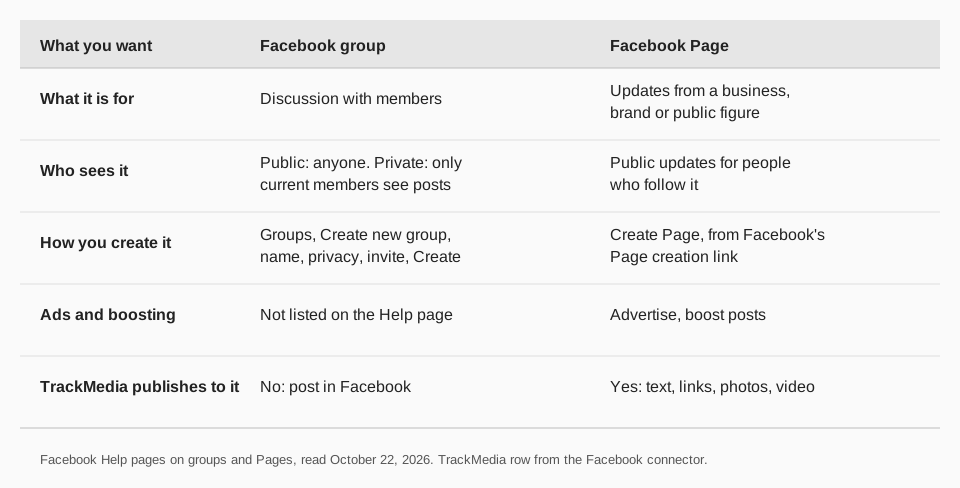
Group or Page: which should a business use?
Use a Page for public updates, and a group for conversation with people who opted in. Facebook says Pages are for businesses, brands, organizations and public figures to share updates and connect with people. Groups, from the Help pages above, are shared spaces where members discuss a topic, with privacy you set.
On a Page you can create posts and save drafts, assign access levels to trusted people, advertise and boost posts. Many businesses run both: the Page is the public face, and a group is a place for customers to talk to each other. Linking a group to your Page lets you feature the Page on the group's cover photo.
What should you do right after creating a group?
- Add a cover photo and a description. Facebook recommends both.
- Write down the rules in the description so members know what to post.
- Post a welcome message and a first useful post, so new members have something to react to.
- Disclose commercial ties in the description if you promote something.
How to post to your Facebook Page with TrackMedia
If the Page is your public presence, schedule it from TrackMedia. TrackMedia connects to your Facebook Page and publishes text, links, photos and video from the same composer you use for 20 other networks, with a version fitted to each and preflight checks before sending.
- Calendar and queues. Fill queue slots with posts from a content collection, so the Page stays active.
- First comments. Add a first comment to a Page post, such as the link.
- Link tracking. UTM-tagged links show clicks, visitors and referrers per post, so you can compare Facebook with your other networks.
- Analytics. Reactions, comments, shares and views per post, including posts made outside TrackMedia.
Publishing to Facebook groups is not available to outside tools through Facebook's API, so post in your group from Facebook itself. Our guide to making a post on Facebook and the one on scheduled Facebook posts cover the Page side, and you can start free with TrackMedia.
If you run a Page alongside the group, see how to post to Instagram and Facebook at the same time.
Questions people also ask
How do I make a Facebook group on my phone?
Facebook's Help page gives one set of steps for all devices: Groups, Create new group, name, privacy, invite, Create. In the app, the Groups entry may sit under a menu, so use See more if it is hidden.
Can a Page create a group?
Yes. Switch into the Page, go to Groups and click Create new group. A Page can admin up to 200 groups.
What is a hidden group?
A hidden group is a private group that only invited people and members can find. A visible private group can be found by anyone on Facebook, who can then request to join.
Can I change a group from public to private?
Yes, unless it has 10,000 or more members and is 30 or more days old.
How we checked this
We opened each page below on October 22, 2026 and copied the labels. We did not create a group to test the steps, and Facebook changes its menus. TrackMedia statements come from its Facebook connector.
- Create a Facebook group (Facebook Help): the six steps and the notes on admins.
- Differences between public and private Facebook groups (Facebook Help): privacy comparison and change limits.
- Create a Facebook group as your Facebook Page (Facebook Help): Page steps and the 200-group limit.
- Pages (Facebook Help): what Pages are for and what you can do with one.