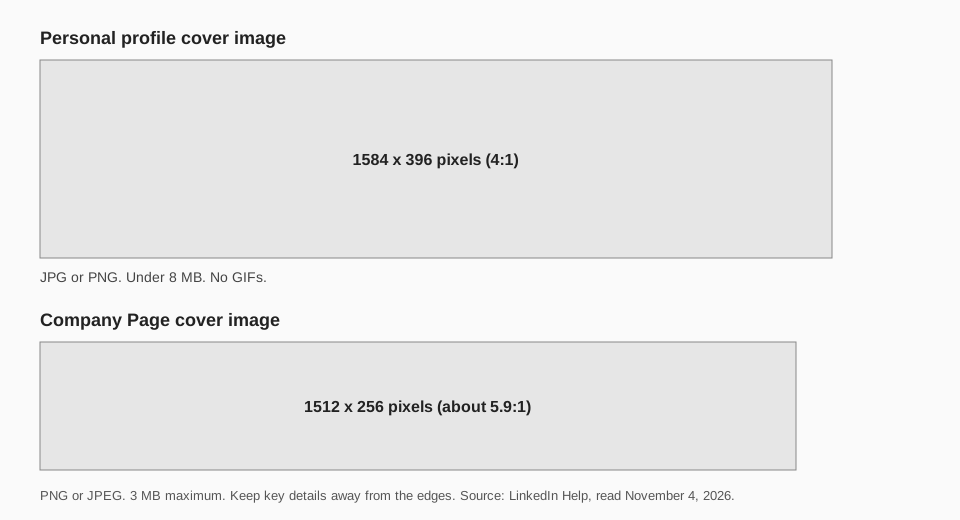
The LinkedIn banner size for a personal profile is 1584 pixels wide by 396 pixels tall, as a JPG or PNG under 8 MB. For a Company Page, LinkedIn's recommended cover image size is 1512 by 256 pixels, as a PNG or JPEG of 3 MB or less.
LinkedIn calls the banner a "cover image" on profiles and Pages. This guide gives the LinkedIn banner dimensions for both, the file rules, how mobile and desktop crop the image, and the steps to change it, all from LinkedIn's Help Center pages read on November 4, 2026.
What is the LinkedIn banner size?
It depends on whether the banner is on a person's profile or on a Page:
| Personal profile | Company Page | |
|---|---|---|
| Size | 1584 x 396 pixels | 1512 x 256 pixels |
| File type | JPG or PNG | PNG or JPEG |
| Maximum file size | 8 MB | 3 MB |
The profile figure comes from the LinkedIn page "Add or change the cover image on your profile," which lists "1584 (w) x 396 (h) pixels (recommended)." The Page figure comes from "Image specifications for your LinkedIn Pages and Career Pages," where the Page cover image has the same 1512 x 256 pixels as both its minimum and recommended size.
What are the LinkedIn banner dimensions for a personal profile?
LinkedIn lists three rules for a profile cover image: a JPG or PNG file, "Lesser than 8MB," and 1584 (w) x 396 (h) pixels as the recommendation. A separate troubleshooting page repeats the 8 MB limit and adds "We don't support GIFs."
That size is a 4:1 shape. The ratio is our arithmetic (1584 divided by 396), not a figure LinkedIn states.
If the image looks blurry or pixelated, LinkedIn's advice is to "choose an image with a larger file size" and says photos look better than images with logos. It also suggests compressing a file with a tool before uploading if it still looks wrong, and notes that it does not support third-party tools.
What is the LinkedIn company page banner size?
A Page cover image is 1512 x 256 pixels, and all Page images "must be PNG or JPEG files and have a maximum size of 3MB." It is a much flatter shape than the profile banner, about 5.9:1 by our arithmetic.
The same specification page gives other Page sizes, in case you are updating several images at once:
- Logo image: minimum 268 x 268 pixels, recommended 400 x 400 pixels.
- Life tab main image: 1128 x 376 pixels.
- Life tab custom modules: 502 x 282 pixels.
- Company photos: minimum 264 x 176 pixels, recommended 900 x 600 pixels.
The page notes the Life tab modules are only available if you have enhanced your Page with Career Pages, and that the dynamic cover image slideshow comes with a Premium Company Page subscription. For a profile versus a Page more generally, see our guide to creating a LinkedIn company page.
How is a LinkedIn banner cropped on mobile and desktop?
LinkedIn does not publish the exact pixels that each screen shows. What it does say:
- Profile: "How your image appears may change based on the size of your web browser window and screen resolution."
- Page: the cover image "might be adjusted to fit the screen, which might trim the image horizontally or vertically." LinkedIn recommends a high-quality image "with limited text."
- Where to keep key details: place them "away from the edges of your cover photo, especially in the lower-right corner," because "placing important information in the center ensures that it is always visible."
For a profile, the cover image appears "behind your profile photo in the introduction section," so your photo covers part of it. LinkedIn does not say which part, so after you upload, view your profile on a phone and on a desktop browser. On the mobile steps you can drag the photo to change its position and size.
How do you change your LinkedIn banner?
Personal profile on desktop
- Click the Me icon at the top of your LinkedIn homepage.
- Click View Profile.
- Click the Camera icon on the upper-right corner of your introduction section.
- Upload a single photo in the add a cover image pop-up. Create Slideshow is a Premium feature there, and Choose an image picks from LinkedIn's images.
- Edit cover image if you want to crop, adjust, or change the position and size, then click Apply.
To reposition, replace or delete it later, click the Edit icon at the upper-right of the cover image, then Change photo or Delete photo.
Personal profile on iPhone or Android
- Tap your profile photo, then tap it again to open your profile.
- Tap the Camera icon on the upper-right corner of your introduction section.
- Upload a single photo from your photo library, or choose an image from those shown on the Add a cover image page.
- Crop and adjust the photo, then tap Save.
LinkedIn's page also has a Mobile Browser tab with different labels: tap the Profile icon, tap the cover image section, tap Change on the Add background photo page and tap Save.
Company Page
LinkedIn's "Add dynamic cover images" page gives these desktop-only steps. It says the feature is for Page admins with a Premium Company Page subscription:
- Go to your Page super admin view.
- Click the icon in the upper-right corner of the cover image, in the upper left of the page.
- Click Upload single image, then Upload from Computer, or click Use a template.
- Click Save.
The pages we read do not list a separate set of steps for a Page without Premium, so check what your admin view shows. If a Page cover will not upload, LinkedIn's troubleshooting page suggests saving the file as a PNG, clearing your cookies and signing in again, updating or switching browsers, and disabling your pop-up blocker.
TrackMedia and your LinkedIn banner
TrackMedia is where you schedule the posts that people see once your banner has done its job. It publishes to LinkedIn profiles and the Pages you have a posting role on, with images, alt text and a first comment, alongside 20 other networks. Banner and profile art are changed in LinkedIn itself.
For the posts, see LinkedIn post image size and aspect ratio and our free LinkedIn scheduling tool. You can start free with TrackMedia.
Questions people also ask
What size is a LinkedIn cover photo?
1584 x 396 pixels on a personal profile, and 1512 x 256 pixels on a Company Page.
Is a personal banner different from a company page banner?
Yes. They have different sizes (1584 x 396 against 1512 x 256) and different file limits (8 MB against 3 MB).
Why is my LinkedIn banner blurry?
LinkedIn says to use an image with a larger file size, and notes that photos look better than logos. Match the recommended pixel size to avoid scaling.
Can I use a GIF as a LinkedIn banner?
Not on a profile. LinkedIn's upload troubleshooting page says GIFs are not supported there.
How we checked this
We opened each LinkedIn Help Center page below on November 4, 2026, including the Desktop, Mobile and Mobile Browser sections, and copied labels and numbers from them. We did not upload test banners to a live account.
- Add or change the cover image on your profile (LinkedIn Help): profile steps, the specifications and the display note.
- Photo won't upload to your profile (LinkedIn Help): the 8 MB limit, the PNG or JPG rule and the GIF note.
- Image specifications for your LinkedIn Pages and Career Pages (LinkedIn Help): Page image sizes, the 3 MB limit and the cropping tips.
- Add dynamic cover images to your LinkedIn Page (LinkedIn Help): Page cover steps and the Premium note.
- Troubleshoot adding a cover image to a LinkedIn Page or Showcase Page (LinkedIn Help): the upload fixes.
LinkedIn updates these pages, so check the live page if a size looks different.