TikTok LIVE analytics are in LIVE Center. In TikTok's LIVE Studio help, you open it from the LIVE Center icon in the top-right corner of LIVE Studio, then choose the Analytics tab, which has an Overview view and a Video analysis view.
This guide follows TikTok's LIVE Studio Help Center, read on October 6, 2026, so the steps start in LIVE Studio and the pages we read do not describe a phone route. It covers where the numbers live, which metrics TikTok defines, the date ranges, who gets LIVE access, and why TrackMedia does not show LIVE data. For the TikTok Studio route and the rest of TikTok's analytics, see our guide to how to check analytics on TikTok, which already covers the LIVE tab inside TikTok Studio, so we do not repeat it here.
Where is TikTok LIVE analytics?
TikTok's LIVE Studio article How to track and improve your LIVE performance? (updated August 15, 2025) describes two places. While you broadcast, it says "LIVE metrics refer to real-time data displayed during your LIVE." After you finish, you use LIVE Center, which the article says you reach by clicking "the LIVE Center icon in the top-right corner of LIVE Studio."
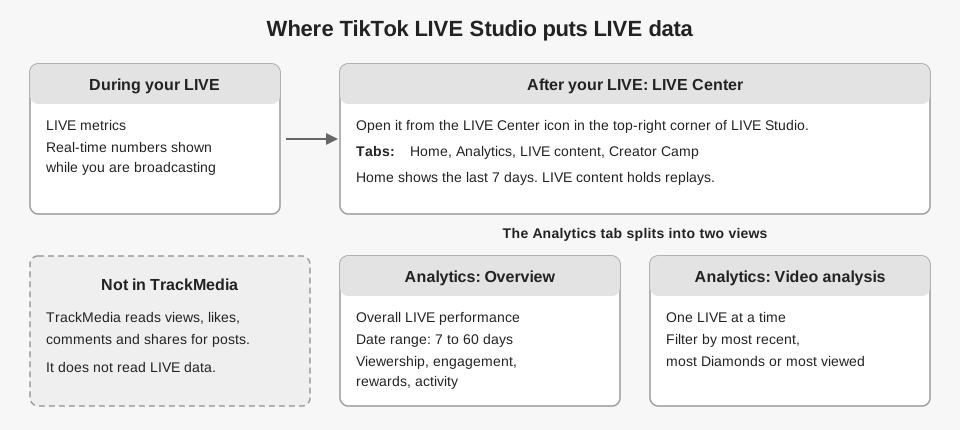
LIVE Center has four tabs in that article: Home, Analytics, LIVE content and Creator Camp. Home shows "metrics from the last 7 days, such as LIVE duration, total views, Diamonds collected, likes, and new followers." On the Analytics tab, TikTok says "LIVE Analytics is a powerful tool for analyzing your past LIVE performance."
What is the difference between Overview and Video analysis?
The companion article Analyze your performance and understand your viewers (updated August 15, 2025) splits the Analytics tab in two:
- Overview: insights into your overall LIVE performance, with a date range you choose from 7 days up to 60 days.
- Video analysis: performance for individual LIVEs, which you can filter by most recent, most Diamonds or most viewed.
Use Overview to see a trend across many LIVEs, and Video analysis to compare one LIVE with another. The article also has a "Know your viewers" section that lists traffic sources, country or region, age and gender.
Which metrics does TikTok define for LIVE?
The same article groups the numbers into four categories. These are the metric names as TikTok writes them, with its definition for a few.
| Category | Metrics TikTok lists | One definition, in TikTok's words |
|---|---|---|
| Viewership | Views, Unique viewers, Average watch time, Peak concurrent viewers, Average concurrent viewers | Peak concurrent viewers: "The highest number of viewers who watched your LIVE at the same time." |
| Engagement | New followers, Gifters, New subscribers, Viewers who commented, Comments, Likes, Shares | Gifters: "The number of viewers who sent Gifts." |
| Rewards | Diamonds | "The number of Diamonds you collected." |
| Activity | LIVE duration, Total LIVE videos, Active days | Active days: "The number of days that you were LIVE." |
Two of these are easy to confuse. Views is "The number of times your LIVE videos were viewed", while Unique viewers is "The number of individual viewers who watched your LIVE". The first counts viewings and the second counts people, so the two can differ. Peak concurrent viewers is the busiest single moment, and average concurrent viewers is the typical audience size at one time.
Do you need LIVE access to see LIVE analytics?
TikTok's article Apply for LIVE access (updated February 11, 2025) says "To go LIVE on TikTok from LIVE Studio, you need LIVE access." The page is about going LIVE, and it does not say whether the Analytics tabs have separate requirements. For active LIVE creators, it lists requirements such as an account created a certain number of days ago, having gone LIVE for a certain amount of time recently, having a certain number of followers, and no recent suspension or revocation of LIVE access.
TikTok does not publish the numbers on that page. It says "The requirements vary by country or region and are subject to change without notice." Streamers from other platforms can submit an application form, and the page says review "might take days." Check your own LIVE access status in the top right corner of LIVE Studio, as the page says.
Can you see analytics and replays after a LIVE ends?
Yes, according to the LIVE Studio help. Its LIVE content tab is where, in TikTok's words, you can "Replay, edit, and post your LIVE videos on TikTok," and the Home tab has LIVE recordings you can replay. The article Record, highlight, and share your best moments (updated April 2, 2026) says that after a LIVE you can reach your highlights "through the pop-up window on the ending page or via the LIVE Center."
That article says saved drafts remain available for the same period as the original footage, but it does not state a retention period, so check how long yours are kept before relying on them.
The LIVE Studio articles say nothing about how long numbers take to update or which time zone they use. TikTok's general Analytics help says its data is shown in UTC with a 1 to 2 day delay, as our TikTok analytics guide explains, but we found no page that applies that rule to LIVE data, so we do not.
Does TrackMedia show TikTok LIVE analytics?
No. TrackMedia does not read LIVE data from TikTok. For TikTok, its code asks for the read scopes user.info.stats and video.list, which feed per-post views, likes, comments and shares, plus account-level followers, lifetime likes and video count when TikTok returns them.
Those numbers appear on the Analytics page next to your other networks, alongside posts you published outside TrackMedia. If you want to promote an upcoming LIVE with a regular post, you can plan it in the scheduler, and our guide on whether scheduling a post on TikTok affects views covers how scheduled TikTok posts behave. Use LIVE Center for anything about a broadcast itself.
If you want your regular TikTok post numbers in one place, you can start free with TrackMedia.
How we checked this
We read each TikTok page below on October 6, 2026, and copied metric names and quotes from it. We opened each page in a browser tab and copied the article text. We did not open LIVE Studio or run a LIVE, so tab names and icon positions may differ in your version. TrackMedia's behavior comes from its TikTok connector code, read the same day.
- TikTok LIVE Studio Help Center, "How to track and improve your LIVE performance?" (updated August 15, 2025): https://www.tiktok.com/live/studio/help/article/Track-your-performance-and-grow/How-to-track-and-improve-your-LIVE-performance
- TikTok LIVE Studio Help Center, "Analyze your performance and understand your viewers" (updated August 15, 2025): https://www.tiktok.com/live/studio/help/article/Track-your-performance-and-grow/Analyze-your-performance-and-understand-viewers?lang=en
- TikTok LIVE Studio Help Center, "Apply for LIVE access" (updated February 11, 2025): https://www.tiktok.com/live/studio/help/article/Before-you-go-LIVE/Apply-for-LIVE-access?lang=en
- TikTok LIVE Studio Help Center, "Record, highlight, and share your best moments" (updated April 2, 2026): https://www.tiktok.com/live/studio/help/article/Track-your-performance-and-grow/Record-highlight-and-share-your-best-moments?lang=en
What we could not verify: the route to LIVE analytics inside the TikTok mobile app, including any menu named LIVE Center there, because the LIVE Studio help pages we read describe LIVE Studio only; how the LIVE Studio Overview range relates to the shorter filter on the TikTok Studio LIVE tab (our TikTok analytics guide covers that tab); how long LIVE data takes to appear; whether LIVE access is needed to view the Analytics tabs; and any exact follower or age requirement for LIVE access, which TikTok's page leaves unstated.