To edit scheduled posts on Instagram, open your profile, tap Menu, tap Scheduled content, tap Options next to the post or Reel, and choose Edit post. Choose Reschedule instead if you only need a new date or time.
One thing is not documented: Instagram's Help Center does not say which parts of a scheduled post Edit post lets you change. This guide gives the exact steps from Instagram's and Meta's help pages, read on October 6, 2026, says where those pages go quiet, and explains what TrackMedia lets you change before a post goes out.
How to edit scheduled posts on Instagram in the app
Instagram's Help Center page on creating and managing scheduled posts and Reels gives two routes to your scheduled content. The first starts from your profile:
- Open your profile. Tap Profile or your profile picture in the bottom right.
- Open the menu. Tap Menu in the top right.
- Tap Scheduled content. It is below Your insights and tools.
- Tap Options next to the post or Reel you want to edit.
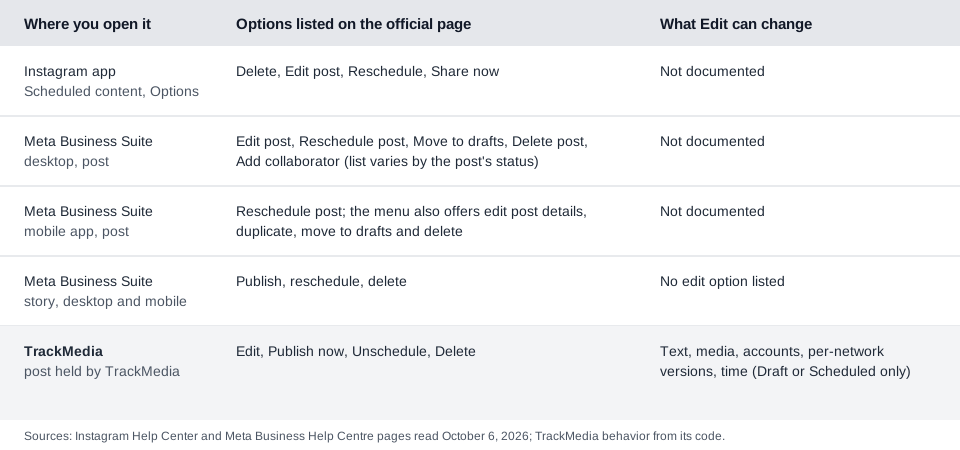
- Select Edit post. The page lists four choices: Delete, Edit post, Reschedule and Share now.
The second route starts when you create something new. Tap Create in the top left, or swipe right anywhere in Feed, then tap Post or Reel. Tap Scheduled, select the item, tap Options and pick the same four choices. If you cannot find the post in either place, our guide to seeing scheduled posts on Instagram covers drafts, Meta Business Suite and third-party tools.
Menus move between app versions, so go by the label names rather than their positions. The same page says scheduling needs a public account, with up to 25 posts a day and up to 30 days in advance.
What can you change in a scheduled Instagram post?
Instagram does not say. The help page names Edit post as an option but does not list caption, photos, tags, location or any other field as editable or locked, so we cannot promise any of them. Open one of your scheduled posts and see which fields the screen lets you touch.
The page does document two things that shape an edit:
- Privacy and audience settings carry over. Instagram says scheduled content retains the privacy and audience settings configured when you scheduled it. The page does not say whether Edit post lets you change them.
- Some features do not work with scheduled content. Product tagging, collaborative posts, sponsored posts and fundraisers are not compatible at this time, according to the same page.
If Edit post does not offer the change you need, one workaround is Delete, then schedule the post again from Create. Instagram's page does not recommend this route; it is our inference from the option list, so save the caption and media elsewhere before you delete anything.
Can you edit scheduled Instagram posts in Meta Business Suite?
Yes for posts. Meta also lists an Edit reel option for Reels, though its pages are as vague about what changes as Instagram's. Meta Business Suite is Meta's tool for scheduling Facebook and Instagram content, and its help pages document a different menu from the app's.
On desktop, Meta's page on managing posts gives these steps:
- Go to Meta Business Suite and click Content in the left-hand menu.
- On the Posts and reels tab, select Scheduled and pick your post.
- Click the ... icon, then Manage post.
- Choose Edit post or Reschedule post.
Meta says the options differ based on the post's status, and its list also includes Move to drafts, Delete post and Add collaborator. For a Reel, Meta's page on managing reels lists Edit reel, Change date, Change remix and audio use and Reschedule post among others. That list mixes options for every status, and the page does not say which apply to a scheduled Reel. It also says you cannot edit a reel from a video if you are posting to Instagram, without saying what that covers.
In the mobile app, Meta's rescheduling guide (which notes the app experience may not be available to you yet) says to go to Posts and stories, tap Posts, then Scheduled, select the post and tap the three dots next to Post details. From that menu you can reschedule the post, edit the post details, duplicate it, move it to drafts or delete it.
Can you edit a scheduled Instagram Story?
Meta documents no edit option for one. Meta's page on managing stories says you can publish, reschedule or delete a story from the Stories tab. The mobile guide lists the same actions, so a change to a scheduled Story means deleting and recreating it, which again is our inference rather than Meta's wording.
Meta Business Suite handles Facebook too, so our guide to seeing and editing scheduled posts on Facebook covers the same menu from that side.
How to edit a scheduled Instagram post in TrackMedia
A post scheduled through TrackMedia is held by TrackMedia and published at the time you chose. It is not a native Instagram scheduled post, so it does not appear in Instagram's Scheduled content list and you cannot edit it there. You edit it in TrackMedia, where the rules are explicit.
- Open the post. Find it on the Posts page, filtered by status Scheduled.
- Click Edit. This opens the composer with the post's current content.
- Change what you need. You can change the text, the media, the accounts it goes to, each network's own version of the text and the date and time.
- Click Save changes. The post stays scheduled for the time you set. Move to drafts sits beside it if you would rather pause the post.
Edit is available only while a post is a Draft or Scheduled. After it has been published, or while it is being published, TrackMedia refuses edits. TrackMedia also cannot delete an Instagram post once it has gone out, so changes after that moment have to happen in Instagram.
Three related controls sit on the same post page. Publish now sends it immediately. Unschedule returns it to Draft so it will not go out until you schedule it again. Delete removes it from the queue so it is not published. In the Calendar you can also drag a post to another day to reschedule it, and times in the past are rejected.
The honest limit is the Instagram side. TrackMedia publishes images and carousels of up to 10 items to Instagram, does not publish Stories, and offers no Reel option in the web composer, so edit rules for those formats are not part of this workflow. For the setup, see how publishing works in TrackMedia and how to automate Instagram posts.
What to do next
If you would rather edit every scheduled post from one list, you can start free with TrackMedia.
How we checked this
We opened each page below in a browser on October 6, 2026 and copied the menu labels from it. We did not schedule or edit anything on a live Instagram account, so we cannot say what the Edit post screen actually allows you to change. Meta changes its menus, so check the live page if a label looks different.
- How to create and manage scheduled posts and Reels on Instagram (Instagram Help Center): Scheduled content path, the four options, retained settings, incompatible features, public-account requirement and scheduling limits.
- Create and manage posts in Meta Business Suite on desktop (Meta Business Help Centre): Manage post options.
- Create and manage reels in Meta Business Suite (Meta Business Help Centre): reel options and the Instagram-specific editing limit.
- Create and manage stories in Meta Business Suite (Meta Business Help Centre): publish, reschedule, delete.
- Reschedule posts and stories on Meta Business Suite mobile (Meta Business Help Centre): mobile steps and menu.
What we could not verify: which fields Edit post changes on a scheduled post, whether a scheduled Story can be edited in any way, and which Reel options apply to scheduled Reels. TrackMedia's own behavior comes from its product and code, read the same day.