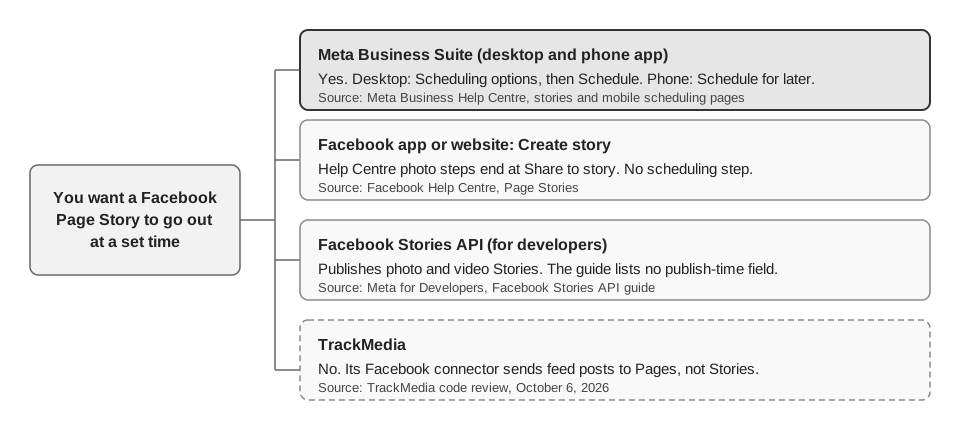
You can schedule Facebook Stories in Meta Business Suite, on desktop or in its phone app. Pick Schedule instead of Share now when you create the Story. The photo-story steps in Facebook's own Help Centre end at Share to story, with no scheduling step.
This guide gives the desktop and phone steps, how to reschedule or delete a scheduled Story, and what Meta's pages do not say. Everything was read on Meta's own pages on October 6, 2026, and we did not test the steps on a live Page. TrackMedia does not publish Facebook Stories, and a later section explains where it fits.
Can you schedule Facebook Stories?
Yes, through Meta Business Suite. Meta's guide to creating and managing stories in Meta Business Suite says you can create Stories there to publish on Facebook and Instagram, and its steps include a Schedule option with a date and time.
The route inside Facebook is different. The Help Centre's Page Stories section says you must be a Page admin or editor to share to your Page's Story, and its steps for a photo story run from Create story to Share to story. We found no scheduling step in them, and no separate video steps on that page.
The same Help Centre section says people with Facebook and task access to a Page can create Page Stories with Meta Business Suite. That is the tool Meta documents for scheduling a Story.
How do you schedule a Facebook Story on desktop?
Open Meta Business Suite, start a Story, and choose Schedule under Scheduling options. These are the steps from Meta's desktop page.
- Check your access. Meta says you need either full control of the Page or Instagram account, or content permission for it.
- Start the Story. In Meta Business Suite, click Create story. It is on the home page and in the Content tab.
- Choose where it goes. Under Post to, pick your Facebook Page, your Instagram profile or both.
- Add media. Under Media, click Add photo/video. Meta says you can upload up to ten photos or videos, or drag and drop them from your device.
- Edit each item. Click Edit to crop the aspect ratio, trim a video, or add text, mentions or stickers. Meta also lists Add link, which adds a URL viewers can visit when they swipe up.
- Set the time. Under Scheduling options, select Share now or Schedule. If you schedule, choose the date and time.
- Finish. Click Schedule. Meta's page words this last button as "Share or Schedule".
Choosing both destinations in step 3 is how one Story goes to Facebook and Instagram together. If you only want the Instagram side, see our guide to scheduling Instagram Stories.
How do you schedule a Facebook Story on your phone?
Use the Meta Business Suite app, not the regular Facebook app. Meta's mobile scheduling page gives these steps.
- Tap Content in the bar at the bottom.
- Choose Stories from the types at the top, then tap Create.
- If it is your first time, allow the app to access your photos and videos when asked.
- Add your media, then tap Next.
- Tap Schedule for later, set the date and time, and tap Schedule.
The same page says you need at least partial access and must be assigned to manage the Facebook and Instagram accounts. To post right away instead, Meta says to choose Publish now and tap Share.
How do you find, reschedule or delete a scheduled Story?
Look in the Stories tab on desktop or Stories, then Scheduled, in the phone app. Meta's pages list three actions for a scheduled Story: publish it, reschedule it or delete it. They do not list an edit action.
On desktop
- In Meta Business Suite, click Content in the left menu, then the Stories tab.
- Select Scheduled. The other choices are Active and Archived.
- Select the Story, then click the ... icon to publish, reschedule or delete it.
You can also use Planner. Meta's Planner page says it shows posts, Stories, reels and ads, including content scheduled in Meta Business Suite. Set Content type to Story to filter the calendar, click the upcoming Story, then click Options and choose to reschedule or delete.
On your phone
Meta's rescheduling page says to go to Posts and stories in the bottom menu (its scheduling page calls that item Content, so the label may vary by app version), tap Stories, then Scheduled, and tap the Story. Tap the three dots next to Story overview, choose Reschedule story, enter the new date and time, and tap Done. The same menu lets you delete the Story or publish it immediately. Meta says you can also start from Calendar.
Because edit is not listed, changing a scheduled Story's picture or text likely means deleting it and creating a new one. That is our reading of Meta's list, not a Meta statement.
What do Meta's pages not say about scheduled Stories?
They leave out the limits you would want before planning a week of Stories. We looked for each of these and did not find it, so we do not state one.
- How far ahead you can schedule a Story. Meta's page on scheduling Page posts says posts can be scheduled between 20 minutes and 29 days away. That page covers posts, so we do not apply the window to Stories.
- Whether the 24 hours starts at the scheduled time. The Help Centre says a Page Story is visible for 24 hours. For a scheduled Story it does not say when the clock starts.
Can the Facebook Stories API schedule a Story?
Meta's Facebook Stories API guide (updated Jul 30, 2026 on the page) shows how to publish photo and video Stories to a Page. It does not show a publish-time parameter, so the guide describes posting, not scheduling. A tool that offers scheduled Stories would have to hold the Story itself and call the API later, and Meta does not say whether any tool does.
The guide also lists media rules for API uploads: photos up to 10 MB, and videos as .mp4 (recommended) at a 9 x 16 aspect ratio. Its video table gives a duration of 3 to 90 seconds and adds that a reel published as a story cannot exceed 60 seconds, while its Limitations list says a video story cannot exceed 60 seconds. The page does not explain the gap between 90 and 60, so treat 60 seconds as the safe ceiling.
Where does TrackMedia fit?
TrackMedia does not publish Facebook Stories, so you cannot schedule one with it. We checked its Facebook connector in the code and found no Story publishing, only feed posts to Pages. Use Meta Business Suite for the Story itself.
What TrackMedia does schedule on Facebook is Page feed content: text, links, images or GIFs (up to 10) or one video. It holds the schedule itself and publishes at the time you chose, so those posts do not appear in Meta's own scheduled lists. For finding and editing them, see how to see and edit scheduled posts on Facebook. To send one post to both Meta networks, read how to post to Instagram and Facebook at the same time, or look at how publishing works in TrackMedia.
A workable split is to schedule Stories in Meta Business Suite and everything else in one TrackMedia queue, and you can start free with TrackMedia to try that.
How we checked this
The TrackMedia Team opened each page below in a browser on October 6, 2026 and copied the menu names from it. We did not schedule anything on a live Page or in the Meta Business Suite app, so we cannot confirm the steps match every account. Menus change, so check the live page if a label looks different. TrackMedia statements come from reading its Facebook connector code the same day.
- Meta Business Help Centre, Create and manage stories in Meta Business Suite: desktop create, schedule and manage steps.
- Meta Business Help Centre, Schedule Facebook and Instagram content on Meta Business Suite mobile app: phone steps and access requirement.
- Meta Business Help Centre, Reschedule posts and stories on Meta Business Suite mobile: reschedule steps for Stories.
- Meta Business Help Centre, Use Planner in Meta Business Suite on desktop: Content type filter, reschedule and delete from Planner.
- Meta Business Help Centre, Schedule a post and manage scheduled posts for your Facebook Page: the 20 minute to 29 day window for posts.
- Facebook Help Centre, Page Stories: 24 hour visibility, who can share, and the Create story steps.
- Meta for Developers, Facebook Stories API: publish flow and media rules.
We could not verify how far ahead a Story can be scheduled, when the 24 hours starts for a scheduled Story, or how Meta reports a failed scheduled Story.