To edit TikTok videos, tap Add post +, record or upload a video, tap Edit on the side panel, then use the tools at the bottom of the screen to trim, split, speed up, add sound and add text. TikTok's Help Center lists each button, and this guide follows it step by step.
It uses TikTok's Editing TikTok videos and photos page, plus its Making a post and Tools for creators pages, all read on October 22, 2026. It also covers the limits on clips, what you can edit after posting, and how to schedule the finished video.
Sources: Editing TikTok videos and photos · Making a post · Tools for creators
How do you open the TikTok video editor?
The editor opens from the create screen in the TikTok app. TikTok's page gives these steps:
- Tap the Add post + button at the bottom.
- Record a video or take a photo. To use something already on your phone, tap Upload instead.
- Open the tools. If you recorded a video, tap Edit on the side panel (you may need to tap the Continue check button first). If you uploaded content, tap Next, then Edit.
TikTok says the editing tools include overlay and sound effects, video effects, multi-track editing and AI editing effects. The Help Center describes these steps for the TikTok app only, with no separate iOS and Android versions. On a web browser, TikTok's Making a post page says the entire video is uploaded, so to change its length you upload from the TikTok app.
How do you trim, split and reorder clips?
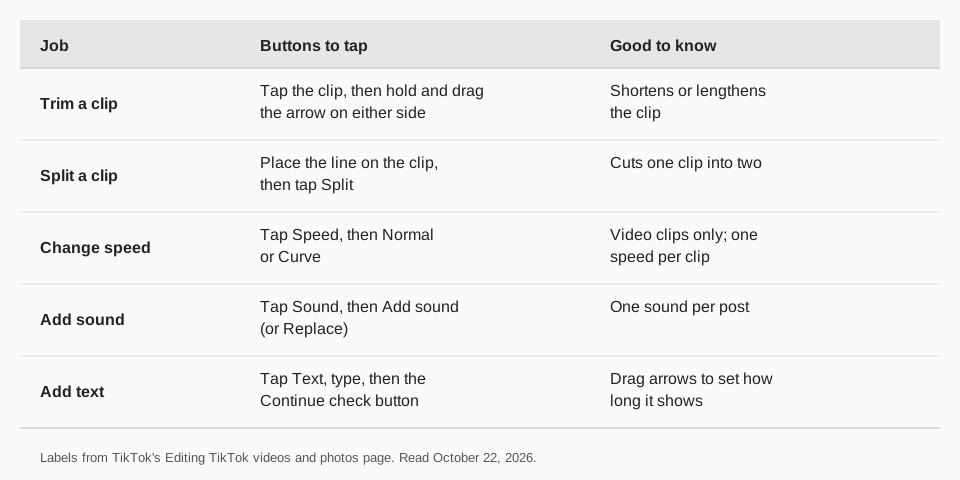
From the editing screen, tap a clip or tap Edit at the bottom. TikTok then lists four actions:
- Shorten or lengthen a clip: hold and drag the arrow on either side of the clip.
- Split a clip: place the line where you want the cut, then tap Split at the bottom.
- Reorder clips: press and hold a clip and drag it along the track.
- Zoom: pinch in or out on the clip.
To add more footage, tap the Add + button on the editing screen, pick a photo or video, and tap Confirm. TikTok says you can upload up to 35 items in one editing session, photos and videos together.
How do you change speed and add transitions?
For speed, tap a clip, tap Speed at the bottom, tap Normal or Curve, and select a speed. Speed works on video clips only, and each clip can have one speed option. Tap the exit button to save it.
For transitions, tap the Transition button between two clips and pick one. Apply to all uses it on every clip. TikTok notes you can only add a transition when you are editing multiple clips.
How do you add sound, a voiceover or a voice effect?
All of these start from the editing screen:
- Add or replace a sound. Tap Sound at the bottom, select Add sound (or Replace if a sound is there), then pick one. TikTok says you can add one sound to your post.
- Add a sound effect. Tap Sound, then Sound effect, preview one and tap Use.
- Add a voiceover. Tap Voice on the side panel, tap Record, record, tap Done, then Save at the top.
- Add a voice effect. Tap Voice, select an effect, and tap Save.
If you pick a sound before you record or upload, TikTok's Camera tools page says the sound's length sets the video length.
How do you add text and overlays?
Tap Text at the bottom, type your words, then tap the Continue check button. Hold the text under the video track to move it, or drag the arrow on either side to change how long it shows. Tap Copy on a text sticker to duplicate it.
For overlays, tap Overlay at the bottom, choose a photo or video from your device, and tap Next. Pinch to resize it, drag to move it, and drag the arrows to set its length. TikTok says you can add up to 8 overlay items.
What are the Magic tool, effect templates and AI Create?
These are shortcuts, and TikTok says some are not available to everyone:
- Magic. Tap Magic at the bottom, select an editing style to apply video and audio effects automatically, and tap the Continue check button.
- Effect templates. Tap Add post +, then Create, search a template, tap Try this template and add your media. TikTok says this feature is not currently available to everyone. If you have a Business Account, you can only use templates made with music licensed for commercial use.
- AI Create. Generates an image or video from a text prompt. TikTok says it is not available everywhere, has a limited number of daily regenerations, and stores prompts and content for up to 30 days.
Can you edit a TikTok video after posting?
The pages we read describe editing before you post, and describe no way to replace the video in a published post. For a scheduled post, TikTok's Schedule video page says it cannot be edited but can be deleted, so you delete it and upload again. Our guide to scheduling posts on TikTok has the details. If you need to change a draft, TikTok's Making a post page says drafts are saved with Drafts and are visible only to you on your profile.
How to publish your edited TikTok videos with TrackMedia
You edit in TikTok (or any editor you like), then TrackMedia handles the posting. Export the finished video, add it to TrackMedia's media library, and write the caption in the composer. TrackMedia shows a version fitted to TikTok and runs preflight checks before the video goes out.
- Schedule or queue it. Pick a time on the calendar, or drop the video into a posting queue that fills open slots from a content collection.
- Choose how it posts. Post to TikTok publishes directly, and Send to TikTok inbox as a draft leaves it for you to finish in the TikTok app.
- Check results. Views, likes, comments and shares per post appear in analytics. See how to check TikTok analytics.
TikTok's developer documentation says a video sent through its API can be up to 10 minutes and 4 GB, in MP4, WebM or MOV, at 23 to 60 frames per second. For the full upload flow see how to post videos on TikTok. You can start free with TrackMedia (15 posts a month, one account per network, no card).
Questions people also ask
How do I trim a TikTok video?
Open the editor, tap the clip, then hold and drag the arrow on either side of it to shorten or lengthen it.
How do I split a clip in TikTok?
Place the line on the clip where you want to cut and tap Split at the bottom of the editing screen.
How many clips can I add to one TikTok?
TikTok says up to 35 items in a single editing session, which can include photos and videos. Overlays are limited to 8 items and a post can have one sound.
Can I edit TikTok videos on a computer?
You can upload on the web, but TikTok's Making a post page says a web upload sends your entire video, so to change its length you use the app. TikTok Studio's web Upload page has caption, cover and who-can-watch fields, not clip tools.
Why can't I use the effect template or AI Create?
TikTok says both are not available to everyone or in every region. Update the app, and check the feature is offered on your account.
How we checked this
We opened each page below in a browser on October 22, 2026 and copied the button labels. We did not edit a video in a live account, so a label on your screen may differ with your app version.
- Editing TikTok videos and photos (TikTok Help Center): editing steps, limits and availability notes.
- Making a post (TikTok Help Center): app and web posting steps, drafts.
- Camera tools (TikTok Help Center): sound sets video length.
- Tools for creators (TikTok Help Center): TikTok Studio upload fields.
- Schedule video (TikTok Help Center): scheduled posts cannot be edited.
- Media Transfer Guide (TikTok for Developers): format, size and duration limits.
TrackMedia's behavior comes from its TikTok connector and product pages, read the same day.