To post a video on TikTok, open the app, tap Add post + at the bottom, record or choose a video with Upload, edit it, tap Next, then tap Post. On a computer, go to TikTok in a browser, click Upload at the top, and choose your file.
This guide uses the wording from TikTok's Help Center and TikTok for Developers, read on October 6, 2026. It covers app and web steps, the length and file limits TikTok documents (the in-app and web limits differ, and we say which), what TikTok says about scheduling, and how posting through TrackMedia differs.
How to post videos on TikTok in the app
TikTok's Help Center page Making a post gives these steps for a video in the TikTok app:
- Tap Add post + at the bottom.
- Pick a length or upload. Select a maximum length for your video, or tap Upload to add a video from your device and skip to step 4.
- Record. Tap the Record button, and when you finish tap the Continue check mark at the bottom.
- Edit. Add a filter, sound, text, stickers or effects, or use the advanced editing tools.
- Tap Next for more edits: description, hashtags, tagging people, location, a link and privacy settings. (Your Story posts to Stories instead.)
- Tap Post to publish, or Drafts to save it. TikTok says drafts are visible only to you on your profile.
Two behaviors from the same page are easy to miss. New posts keep the privacy setting of your previous post, so if your last post was Only you, the next one starts as Only you too. And only public videos show under the posts tab of your profile, so a private one is under the Lock icon.
How to post a video on TikTok from a computer
On a web browser, the same Help Center page lists three steps: click Upload at the top, click Select video to upload or Select file, and choose the video. TikTok adds that a web upload sends your entire video, so to change its length you need to upload from the TikTok app.
TikTok's Tools for creators page says the web upload lives in TikTok Studio at www.tiktok.com/tiktokstudio. In the app, the route is Profile, then Menu, then TikTok Studio. After you upload a file, that page lists what you can set:
- Caption and Cover.
- Who can watch this video.
- Allow others to: Duet, Stitch, create stickers with your videos, and add your videos to their Stories.
- Allow comments.
- Run a copyright check, which checks used sounds before you post.
The pages we read do not name the final button on the web upload screen, so we do not either. If the upload fails, TikTok's Unable to post videos page says to refresh the page and restart the browser.
What are TikTok's video length, size and format limits?
TikTok's own pages give different numbers for the app and for web uploads, so the limit depends on where you post from. As of October 6, 2026:
| Where | What TikTok says | Page |
|---|---|---|
| Recording in the app | Up to 10 minutes | Camera tools |
| Uploading in the app | Up to 60 minutes | Camera tools |
| Uploading in TikTok Studio (web) | MP4 or WebM, 720x1280 or higher, up to 30 minutes, less than 10 GB | Tools for creators |
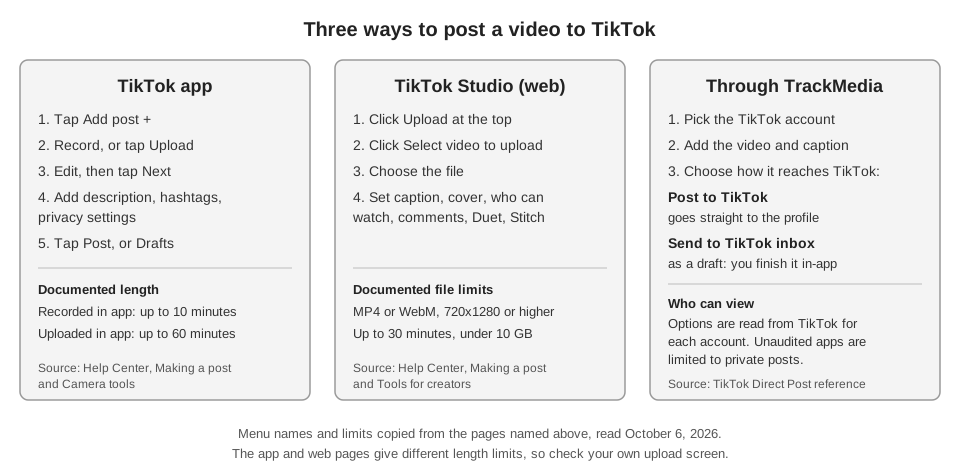
The 60-minute figure comes from the Camera tools page, and the 30-minute web figure from the Tools for creators page. Neither page says why they differ, so check your own upload screen before you rely on either. The Camera tools page also says that if you select a sound before you record or upload, the sound's length determines the video length.
For third-party apps that post through TikTok's Content Posting API, the Direct Post reference names three upload content types: video/mp4, video/quicktime and video/webm. It also caps the caption field at 2,200 UTF-16 runes, so keep captions under that when posting through any tool.
How to make a post on TikTok that is a photo or text
A TikTok post does not have to be a video. The Making a post page also covers photo posts (Add post +, then Photo, then Upload, up to 35 photos) and text posts (Add post +, then Text) in the app.
If a post will not upload, TikTok lists four fixes on that page: switch between Wi-Fi and mobile data, clear the app video cache, restart the app and your device, and update TikTok to the latest version.
Can you schedule a video on TikTok?
Yes, on desktop web with conditions. TikTok's Help Center page Schedule video says to click the Upload icon on TikTok Desktop Web, upload the video, toggle the schedule button, pick a date and time, and click schedule.
The same page sets the limits. You can schedule a minimum of 15 minutes and a maximum of 10 days ahead. Scheduled posts show in your Profile view, cannot be edited and can be deleted. The page says the feature is not available on TikTok Mobile Web, and that only a "Business Account" or an account with 10,000 followers or more can access desktop scheduling. The wording is awkward, so confirm on your own upload screen. The Tools for creators page lists "Upload, schedule, and edit posts" as a TikTok Studio feature, and warns that some features need you to meet criteria.
What scheduling does to reach is a separate question, which we cover in whether scheduling a post on TikTok affects views. Once a video is live, how to check TikTok analytics shows where to find its numbers.
How does posting to TikTok through TrackMedia work?
Third-party tools post through TikTok's Content Posting API, which has two modes, and TrackMedia's composer offers both. This is what the composer shows for a connected TikTok account:
- Post to TikTok. Publishes straight to the profile with the settings you pick. TikTok's Direct Post reference (last updated August 24, 2026) describes this mode.
- Send to TikTok inbox as a draft. The video waits in the TikTok app's inbox, and you finish and post it yourself. TikTok's Upload reference (last updated August 4, 2026) says users must click inbox notifications to continue the editing flow and complete the post, and lists a limit of at most 5 pending shares in any 24-hour period.
- Who can view this video. Required for a direct post. The choices are read from TikTok for each account, not set by TrackMedia, and are labeled Everyone, Friends, Followers or Only me depending on what TikTok offers.
- Interaction settings and disclosure. Toggles for comments, Duet and Stitch, which cannot be turned on when that account has them disabled in TikTok, and a Disclose video content switch for promotional content.
TrackMedia holds a scheduled post itself and sends it at the time you chose. That is not the same as TikTok's own Schedule video feature, so do not expect it in TikTok's scheduled list. You can schedule, review and reschedule from the publishing tools, and see results later in analytics.
One limit matters. TikTok's Direct Post reference says all content posted by unaudited clients is restricted to private viewing mode until the client passes an audit. We do not know whether TikTok has audited TrackMedia, so we make no claim either way. If TikTok offers an account only Only me, that is what the composer shows, and direct posts will be private. An inbox draft is also not on your profile until you finish it in the TikTok app.
If you want to post and schedule across networks from one place, start free with TrackMedia.
How we checked this
We opened each page below in a browser on October 6, 2026 and copied labels and numbers from it. We did not post to a live TikTok account, so button names we could not find on a page are left out.
- TikTok Help Center, "Making a post": https://www.tiktok.com/support/faq_detail?id=7581826684085606968 (app and web steps, photo and text posts, privacy carry-over, troubleshooting).
- TikTok Help Center, "Tools for creators": https://www.tiktok.com/support/faq_detail?id=7581820704895703564 (TikTok Studio access, web upload fields and limits).
- TikTok Help Center, "Camera tools": https://www.tiktok.com/support/faq_detail?id=7581821547946580492 (10 and 60 minute lengths).
- TikTok Help Center, "Schedule video": https://www.tiktok.com/support/faq_detail?id=7078299678101477893.
- TikTok Help Center, "Unable to post videos": https://www.tiktok.com/support/faq_detail?id=7078299667292756485.
- TikTok for Developers, "Direct Post" (updated August 24, 2026): https://developers.tiktok.com/docs/en/content-posting-api-reference-direct-post.
- TikTok for Developers, "Upload" (updated August 4, 2026): https://developers.tiktok.com/docs/en/content-posting-api-reference-upload-video.
We could not verify why the in-app (60 minute) and web (30 minute) upload limits differ, the in-app caption length limit, the label of the final web upload button, or the list of privacy choices in the TikTok app, because the pages we read do not state them. TrackMedia's behavior comes from our product and its TikTok connector code, read the same day.