To edit a YouTube video after you upload it, sign in to YouTube Studio on a computer, select Content, click the video, and choose Editor from the left menu. From there you can trim or cut sections, blur parts of the picture and add music from YouTube's Audio Library, without re-uploading.
This guide uses YouTube Help's pages "Trim your videos", "Blur your videos", "Add an audio track to your video" and "Add custom thumbnails on YouTube", read on October 22, 2026. It also covers the limits that stop edits from saving, and what to edit before you upload instead.
How to open the YouTube video editor
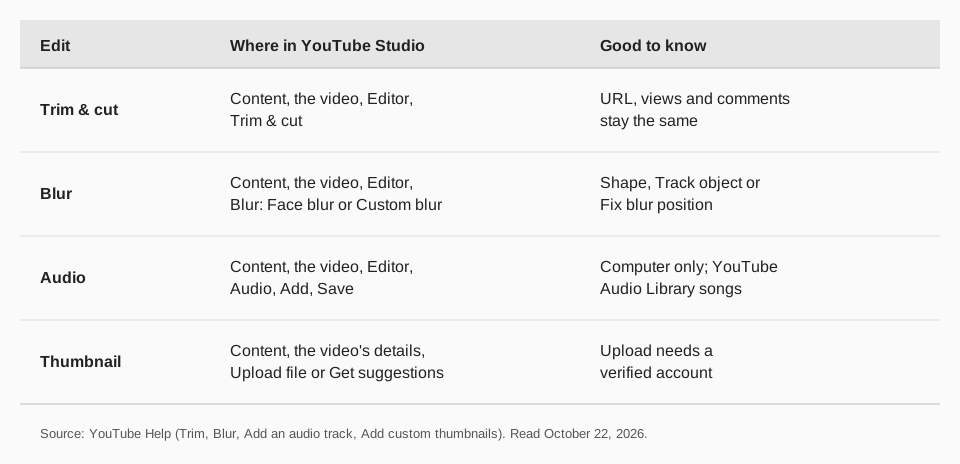
Every edit below starts in the same place. YouTube Help gives these steps, and says trimming is something you do on a computer:
- Sign in to YouTube Studio.
- Select Content from the left menu.
- Click the title or thumbnail of the video you want to edit.
- Select Editor from the left menu.
How to trim or cut a YouTube video
YouTube's page says you can cut out the beginning, middle or end of a video on a computer, and you don't have to re-upload it. The video's URL, view count and comments stay the same, and the feature is available for videos shorter than six hours.
Trim the start or end
- In the Editor, select Trim & cut. A blue box appears.
- Drag the sides of the blue box so it covers the part you want to keep. Anything outside the box is removed.
- Click Save.
Take out a section from the middle
- Select Trim & cut, then New Cut. A red box appears.
- Drag its sides over the portion you want to remove. Anything not in the red box stays.
- Confirm your edit, then click Save.
You can type exact times into the boxes, select Preview to review, click Undo or the trash icon to remove a cut, and click Discard changes to cancel everything.
How to blur faces or other parts of a video
Under "Video editor" select Blur, then pick one of two options:
- Face blur. Wait for processing, select the faces you want to blur, click APPLY, adjust the box if needed, then click SAVE.
- Custom blur. Drag the box over the area, then click SAVE.
The page lists more options: choose Rectangle or Oval, resize by dragging a corner, set when the blur begins and ends on the timeline, select Track object so the blur follows movement, or Fix blur position to keep it still. You can blur several areas by dragging new boxes.
The page also says you can download your edited video and upload it again to publish the changes you made.
How to add music to a YouTube video
The Editor adds music from YouTube's Audio Library, and those songs can be used in monetized videos. YouTube's page says you can no longer change the audio track from within the mobile app. Use a computer:
- In the Editor, select Audio and use the search filters to find a track. Click Play to preview.
- Click Add. The song appears in the editor.
- Drag the track to change when it starts, and drag its edges to change how much plays. Use zoom for precise adjustments.
- Click Save. You can add multiple songs.
How to change a YouTube thumbnail
Thumbnails sit outside the Editor. YouTube Help says to open Content, go to the video you want to edit, and below "Thumbnail" click Upload file to use your own image (or Get suggestions to generate options), then click SAVE. You can upload your own only if your account is verified. For Shorts, custom thumbnails can currently be added only in YouTube Studio on a computer, and the recommended aspect ratio for uploaded files is 9:16.
Why can't I save edits to my YouTube video?
These are the limits YouTube Help states:
- Over 100,000 views. For unedited video with over 100,000 views, you may not be able to save changes, except to blur faces. The restriction does not apply to channels in the YouTube Partner Program.
- Six hours or longer. Trimming and audio editing are available only for videos shorter than six hours.
- No undo after saving. As of June 2025, you can't undo changes made with YouTube Studio Editor after saving with the Revert to original feature. Keep your original file.
Because saved edits can't be reverted, finish as much as you can before you upload. Our guide on how to upload a video to YouTube covers the next step, and the guide to posting a YouTube Short covers vertical clips.
How TrackMedia fits around YouTube editing
Editing the video itself happens in your editing software or YouTube Studio. TrackMedia handles what comes after, so the finished video goes out on time and you can see how it did.
- Upload and schedule. Add the finished file to the composer with its title, description and tags, check it with preflight, and schedule it in the calendar or a posting queue. YouTube is available on every plan, including the free one.
- Promote it on 21 networks. Write the announcement once and TrackMedia fits a version to each network, such as LinkedIn, X, Bluesky, Facebook and Threads.
- Keep your clips organized. The media library holds your edited cuts and thumbnails, and content collections fill queue slots.
- Track the result. See views, likes and comments for each video, including videos you uploaded in YouTube Studio, with UTM-tagged links showing clicks per post.
Start free with TrackMedia and connect your channel. For planning help, see the best time to post on YouTube and hashtags for YouTube Shorts.
Questions people also ask
How do I edit a YouTube video after uploading?
In YouTube Studio on a computer, go to Content, click the video, select Editor, and use Trim & cut, Blur or Audio. Click Save when you're done.
Can I edit a YouTube video without re-uploading it?
Yes, for trimming. YouTube's page says you don't have to re-upload, and the video's URL, view count and comments stay the same.
Can I edit a YouTube video on my phone?
YouTube's trim and blur pages are written for a computer, and the audio page says you can no longer change the audio track from the mobile app. Use YouTube Studio on a computer for edits.
How do I blur a face in a YouTube video?
Open the Editor, select Blur, then Face blur. Wait for processing, select the faces, click APPLY and then SAVE.
Can I undo YouTube video edits?
Before saving, use Undo or Discard changes. After saving, YouTube says that as of June 2025 you can't undo Editor changes with Revert to original.
How we checked this
We opened each page in a browser on October 22, 2026 and copied the labels. YouTube changes these pages, so check the live page if a label looks different.
- Trim your videos (YouTube Help): opening the editor, Trim & cut, New Cut, view and length limits.
- Blur your videos (YouTube Help): Face blur, Custom blur and blur options.
- Add an audio track to your video (YouTube Help): adding Audio Library songs, the mobile-app note.
- Add custom thumbnails on YouTube (YouTube Help): Upload file, Get suggestions, verified accounts.