To post a reel in the Instagram app, tap Create, tap REEL, record clips or pick a video from your camera roll, tap Next to edit, then tap Next again and Share. Those are the steps in Instagram's Help Center article Record a reel on Instagram, read on October 6, 2026.
This guide explains how to post reels on Instagram from your phone, from a computer and from Meta Business Suite, and how audio, covers, drafts and scheduling fit in. It also says where the developer API differs from the app, because that decides what a scheduling tool can and cannot do.
How to post reels on Instagram from the app
The Help Center's iPhone steps are below. Instagram's article warns that "Reels isn't currently available to everyone", so some accounts can see reels without being able to record them. We read the iPhone and computer versions of the page, not the Android one. Instagram does not say why some accounts lack the option or how to get it.
- Open Create. From your Feed, tap Create at the bottom.
- Choose REEL. Tap REEL at the bottom.
- Record or import. Tap Camera at the top to record a new reel. Tap and hold Record, or tap it once to start and again to end a clip. To use existing footage, tap your camera roll in the bottom left.
- Tap Next. It sits in the bottom right. You can then tap Audio, Text, Stickers, Effects or Download.
- Edit the clips (optional). Tap Edit video in the bottom left to work on a timeline. Add clips adds footage, Reorder rearranges clips, and each clip has trimmers.
- Tap Next again. Tap Edit cover, write a caption, add a location or fundraiser, or share the reel to Facebook. More options covers letting others use your reel as a template or download it.
- Tap Share.
Instagram says that if you share your reel to Explore, it can also be seen on the Reels section of your profile. For how long a reel may run, which the same article puts at 20 minutes in the app, see our guide to how long an Instagram Reel can be, which also covers cover size.
How do you add audio to a reel?
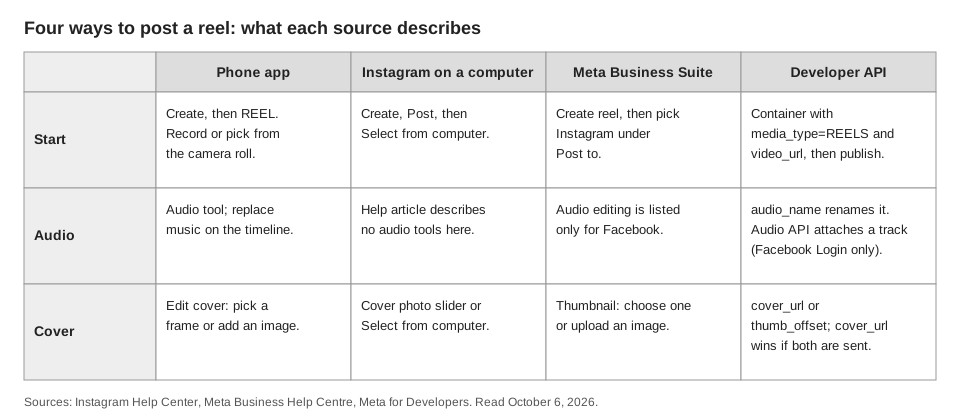
In the app, open the reels tool menu on the left before recording and choose audio, or tap Audio after you tap Next. Instagram's article says you can add music and effects or "use your own original audio". To swap a track later, tap Edit video and tap the music on the timeline to replace it.
One caution comes from Instagram's page on saving and editing reel drafts: downloading your reel won't save any music you added from the Instagram music library.
How to post a reel from a computer
The computer version of the same Help Center article describes a different route that starts from a file instead of the camera:
- Click Create on the left, then click Post.
- Click Select from computer and choose your video. To add another file, click Media in the bottom right, then Add.
- Click Next in the top right. Use the slider below Cover photo to choose a frame from the clip, or click Select from computer to upload a cover. Use the slider below Trim to cut the start or end.
- Click Next again to write a caption, add a location, tag people, add alternate text and adjust settings, then click Share.
The article's own computer text switches between "Click" and "Tap" in the last two steps, and it never mentions audio tools on desktop. We have not tested the desktop flow, so if you need library music or effects, use the phone app.
Can you save a reel as a draft or schedule it?
Yes to both, in the app. Instagram's drafts page says to tap Next twice on the reel you are recording and tap Save draft at the bottom. To edit one, go to your profile, tap Reels, then Drafts. Drafts live on your device only, so you can't open one from another device, and they are lost if you uninstall the app. The page says there is no limit to how many drafts you can save.
For scheduling, Instagram's page on scheduled posts and Reels says to tap Create, tap Post or Reel, pick a video, tap Next, tap More options, turn on Schedule this reel, choose a date and time, tap Done, tap Back, then tap Schedule. You need a public account, and the limit is 25 posts a day, up to 30 days in advance. Our guide to seeing scheduled posts on Instagram shows where scheduled reels end up.
Can you post reels from Meta Business Suite?
Yes. Meta's Business Help Centre page Create and manage reels in Meta Business Suite says you can create reels for Facebook and Instagram there, if you have full control of, or content permission for, the account. On desktop you click Create reel, choose the destination under Post to, and add a video under Media. You then choose a thumbnail, write a caption, and schedule the reel, share it immediately or save it as a draft.
The page lists three limits that matter for Instagram. "You can't create a reel from photos if posting to Instagram." It also says "You can't edit a reel from a video if posting to Instagram." And the step where you add or change a reel's audio and trim it is marked "only if posting to Facebook". So the page describes no audio editing for Instagram reels in Meta Business Suite.
How does posting through the API differ from the app?
Tools that publish for you, including schedulers, do not drive the app. Meta's Content Publishing guide (updated June 30, 2026) says to create a container with media_type=REELS and a video_url, then publish it. The guide is written for Instagram professional accounts.
- Optional Reel fields. Meta's IG User Media reference lists
caption,share_to_feed,cover_url,thumb_offset,audio_name,collaborators,user_tagsandlocation_id. If you send bothcover_urlandthumb_offset, Meta says it usescover_url. - Audio has its own API. The reference describes
audio_nameas the name of the reel's audio, which you can rename once. Meta's separate Instagram Audio API page (updated June 16, 2026) says you can search original sounds and music and attach one to a reel when you create it, using anaudio_configurationobject. It says this works only with the Instagram API with Facebook Login, and that the available selection may differ from the app. We read nothing about effects or templates, so for those use the app.
For how scheduling tools hold your schedule instead of Instagram, see how to automate Instagram posts.
What can TrackMedia do with reels?
TrackMedia's web composer has no Reel option, so you can't pick Reel there. Through the API, a per-target override named reel marks one video as a Reel. TrackMedia then creates the Instagram container with the Reels media type and the video URL, waits for Instagram to process it, and publishes it. For an Instagram account connected through a Facebook Page, TrackMedia's ready-or-blocked check rejects a Reel with more or fewer than one media item. It does not check the file type, so send one video: a single image would go out as a normal image post, not a Reel. That check does not run for accounts connected as "Instagram (no Facebook Page)", where several files would go out as a carousel.
TrackMedia sends the caption, plus a first comment if you set one. It does not send a cover, an audio name, an audio track or the share-to-feed setting, so use the Instagram app when you need to choose those, or when the reel uses in-app audio, effects or templates. TrackMedia does not publish Stories. To plan photo and carousel posts, see how publishing works in TrackMedia and our guide to posting to Instagram and Facebook at the same time. If you want those feed posts queued in one place, you can start free with TrackMedia.
How we checked this
We opened each page below in a browser on October 6, 2026 and copied the menu labels from it. We did not post a reel on a live Instagram account, so we have not tested any flow. Instagram changes its menus, so check the live page if a label looks different.
- Record a reel on Instagram (Instagram Help Center): app and computer steps, cover, trim, caption, audio.
- Save and edit drafts of your reel on Instagram (Instagram Help Center, iPhone version): drafts and music download note.
- How to create and manage scheduled posts and Reels on Instagram (Instagram Help Center, iPhone version): scheduling steps and limits.
- Create and manage reels in Meta Business Suite (Meta Business Help Centre): desktop steps, Instagram limits.
- Content Publishing (Meta for Developers, Instagram Platform, updated June 30, 2026): REELS container steps.
- IG User Media (Meta for Developers, Instagram Platform, updated September 28, 2026): Reel fields.
- Instagram Audio API (Meta for Developers, Instagram Platform, updated June 16, 2026): audio search and the audio_configuration parameter.
We could not verify the Android app steps, whether the computer flow offers any audio options, which accounts can use library music, whether Meta's Audio API covers effects or templates, or why Reels is unavailable on some accounts, so we say little about them. TrackMedia's behavior comes from our Instagram connector code, read the same day.