
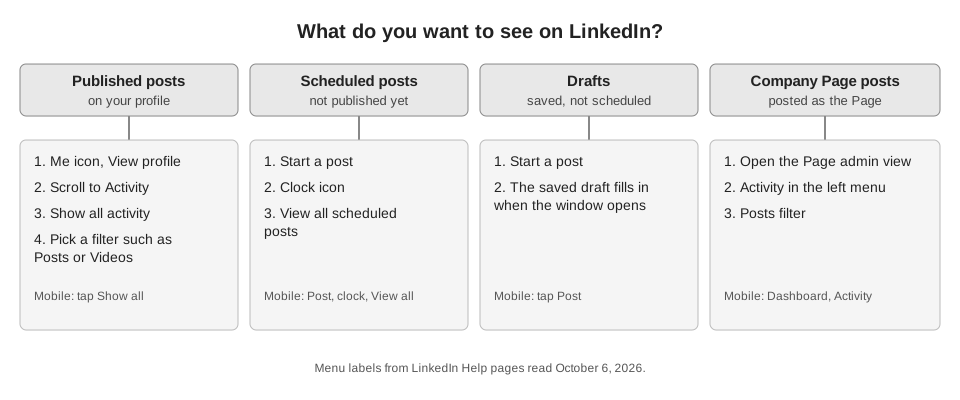
To see your LinkedIn posts, open your profile, scroll down to the Activity section and click Show all activity (on mobile, tap Show all), then use the filters to narrow the list to posts. Scheduled posts, drafts and Company Page posts each live somewhere else, so a post can look missing when you are searching the wrong list.
This guide gives the steps for each case, on desktop and on mobile, plus the limits LinkedIn's Help Center documents and the reasons a post may not show up. As of October 2026, the steps below match the LinkedIn Help pages we read.
How do I see my published LinkedIn posts?
Use the Activity section on your profile. LinkedIn's View your activity page says it shows posts, comments, articles and profile activity, and gives these steps:
- Go to your profile page.
- Scroll down to the Activity section.
- Click Show all activity. On mobile, tap Show all.
- Use the filters to see a specific type of activity.
LinkedIn's page on managing shared content and profile activity adds how to reach your profile on desktop: click the Me icon or your profile picture at the top of the homepage, then View profile. It says to click the type of activity you want, such as Posts, Comments or Videos, and that a type with no activity is not displayed.
Is there a shortcut to my posts list?
On desktop, yes. LinkedIn's post analytics page gives a second route: click the Me icon at the top of your homepage, then click Posts & Activity under Manage. From there you pick the Post, Videos, Images, Articles or Newsletter tab. The same page says to click the impressions count or View analytics on a post to open its analytics.
On mobile, the same page says to tap your profile picture, tap your profile photo again, scroll to Activity, and tap Show all posts.
How do I see my scheduled LinkedIn posts?
Scheduled posts have their own list, separate from Activity. On desktop, LinkedIn's Schedule posts page says to click Start a post, click the clock icon in the Create a post window, then click View all scheduled posts in the Schedule post window. On mobile, tap Post in the navigation bar, tap the clock icon, then tap View all.
That page places the clock icon in the lower-right corner in its scheduling steps and in the lower-left corner in its viewing steps, so look for the clock along the bottom of the window rather than relying on a corner. For editing, rescheduling and deleting from that list, see our guide to seeing and editing scheduled posts on LinkedIn.
Where are my LinkedIn post drafts?
LinkedIn's Save a post as a draft page does not describe a drafts list. It says you save a draft by clicking Start a post, typing, clicking the Cancel button in the upper-right corner, and choosing Save as draft. Its notes say the draft "will auto-populate" when you open the Create a post window next time, so opening Start a post is how you get back to it.
On mobile, the same page says to tap Post in the navigation bar, and the saved draft appears when the post page opens. The desktop page also notes you cannot edit photos or videos in a saved draft and would have to delete and re-upload them.
How do I see my Company Page posts?
Open the Page's admin view first. LinkedIn's Access LinkedIn Pages admin view page says to sign in to the profile that has admin access and click the Page name in the My pages pane on the left of your homepage. If you do not see the Page, it suggests clicking See all or requesting admin access. On mobile, the page says to tap your profile picture in the upper-left corner, then tap the Page under Manage pages.
Then use the Page's activity feed. LinkedIn's Page activity page says to click Activity in the left menu and choose a filter at the top: Requests, Comments, Mentions, Posts, Reposts, Reactions or Analytics. On mobile, tap Dashboard in the upper-left corner, choose Activity, and tap Posts.
Page drafts and scheduled posts are reached from Page posts in the left menu, and LinkedIn's help for them is written for super admins and content admins. LinkedIn's Page draft page says you can access your own drafts at any time but cannot view or publish drafts from other admins, and that to edit, publish or delete a draft later you click the New post button in the upper-right corner, then Start a post. For scheduled Page posts, LinkedIn's edit a scheduled Page post page says to click Page posts, Start a post, the schedule icon in the lower right, then View all scheduled posts. On mobile, the page says to tap Dashboard in the upper-left corner, select Page posts, tap Post, tap the icon in the upper-right corner, then tap View all.
Quick lookup: which route do I use?
| You want to see | Desktop route | Mobile route |
|---|---|---|
| Your published posts | Profile, Activity, Show all activity | Profile, Activity, Show all |
| Your scheduled posts | Start a post, clock icon, View all scheduled posts | Post, clock icon, View all |
| Your draft | Start a post (draft fills in) | Post (draft fills in) |
| Company Page posts | Page admin view, Activity, Posts filter | Dashboard, Activity, Posts |
Why can't I see a LinkedIn post I made?
These are the reasons LinkedIn's help pages give, plus what they leave open:
- The Activity section is hidden. LinkedIn says that if you have had no activity on LinkedIn for 360 days, your Activity section is hidden from your profile.
- The post type has no entry. A type with no activity does not appear as a tab, per the page on managing shared content.
- Age. That same page says you can view and delete content up to two years old from your profile Activity page. LinkedIn does not say where older posts go, and we could not find a documented route to them.
- You posted as a Page. LinkedIn documents the profile Activity list and the Page activity feed separately, so if you posted as a Page, check the Page's Activity feed too.
- It has not published yet. A scheduled post appears in the scheduled list, and a draft appears when you reopen the post window.
- Someone else's view. LinkedIn says that if you cannot see activity on another member's profile, they may have set their settings to private or have no recent activity.
How LinkedIn posts show up in TrackMedia
If you publish through TrackMedia, posts are held in TrackMedia until their scheduled time, so a scheduled one does not appear in LinkedIn's View all scheduled posts list. Instead, the Posts page has a status filter that includes Scheduled, a search box and an account filter, and the Calendar shows posts by month or week. For one view across several profiles, our guide to managing multiple social media accounts covers workspaces.
TrackMedia's code includes a LinkedIn connector that can read an account's own posts for analytics, with imported posts ranked beside posts published through TrackMedia. There is a limit. The code notes that for a personal profile, LinkedIn's permission for listing earlier posts is closed to new applicants, so a member's pre-existing posts usually cannot be listed and account-level totals stand in for them. Treat LinkedIn's own Activity page as the full record of your posts, and TrackMedia as the record of what you published and scheduled through it.
If you want that queue and calendar next to your other networks, start for free with TrackMedia.
How we checked this
We opened each LinkedIn Help page below in a browser on October 6, 2026, clicked both the Desktop and Mobile tabs where a page has them, and wrote only what the page said. We did not test the steps on a live LinkedIn account, so the menu labels may differ from what you see, and LinkedIn labels several of these pages as last updated between 1 month and 3 years ago. TrackMedia statements come from its own product code.
- LinkedIn Help, View your activity or a member's activity on LinkedIn (Activity section, 360-day note, desktop and mobile).
- LinkedIn Help, Manage shared content and profile activity (reaching your profile, two-year note).
- LinkedIn Help, View post analytics for your content (Posts & Activity route, desktop and mobile).
- LinkedIn Help, Schedule posts (view scheduled posts, desktop and mobile).
- LinkedIn Help, Save a post as a draft (desktop and mobile).
- LinkedIn Help, Access LinkedIn Pages admin view (desktop and mobile).
- LinkedIn Help, View and engage with your LinkedIn Page activity (desktop and mobile).
- LinkedIn Help, Create a LinkedIn Page draft post and Edit a scheduled LinkedIn Page post (the draft page has one set of steps; the scheduled-post page has Desktop and Mobile tabs).
What we could not verify: whether LinkedIn keeps a dedicated list of personal-profile drafts, how to reach posts older than two years, whether posts scheduled through other tools appear in LinkedIn's own scheduled list, and whether TrackMedia's LinkedIn connector is enabled on your workspace.