A LinkedIn content planner is three things: a backlog of post ideas, a calendar of dated slots, and a regular look at your results. LinkedIn's own tools cover part of this, because the Help pages we read describe a list of scheduled posts and saved drafts, but no calendar view, so the calendar and the habit are yours to build.
This guide shows what LinkedIn lets you schedule, save and review (read from its Help Center on October 6, 2026), gives a four-week example plan you can copy, and explains how the TrackMedia calendar fits in. The cadence advice is our opinion and is labeled as such. The LinkedIn pages we read give no best time and no recommended number of posts per week.
What does a LinkedIn content planner need?
It needs one place for each of three jobs, so ideas do not get lost in a notes app while dates sit in a spreadsheet and results go unread.
- A backlog. Ideas and half-written posts with no date yet.
- A calendar. Each post attached to a day, a time and the account it goes out on (a person or a Page).
- A review step. A scheduled check of what worked, which feeds the backlog.
What planning tools does LinkedIn offer?
LinkedIn offers scheduling, drafts and analytics for both profiles and Pages. The rules differ, so check which one you are planning for before you build a calendar.
Scheduling on a profile or a Page
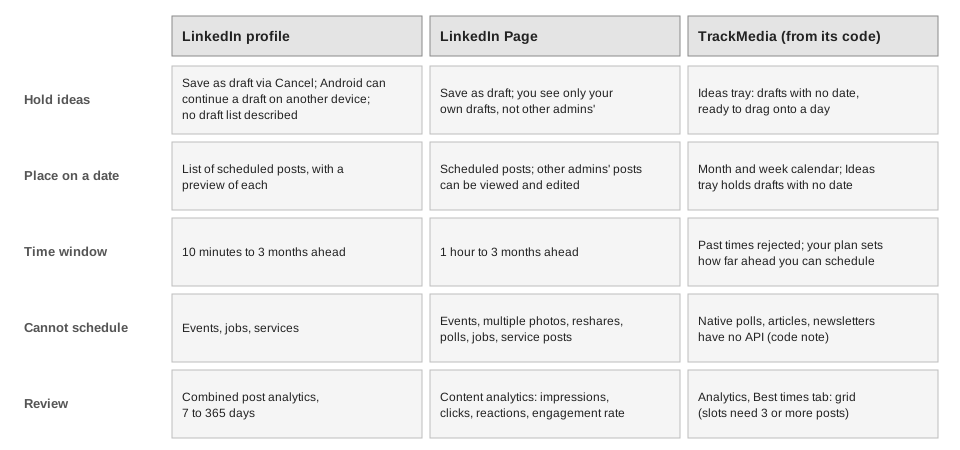
LinkedIn's Schedule posts page says a profile post must be scheduled for a time within 10 minutes to 3 months from now. It says scheduling is not supported for events, jobs and services, and that the scheduled time is standardized in UTC based on your device's time zone settings.
For Pages, Scheduled posts for LinkedIn Pages says a super admin or a content admin can schedule a post or newsletter article from an hour to three months ahead. It lists what cannot be scheduled: events, multiple photos, reshares, polls, jobs and service posts. Other Page admins can view, edit, reschedule and delete each other's scheduled posts, and the Page scheduling steps say the time is based on your location. Our guide to seeing and editing scheduled LinkedIn posts has the click paths.
Drafts
For a Page, LinkedIn's Create a LinkedIn Page draft post page says a super or content admin can save a draft with the Save as draft button. You can open your own drafts at any time, but you cannot view or publish drafts from other admins.
For profiles, LinkedIn's Save a post as a draft page says to click Start a post, write the post, click Cancel, then click Save as draft in the "Save this post as a draft?" window. It says the draft fills in again the next time you open the Create a post window, and that you cannot edit photos or videos in a saved draft: you delete and re-upload them. The page does not describe a list of drafts, so do not treat it as a backlog. On Android only, Get started with posting on LinkedIn says you can continue a draft on another device.
How do you plan a month of LinkedIn posts?
Work backward from what you can keep up, then fill the slots. The steps below are our suggested method, not a LinkedIn requirement.
- Pick the account first. A profile and a Page have different scheduling windows and different limits. Plan each as its own row on the calendar. If you run several, managing multiple social media accounts covers naming and roles.
- Choose a cadence you can sustain. This is opinion: two posts a week you actually publish beat five you abandon in week three. LinkedIn's Page posts FAQ has a tip saying Pages that post weekly have more followers, growing faster, than Pages that post monthly, and its Page scheduling page mentions a "regular cadence". Neither gives a number of posts per week or a method for the comparison, so we cite no frequency.
- Name two or three themes. Themes are topics you can write about repeatedly, such as a lesson learned, a customer question answered, or a product change explained.
- Fill the backlog first. Write ideas as short drafts, and keep more ideas than slots.
- Mark manual-only formats. LinkedIn says events, jobs and services cannot be scheduled from a profile, and that events, multiple photos, reshares, polls, jobs and service posts cannot be scheduled for a Page. TrackMedia's code also cannot create LinkedIn polls. Put those formats in slots you publish by hand.
- Schedule in one sitting. Batch the month and leave room for a reactive post.
Here is an example plan: two slots a week, with a different format each time. The days and formats are placeholders, not a recommendation.
| Slot | Format | How it goes out |
|---|---|---|
| Tuesday, week 1 | Text post with one idea | Scheduled |
| Thursday, week 1 | Single image post | Scheduled |
| Tuesday, week 2 | Post with a link | Scheduled |
| Thursday, week 2 | Poll | Published by hand (not allowed on scheduled Page posts, and TrackMedia cannot create LinkedIn polls) |
| Weeks 3 and 4 | Repeat the best two formats from weeks 1 and 2 | Decide after the first review |
How do you review a LinkedIn content plan?
Set a recurring review, such as the first Monday of each month, and read the same screens each time. LinkedIn gives two sets, depending on whether you post as a profile or a Page.
- Profile. LinkedIn's Combined post analytics page says you can pick a date range from the past seven days up to the past 365 days and switch between impressions and engagements. It lists reactions, comments, reposts, saves and sends, and previews up to three top performing posts for the range, with a Show more link for the rest. For one post, the post analytics page says to click Me, then Posts & Activity under Manage, choose a tab, and click the impressions count or View analytics.
- Page. LinkedIn's Content analytics page lists impressions, members reached, clicks, reactions, comments, reposts and engagement rate, and says metrics can take 48 hours to appear, except reactions and comments, which are real time.
Use the review to ask which themes and formats earned the most engagement per impression, and which days or hours did better for you. The LinkedIn pages we read give no universal best time, so your own history, with enough posts per slot, is the evidence that applies.
How does TrackMedia work as a LinkedIn content planner?
TrackMedia puts the backlog, the calendar and the results in one workspace. Everything in this section comes from the product's code, which we read on October 6, 2026. TrackMedia's code includes LinkedIn connectors for personal profiles and for Company Pages. We could not confirm that Company Page posting is available in every workspace, so this section does not promise it.
- Backlog. A draft saved without a date appears in the Ideas tray beside the Calendar, with icons for the networks it targets (the tray loads up to 50 drafts). Click an idea to open it, then finish it and give it a date in the full editor. The tray also lets you drag an idea onto a day, but we do not recommend it. In the month view a dropped idea takes the current time of day, so dropping it on today schedules it for the current minute and it goes out almost at once, and dates in the past are rejected. The code also shows a calendar drop sending only the new time to the API, without the post's targets, and we could not test that the post then publishes at that time, so do not rely on a drop for a post that matters.
- Calendar. It has Month and Week views, status filters and an account filter, so one LinkedIn account can be viewed alone. Times use the workspace time zone, and a month cell shows three posts and a "+N more" link. To add a post, hover a day and click Create new post (in the week view, the small + in an hour cell). This quick-create dialog schedules the post straight away for the date and time shown, with only the text you type and no image or other media. On a future day the time defaults to 09:00, on today to a time roughly one to two hours ahead, and in the week view to the hour you clicked. Whatever you type is what publishes at that time, so do not use it for a private note. Tick Open the full editor after creating to add media, and edit or unschedule the post before its time if it is not ready.
- One draft, several networks. The composer holds one master text with per-network versions, and a live character counter per selected network. LinkedIn's Post and share updates page says the character limit for a post is 3,000, and TrackMedia's code uses the same number for its LinkedIn counter.
- Review. The Analytics section has a Best times tab with a grid that averages engagement by publish hour and only highlights slots with enough posts (three by default). Which LinkedIn numbers arrive depends on the permissions LinkedIn grants.
Two limits matter for planning. First, a post scheduled in TrackMedia is held by TrackMedia until its time, so it will not show in LinkedIn's own scheduled list. Second, TrackMedia's code notes that native polls, articles and newsletters have no API, so those stay manual, as in the plan above. You can read more on scheduling and publishing, and the same calendar logic applies to other networks, as in our Instagram content calendar guide.
If you want one calendar for LinkedIn and your other networks, start for free with TrackMedia.
How we checked this
We opened each page below in a browser on October 6, 2026 and wrote only what it said. We did not test scheduling or drafts on a live LinkedIn account, so button labels may differ on your screen. TrackMedia statements come from reading its code, not from a live LinkedIn test.
- LinkedIn Help, Schedule posts (profile window, exclusions, UTC note).
- LinkedIn Help, Scheduled posts for LinkedIn Pages and Schedule a LinkedIn Page post (Page window, roles, exclusions, time basis).
- LinkedIn Help, Create a LinkedIn Page draft post (Save as draft, own drafts only).
- LinkedIn Help, Save a post as a draft (profile draft steps).
- LinkedIn Help, Get started with posting on LinkedIn (Android draft note).
- LinkedIn Help, Post and share updates (3,000-character limit for a post) and LinkedIn Page posts FAQ (weekly versus monthly tip).
- LinkedIn Help, Best practices for sharing content on LinkedIn (a short page of links; it gives no frequency or timing).
- LinkedIn Help, Combined post analytics, View post analytics for your content and Content analytics for your LinkedIn Page.
We could not verify whether LinkedIn has a calendar view inside its own product (the pages we read describe none), how many drafts a profile can hold, or whether dragging a post on the TrackMedia calendar moves its publish time correctly. The example plan and the cadence advice are our suggestions, not LinkedIn guidance.