To use Pinterest, you sign up, save Pins to boards so you can find them later, and create your own Pins by uploading an image or video with a title, description and link. A board is a collection, and a Pin is one saved or created idea inside it.
This guide follows Pinterest's help pages on boards, creating a board, creating a Pin, Pin specs, scheduling Pins and business accounts, read on October 22, 2026. It also covers using Pinterest to send people to a website.
Sources: boards · creating a board · creating a Pin · Pin specs · scheduling Pins · business accounts
What is Pinterest and how does it work?
Pinterest is a place to save and organize ideas. Pinterest's help page on boards describes boards as "a place to save, organize and bring your ideas to life," and says you save Pins you discover to a board so you can find them later.
Three words cover most of the site:
- Pin: one idea, shown as an image or video with a title, description and optional link.
- Board: a collection of Pins on one theme, such as "Small kitchen ideas."
- Profile: where your boards and the Pins you created appear.
How to start using Pinterest
- Create an account. Pinterest's business account page shows the sign-up flow: go to Pinterest, click Sign up at the top right, then enter your email, a password and your age and click Create account. That page covers business accounts; a personal account starts from the same sign-up screen.
- Make a first board. See the next section.
- Save Pins you like into it.
- Create your own Pin once you have a few boards.
If you plan to use Pinterest for a website or shop, consider a free business account. Pinterest says it gives access to analytics on your Pins and the ability to run ads. You can also convert a personal account: in Settings, choose Account management, find Convert to a business account and click Convert account. Pinterest says your Pins and followers stay the same.
How to create a board on Pinterest
Pinterest's page for creating a board gives these steps on a computer:
- Click the plus icon in the navigation bar on the left side of your screen.
- Select Board.
- Enter a name. Pinterest may suggest a name from your activity, and you can edit it.
- Toggle Keep this board secret if you want it secret, and add collaborators if you like.
- Click Create.
You can also make a board while saving: hover over a Pin in your home feed, click the arrow next to the suggested board name at the top of the Pin, click Create board, name it and click Create.
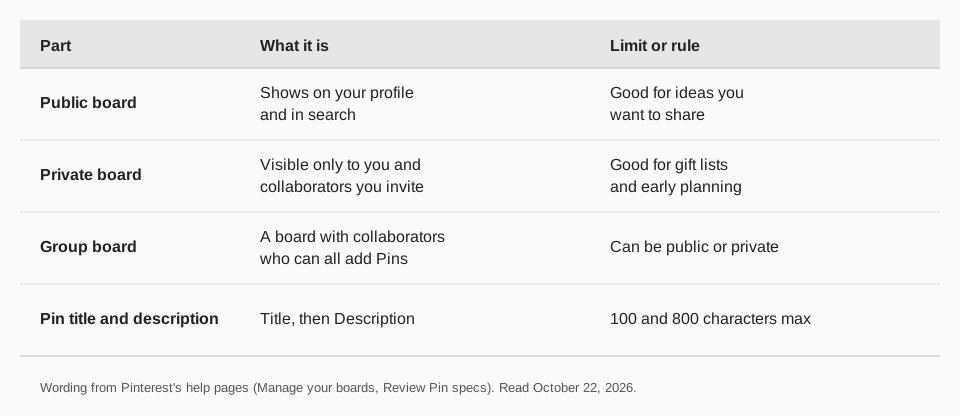
Pinterest lists three kinds of boards. Public boards show on your profile and in search. Private boards are visible only to you and any collaborators you invite. Group boards have collaborators who can all add and organize Pins, and they can be public or private.
How to create and post a Pin
Pinterest says you can create Pins by uploading images or videos from your computer, tablet or phone. On the web, the steps are:
- Click Create at the top left. With a business account, select the menu icon and, under Create, Create Pin.
- Upload your image (or drag and drop it). You can select up to 10 images, and each image creates a new Pin.
- Add the Pin's information: Title, Description, Link, Board, and up to 10 related topics.
- Edit if needed with the pencil icon at the top right of the image, then click Done.
- Click Publish.
Video works the same way, with an extra Cover option (Edit cover) to choose a thumbnail. To combine several images and videos in one video Pin, Pinterest says to use the Pinterest app. The page also shows Mark as AI-Modified toggles for content made completely or partly with AI, and a More options section where you can turn comments and shopping recommendations on or off.
We have a longer walkthrough in how to post on Pinterest, including Pin editing and deleting.
Pin limits to know
Pinterest's Pin specs page gives these limits:
| What | Limit | Notes |
|---|---|---|
| Title | 100 characters | Same for image and video Pins |
| Description | 800 characters | Not shown in the home feed or search feed, but used for relevance |
| Image file types | BMP, JPEG, PNG, TIFF, WEBP | Web: 20 MB maximum |
| Video length | 4 seconds to 5 minutes | 9:16 recommended for full-screen video |
The same page says descriptions are used by Pinterest's algorithm to determine relevance for delivery, and recommends entering one.
Can I draft or schedule Pins?
Yes. Pinterest says you can save a Pin as a draft, but drafts expire 30 days after you first store them, and you cannot edit drafts across devices: a draft started in the app must be finished there. On a desktop you can save up to 50 drafts and publish them all at once.
For scheduling, Pinterest's Schedule Pins page says you can schedule a standard Pin up to 30 days in advance, one Pin at a time, with up to 10 Pins scheduled for the future. Scheduled Pins appear on your profile, above your published Pins. You can update the publish date, title, board, description and link later, but not the image or video. See how to schedule Pins on Pinterest for the full steps.
How to use Pinterest to send people to your website
A Pin's Link field is what turns a saved idea into a visit. Pinterest describes it as a way to give people a place to learn more. To get the most out of it:
- Add a link to every Pin you create that has a page behind it.
- Write the title and description for search. Use the words a person would type, and fill the full 800 characters only if they help.
- Pin to a board that matches the idea, so the Pin sits with similar ones.
- Tag the link with UTM parameters so your analytics shows Pinterest as the source. Our guide to UTM naming conventions shows a consistent scheme.
- Check what earns clicks and make more of that. Our article on the best time to post on Pinterest covers timing.
How to use Pinterest with TrackMedia
TrackMedia lets you create Pins on Pinterest without opening Pinterest each time. Connect your account, and each board you can post to appears as a destination in the composer.
- Pick the board and publish. A Pin needs a board and an image or video, and the preflight check tells you if either is missing before the post goes out. Alt text is supported.
- Write once, fit to each network. The same composer publishes to 21 networks, with a version fitted to each, so a blog post can become a Pin, a LinkedIn post and a Bluesky post together.
- Schedule with a calendar and queues. Fill queue slots from a content collection to keep a steady flow of Pins.
- Measure the visit. Links in your Pins get UTM tags and real-time click tracking, with clicks, visitors and referrers per post. Analytics also cover Pins you did not publish with TrackMedia.
Create boards in Pinterest itself, since TrackMedia posts to boards you already have. The free plan includes 15 posts a month and one account per network, with no card. Start free with TrackMedia to connect Pinterest.
Questions people also ask
How do I post on Pinterest?
Click Create at the top left, upload an image or video, add a title, description, link and board, and click Publish. On a business account, select the menu icon and then Create Pin.
Is Pinterest free to use?
Yes for the basics. Pinterest describes a business account as free, with access to analytics on your Pins and the ability to run ads.
What is the difference between a Pin and a board?
A Pin is a single image or video idea. A board is a collection of Pins on one theme. Boards can be public, private or group boards.
Can I use Pinterest without making my own Pins?
Yes. Many people only save other people's Pins to boards. Creating your own Pins matters if you want to send visitors to a website.
How many Pins can I create at once?
Pinterest's page says you can select up to 10 images or videos when you create Pins on the web, and each one creates a new Pin.
How we checked this
We opened each Pinterest Help page below in a browser on October 22, 2026 and copied the labels and limits. Pinterest changes its menus, and some pages show different icons on the web and in the app, so use your own screen's labels if they differ. TrackMedia's behavior comes from reading its Pinterest connector code the same day.
- Manage your boards: public, private and group boards.
- Create a board: steps and the secret option.
- Create a Pin from an image or video: upload steps, fields, drafts.
- Review Pin specs: title, description, file and video limits.
- Schedule Pins: the 30-day window and 10-Pin limit.
- Get a business account: sign-up and conversion steps.