To schedule Pins on Pinterest, log in to a business account, click Create, choose Create Pin, fill in the Pin, then select Publish at a later date and pick the day and time. Pinterest's Help Center says you can schedule a Pin up to 30 days in advance, one Pin at a time, with up to 10 Pins scheduled at once.
This guide uses the wording on Pinterest's own pages, read on October 6, 2026. It covers the desktop and app steps, how to edit or delete a scheduled Pin, what Pinterest's API documents about scheduling, and how TrackMedia's code handles Pins.
How to schedule Pins on Pinterest from a computer
Pinterest's Help Center page Schedule Pins opens by saying that with a business account you can schedule standard Pins for future posting. Its desktop steps are:
- Log in to your Pinterest business account.
- Click Create at the top-left of your screen. The page adds that if you have a business account, you select the menu (hamburger) icon and, under Create, choose Create Pin.
- Upload your media. Click the upload arrow to select an image or video. You can select up to 10 images, and each image creates a new Pin. To combine several images and videos into one video Pin, Pinterest says to use its app.
- Fill in the Pin details.
- Select Publish at a later date and choose the day and time you want the Pin to go live.
- Finish creating the Pin.
To check the result, visit your profile. Pinterest says it may take a few minutes for scheduled Pins to appear there.
How to schedule a Pin in the Pinterest app
The same Help Center page has app steps, and it gives two slightly different versions of the date row. We could not tell from the page which version belongs to which phone, so go by the labels on your screen.
- Open the Pinterest app and log in to your business account.
- Tap the plus icon at the bottom of the screen and select Pin.
- Select one or more images or videos from your device. If you pick more than one, Pinterest says they are stitched together into a single video Pin.
- Tap Next. Use the menu at the bottom to edit the Pin (for example add text or other effects) and tap Next again, then fill in the Pin details. Pinterest says a Pin with a single image skips the edit step.
- Next to Schedule date or Schedule publish date, tap the arrow. In the page's second version of the steps, the row is labeled Schedule date and you tap an arrow or a pencil icon.
- Select the date and time, then tap Done.
- Tap Schedule, review the date and time, and tap Schedule again to confirm.
What are Pinterest's scheduling limits?
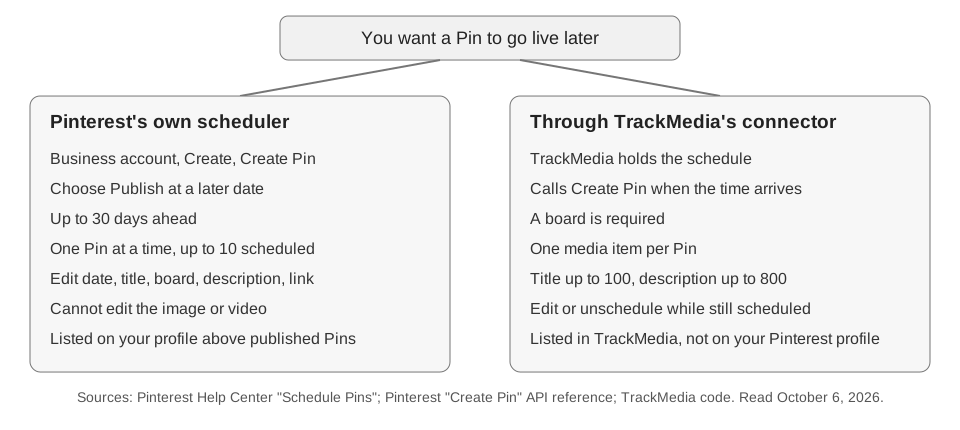
Pinterest documents these limits and rules on the Schedule Pins page. They describe Pinterest's own scheduler:
| Item | What the page says | Where |
|---|---|---|
| How far ahead | Up to 30 days in advance | Schedule Pins |
| How many at once | One at a time, up to 10 Pins scheduled | Schedule Pins |
| Account type | Business account, standard Pins | Schedule Pins |
| Editable later | Publish date, title, board, description, link | Schedule Pins |
The same page says you cannot edit the image or video of a Pin once it is scheduled. If the media is wrong, delete the scheduled Pin and create it again.
How to see or delete a scheduled Pin
Pinterest says to go to your profile, where scheduled Pins appear above all your published Pins. Click or tap the ellipsis icon at the bottom of the Pin you want to remove, then select Delete.
Can a scheduling tool use Pinterest's scheduler?
We found no way for an outside tool to use Pinterest's own scheduler. Pinterest's Create Pin API reference describes POST /pins as creating a Pin on a board or board section. The request body we read lists alt_text (up to 500 characters), description (up to 800), title (up to 100), link (up to 2048), board_id, board_section_id, media_source and a few others. We found no field for a publish time.
That matters because, going by the fields on this page, a tool connected through this endpoint has nothing to hand Pinterest that says "publish on Friday." A tool built only on this endpoint would have to keep the schedule itself and call Create Pin when the time arrives. Pinterest does not say on these pages whether its 30-day and 10-Pin limits apply to Pins created that way, so we do not claim that they do or do not.
One more documented constraint applies to app developers. Pinterest's access tiers page says Pins created with Trial access are visible only to their creator as Sandbox entities, and recommends Standard access if you want to offer Pinterest capabilities to your users. Which tier TrackMedia's own Pinterest app holds is not something we could verify.
How does TrackMedia schedule Pins?
TrackMedia's code includes a Pinterest connector. We could not confirm that Pinterest publishing is switched on in the live product, so check your connected accounts before you plan around it. If it is on, a Pin is scheduled like any other post. What the connector does, read from the code:
- A board is required. The composer shows a Post to field that lists the boards Pinterest returns for the account. If Pinterest lists none, you type the board ID. Without a board, preflight blocks the post with "Choose a board to post to."
- One media item per Pin. A Pin needs media, and the connector accepts one item. The code lists video as well as images, but we could not confirm that video Pins publish end to end, so this guide describes image Pins. To schedule several images, as in Pinterest's up-to-10 option, create one post per Pin.
- Title and description. The per-account editor has an optional Title field limited to 100 characters. The post text becomes the description, and the character counter flags it above 800. Both match the API reference above. The connector also passes alt text and a destination link when they are set.
- The schedule is TrackMedia's. TrackMedia stores the time and publishes when it is due, so the Pin will not appear in the scheduled area of your Pinterest profile. It shows up in TrackMedia's Posts page under the Scheduled filter and on the calendar, where you can drag it to another day. Past times are rejected, and how far ahead you can schedule depends on your plan.
The native-versus-tool split is the same one covered in how to see scheduled posts on Instagram: a post held by a tool shows in the tool's queue, not in the platform's own list.
Links on Pins and tracking
TrackMedia has a link setting called Leave Pinterest links as written, switched on by default, with the hint that Pinterest demotes Pins that link through a shortener. That is TrackMedia's own reasoning, and we did not find a Pinterest page that confirms it. If you want campaign data on a Pin's destination link, add UTM parameters to the URL yourself and keep the names consistent, as in UTM naming conventions.
The connector can also read Pin impressions, saves, clicks and engagement rate back into the analytics view, as far as Pinterest supplies them. You queue Pins from the publishing tools.
You can start free at TrackMedia to connect a Pinterest account and see which boards it lists.
How we checked this
All pages were opened in a browser on October 6, 2026.
- Pinterest Help Center, Schedule Pins: the 30-day and 10-Pin limits, business account requirement, editable fields, desktop and app steps, viewing and deleting scheduled Pins.
- Pinterest Developers, Create Pin (POST /pins): request fields, character limits, and the absence of a publish-time field.
- Pinterest Developers, Understanding our access tiers: Trial Pins visible only to their creator.
- TrackMedia's code: the Pinterest connector under
packages/connectors/src/pinterest, the composer's board and title fields, the link settings panel, and the scheduling behavior of the Posts page and calendar.
Not verified: how to create or convert to a Pinterest business account (we did not open a page for it), which app steps belong to iPhone and which to Android, whether Pinterest's scheduling limits apply to API-created Pins, whether Pinterest demotes shortened links, whether the Pinterest connector is live in TrackMedia's production deployment, which Pinterest API access tier TrackMedia's app holds, and whether video Pins publish end to end through the connector. We also did not search Pinterest's other help pages for scheduling statements that differ from the Schedule Pins page.