To use LinkedIn, sign up with your real name, fill in your profile, connect with people you know, share posts and search for jobs. LinkedIn's Help Center calls it a professional network where you find jobs, build relationships and learn career skills, and it is free to join.
This guide follows LinkedIn's Help pages on what LinkedIn is, signing up, connecting, posting and searching for jobs, all read on October 22, 2026. It is ordered the way a new member would work through it.
Sources: what LinkedIn is · signing up · connecting · posting · searching for jobs
How do you sign up for LinkedIn?
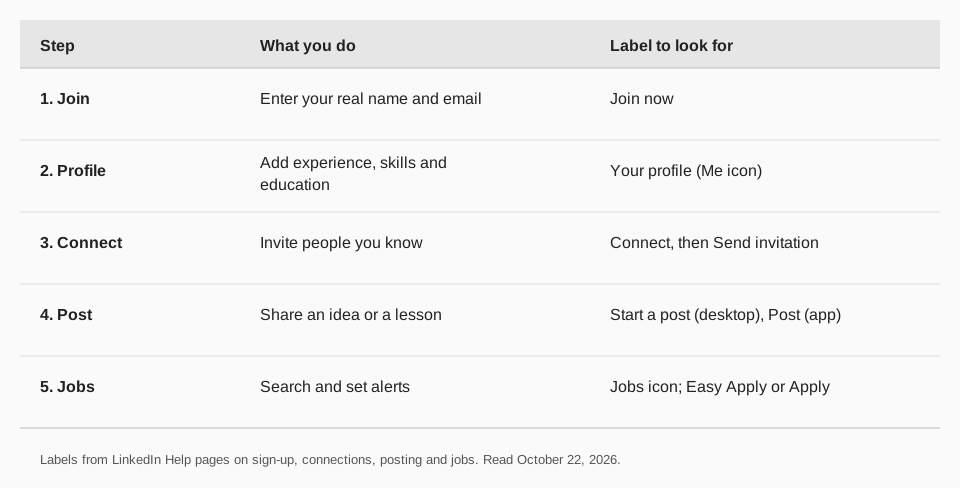
Go to the sign-up page, enter your first name, last name and email address, create a password if the form asks for one, and click Join now. Follow any extra prompts. You can also sign up with a Google or Apple account, which needs no password.
Two rules from LinkedIn's Help page matter early. You must use your true name, because company names and pseudonyms are not allowed. And you should not use an email tied to a shared office or role, such as a marketing address. LinkedIn also does not permit multiple profiles.
How do you set up your LinkedIn profile?
LinkedIn says creating your profile is the recommended first step. A complete profile shows your experience, skills and education to connections and employers.
Work through it in this order: your name and current role, your work history, your education, then your skills. LinkedIn's guide does not set a minimum, so add what is true and relevant to the people you want to reach. You can come back and edit it at any time.
How do you connect with people on LinkedIn?
Open a member's profile and select Connect. If you don't see it because Follow is the main button, select More and then Connect. You can do the same from People you may know. To accept invitations others sent you, use My Network.
LinkedIn suggests starting with people you already know: family, friends, classmates and coworkers. A few facts from the Help pages:
- You need a primary email address to send invitations.
- You can have up to 30,000 1st-degree connections.
- If you answer that you don't know the person, you may be asked to send a message first. Depending on their settings, it could be an InMail message.
- Your account can be temporarily restricted from sending invitations if members report them as unwanted or spam.
The labels 1st, 2nd and 3rd on a profile tell you how far someone is from you. Our guide on what 1st, 2nd and 3rd mean on LinkedIn explains each one.
How do you post on LinkedIn?
On a computer, use the share box at the top of your homepage or feed. Choose Start a post for text, or Video, Photo or Write article. The More menu adds Celebrate an occasion, Create an event, Share that you're hiring, Create a poll and Add a document.
In the mobile app, tap the Post icon and pick a format. LinkedIn's page says you can create or edit a draft on one device and finish it on another, and that an Author tag appears next to your name when you comment on your own post.
For a first post, share one thing you learned at work or a question you are working on. Reply to the comments you get, since commenting is part of how LinkedIn describes joining conversations. To see your own posts afterward, read how to see your LinkedIn posts.
How do you search for jobs on LinkedIn?
Click the Jobs icon at the top of the homepage, click the search bar and describe the job you want. Add details to narrow the results, then use the filters. Turn on the alerts toggle to get job alerts for that search, and click Save on a job page to keep it.
LinkedIn's page separates two kinds of listing. Easy Apply lets you apply on LinkedIn. Apply sends you to the company's or a third party's website. You can keep your profile and job preferences current under Jobs, Preferences and Open to work.
Is LinkedIn free?
Basic membership is free. LinkedIn's page says Premium subscriptions add features and include marketing, recruitment, sales and learning products, and that a free one-month Premium trial is available. You can do everything in this guide on a free account.
How to keep posting on LinkedIn with TrackMedia
After the first week the hard part is consistency. TrackMedia lets you write a LinkedIn post once, add an image or a document, and schedule it for the time you choose. A calendar and posting queues keep a steady rhythm without you opening LinkedIn each day.
The same composer publishes to 21 networks on every plan, with a version fitted to each network and preflight checks before anything is sent. The free plan covers 15 posts a month with one account per network and no card, which is enough to test a weekly LinkedIn habit.
Real-time link tracking with UTM tags then shows clicks, visitors and referrers per post, so you learn which posts send people to your site. Our LinkedIn content planner guide shows how to plan a month, and the best time to post on LinkedIn guide helps you pick slots. Start free with TrackMedia.
Questions people also ask
How do you use LinkedIn for a job search?
Click the Jobs icon, describe the job, refine with filters and turn on alerts. Use Easy Apply to apply on LinkedIn or Apply to go to the employer's site.
Do I need to pay for LinkedIn?
No. Basic membership is free, and Premium is optional.
Can I use a company name or nickname?
Not for a personal profile. LinkedIn says you must use your true name, and company names and pseudonyms are not allowed.
Who should I connect with first?
LinkedIn suggests family, friends, classmates and coworkers.
How we checked this
We opened each page below on October 22, 2026 and copied the labels. We did not test the steps on a new account, and LinkedIn changes its pages, so check the live page if a label looks different. TrackMedia statements come from its pricing and feature pages.
- What is LinkedIn and how can I use it? (LinkedIn Help): what LinkedIn is, the getting-started list, free versus Premium.
- Sign up to join LinkedIn (LinkedIn Help): sign-up steps and the real-name rule.
- Invite or connect with people on LinkedIn (LinkedIn Help): Connect steps, limits, restrictions.
- Get started with posting on LinkedIn (LinkedIn Help): share box formats, drafts.
- Search for jobs on LinkedIn (LinkedIn Help): job search steps, alerts, Easy Apply versus Apply.